TABLE OF CONTENTS
Payment markings in Moder
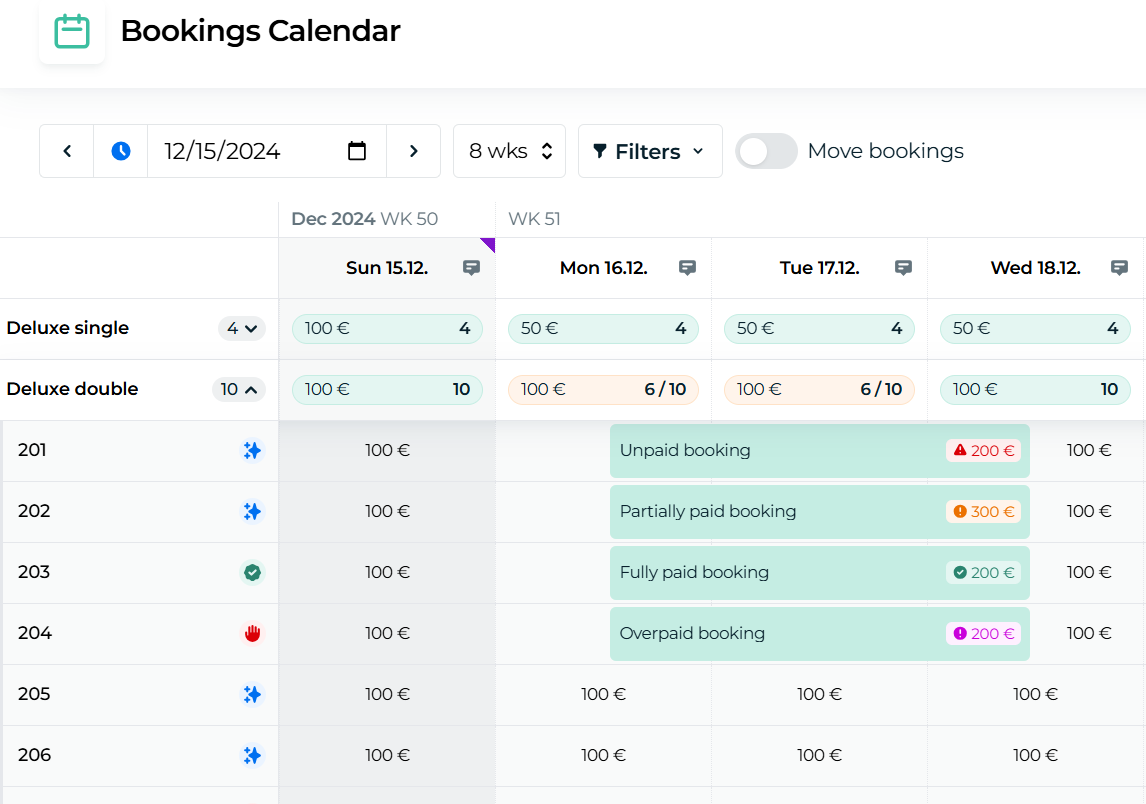
Payment markings are a crucial part of managing bookings in Moder, as they help you track which bookings have been paid and which are still awaiting payment. In the Booking calendar, payment details are clearly displayed next to the customer's name using symbols that indicate the booking's payment status at a glance.
This makes it easy to manage payment situations and take any necessary actions.
Payment status symbols:
Red Triangle: The booking has not been paid at all.
Orange Circle: The booking has been partially paid.
Green Check Mark: The booking has been fully paid.
Purple Up Arrow: The booking has been overpaid
Creating a payment marking on a Booking
If the traveler pays for the booking on-site, for example, with a card, or the payment is received through an external sales channel (e.g., Booking.com or Airbnb processes the payment), and no Moder receipt is needed, you can add a payment marking to the booking.
Moder Tip! If the customer pays on-site and you want to issue a receipt in Moder, first create an invoice and mark it as paid with the desired payment method. Once this is done, a receipt for the payment will be available in Moder. Detailed instructions for creating a receipt will be covered after the payment markings section.
Guide to creating a payment marking
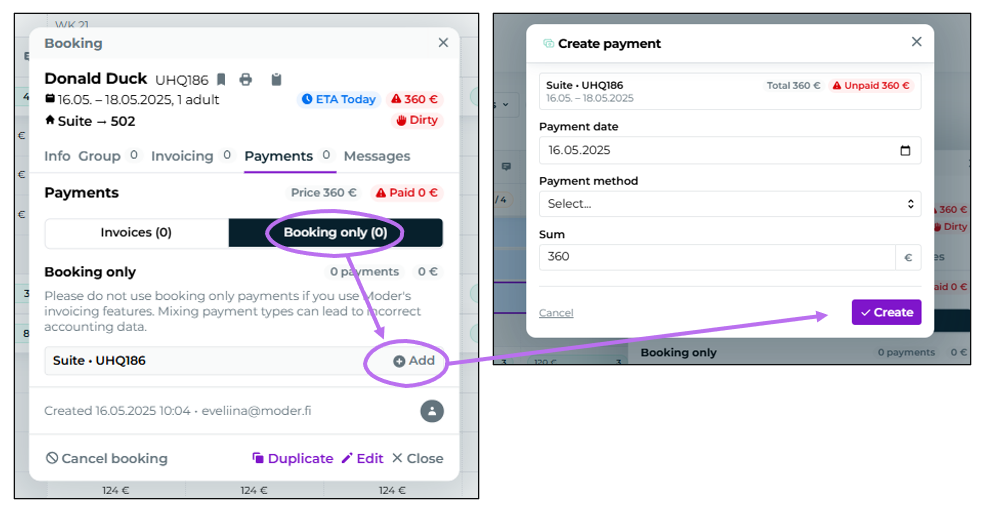
- Open the booking preview
Click on the desired booking in the Booking calendar or Booking list to open it. - Go to the Payments Tab
Select “Booking Only” and click “+ Add”.Create the payment entry by filling in: Payment Date, Payment Method and Amount
- Editing or Removing a Payment Entry
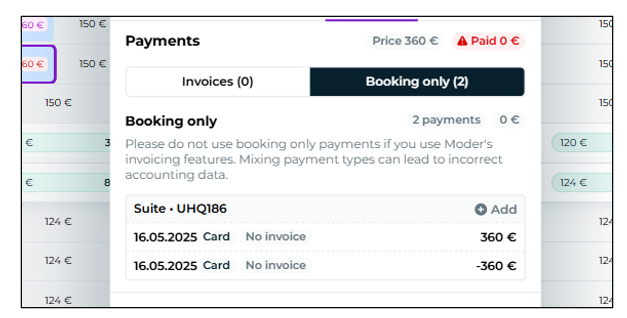
Payment entries cannot be deleted.If you need to correct a payment, create a counter payment entry using the same payment method but with a negative amount. This will effectively cancel out the original payment.
With these steps, you can efficiently manage payment markings and ensure all payments are accurately recorded for bookings.
Was this article helpful?
That’s Great!
Thank you for your feedback
Sorry! We couldn't be helpful
Thank you for your feedback
Feedback sent
We appreciate your effort and will try to fix the article