Payment marking and receipt
Last updated: September 30, 2026
If you are using Paytrail or Stripe and have sent the customer a payment link, the payment entry also comes to Moder automatically. This also applies if a customer books in your online store and pays at the same time.
If you have sent a PDF invoice and then the payment goes to your account, the payment entry also needs to be made manually to Moder. In this guide we cover creating a payment entry.
Also, if a customer pays on site and wants a receipt, an invoice must be created and marked as paid manually. In Moder, the receipt always refers to the invoice. If the reservation already has only a payment entry and the customer also wants a receipt, only the reservation's payment entry should be refunded with a negative payment entry, and then an invoice should be created and marked as paid.
We therefore always recommend creating an invoice and marking it as paid, even if the customer pays on site, for example with cash or card.
In this article we only cover making a payment note and receipts. Creating the invoice or payment link itself is covered in this guide:
Invoices & payments: payment link & PDF invoice
Payment notes
From Moder's booking calendar you can easily distinguish reservations that are already in a paid status from those that have not yet been paid or for which no payment entry has been made in Moder. The reservation's payment status is displayed after the customer's name with a symbol. There are four types of payment statuses:
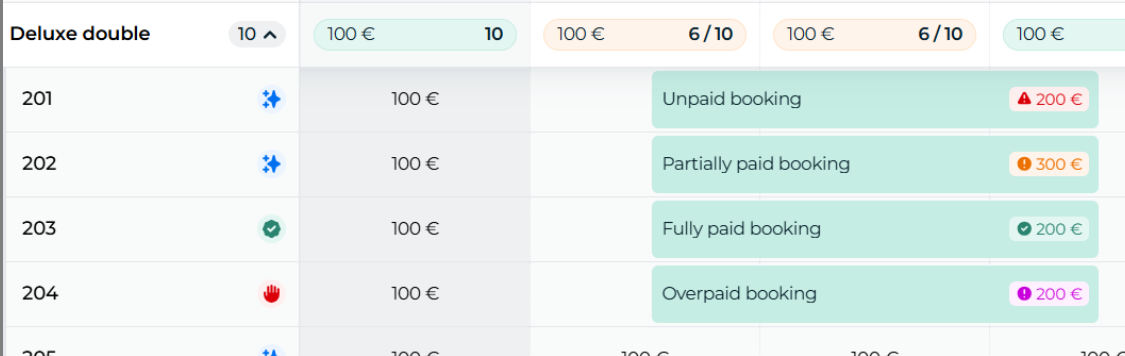
Red triangle: reservation has not been paid at all
Orange circle: reservation is partially paid
Green check-mark: reservation is fully paid
Lilac upward arrow: the reservation has been overpaid
The payment entry can be made in two ways:
1. Open the invoice and make a payment entry.
2. Open the Reservation preview, go to the Payments tab and make a payment entry.
1. Payment entry for the invoice
Open the invoice:
When the customer has paid the invoice to your bank account or on-site using any payment method, open the invoice through the Invoices section.

Mark the invoice as paid directly on the invoice:
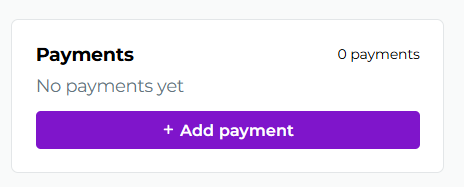
Press the "Add payment" button on the invoice.

Or from the bottom right of the invoice:
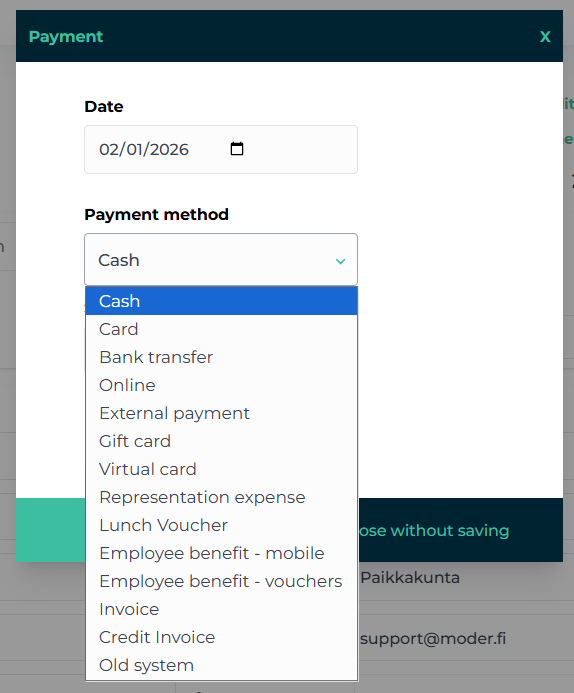
In the opening window, select the payment method:
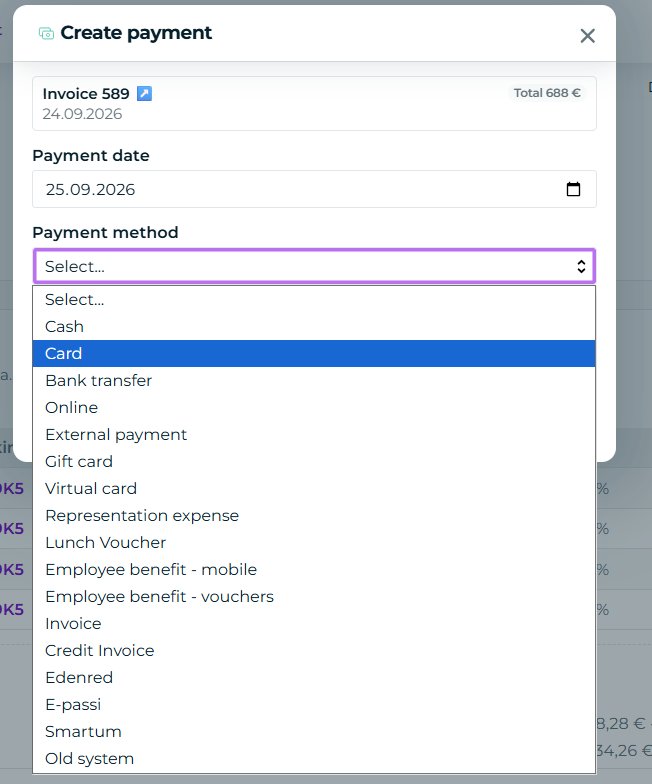
Check that the sum is right and click "Create"
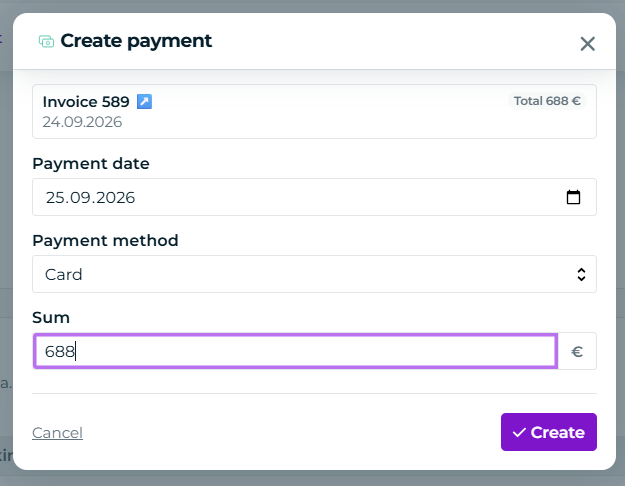
Managing payment markings:
If the payment marking went wrong, you can still open it by clicking the payment type name:
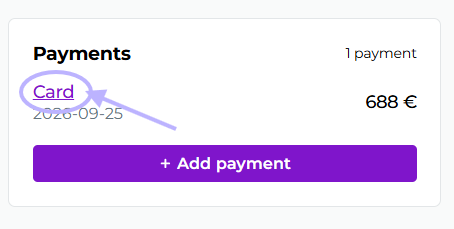
2. Payments tab
Open the reservation preview from the reservation overview to which the invoice belongs. Go to the Payments tab.
In the Payments tab you can make two types of payment entries: a payment entry for an invoice or a payment entry only for a reservation. Please note that a receipt is only generated for payment entries that are made for an invoice.
Payments tab: Payment entry for invoice
If an invoice has already been created for the reservation previously, you can click directly on the invoice "+ Add"
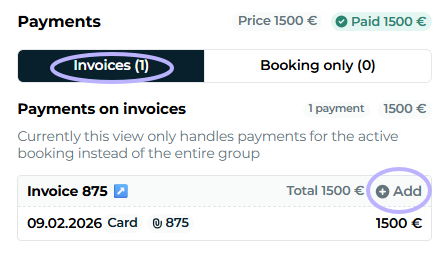
Set the payment date, payment method and amount.
Payments tab: Payment entry for reservation only
Please note that you cannot make a receipt for payment entries made only for a booking.
If however you want to make a payment entry for booking only, go to the Booking only tab on the Payments tab:
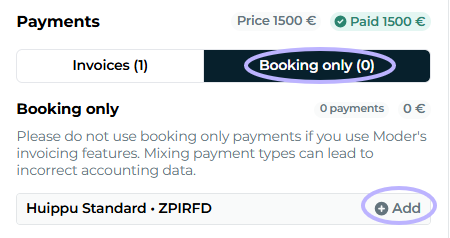
Receipt
In Moder, the receipt always references an invoice. So first create an invoice normally, and mark it as paid using your desired payment method in the way mentioned above. For example, directly on the invoice as cash:
After saving, the button in the upper right corner of the invoice page changes to a "Send receipt" button:
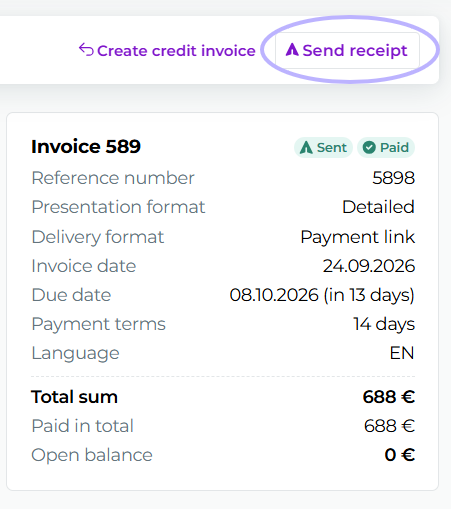
From this button, the receipt is sent directly to the email set on the invoice.
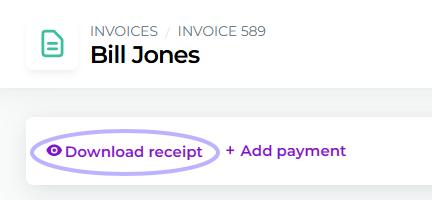
You can also download the receipt in PDF format from this download button: