Moder Basic POS: Using the cash register
Last updated: October 20, 2026
Note regarding these instructions!
These instructions concern Moder's new POS system, which is already well advanced in development and is estimated to launch in October 2026.
If you are interested in adopting the new register or would like to hear more about it, contact our support team at support@moder.fi.
***
Using Moder's register
Below are instructions for using Moder's register, including how to sell and edit products and send them in orders, i.e. to the kitchen.
You can find the register's settings instructions separately here: Register settings
How do I access the register?
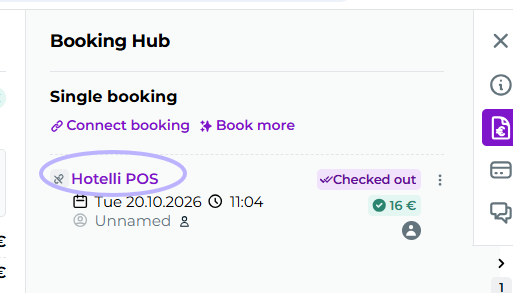
The register can be found on the left-hand side of Moder and opens in a new view when clicked:

POS system
Cash system view is the place where you sell products and services adding them to a new order:
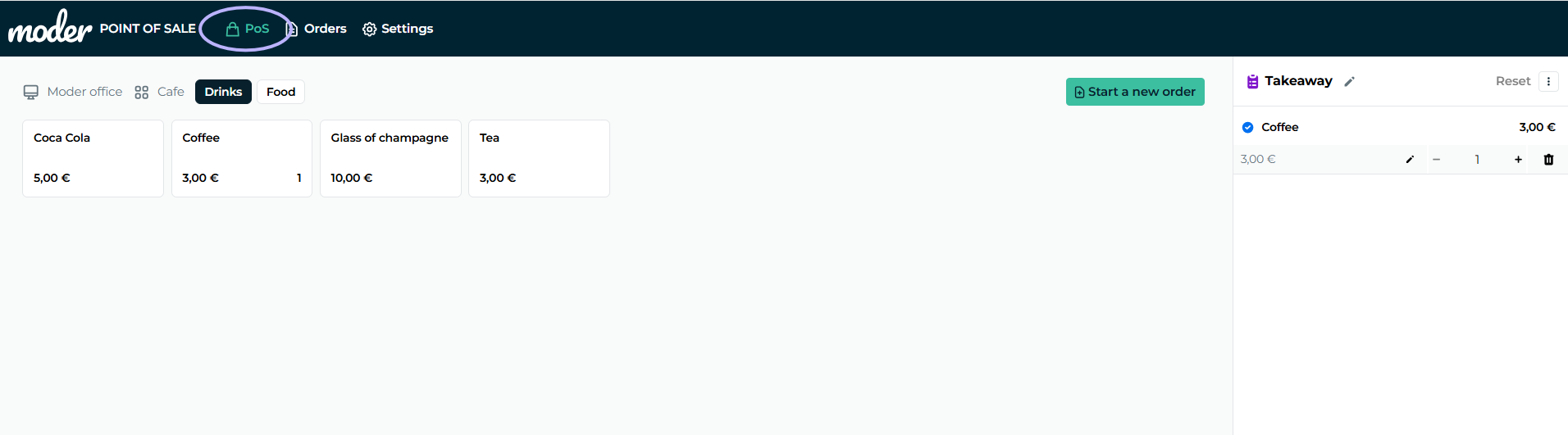
Selling a product - New order
Next, let's see how products are sold from the cash register, i.e., select the desired products for a new order from the cash view by clicking them:
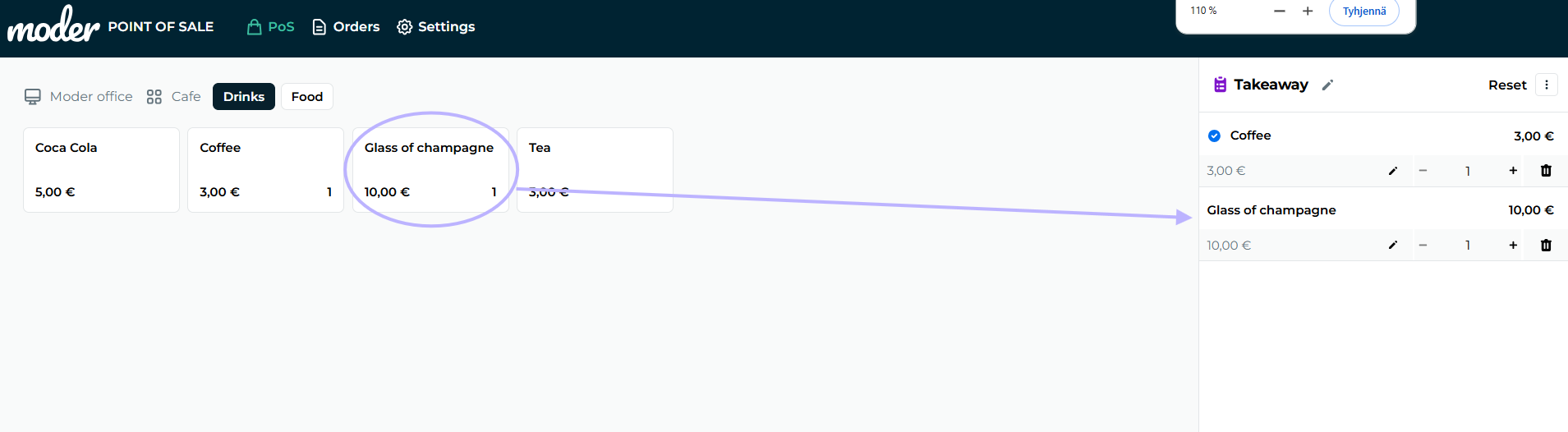
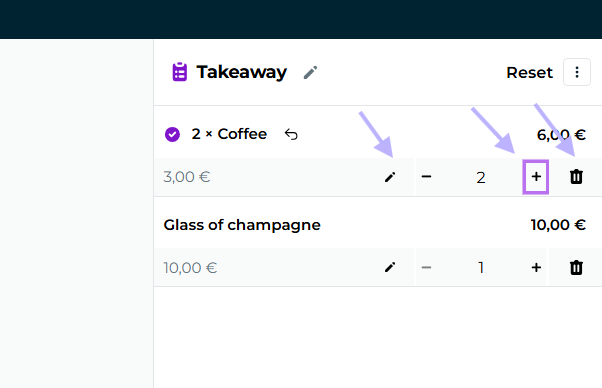
Products are added to the shopping cart on the right, where you can
edit the tip from the pen icon
add or remove quantity
remove products from the cart
reset, i.e., reset the entire order
Sending a product - Send to kitchen
Then we look at sending products to the kitchen, whereby orders move to Orders. You can send products easily by pressing Send button from the bottom right:
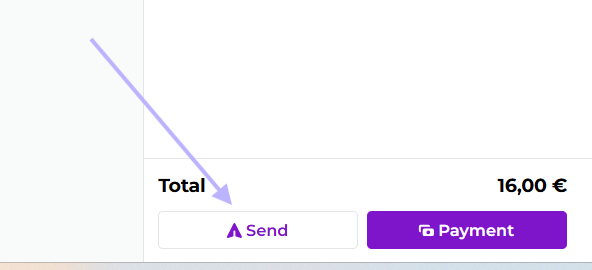
Please note that products move immediately to orders when you pressthe Send button. You will find your order later in the Orders view.
Paying for a product - Payment button
You can also receive the payment immediately in this view by pressing Pay button. Please note that here as well when paying, the order also moves immediately to the Orders view.
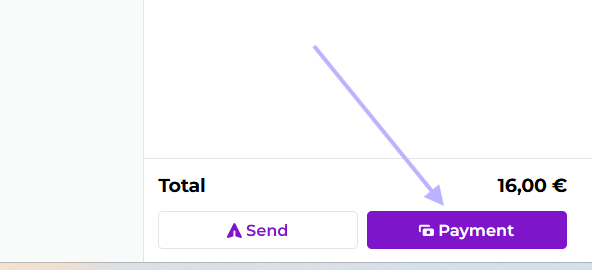
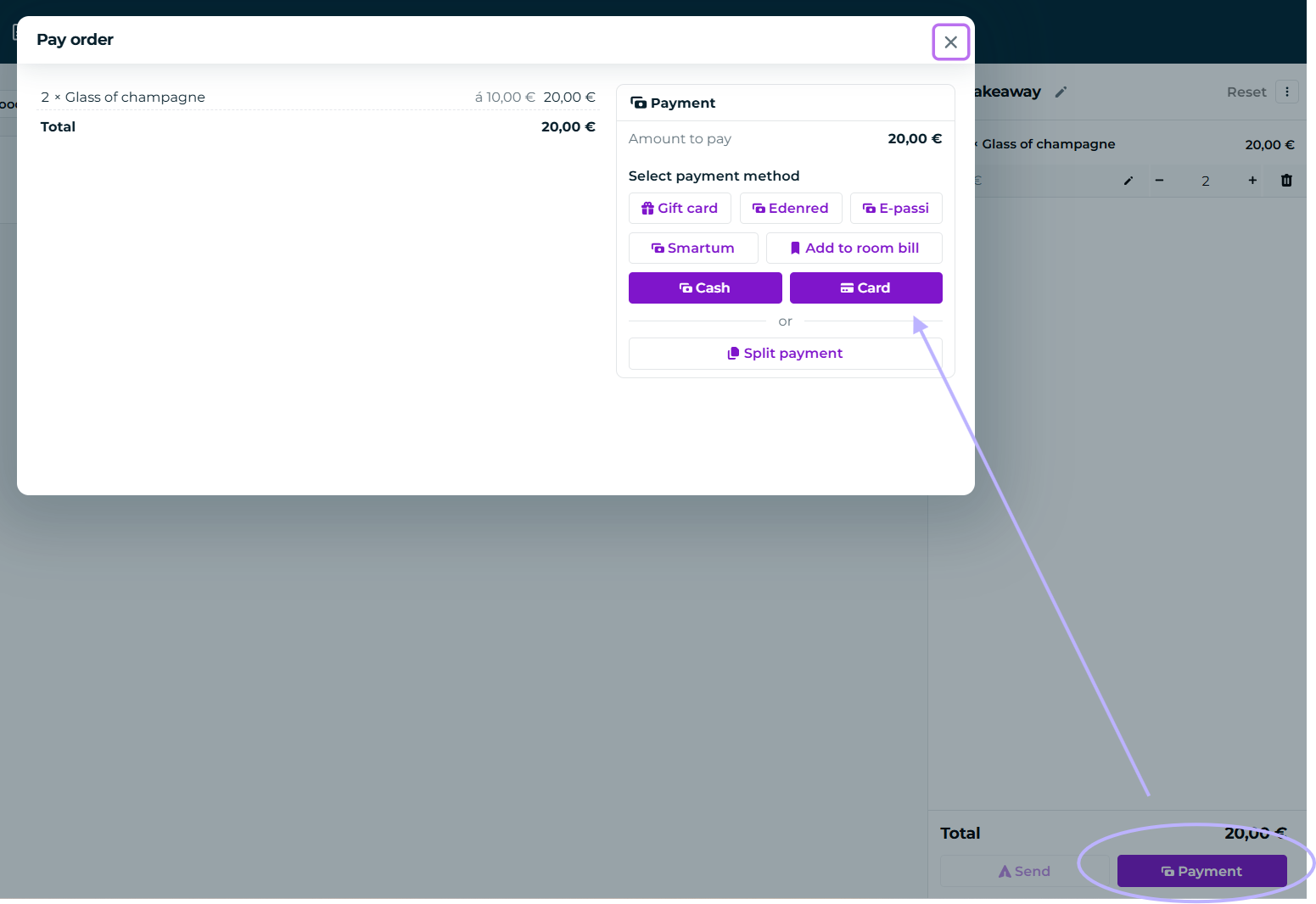
The payment view opens in a new tab, where you can select the payment method. These include Gift card, Edenred, Epassi, Smartum, Charge to room, Cash, or Card.
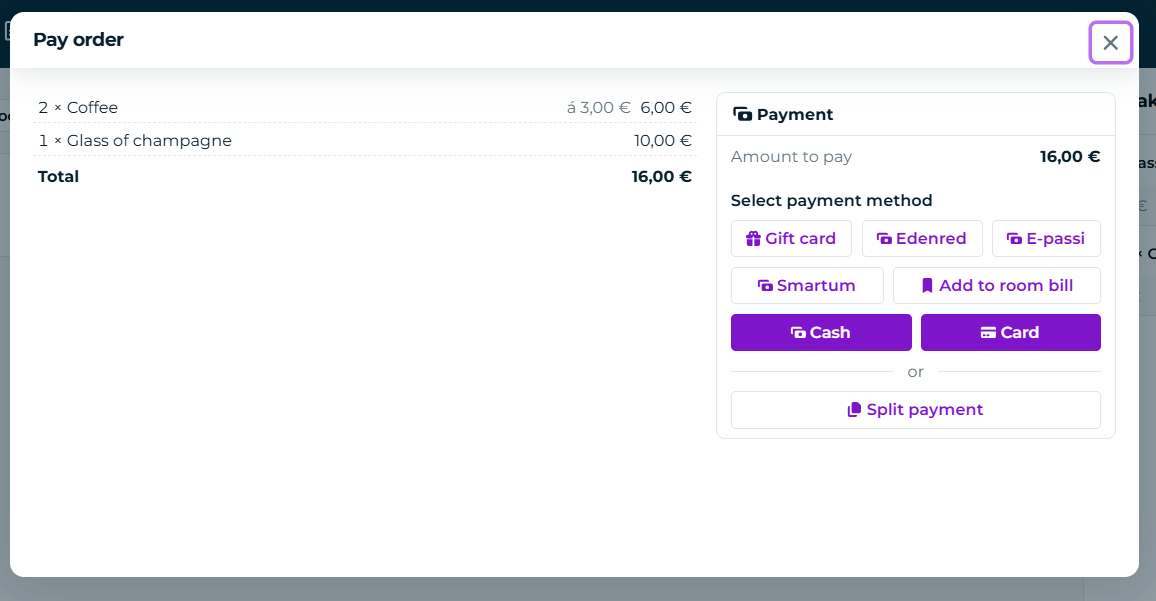
If any of these payment methods are not available, you can hide them from settings.
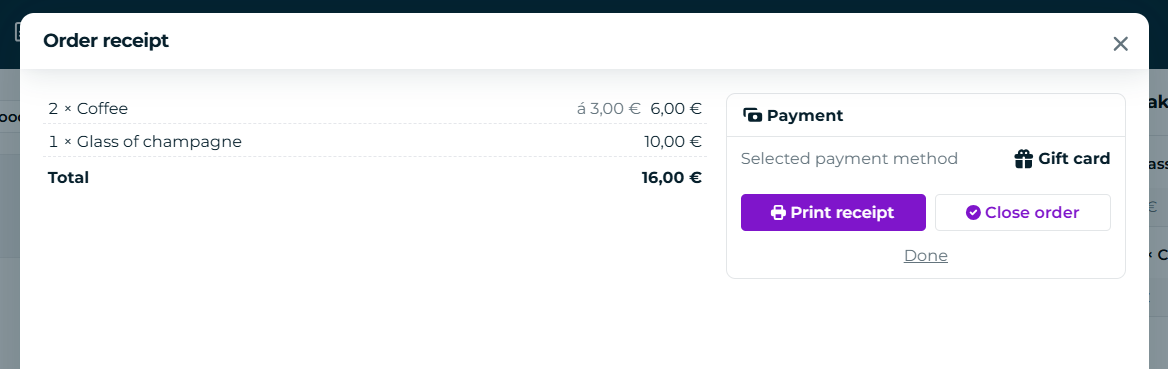
Printing a receipt when taking payment - Print receipt
Receipt you can conveniently print it last:
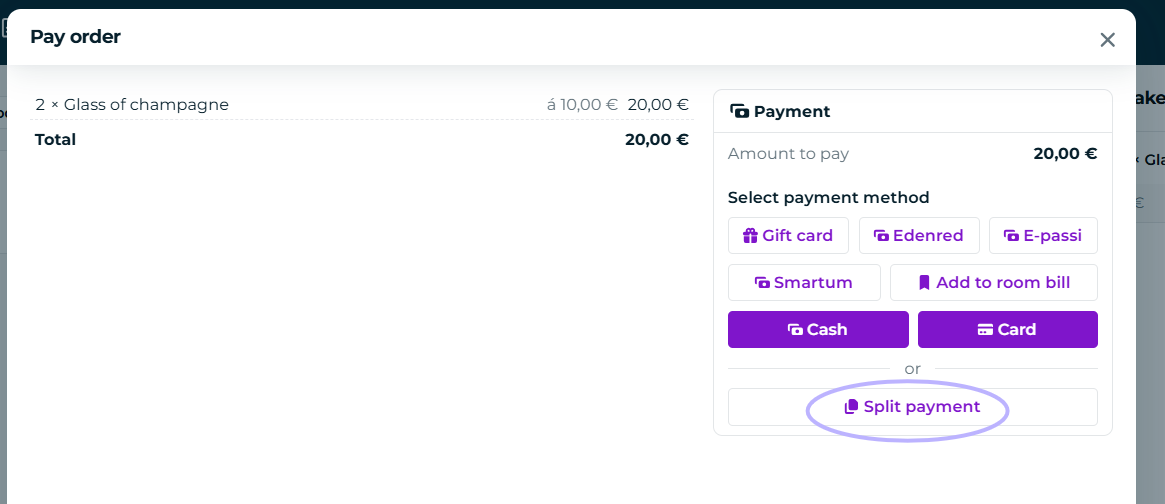
Splitting the payment into parts - Split bill
You can split the payment into parts, e.g., between cash and card payment, after clicking "Split payment" button:
You can set in the next view, for example, the amount of cash you received (in our example €10) and take the remaining payments perhaps with a card:
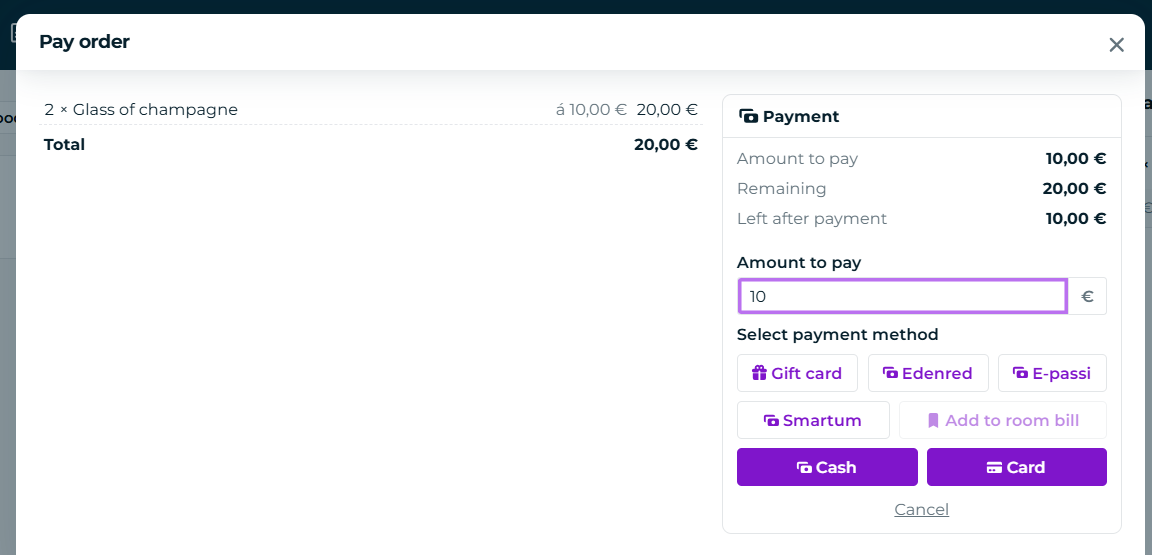
Remember to press confirm as well as mark as paid and perform the same action if you wish for the final payment.
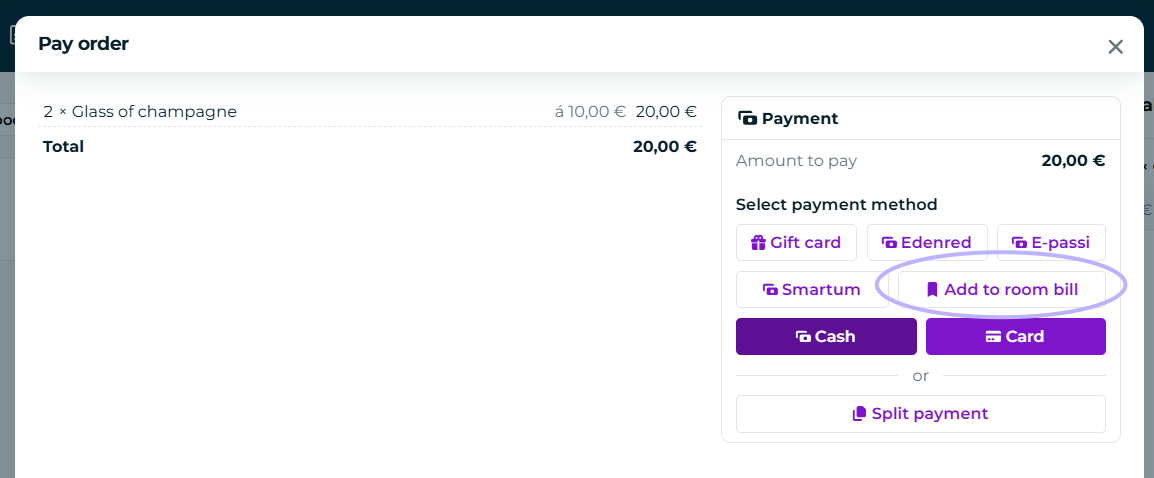
Adding to a room bill
You can conveniently add products to the traveler's room charge "Room Charge" button:
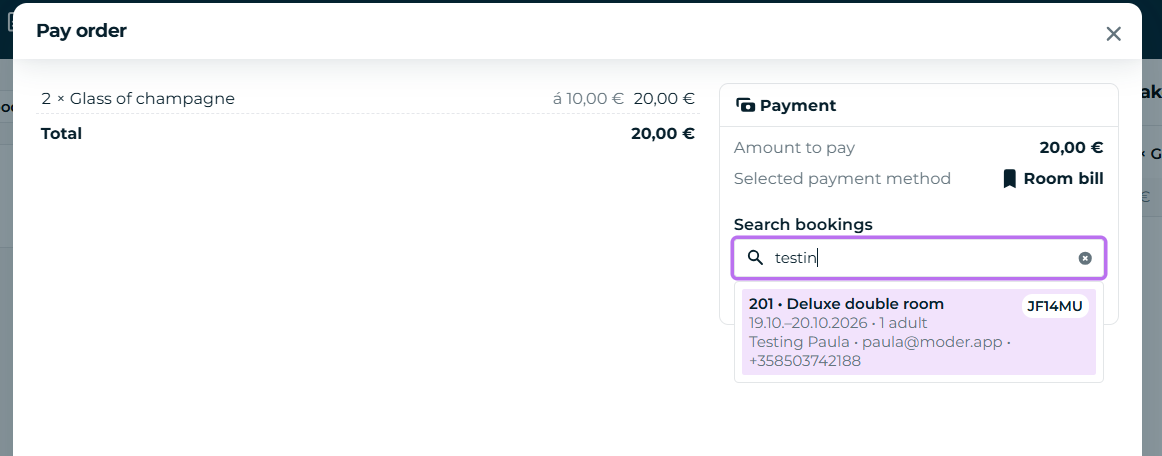
After the button, a separate search field opens, where you can search current (in-house) and upcoming reservations by customer name and room:
Viewing orders charged to a room
A room charge order is good to close and you can see the orders assigned to room charge From the Closed orders section, as well as from the customer's reservation:
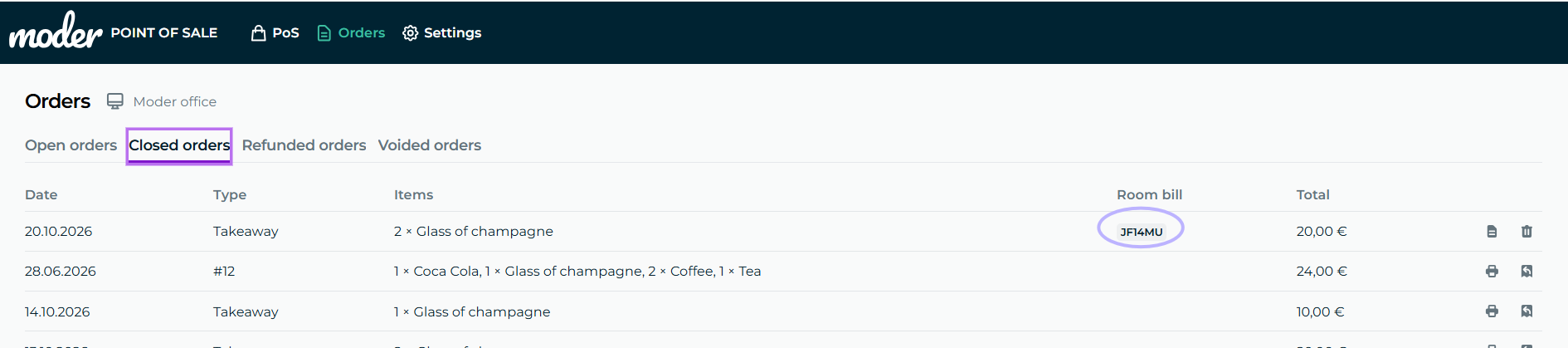
A closed room charge can, if desired, cancel from the trash icon.
Editing a room charge with the customer's reservation
The guide and functionality in Moder will be updated regarding these aspects.
Refunding a room charge
Refund of a paid room charge occurs partially with the customer's reservation and partially as needed at the cash register. The refund must also be made in full at once, i.e., partial refund is not yet possible.
Start by opening the room charge to be refunded from Closed orders and search by reservation number reservation from your Moder

Go to the reservation and refund the invoice in Moder normally Create refund invoice button by clicking, create a refund invoice for the products you wish to refund

Mark the refunded reservation with a minus sign as paid and that's it!
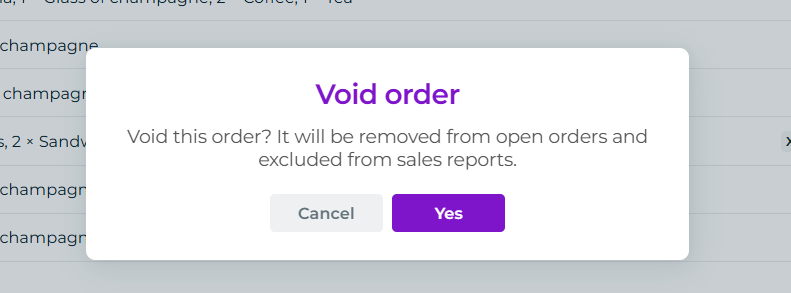
Note! If it is a cancellation of a paid refund invoice, meaning the sale also needs to be cancelled from the cash register, then go back to closed orders and click the trashbin on the right:

This action also cancels the sale from cash sales and the order disappears completely from closed orders
Using the Stripe payment terminal
You can use Stripe's WisePOS E payment terminal with Moder's restaurant register.
The Stripe payment terminal must be paired with Moder's device before connecting it to the register; see the Stripe payment terminal instructions here: Ordering, installing, and using the Stripe payment terminal
Taking payment with the Stripe payment terminal
Taking payment with the terminal is easy, i.e., add products to the cart on the right and first click Payment and then Card button:
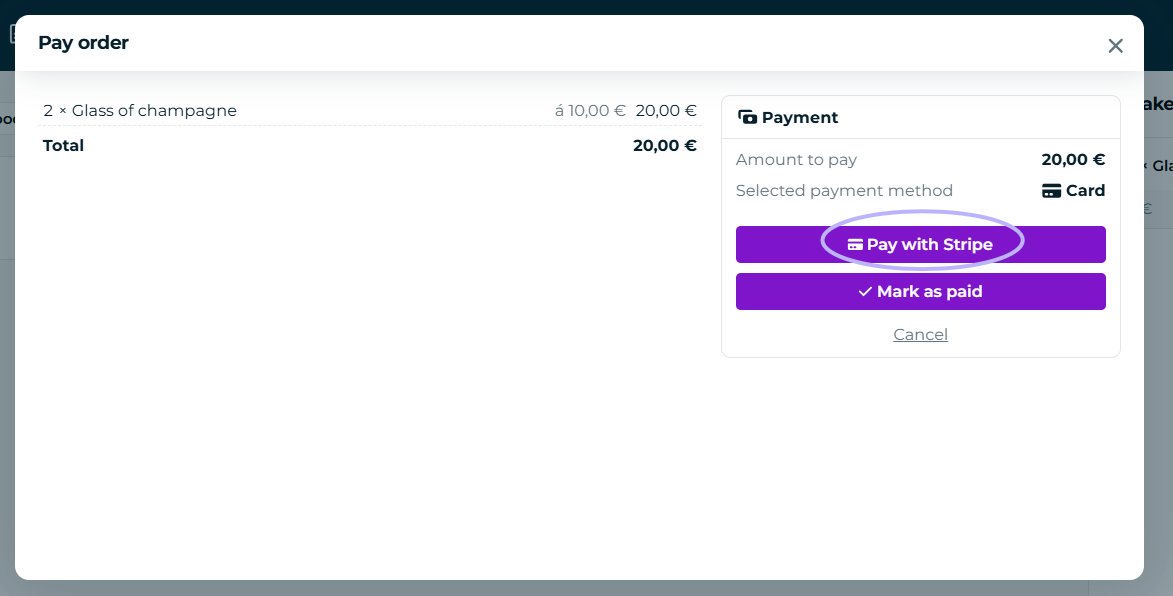
After this, you will have the option to take payments with the Stripe terminal, i.e., click "Pay with Stripe service" button and the payment moves to the terminal:
You can also take payments on the Orders tab from unpaid orders using Stripe's payment terminal according to the above instructions.
Canceling a payment on the payment terminal - Cancel terminal payment
Customer paying with cash? No problem! You can easily cancel the payment by pressing "Cancel primary payment" button.
Refunding a payment with the Stripe payment terminal
Refunding a payment is just as easy as taking one, and although our instructions refer to refunding on the payment terminal, the customer does not need to insert any card into the terminal; the payment is automatically refunded to the card/payment method used by your customer.
Let's see how the payment is refunded:
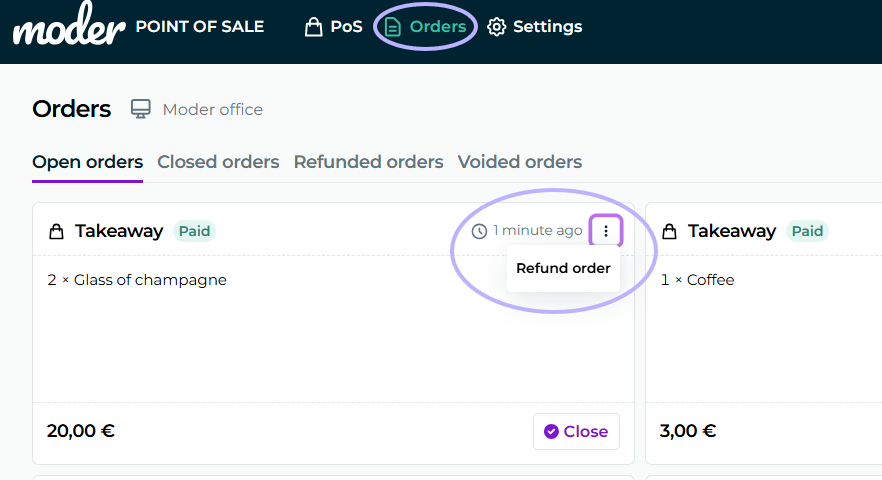
Open the desired paid order, from which you want to refund the money (payment taken with Stripe's payment terminal) From the Orders tab.
Click three small dots on the right side and click Refund order:
A new view will open again, where the order refund is confirmed, so approve it:
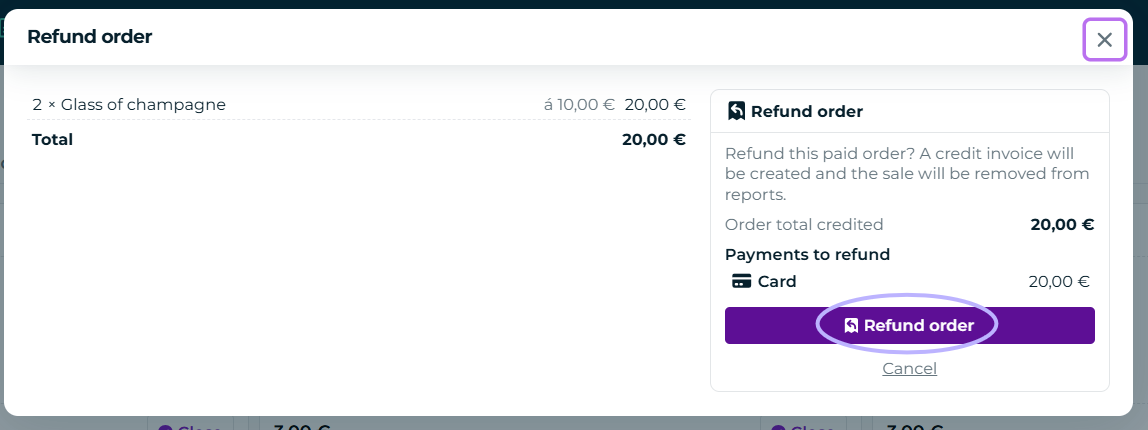
Done! You will see the refunded payment if you wish in Stripe's merchant portal.
Orders
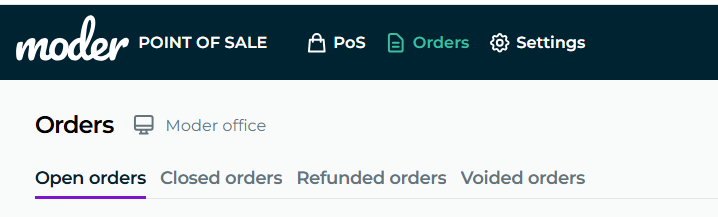
In the Orders view you see open, closed, refunded and voided orders:
Open orders
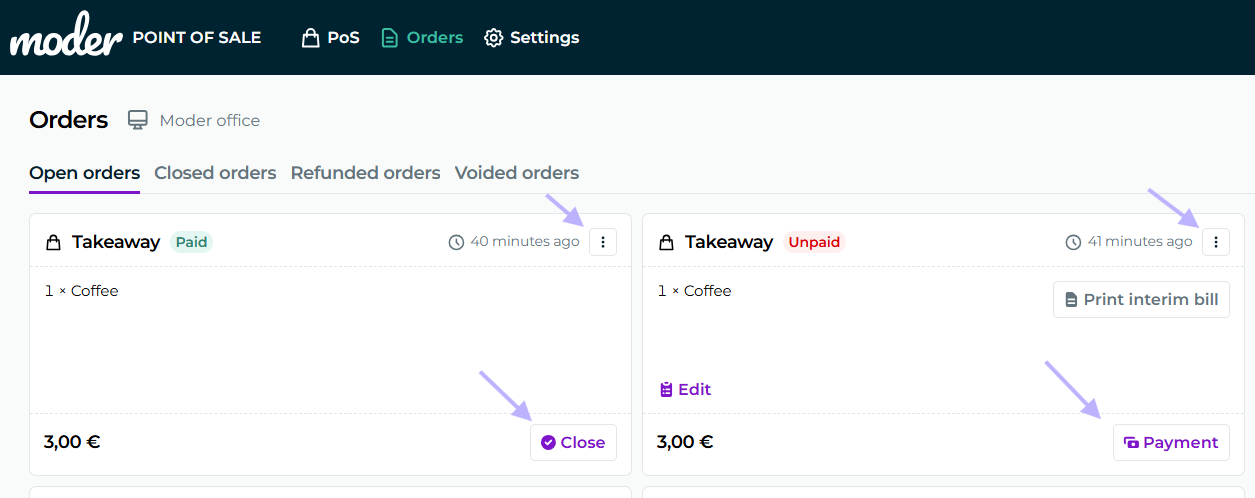
In open orders you see all orders that are open in your register, as the heading already indicates. From here you can review, for example:
Payment settings
To close the order
To edit an order
To void the order
Time, how long the order has been open
Editing an open order
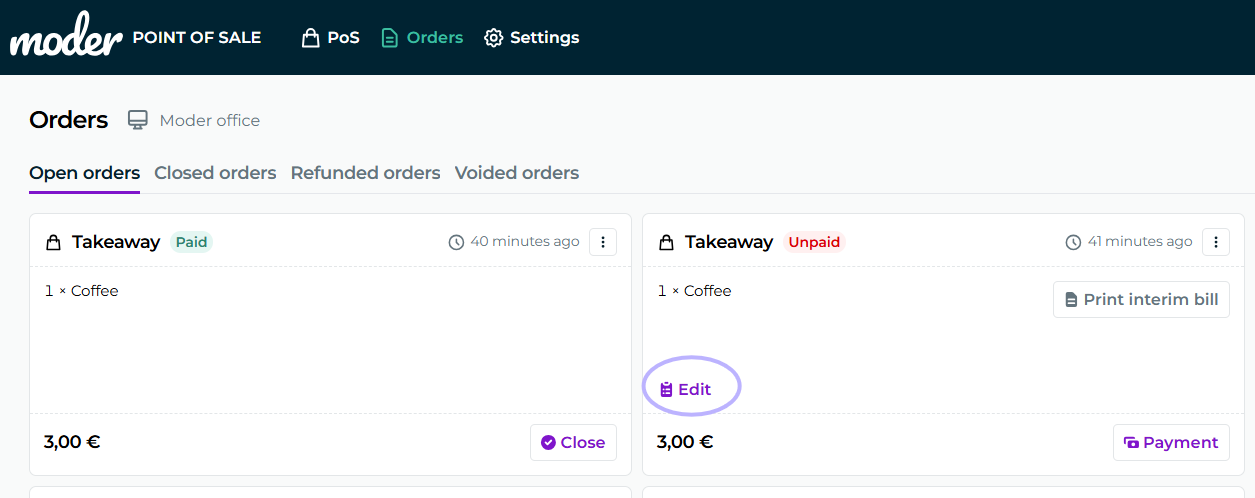
You can edit the open order by pressing "Edit" button:
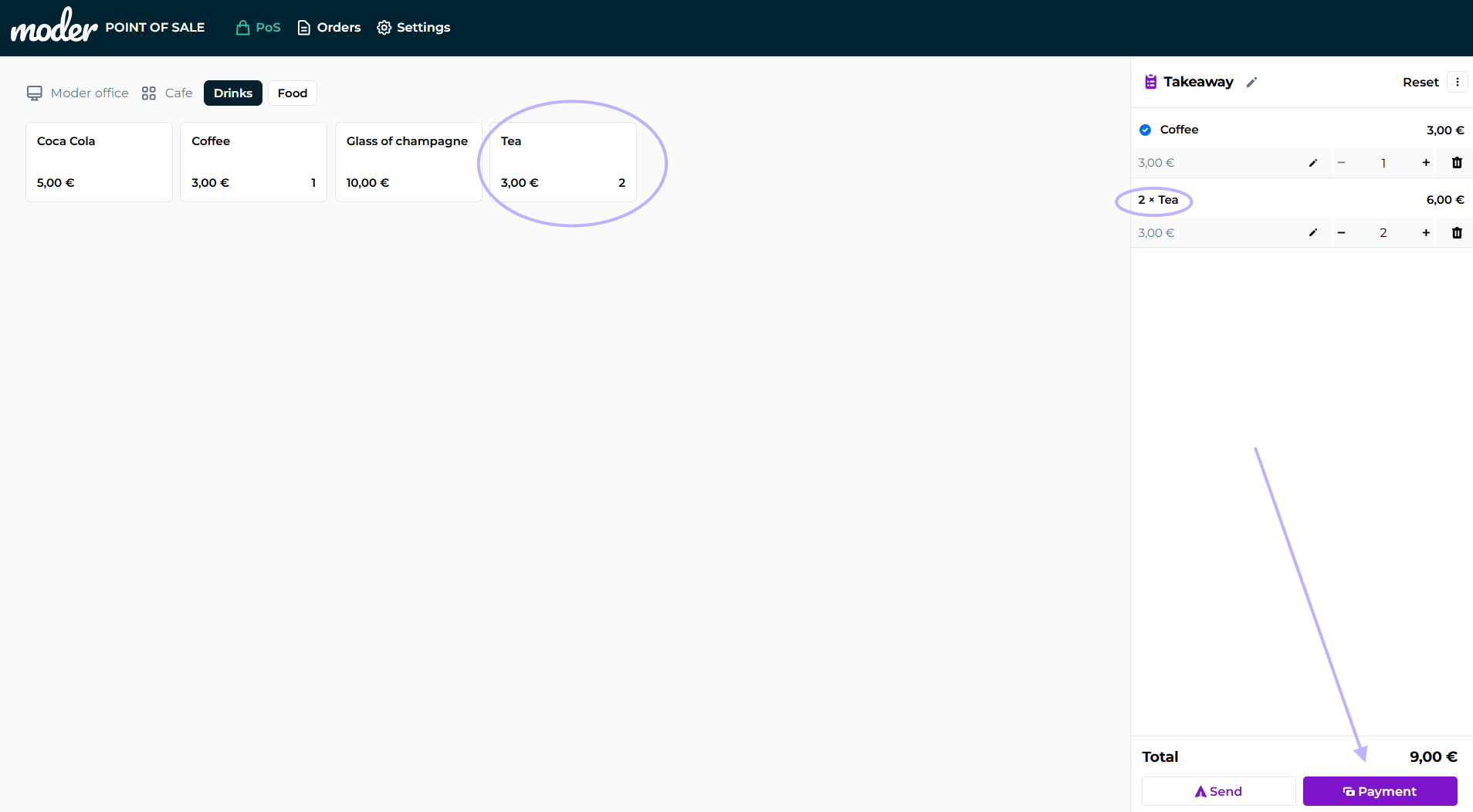
Order editing opens in the familiar register view, where you can take payments or make edits to products:
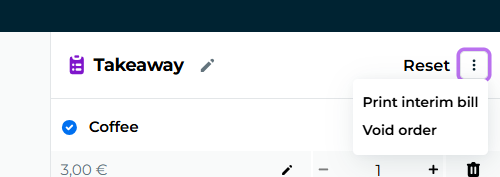
You can now also void the order or print an interim bill from the three-dot button in this view as well:
Closing an open order
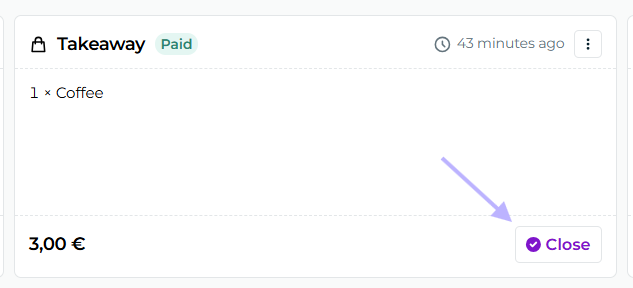
You can close an open and paid order from the button "Close" and print a receipt for the order if you wish, or close the order directly without printing a receipt. The closed order disappears from view entirely.
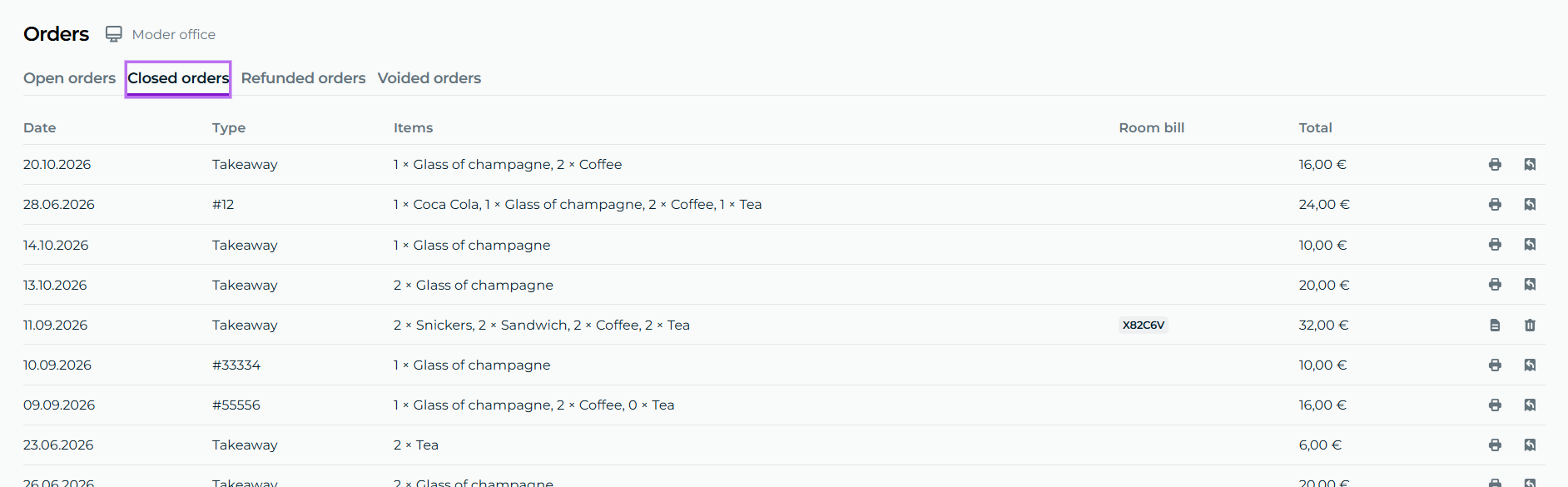
Closed orders
Closed orders are visible to everyone Closed orders button below:
Editing and reopening a closed order
The program will be updated in this regard; editing or reopening is not possible and only a refund is, see instructions below.
Refunding a closed order
You can fully refund a closed order from the right arrow button, i.e., navigate yourself to the desired order and click the arrow icon shown on the right:
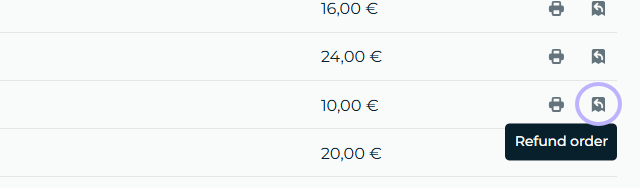
Note! Keep in mind that the funds from a refund made with Stripe's payment terminal are returned to your customer immediately. No other selected payment method returns them, so remember to refund the money to your customer via your payment service or portal if needed.
Partial refunds for closed orders are not possible
Partial refunds are not possible, so if you wish, you can refund the entire amount and start the order over.
Printing a receipt for a closed order
Guide coming soon, not yet possible directly from the register view. You can access the receipt if needed from the Invoices tab from your Moder. Instructions below.
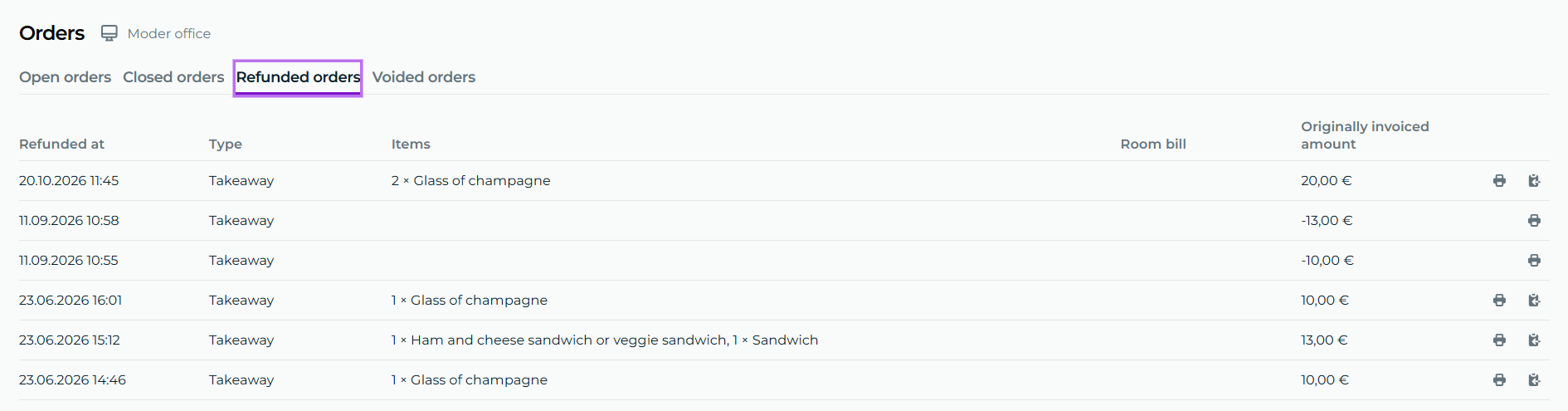
Refunded orders
You can view refunded orders from your own tab here:
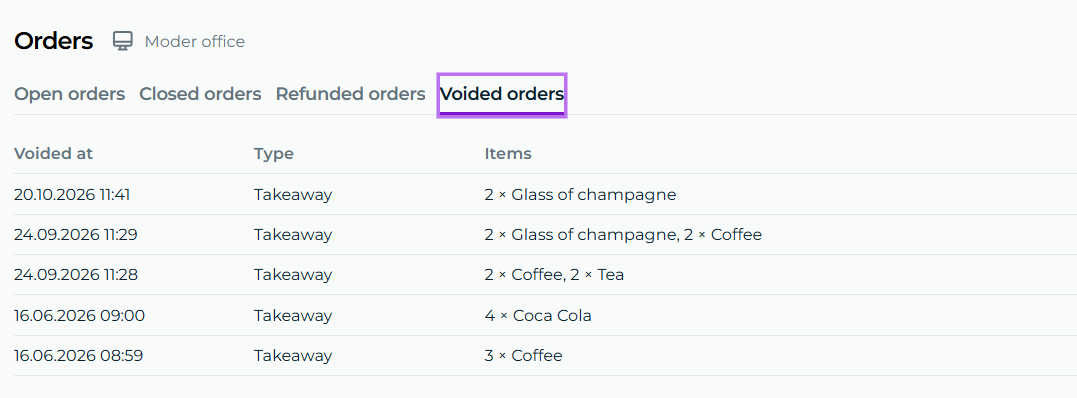
Voided orders
All voided orders can be found in their own view here:
Reports
Register products normally appear in Moder's reports in the same way as other additional services sold.
The best reports for reviewing restaurant register products sold are:
Sales
Financial summary
Invoices
Searching for receipts in the Invoices tab in Moder
Note! These instructions will be updated.
We recommend performing refunds directly entirely in the restaurant register and only searching for receipts and printing them from the Invoices tab from your Moder.
All orders paid and refunded in Moder's restaurant register can currently be found from the Invoices tab, i.e., you can review invoices/receipts made through the register here:
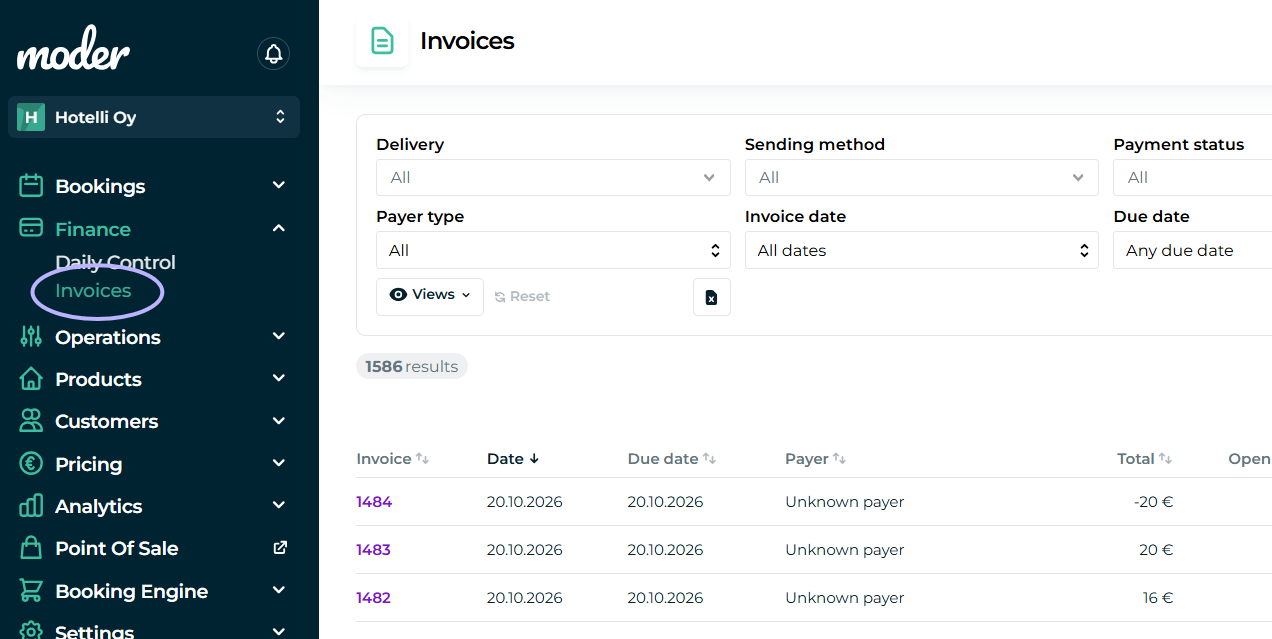
How do I search for a receipt in the Invoices tab?
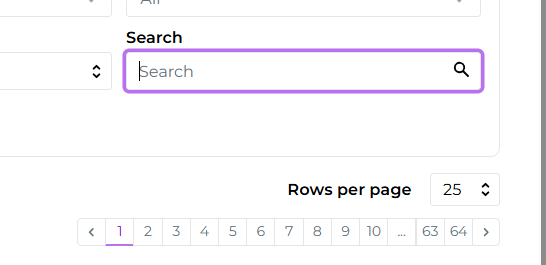
A closed register order can be searched by the receipt total amount from the Invoices list:
A closed order also creates a reservation number on the invoice, where the location name is currently shown, as well as a note POS after it, which indicates that it is restaurant cash sales: