Moder Basic POS: Settings
Last updated: October 20, 2026
Note regarding these instructions
These instructions apply to Moder's new POS cash register system, which is already well into development and is estimated to launch in October 2026.
If you are interested in adopting the new cash register or would like to hear more about it, contact our support team at support@moder.fi.
Cash register instructions - Settings
These instructions cover the cash register settings, meaning that
if you are an administrator, and
configure the background details and settings for the cash register, these instructions are for you!
If, on the other hand, you are more of a cash register user, you can jump straight to the Using the cash register instructions: Using the cash register
At the end of the instructions, you will also find a video about the cash register settings.
What should be done before configuring the cash register?
Well, of course, create extra services, meaning the products sold through the cash register. Moder's new restaurant cash register works in the same way as the current cash register, meaning that extra services are the products you sell through the restaurant cash register.
The extra services you want to sell through Moder's cash register can be found here as usual: Products -> Extra services:
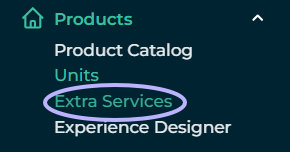
Creating extra services for the cash register
More detailed instructions for creating extra services can be found here: Extra services
However, it is important to remember that extra services included in the price cannot be put up for sale in the restaurant cash register, but must be created separately for cash register sales. So create all the products as follows:
Create the extra service with an additional charge
Turn on the "For sale at cash register" setting
Set the price and VAT rate
Save!
Cash register settings
Immediately after logging in to the cash register, the view below appears, from which it is easy to jump into making the settings.
Click the "Go to settings" button to create points of sale, products, and connections to, among other things, the payment terminal and receipt printer.
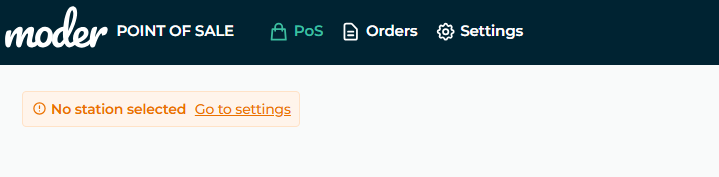
Station
Let's first start by creating a station. A station can be thought of as the place where the cash register is used, and there can be several points of sale, such as reception, terrace, bar, and restaurant.
Click the "Create a new station" button on the right:
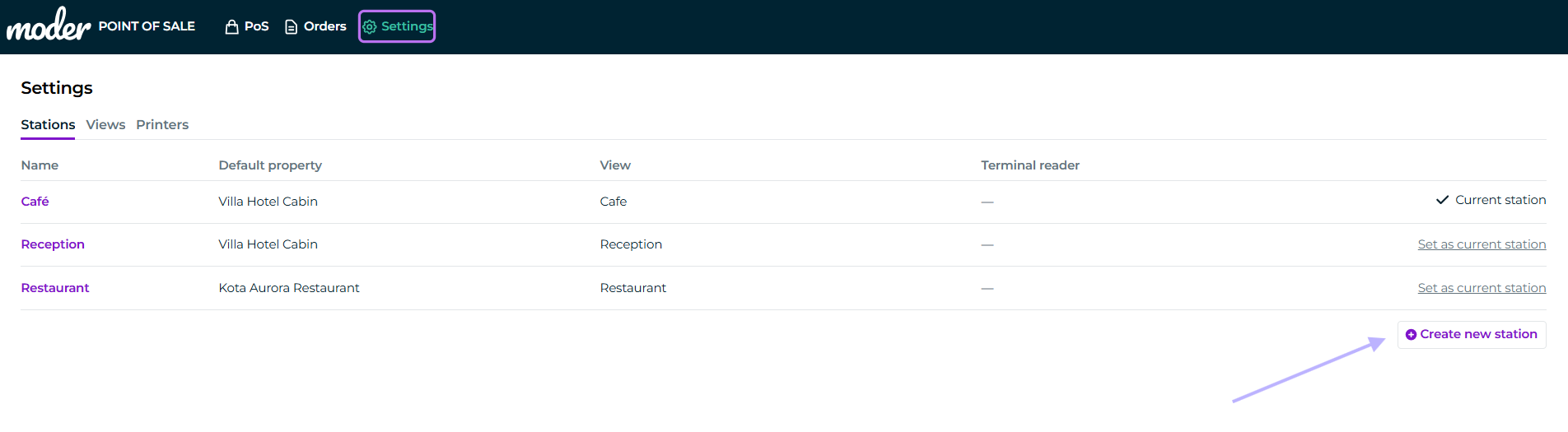
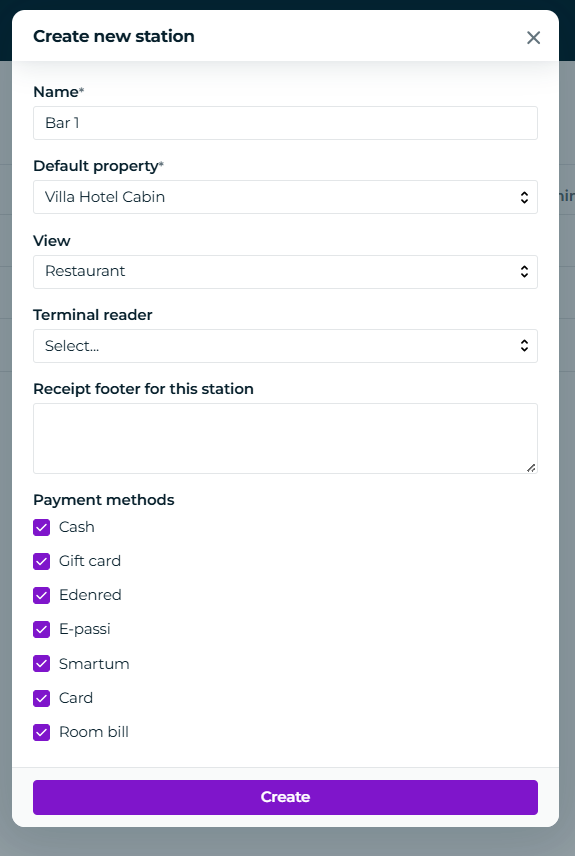
Next, set the following for the point of sale
Name
Default location - the existing location you have already created in Moder, where the cash register will operate
Cash register view - this should only be set after creating the cash register view, specifying which cash register view the point of sale is assigned to
Footer text on the point-of-sale receipt - the greeting, text, or other information of your choice
Payment terminal - select the payment terminal associated with the point of sale here (instructions for connecting Stripe's payment terminal below)
Here you can also select which payment methods are displayed as buttons in the cash register's payment window.
Finally, click "Create new"
You can edit the information later as well, so let's move on!
Default station
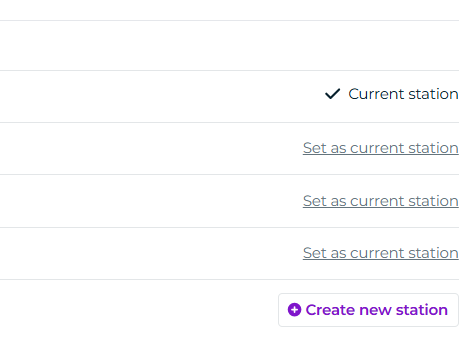
As mentioned, you can create multiple points of sale and select one of them as your current point of sale on the right:
Views
Next, let's move on to cash register views. These are once again created as usual by clicking the "Create a new cash register view" button on the right:

You can once again create multiple POS views and choose which products you want to display in each view.
For example, you can create one view for the entire restaurant and use that same view at the bar or at the waiters' sales stations. You can then create a separate view for reception, with a different selection of products.
You can also continue to organize your views into sections.
But let's start from the very beginning!
Getting started with building a view
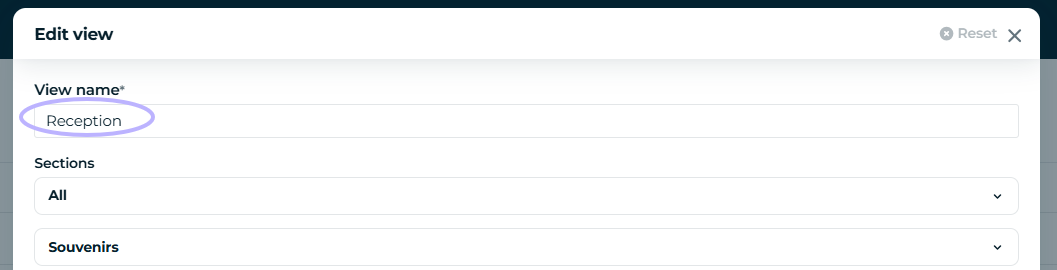
First, give your view a name, such as reception, restaurant, bar, terrace, or another name describing the desired category or view:
Cash register view sections
Next, we will add different sections, meaning categories, that you can sell in the view.
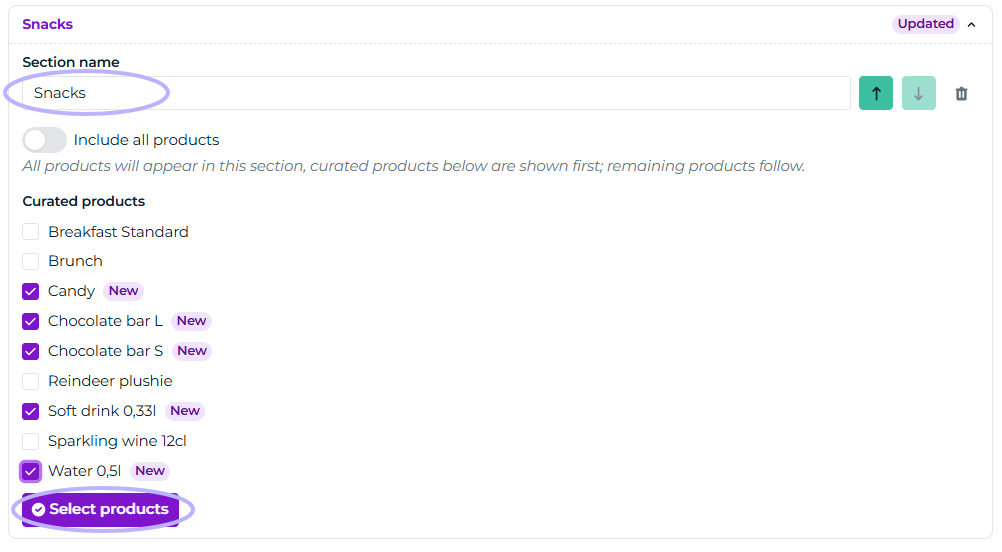
In our example, we are now building a small soft drinks section.
Give the section a name
Select the extra services from the list
Click the "Select products" button and the section will be saved
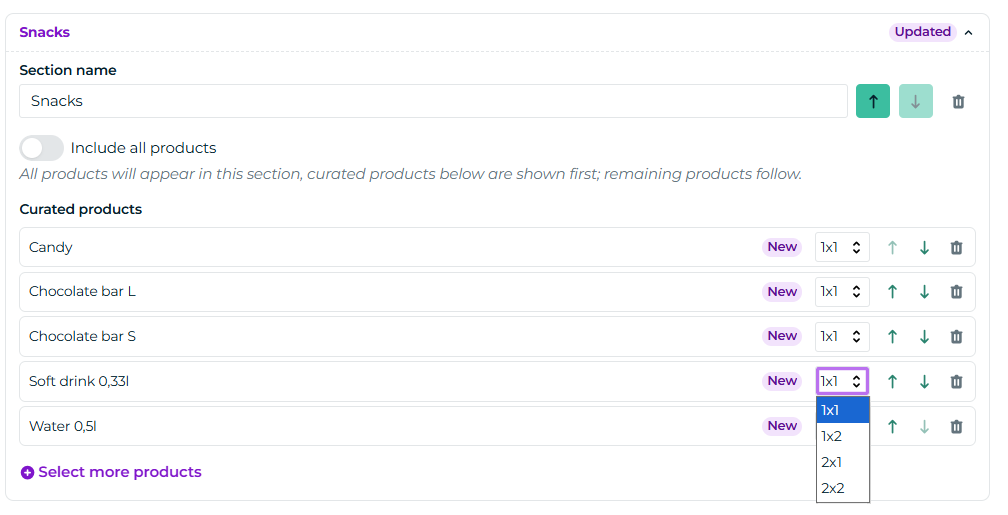
Once you have added the products, you can rearrange them and give them smaller or bigger buttons:
Finally, the most important part: remember to click Save!
Editing view sections and adding products to a section
You can always return to the view mentioned above later to add, remove, or change the order of products. New products are updated in the cash register views immediately.
Reviewing cash register products at the end
The sections are now ready, so it is time to review what was created.
So go to the Cash register system view:
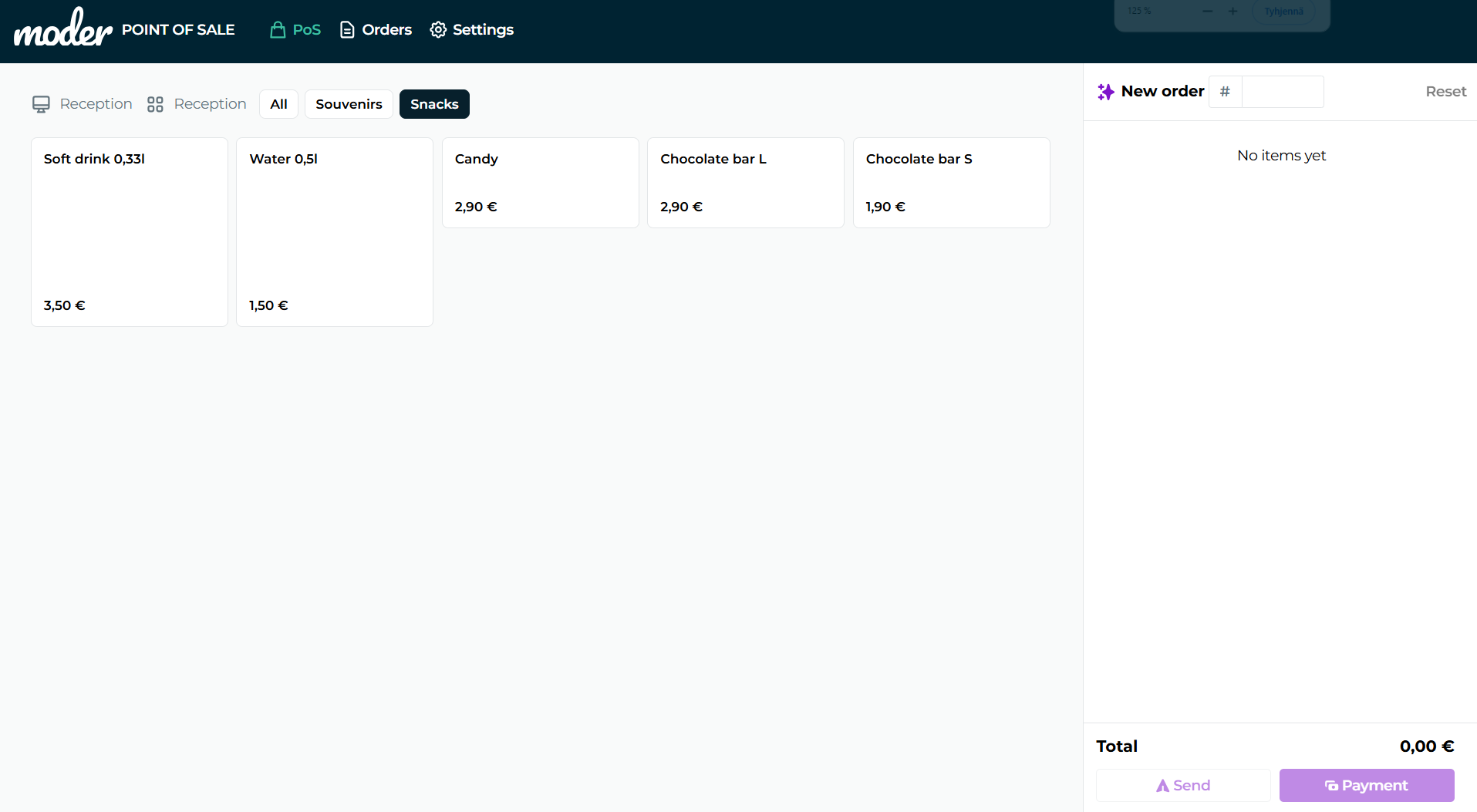
In our example above, you can see a section called Snacks, and other sections called All and Souvenirs. By clicking these, the products move to the right-hand view for sale.
Stripe payment terminal and connecting it to Moder
You can connect one or more Stripe payment terminals to your Moderi restaurant POS. If you intend to use payment terminals with Moderi's restaurant POS, you will first need
a Stripe account (request the link from Moderi support)
a Stripe WisePOS E payment terminal (or more than one; you can order these after setting up your Stripe account)
to set the Stripe Account ID in your Moderi (after setting up your Stripe account)
Ordering, installing, and using a Stripe payment terminal
Instructions for ordering a payment terminal and pairing it with Moderi can be found here: Ordering, installation, and use of a Stripe payment terminal
Connecting the payment terminal to Moder's restaurant register
Start by pairing the Stripe payment terminal with Moder according to the instructions as follows
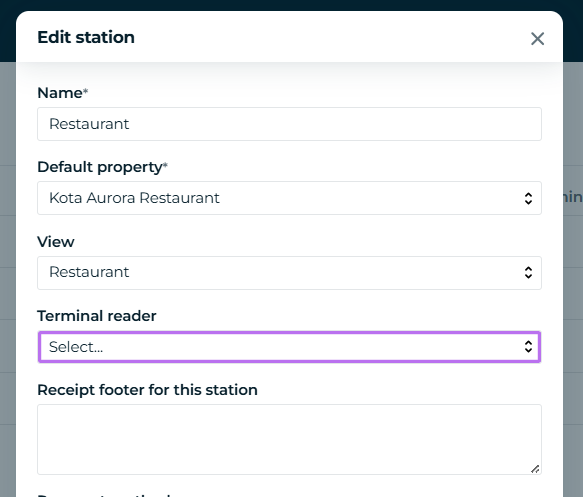
Go to the station settings -> connect the desired payment terminal to the desired point of sale terminal from the drop-down menu and Save:
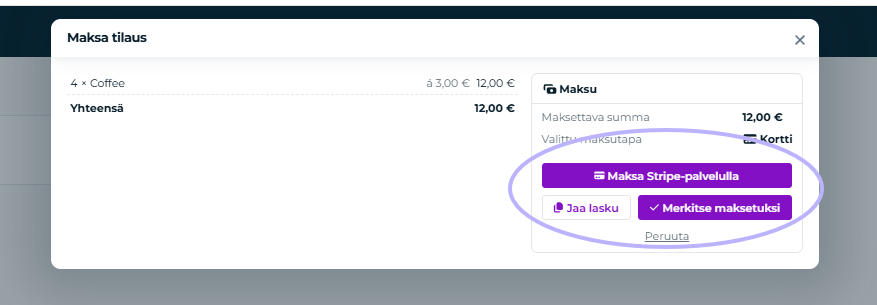
Almost done! Now you can make a test payment in Moder and a new "Pay with Stripe" buttonwill appear, allowing you to take a payment through the payment terminal:
Installing the printer
Instructions for installing the POS printer are below.
Supported printers
Moder POS currently supports the Epson TM-m30III-152 model. Contact Moder Support for more information about ordering the printer.
Connecting the printer to a WiFi network
1. Turn on the printer
Turn on the printer using the power button.
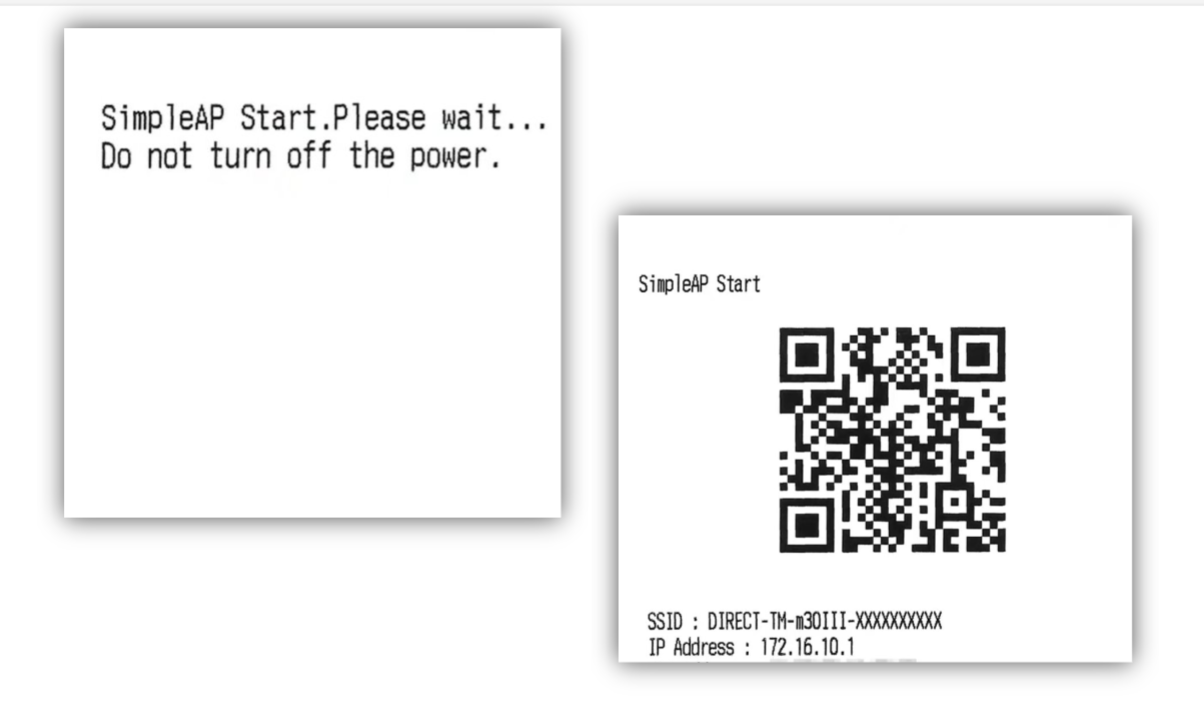
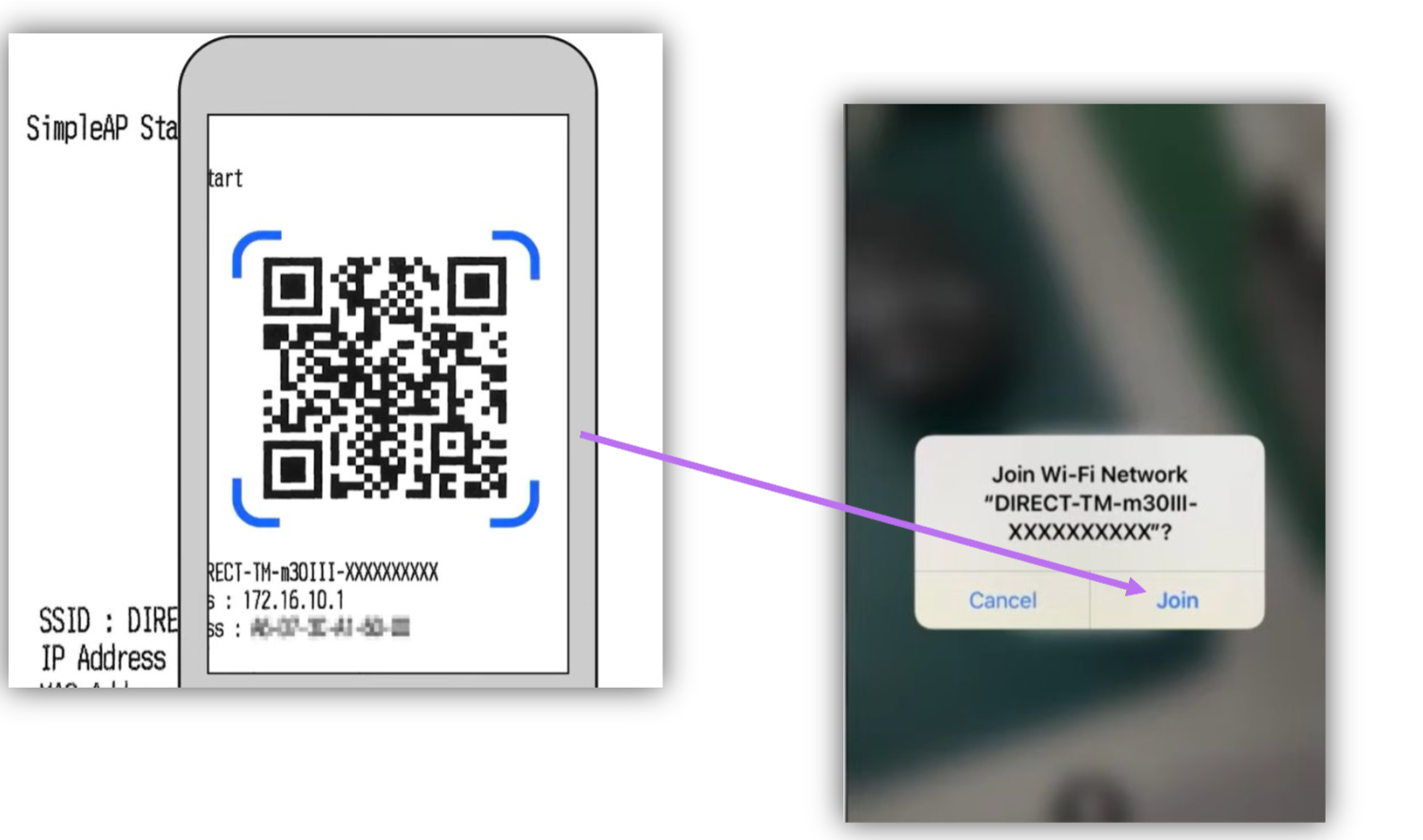
After a few seconds, the printer will print a receipt that says "SimpleAP start...".
After about 30 seconds, another receipt will be printed containing a QR code and further instructions.
Keep this receipt, as you will need it in the following steps.
If the "SimpleAP start..." receipt is not printed
Reset the printer to setup mode according to the instructions in this video (starting at 0:40):
https://www.youtube.com/watch?v=Ff605itddgw
2. Connect to the printer's network
Scan the QR code with a smartphone or tablet
When the browser asks you to join the printer's network, select Join
The WebConfig page should open automatically
If the page does not open, scan the other QR code named WebConfig Start, which was printed at the same time as the SimpleAP start QR code
3. Configure the WiFi connection
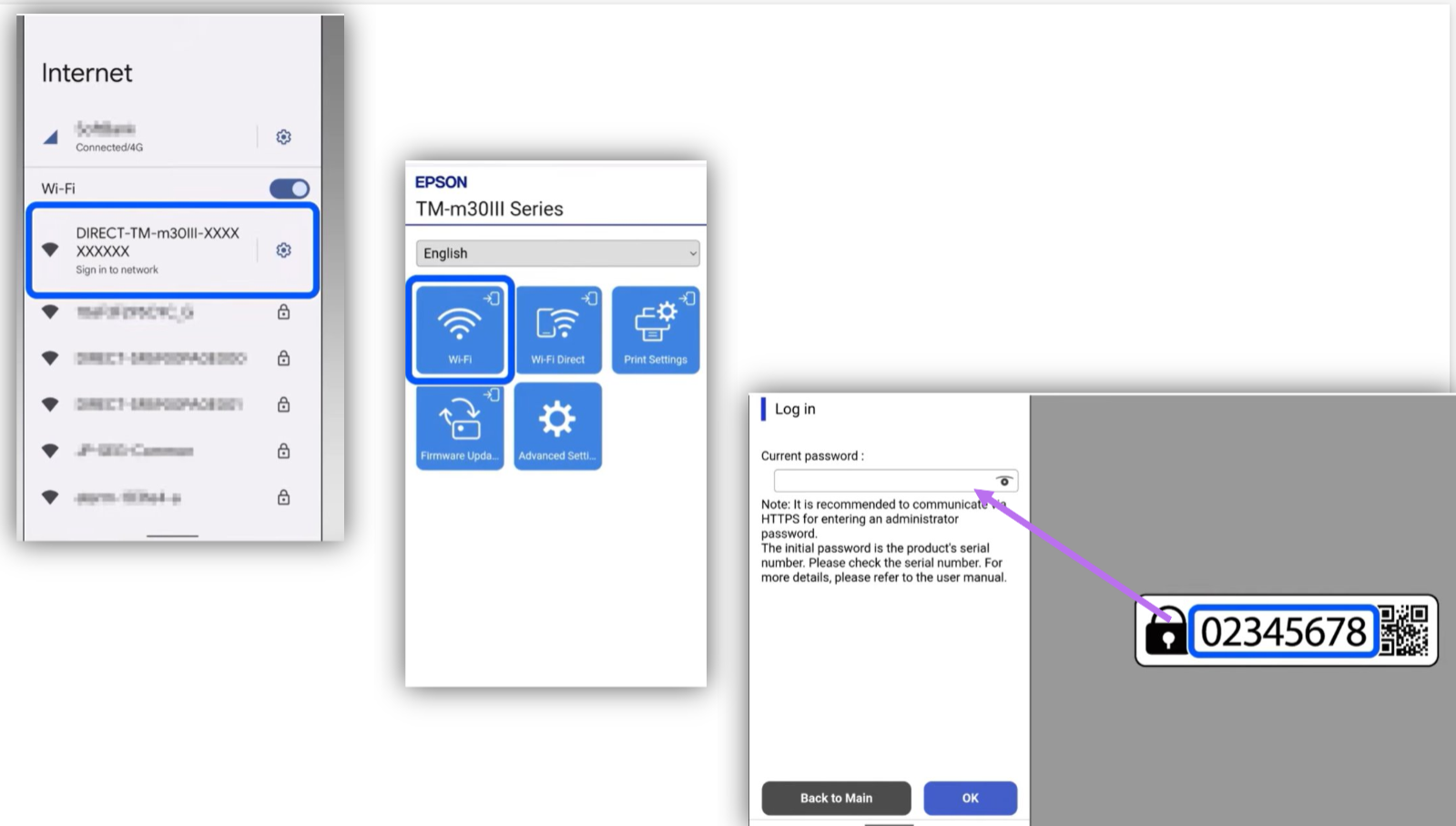
Select WiFi
Enter the following as the password:
the string of numbers next to the lock symbol on the back of the printer, or
if this cannot be found, use Simple AP Start -the serial number shown on the receipt
Press OK
4. Select the WiFi network to use
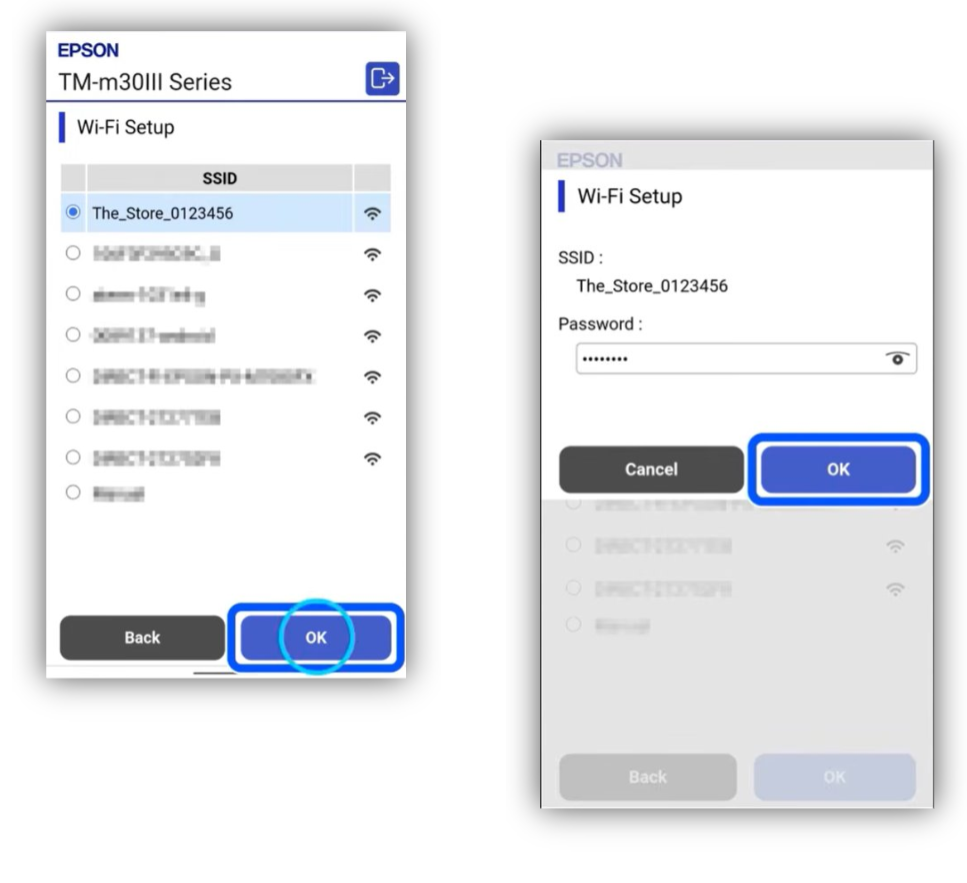
A list of available WiFi networks (SSIDs) will open on the screen
Select the same WiFi network that Moder POS uses
Press OK
Enter the WiFi network password
Press OK
5. Check the connection status
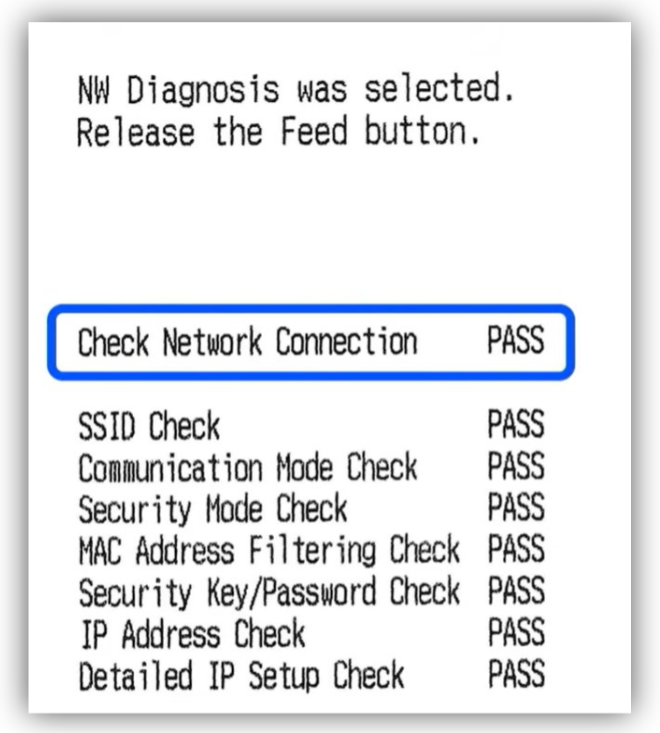
The printer will print a report containing the network status (Network Status Sheet)
Check the section "Check Network Connection":
PASS = the printer has been successfully connected to the WiFi network
FAIL = the connection failed
If the status is PASS, you can proceed to configure the printer in Moder.
After the Network Status Sheet, another receipt with a QR code will also be printed, named WebConfig Start. Keep this receipt, as you will need the URL on it in the next step!
If the connection fails (FAIL)
You can start configuring the WiFi settings from the beginning as follows:
Press the Feedbutton for approximately one second
Release the button
The printer will restart SimpleAPmode
The printer will print a new QR code
Scan the QR code and perform the WiFi settings again according to the instructions above
Complete instructions for connecting to WiFi can also be found in this English-language tutorial video: https://www.youtube.com/watch?v=Ff605itddgw.
Configuring the printer in the Moder checkout
The printer setup uses two browser tabs:
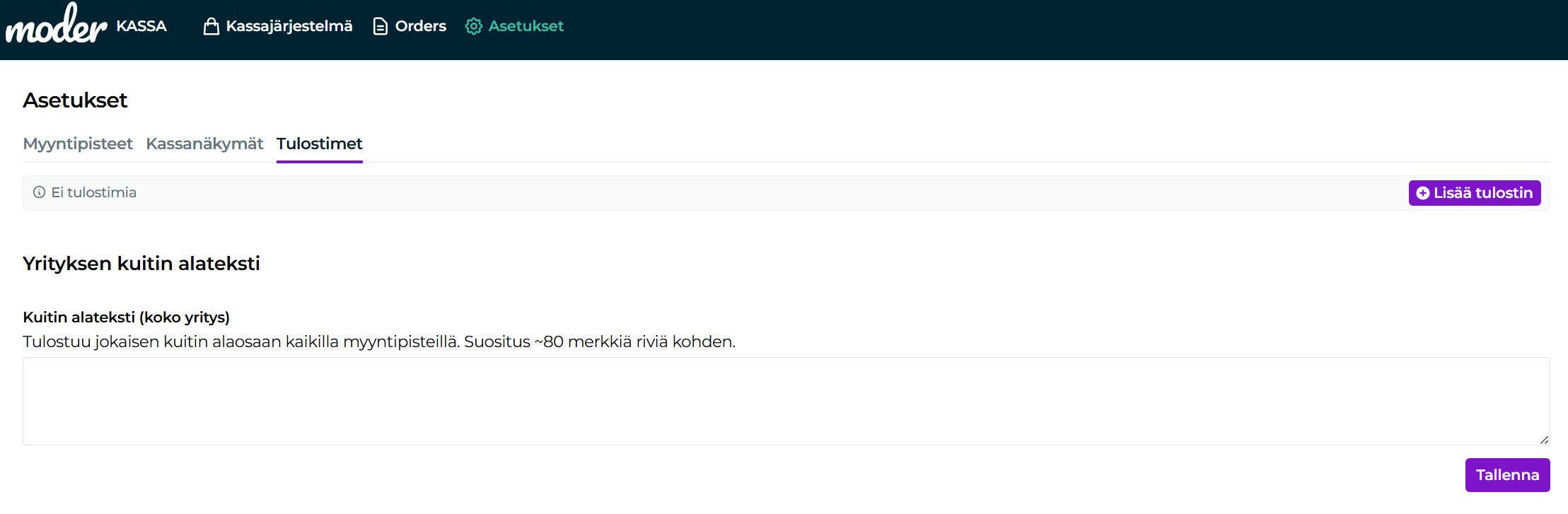
Moder Admin → Checkout → Settings → Printers
Printer WebConfig → the printer's own administration page
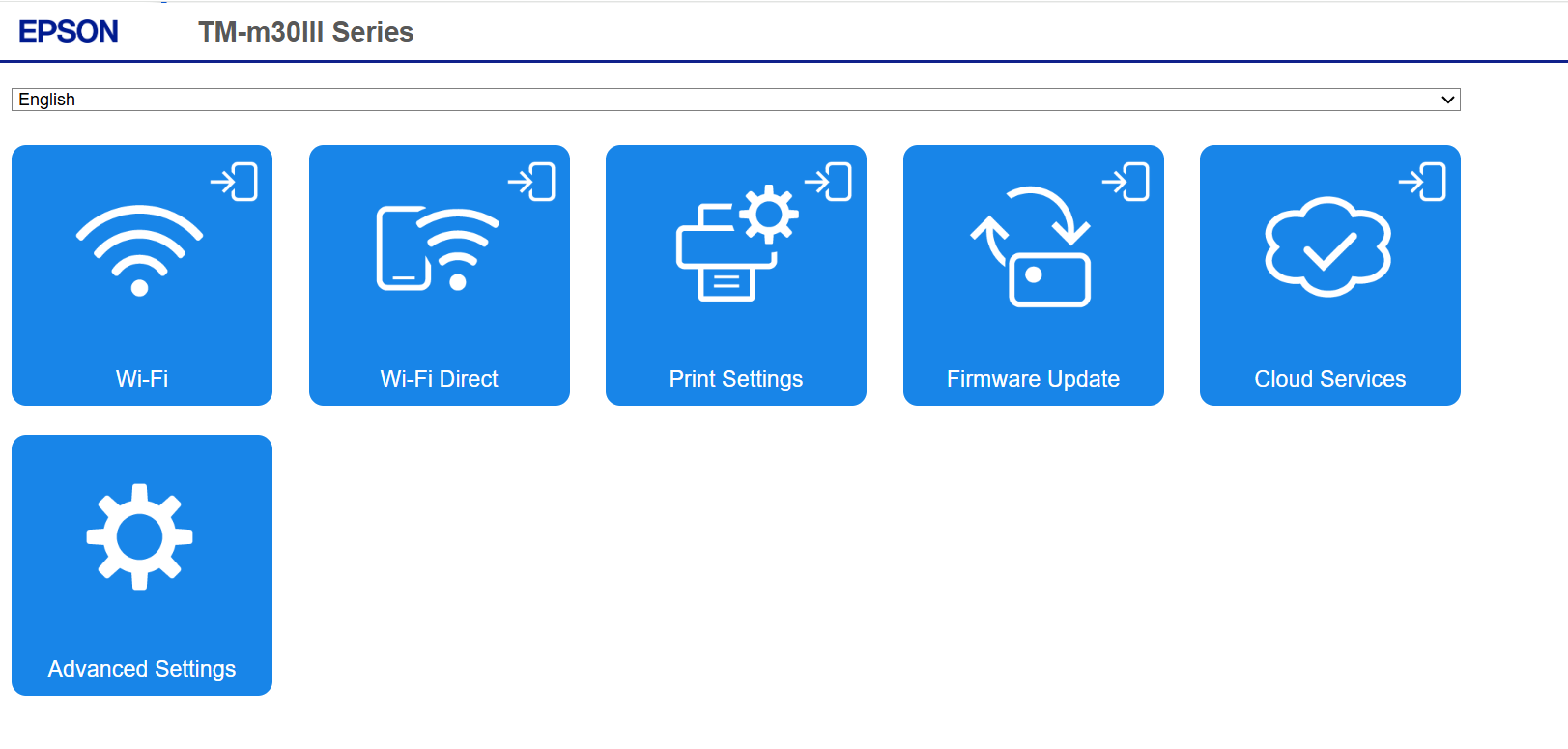
Open WebConfig by entering the printer's IP address in the browser: you can find the IP address on the receipt named "WebConfig Start" that was printed after the Network Status Sheet in the previous step
Keep both tabs open, as some settings must be configured both in Moder and in the printer's WebConfig.
Before starting the printer installation
Make sure of the following:
The printer is connected to the same network as the Moder POS device
You know the printer's IP address.
The IP address can be found on the WebConfig Start receipt printed by the printer
Open the printer's WebConfig in its own tab
WebConfig page settings
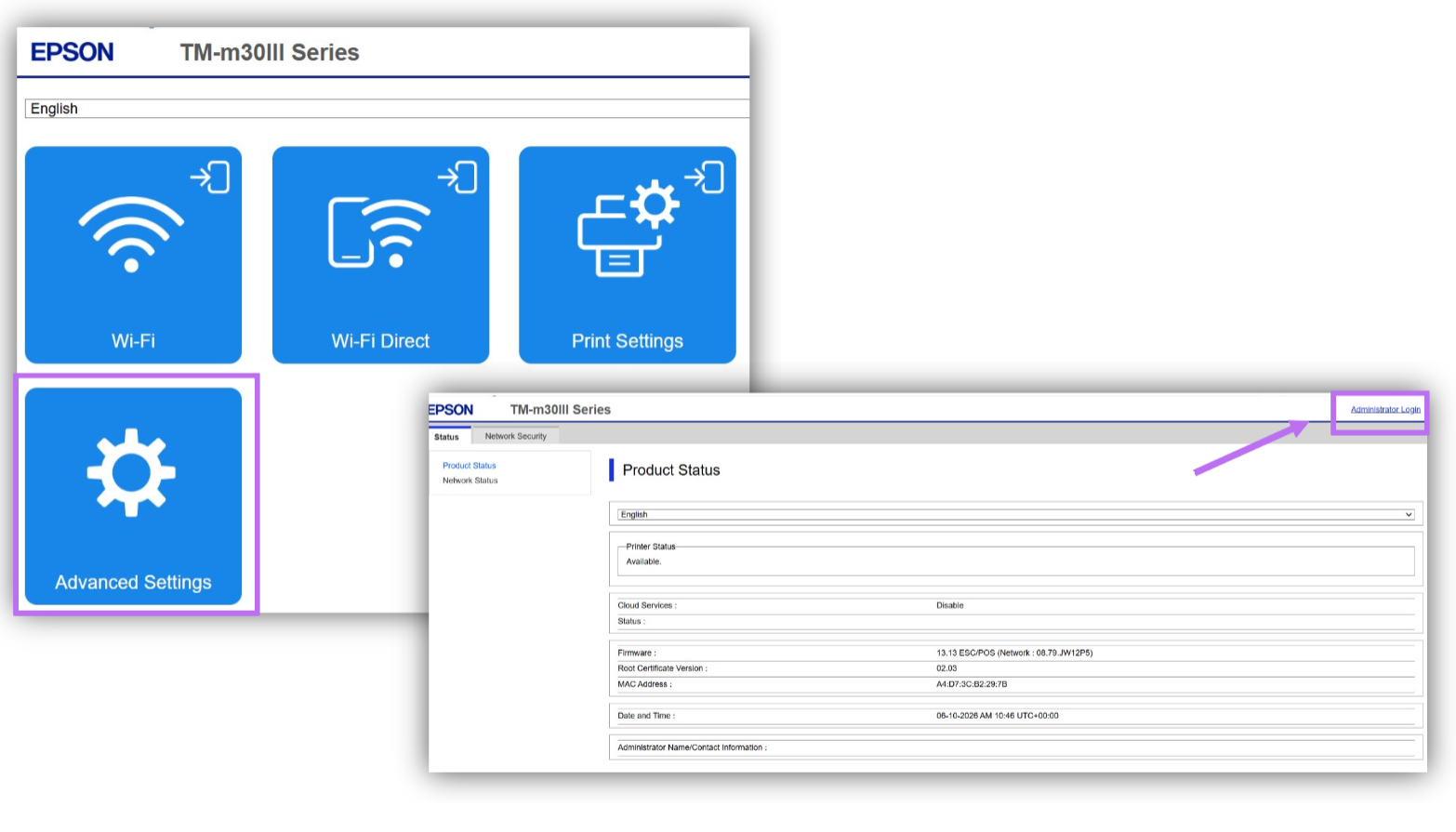
Go to Advanced Settings -> Administrator login
and enter the password which is the sequence of numbers next to the lock symbol found on the back of the printer (the same one you used earlier when connecting the printer to Wi-Fi)
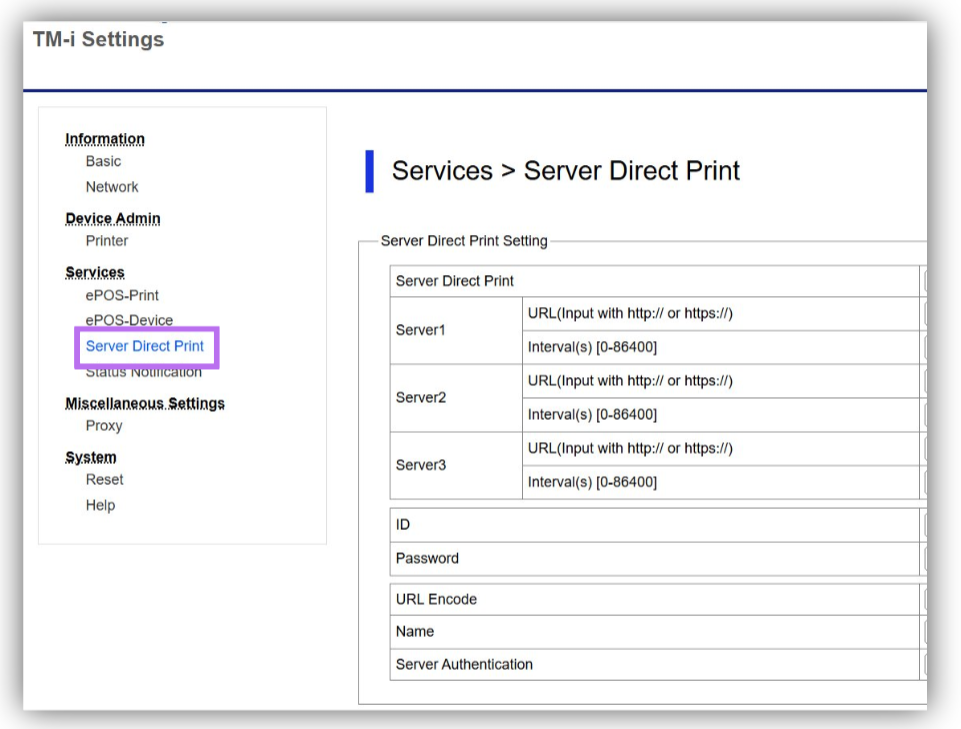
Once you have successfully logged in to the system as an admin, a section called TM-i-Settings. will open on the left. Click to open this page:
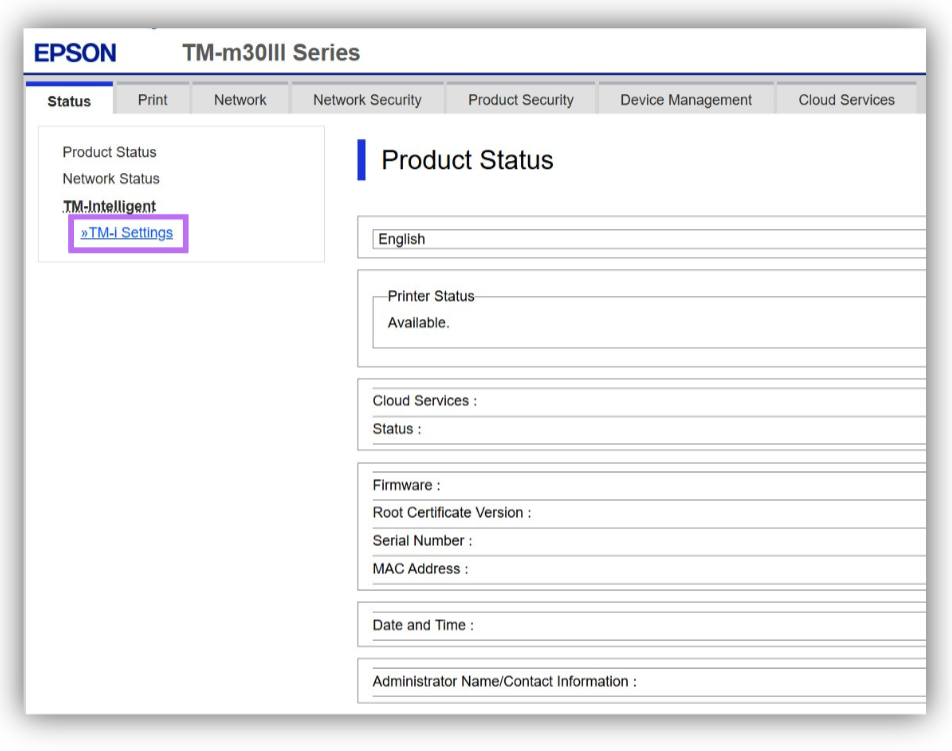
Go to "Server Direct Print". Leave this page open in your browser, as we will fill in the printer installation details from Moder on this page:
Installing the printer in Moder
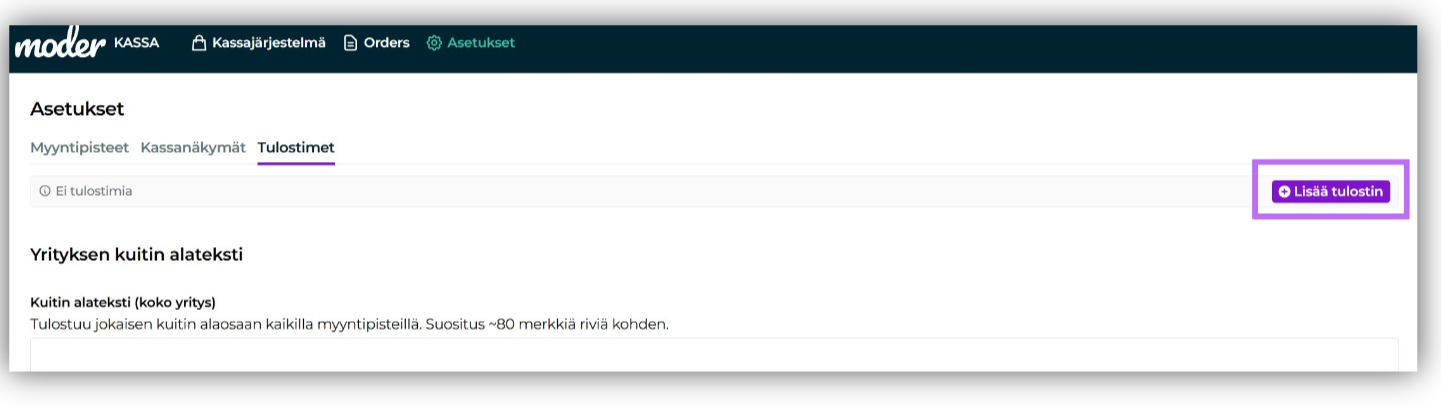
Next, go to Moder and click on the page: Cash register -> Settings -> Printers --> Add printer (top right corner)
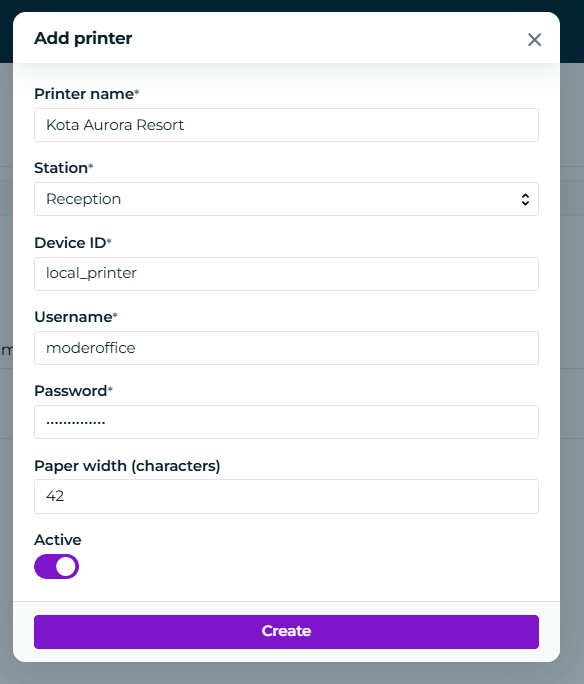
Add the following required information
Printer name: a recognizable name for the printer (e.g. Lobby Bar)
Sales outlet: select the sales outlet from the drop-down menu
if you have not yet created any sales outlets, first create one under Settings -> Sales outlets
Device ID: if the printer settings have not been changed on the WebConfig page, you can leave the default setting here, local_printer
if you have given the printer a unique ID on the WebConfig page, enter the same ID here
Username: define this yourself
Password: define this yourself (note: use only letters and numbers in the password, not special characters, as the WebConfig page does not support special characters)
Paper width (characters):
paper size 80 mm (TM-m30III default): 42 characters (default value)
paper size 58 mm: 32 characters
In most cases, the value used with an Epson TM-m30III printer is 42
If the receipt lines break at incorrect points, check this setting first
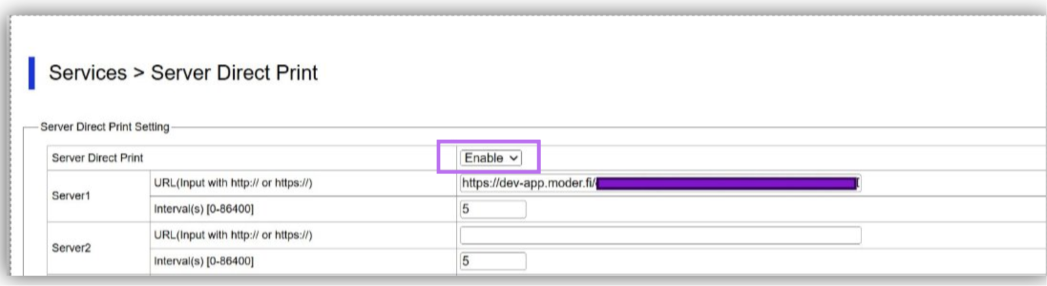
Next, go to the WebConfig page and change the "Server direct print" setting from Disabled ---> Enabled
Then enter the same username and password that you just added to Moder on the WebConfig page
ID = the username you added to Moder
Password = the password you added to Moder
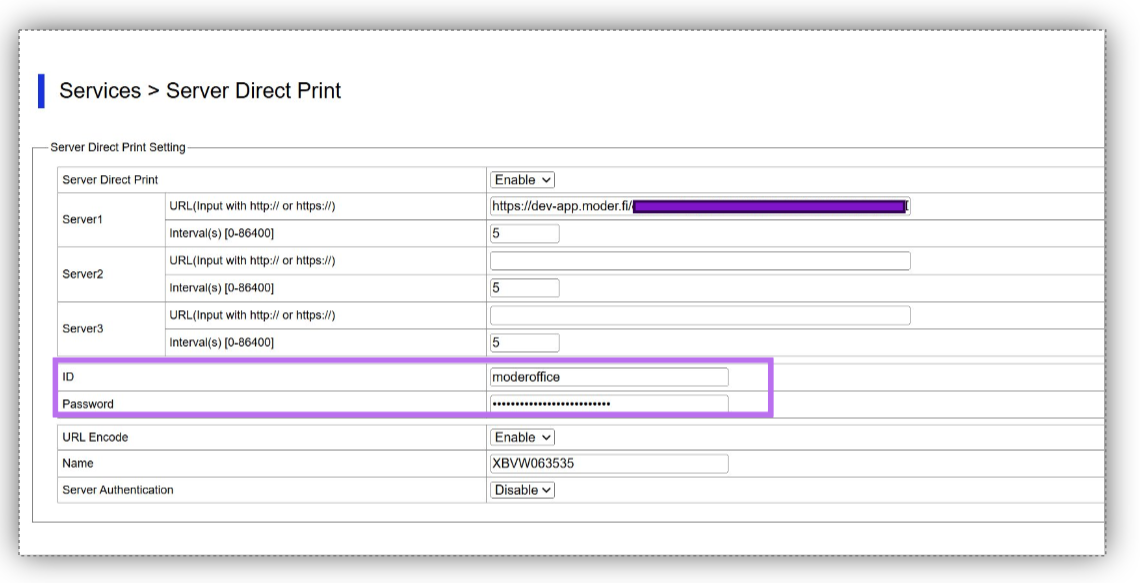
Then save the printer settings in Moder by clicking the "Save" button.
Moder has now added the printer you created to the Settings -> Printers view. At the same time, Moder has created a server address for the printer. Copy the URL by clicking the "Copy URL" button.

Go to the WebConfig tab again and paste the URL you copied into the field "Server 1 URL (input with http:// or https://)"
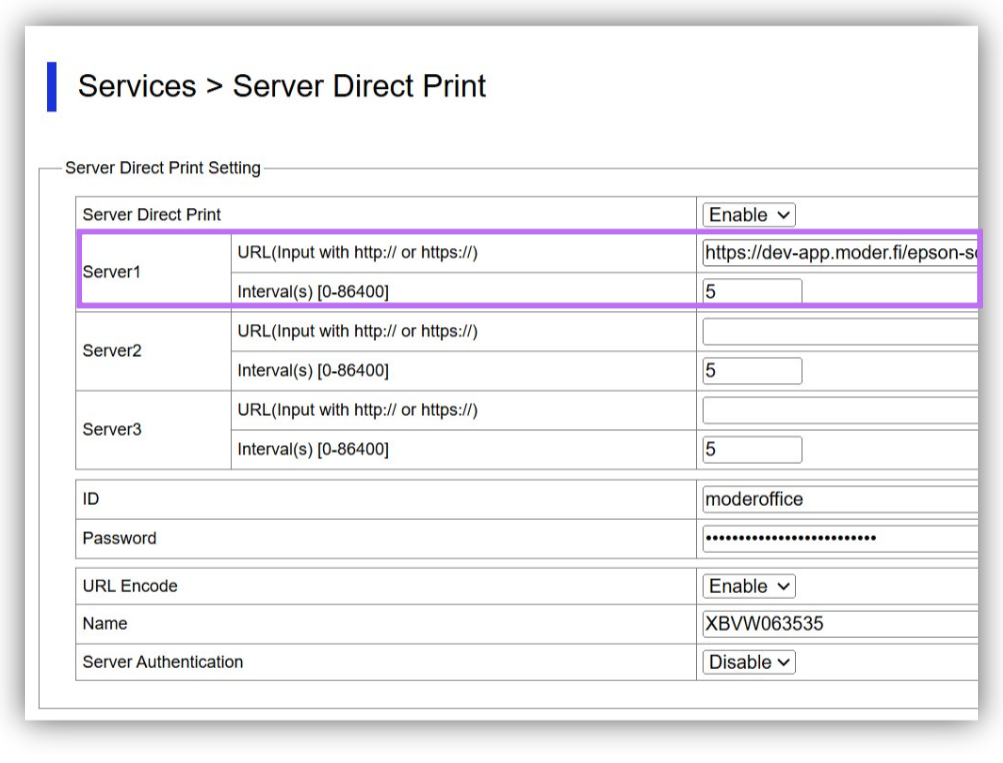
Then click "Apply and restart" in the top-right corner. The update takes approximately 30–40 seconds.
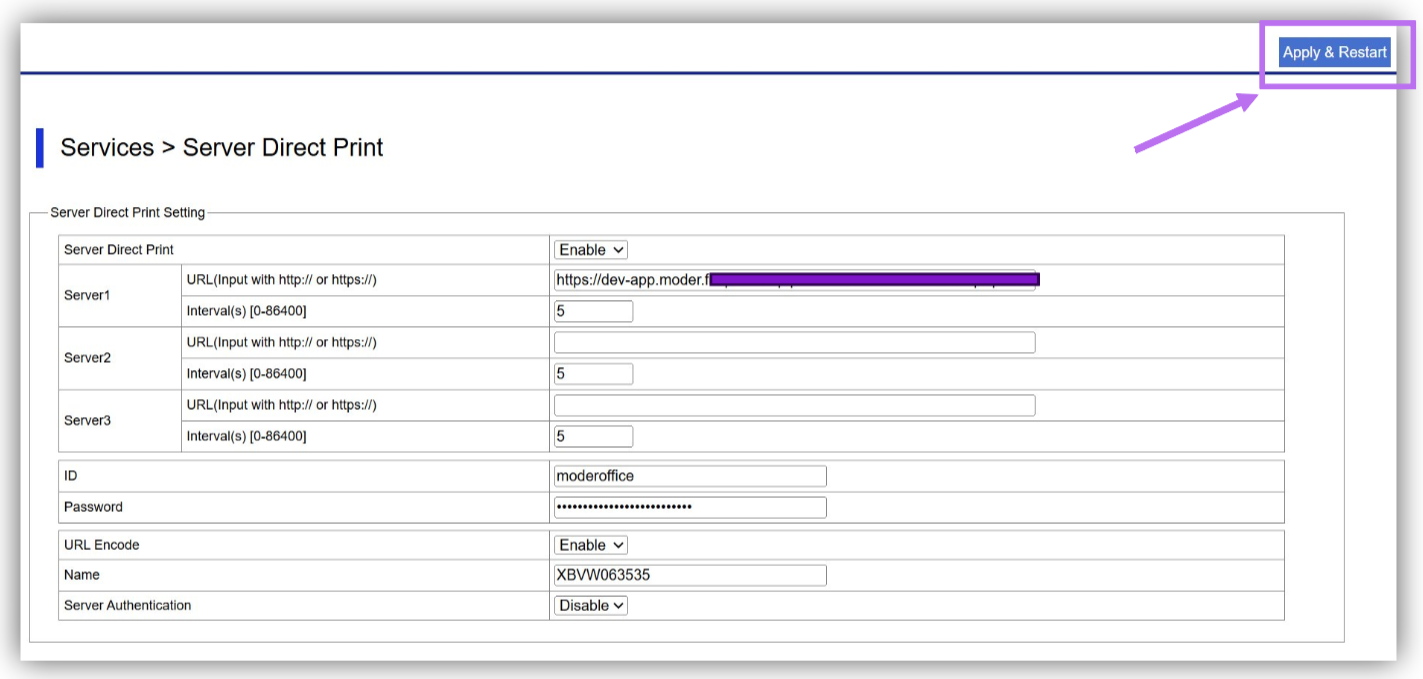
The printer should now be fully configured. The following statuses should now be visible in the printer settings on the printer settings page in Moder
Active: Yes
Status: Connected
You can now test the printer by creating an order at the cash register and printing a receipt.