Daily Control
Last updated: September 4, 2026

Daily control ensures that the numbers match
Daily control aggregates the deviations related to bookings, payments and invoicing that require attention. You see from a single view what needs to be fixed and why, before the errors have a chance to make it all the way to accounting.
We strongly recommend it as part of daily routines. Think of it as a modern alternative to the traditional night run: instead of having to “close” the day separately, Moder monitors the situation independently during the night and brings the items that need correction into view.
This keeps the finances tidy, your accountant happy, and there is less to investigate at month‑end.
Key features:
new data updates automatically during overnight
single view for critical issues and warnings
highlights open amounts and transactions that require correction
helps find errors before they end up in accounting
replaces the traditional night run with continuous, up‑to‑date monitoring
Filters
Let's start with filters. With filters you can easily reveal the information most important to you.
By default, all issue types and all severities for all items from the last seven days are shown:

You can filter the view by:
time period
property
severity level
status
issue type

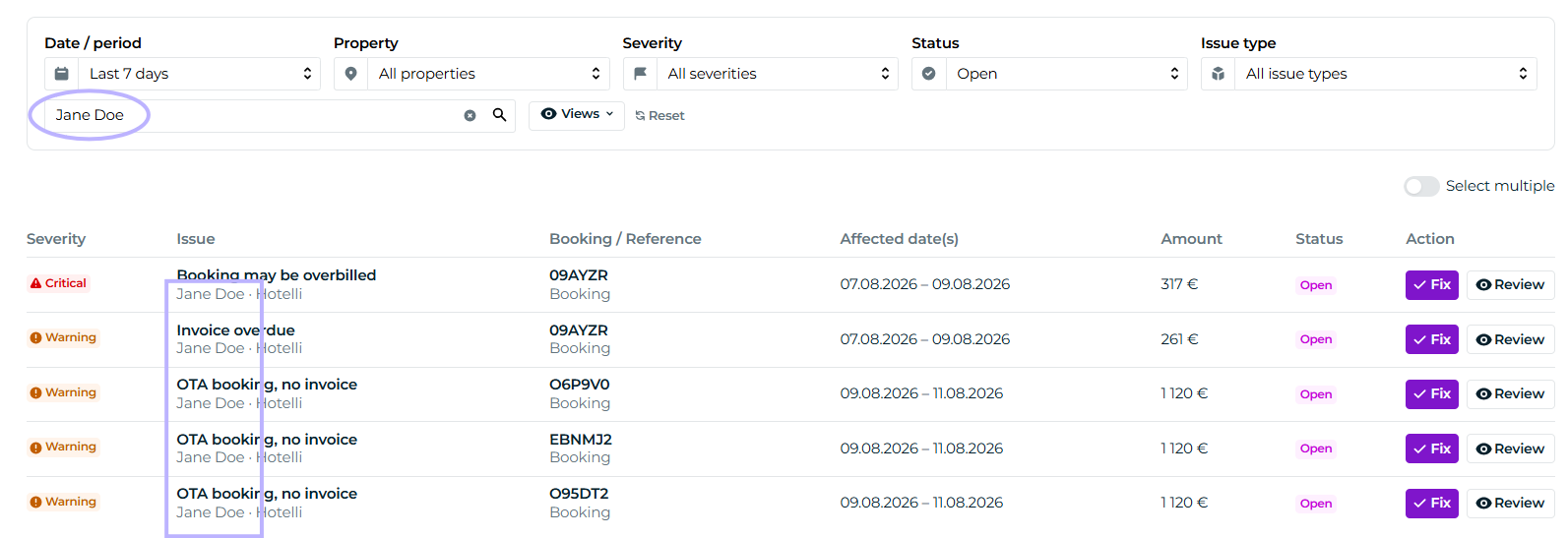
With the search function you can also conveniently search for all notes related to a specific issue, customer, reservation, or reference.
In this example, all notes related to Jane Doe's bookings have been retrieved:
You can also save your favorite views from the Views -button

Handling the notes
Under the filters, issues are listed according to the filters you selected, or by default from the past 30 days.
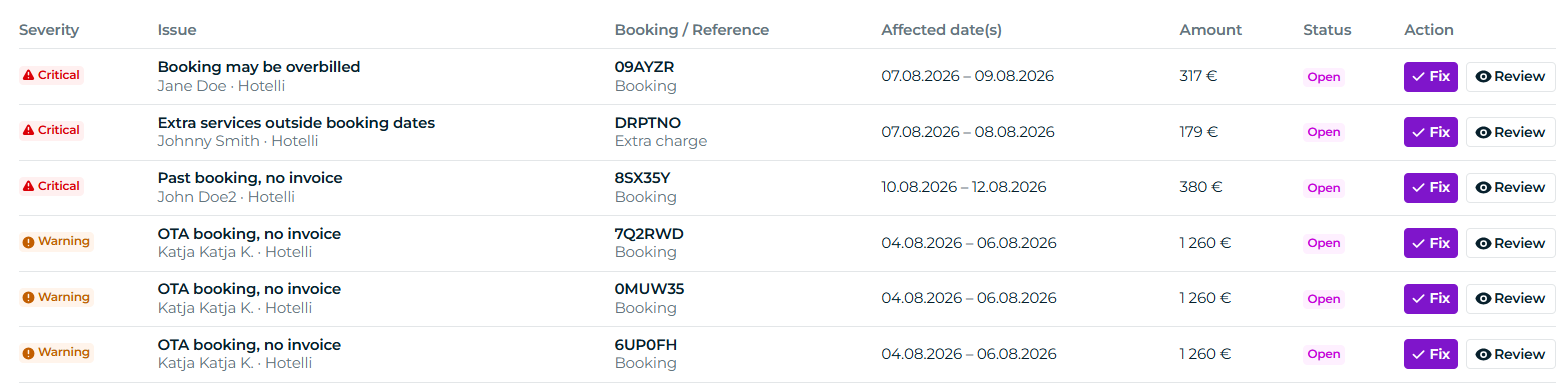
Overview
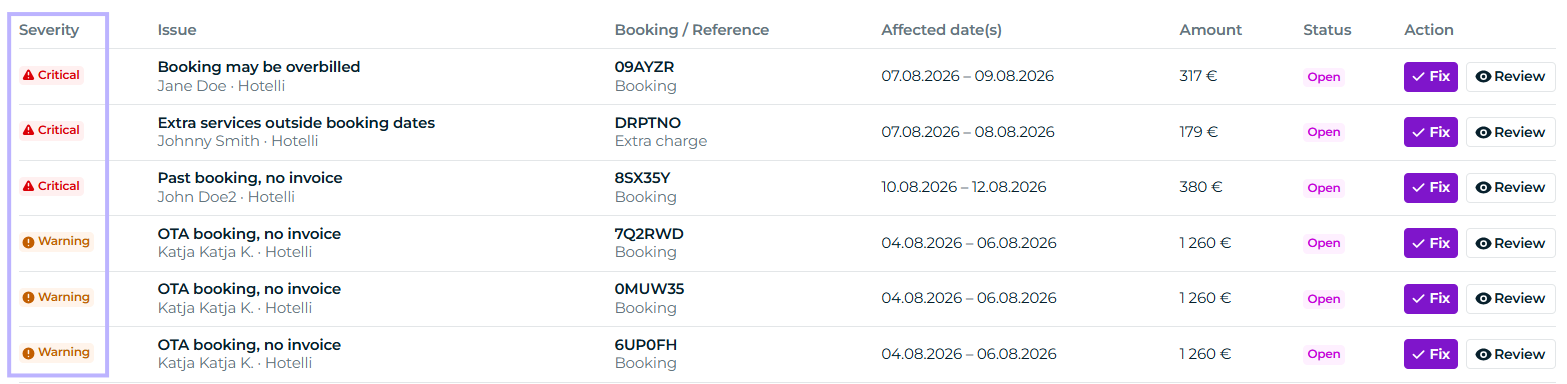
Severity categories
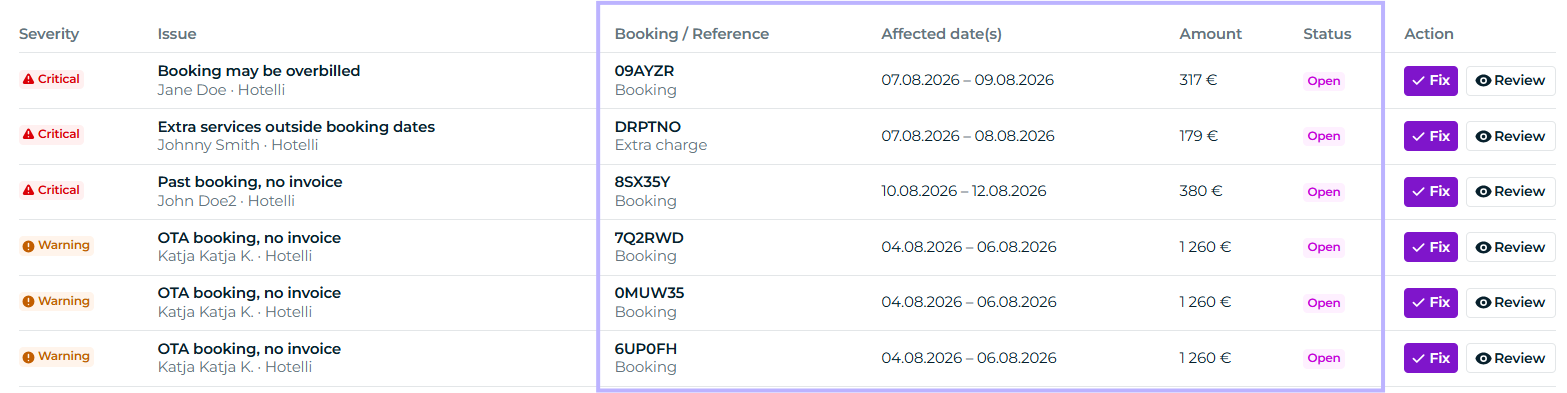
Critical: Issues that can cause incorrect billing or missing charges, such as unbilled or overbilled reservations.
Warnings: Issues that can lead to billing or payment problems, such as overdue invoices or overpaid bookings.
Open amount: Open amounts related to reservations that still need to be collected or resolved.
The severity category is displayed immediately on the left side:
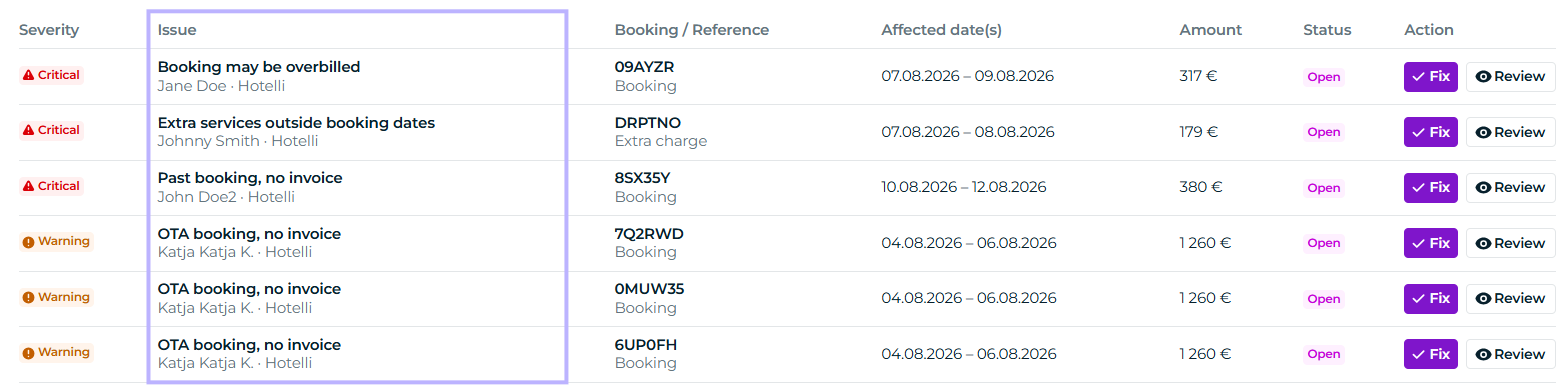
Issue
The Issue column briefly describes what the matter concerns:
Booking, days, amount
From the Overview you can also see the details of a problematic booking at a glance:
Action
Review
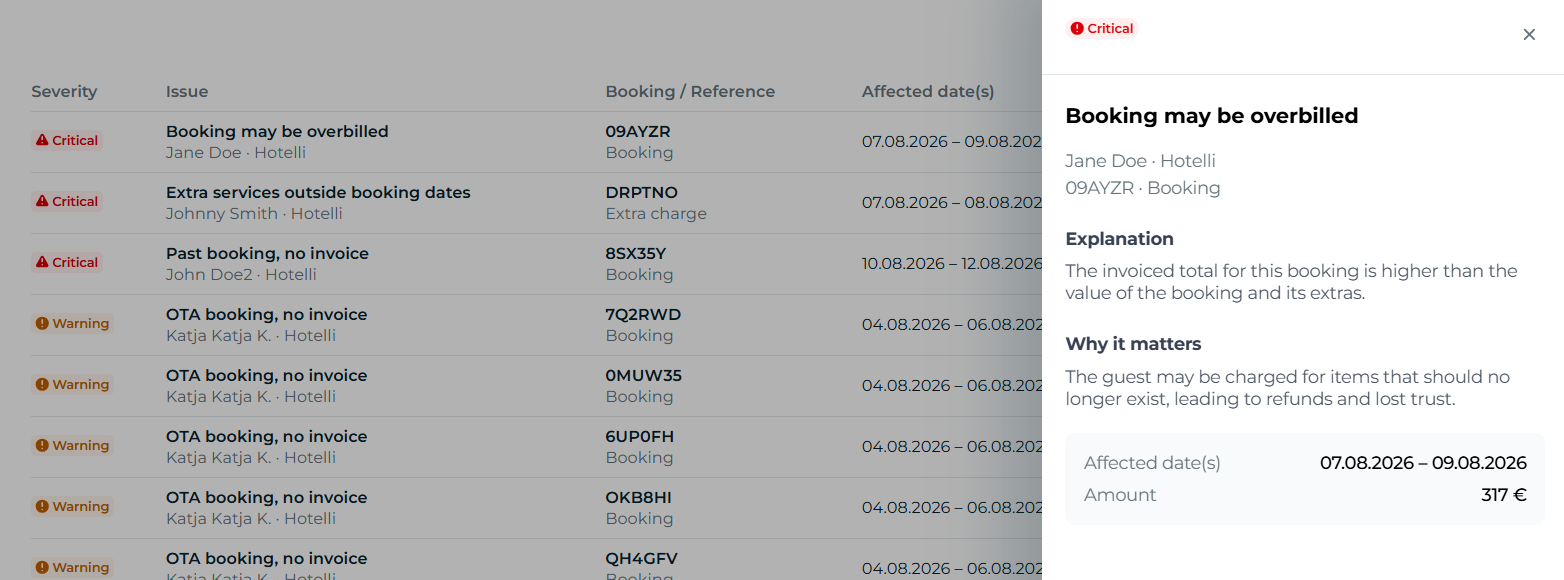
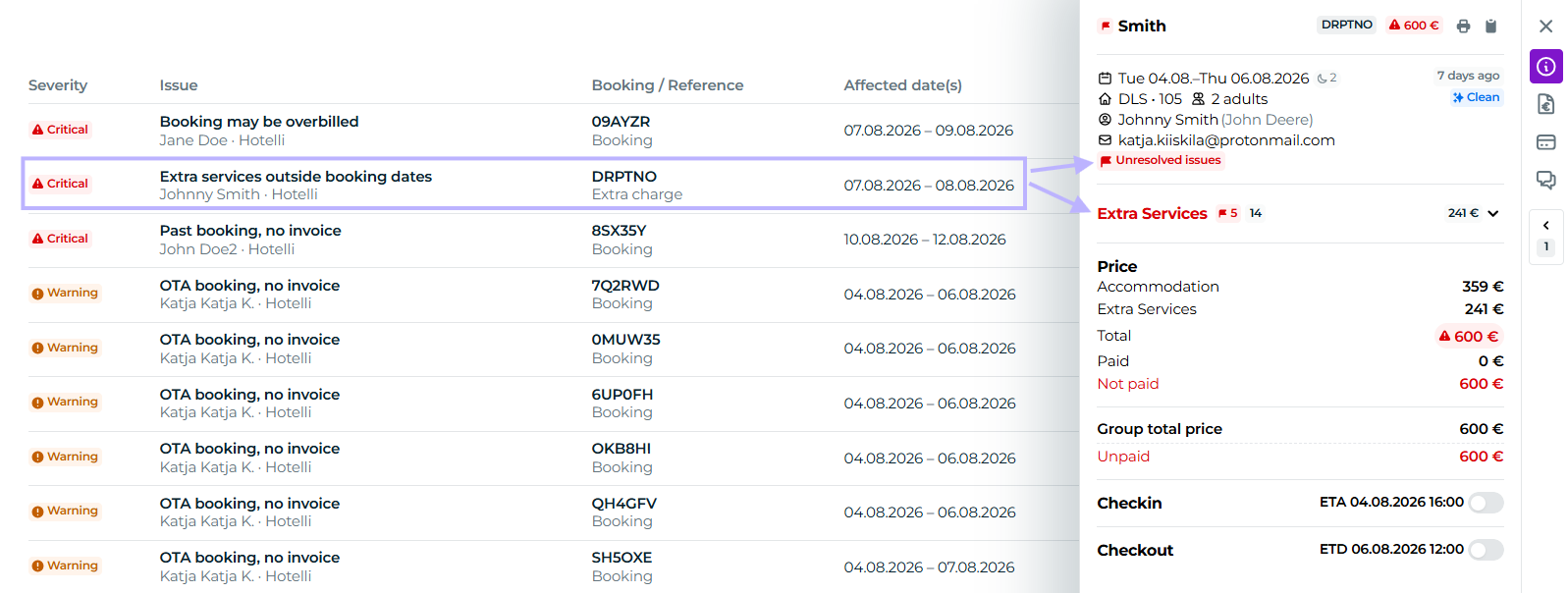
In the Action column you get straight to the matter. You can examine the issue's quality, causes, and consequences more closely: this works by clicking the review button or the row:

A window then opens on the side, from which you can view additional details:
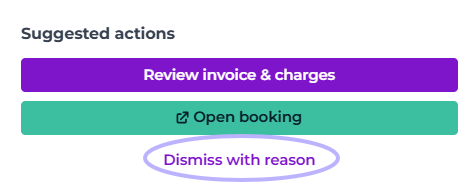
From the bottom of the window you can view the suggested actions:
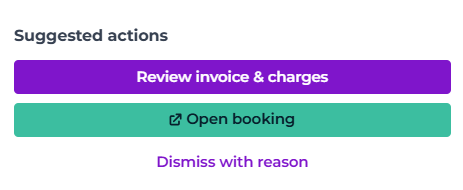
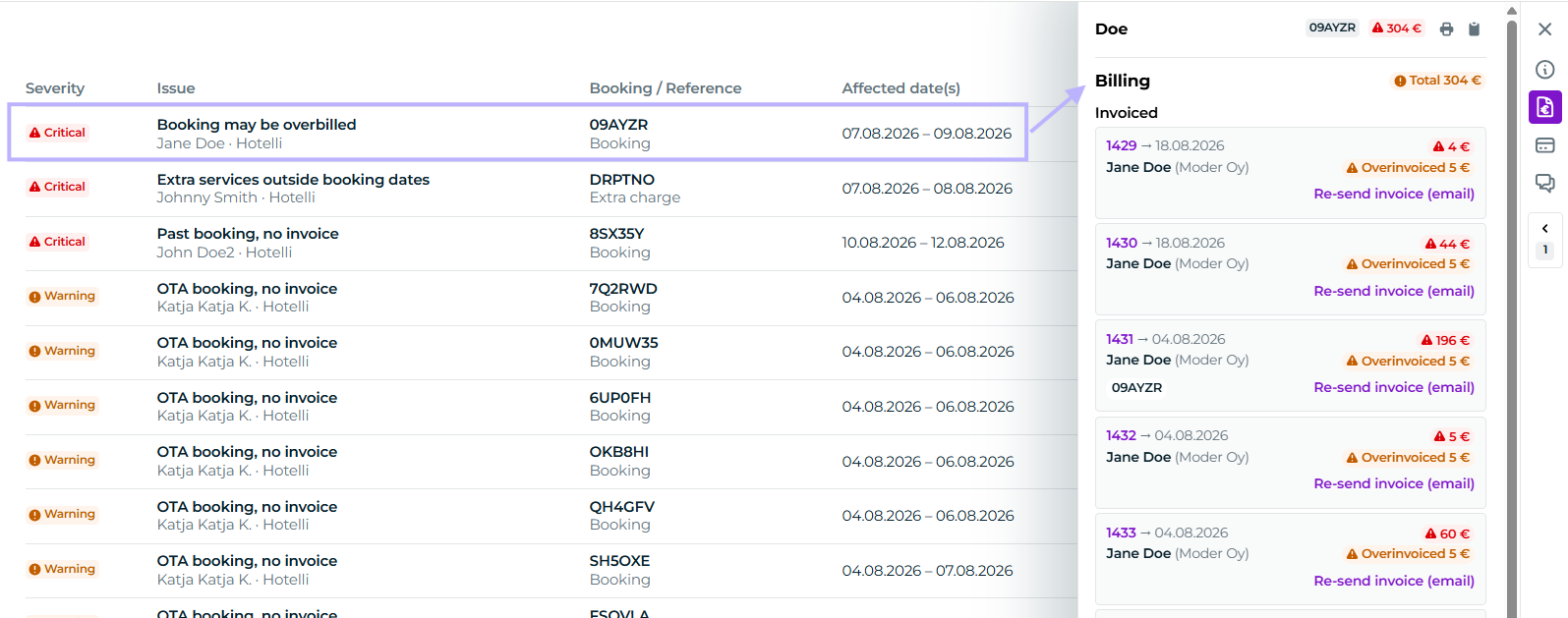
Fix
Fix -button takes you directly to the booking at the point where the issue occurs. For example, the “Booking may be overbilled” issue opens from the fix button straight to the billing tab:
And conversely, the “extra services outside booking dates” issue opens from the fix button directly to the booking overview:
Dismiss
Is the issue actually correct as it is, handled outside of Moder, a customer‑specific exception, or otherwise does not require action?
You can then also skip the issue entirely.
Note! Only admins can bypass notifications without actions! Front desk accounts can bypass the notification only by correcting the issues.
Dismissing works either from the individual row's own inspection window:
Or you can also select multiple rows and skip them all at once:
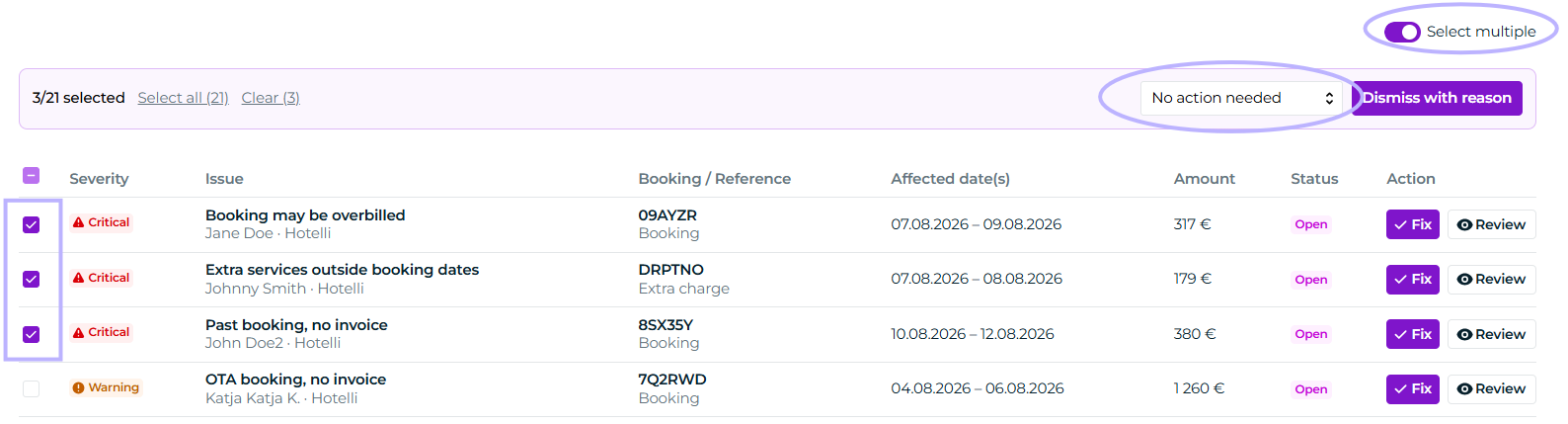
Click "Select multiple"
Select reason
Select the rows you want
Finally click the button Dismiss with reason
Other correction‑related instructions
Guidelines for invoices and payments can be found here:
Unresolved issues in bookings:
Guide to Moder's financial management:
Report instructions