Moder's financial management
Last updated: September 9, 2026
Introduction
Modern financial management covers key functions such as payments, invoicing, payment entries, and reporting and analytics. To keep accounting up-to-date and reliable, it is important to understand how these areas work together and how Moder is used to manage them.
This guide covers Moder's key financial management processes from the perspective of, for example, an accountant and a person reviewing the company's figures. You will learn what information from Moder is needed for accounting, how to ensure data accuracy, and what practices keep the overall process smooth in the company's daily operations.
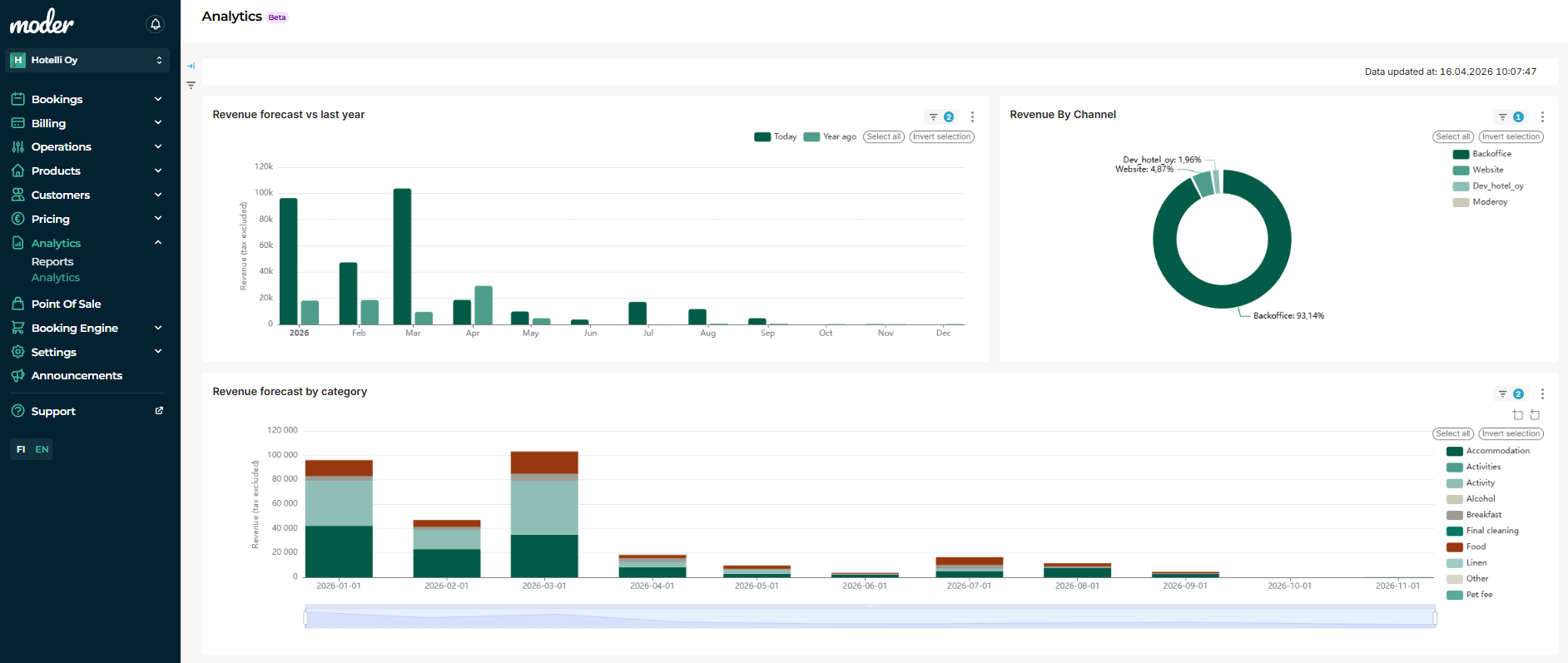
Best practices: how to make reports and accounting match
The foundation for everything in a tourism business is to keep invoices and payments up to date on a daily basis. In Moder, it is currently possible to mark just a booking as paid without an invoice, but we primarily recommend always creating an invoice for a booking, as the invoice serves as a receipt for the customer when needed.
So how do you manage invoices and payment entries in Moder so that the accounting is correct?
Or more precisely, what would be the right way to proceed so that all the numbers appear correctly in both the reports and in Moder?
You can always operate in Moder as you wish, but we will now tell you in broad terms and briefly, how it is sensible to operate payment entries, invoices and payments in your Moder, so that reports and the material going to accounting would be as reliable as possible. This namely requires accuracy in payment entries and invoices.
So if you wish, do this:
Make sure that all payment entries are correct and correct, if necessary
Don't leave payment entries several days away when possible, but mark received payments immediately on the booking or invoice correctly. Of course, this is not always the case if your traveller is invoiced with, for example, a post-invoice, but always be careful to mark the money received on the booking and invoice correctly.
Overinvoiced or underinvoiced? Wrong payment entry?
Moder will readily inform you in the form of various colors and texts in the Booking Hub when you have, for example, marked the booking and invoice value to a different amount. Remember to be careful when necessary that both (invoice and booking) match each other:
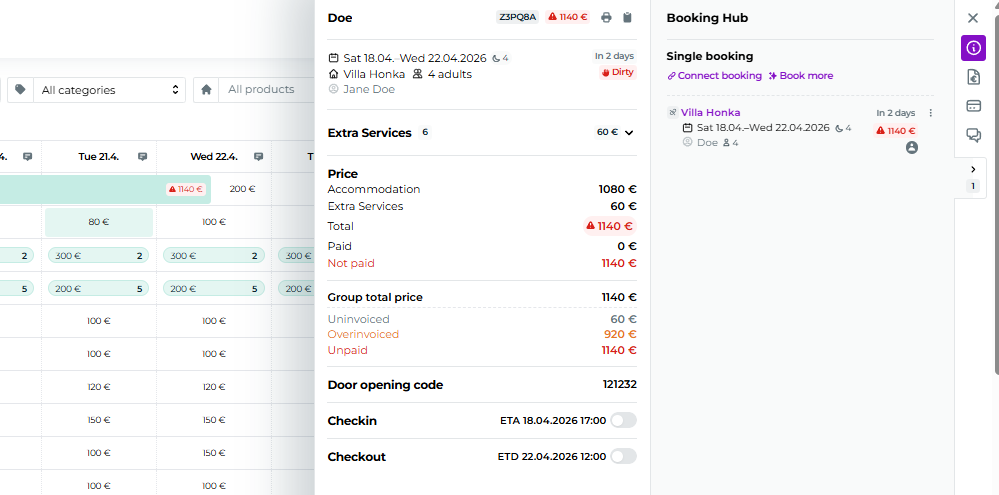
It's better to practice making corrections as negative entries rather than deleting payment entries, so that some trace of them remains on the reservation.
You can find in our guide instructions on how to properly handle invoices and credit invoices.
Create an invoice for each reservation
This way you also always have a receipt available for all bookings, products and services. All necessary information is also always visible in reports when you create an invoice for each booking and process them together with the booking.
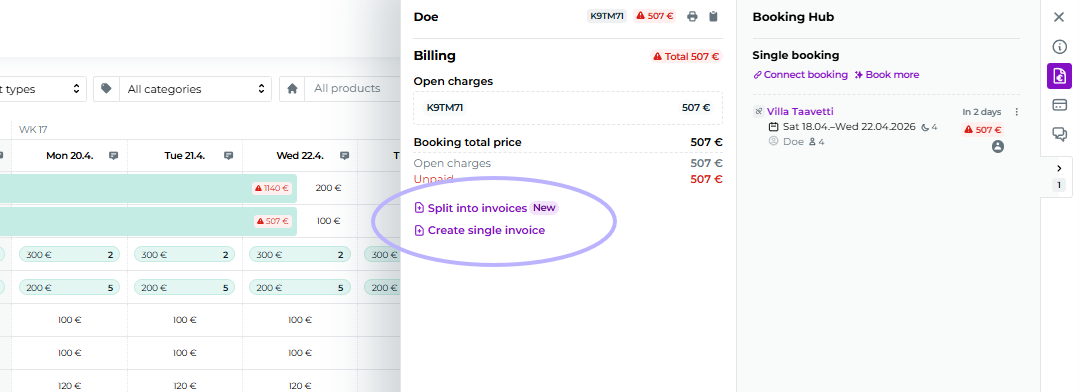
Marking an invoice as paid also conveniently marks the booking itself as paid. Please note that you do not receive a receipt from a payment entry made only for the booking.
Be careful with refunds
Always make sure that credit invoices are completed and the correct amount has been refunded to the customer also from Paytrail or Stripe. Do not cancel the booking before you have made a possible credit invoice in your Moder:
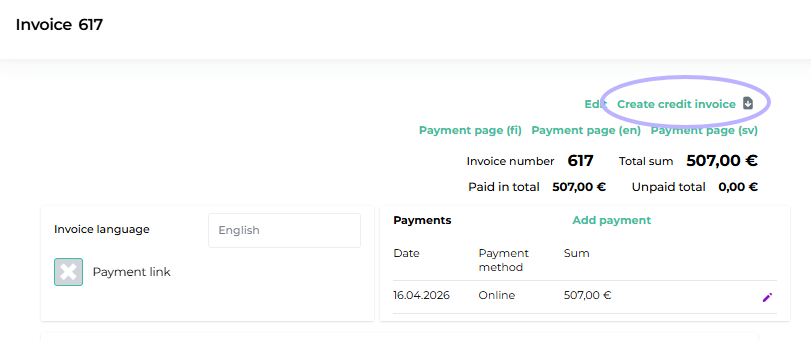
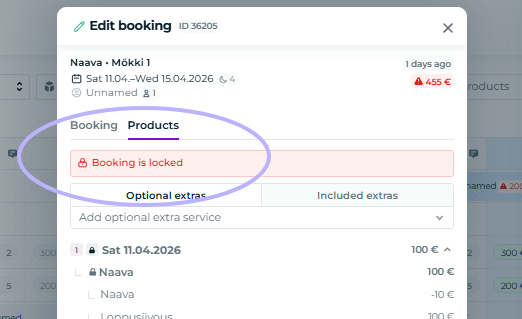
Note that Moder allows processing of bookings and invoices in the past by unlocking the booking
This will modify certain older reports if you end up editing an old and past reservation or even an invoice for some reason. Therefore, it is good to stick to the decision that at the end of the day or the next day, all payment entries and invoices are reviewed so that they are always up to date with the money received from the customer (or credit).
However, if you do end up editing the past, you can do so by unlocking the reservation. Instructions here: Reservation locking
Regularly review the list of overdue invoices and invoice drafts in your Moder
Just to be safe, in case a payment entry might be forgotten or an invoice has remained as a draft.

Be careful with payment entries and invoices for group bookings
Remember to mark each booking as paid in group bookings, especially when your guests pay individually and group bookings may contain multiple invoices.
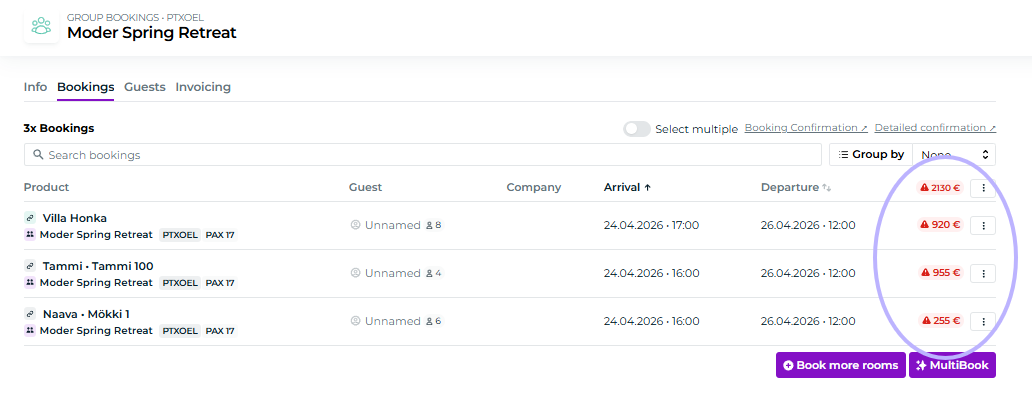
You can easily view payment entries for group bookings, for example, from the Bookings tab.
Frequently asked questions
Sometimes, however, situations arise where you might be confused, and we at Moder support are happy to help clarify report figures and operational logic, among other things.
Here are some things briefly and collectively that may be useful before contacting us:
"Why doesn't my monthly accounting match?"
Or a situation where the numbers don't match and Paytrail or Stripe has different numbers than you have in your Moder.
Here are a few tips that often correct the situation:
Go through the entire month in your Moder and check absolutely every reservation to ensure they match and payment entries are correct - that is, check that the reservation amount matches the invoice. This is easiest to do from the Booking Calendar, for example!
Do you have the correct reports in hand for comparison? You cannot compare reservation-specific reports with daily reports very well
Do you have all the reports exported that you need for your accounting? Some reports are good to export to Excel, for example, for more detailed review and to perform necessary filtering there
"What reports should I use for accounting?"
The best accounting reports are located at the mid-level of Moder, namely these:
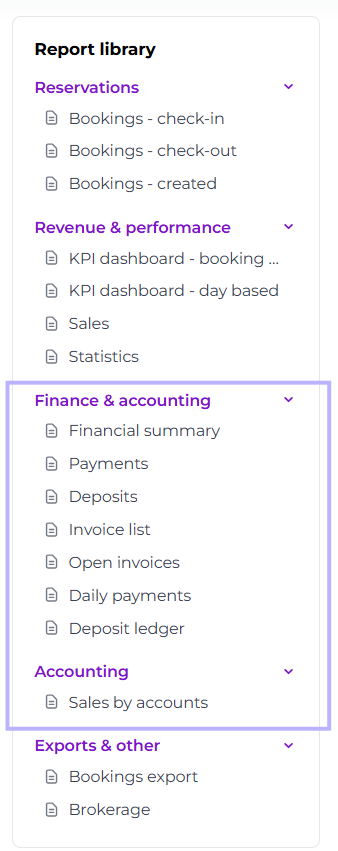
We recommend the Financial Summary, Open Invoices Report, and Deposits Report. In some cases, the Bookings - Check-out is also sufficient for accounting purposes!
“Is there a single report in Moder that shows all the information together?”
Currently, Moder does not have a single report that combines the service date, payment date, VAT, and country of payment. These details are available in different reports and in the Accounting section, and they need to be used together for monthly reconciliation.
Report instructions
More detailed instructions about Moder's reports can be found here: Reports
Questions?
We here at Moder support are here to help you if you have any questions about accounting and financial management:
Moder Support
Mon-Fri 9.00-16.00
+358 50 375 0747