Managing bookings: editing and moving
Last updated: January 23, 2026
This support article covers editing Moder bookings from all aspects, from the booker's personal information to changing the reservation time and, for example, adding additional services and modifying daily prices.
You can open the reservation edit view by clicking the reservation preview Edit -button.
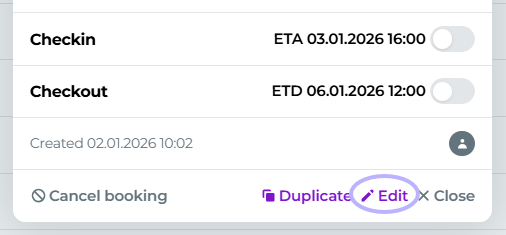
The edit view is divided into two tabs: Reservation and Product.s
Key features:
Editing traveler information
Selecting room type and room
Changing reservation period length
Editing and adding additional services
Editing booking: Booking tab
On this tab the reservation key information.
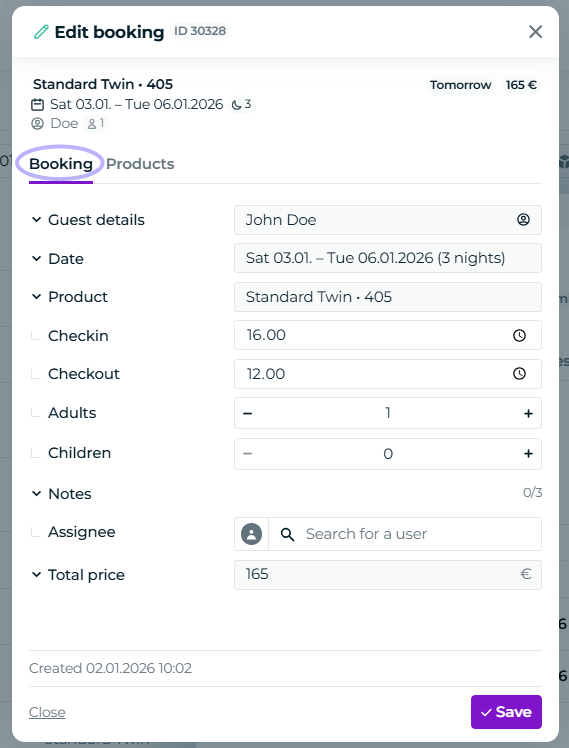
Date
You can move the reservation or extend its duration.
Product
You can change the product (e.g., room type) or move the reservation to another room.
Room transfer also works normally through the reservation calendar.
Other information
Changing the reservation's check-in and check-out times, adjusting the number of guests, and adding notes to the reservation can be done normally.
Total price
You can change the reservation VAT rate and set that the price is not shown in GuestApp
to the traveler.
Editing the reservation: Products tab
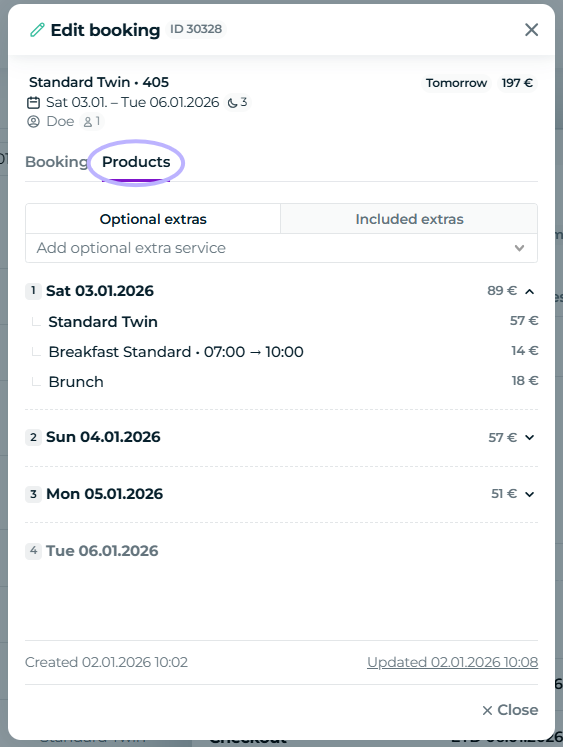
This tab contains all product information.
Products tab
On the Products tab, all sold items are listed by day: accommodation, additional services, and included additional services.
Products grouped daily
The view displays the reservation days and the additional services sold for each day.
You can expand the desired day and view that day's products.
Editing products
By clicking on a product line, you can edit that product line: change the price, quantity, or set, for example, a specific time for an additional service.
Adding additional services to a reservation
Select whether you add Optional / Included selection and choose the additional service from the dropdown menu.
Additional settings for extra services
You can set extra services (Products -> Extra Services), whether the extra service is marked for the arrival date, departure date, or stayover days.
Editing a single product
You can conveniently edit a single product's details by clicking it open.
Product editing
When you click open the product, a new window opens, from which you can set the product's date, quantity, price, and VAT rate.
Reservation-specific additional service name
You can change the additional service name per reservation as needed.
Setting the time
You can set a start and end time for the additional service.
Note
You can add additional notes for extra services.
Example for the Parking Spot add-on service: Registration number XXR-112.
What are these data used for?
Product name, notes and times are displayed in different views where extra services are handled.
Automatic price update in change situations
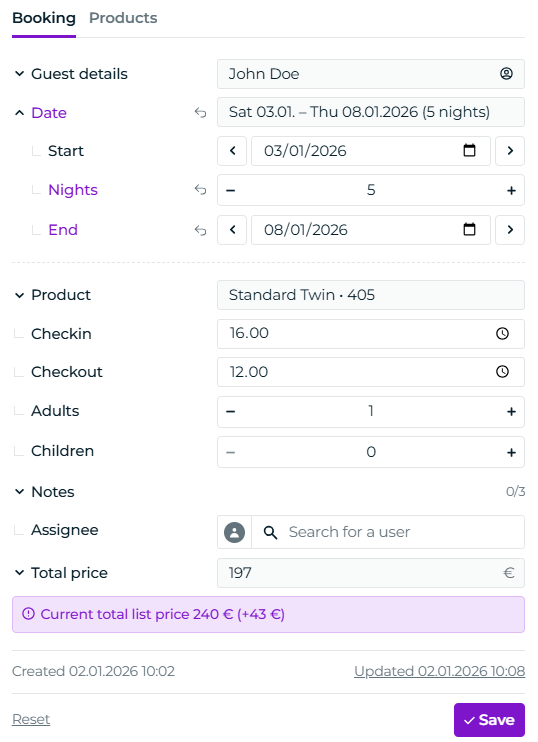
When a reservation moves to a new time, where the day's price has changed or the reservation length changes, Moder suggests a price update in the edit view.
Automatic reservation price change
When a reservation receives changes that, according to pricing, alter the reservation price, Moder notifies about it in the notice banner.
Extending the reservation
Moder shows a new price according to the rate sheet when you add days to the reservation. You can accept or reject the changes.
Moving the reservation
When you move a reservation to a time where the pricing is higher or lower than the original time, Moder notifies you of this and asks whether the price should be updated.
Changing room type
If you move the reservation to another, for example a more expensive room type, Moder suggests updating the price according to the pricing of the new room type.