Google Analytics
Last updated: March 11, 2026
In modern e‑commerce sites you can manage a customer's movement after a purchase and track the customer's shopping behavior using the simpler Google Analytics (GA4) or the more extensive and more manual work requiring Google Tag Manager (GTM).
The document's target audience is assumed to be familiar with the aforementioned Google tools and e‑commerce tracking concepts, which will not be explained in detail in this material. More information about them can be found in Google's own guides:
Creating a GA4 account
https://support.google.com/analytics/answer/9304153?hl=fi
Tag Manager installation and deployment:
https://support.google.com/tagmanager/answer/6103696?hl=fi
Implementation
In Moder, there are two options that can be set in the Reservation Engine - Locations - Choose desired location - Analytics:
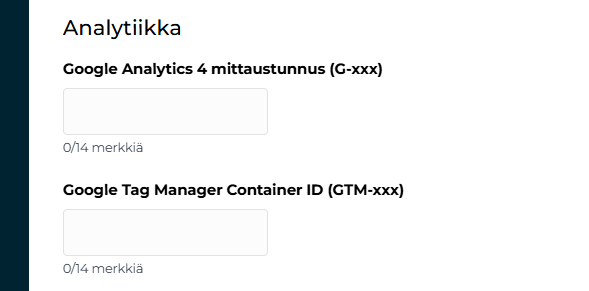
Use Google Analytics 4 (GA4) only
Set the GA4 measurement ID in the e‑commerce settings
Use Google Tag Manager (GTM) and load the desired scripts with it
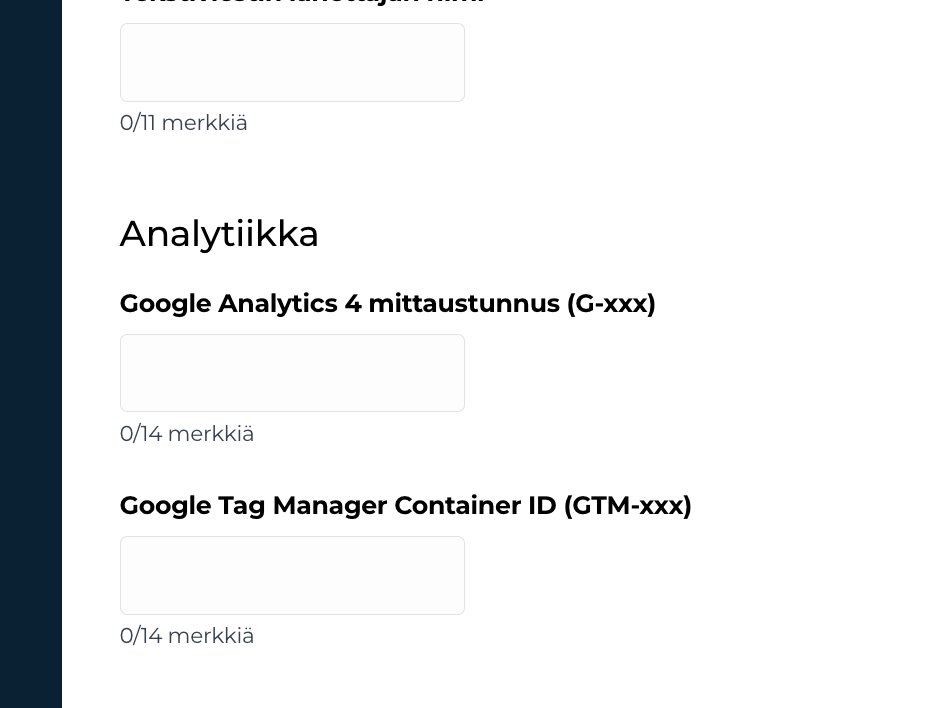
Place the GTM container ID in the e‑commerce settings, so that the container is loaded on the e‑commerce page and it loads the desired other tags (scripts)
Then you can use GA4 or any other desired tool
Google Tag Manager & GA4
Set up GA4 in Google Tag Manager: https://support.google.com/tagmanager/answer/9442095?hl=fi
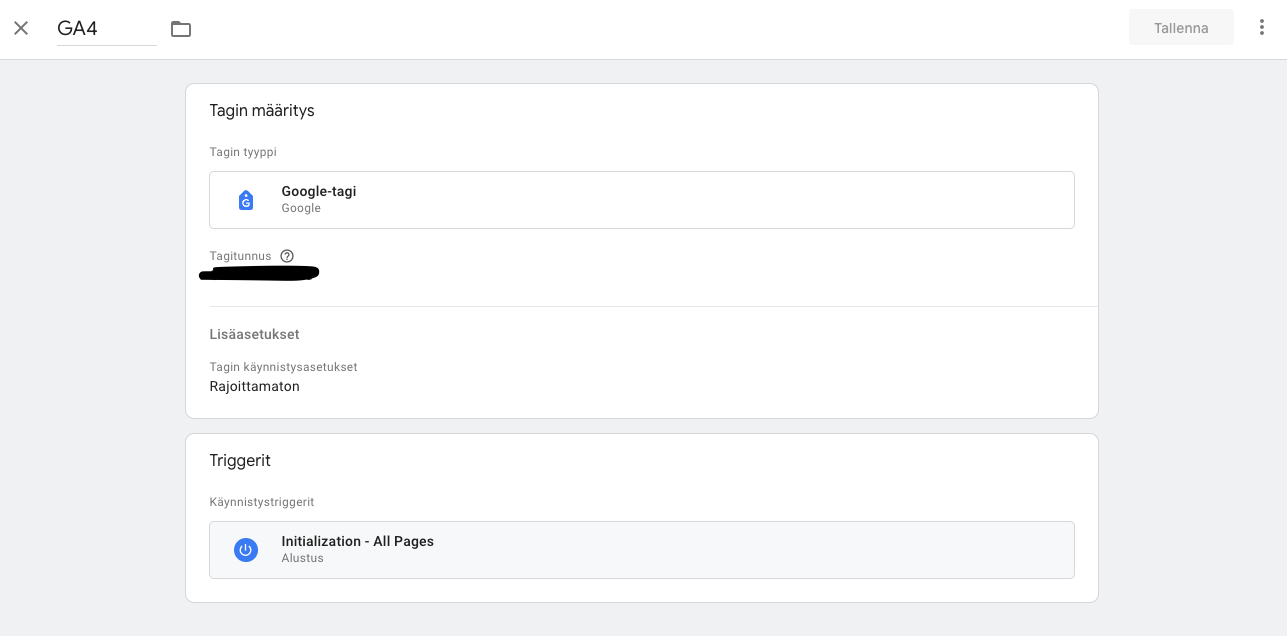
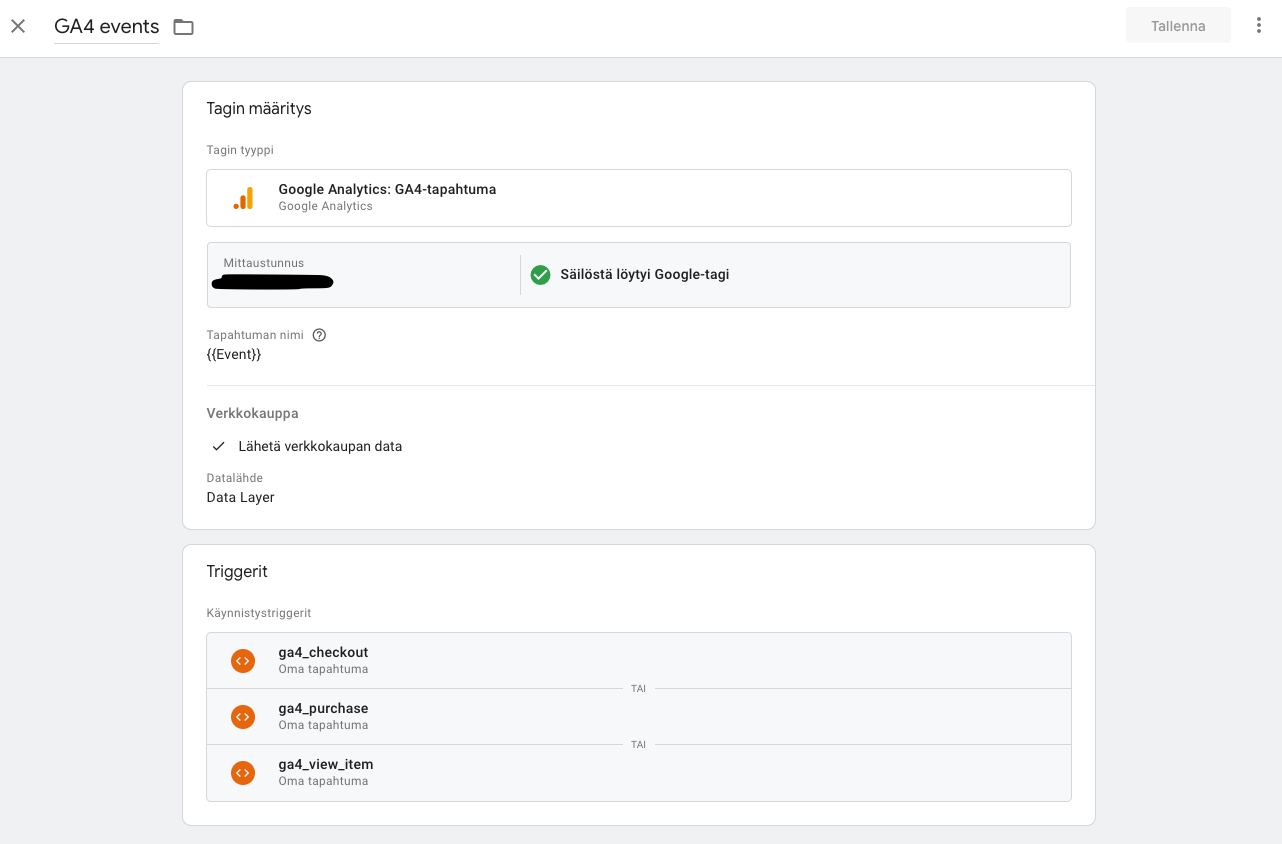
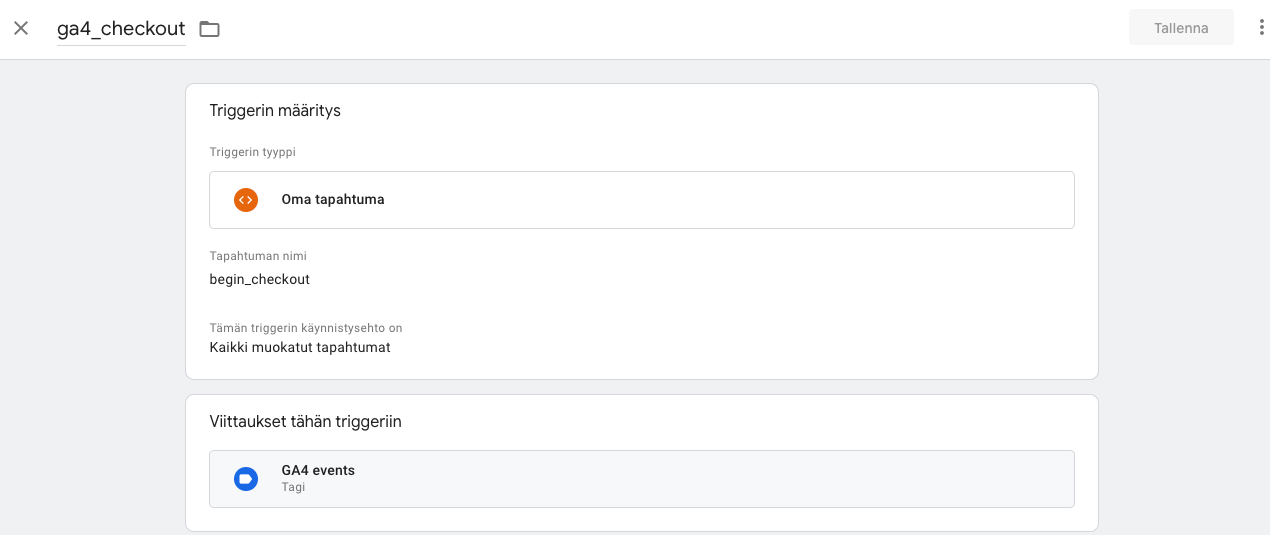
Enable GA4 events in Tag Manager: https://support.google.com/tagmanager/answer/13034206?hl=fi
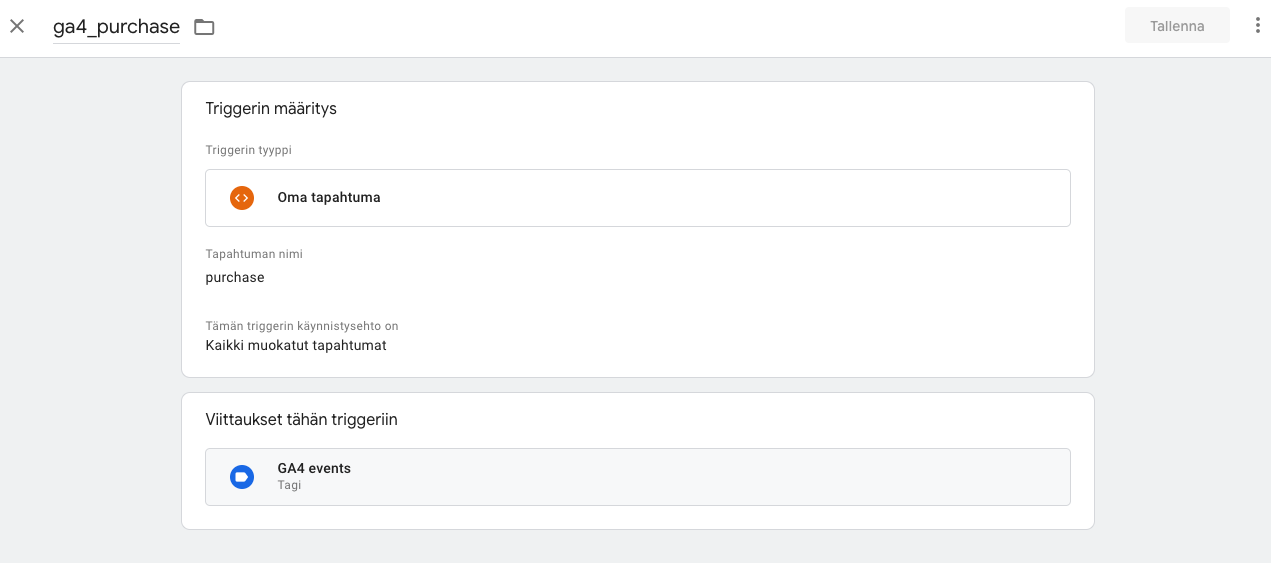
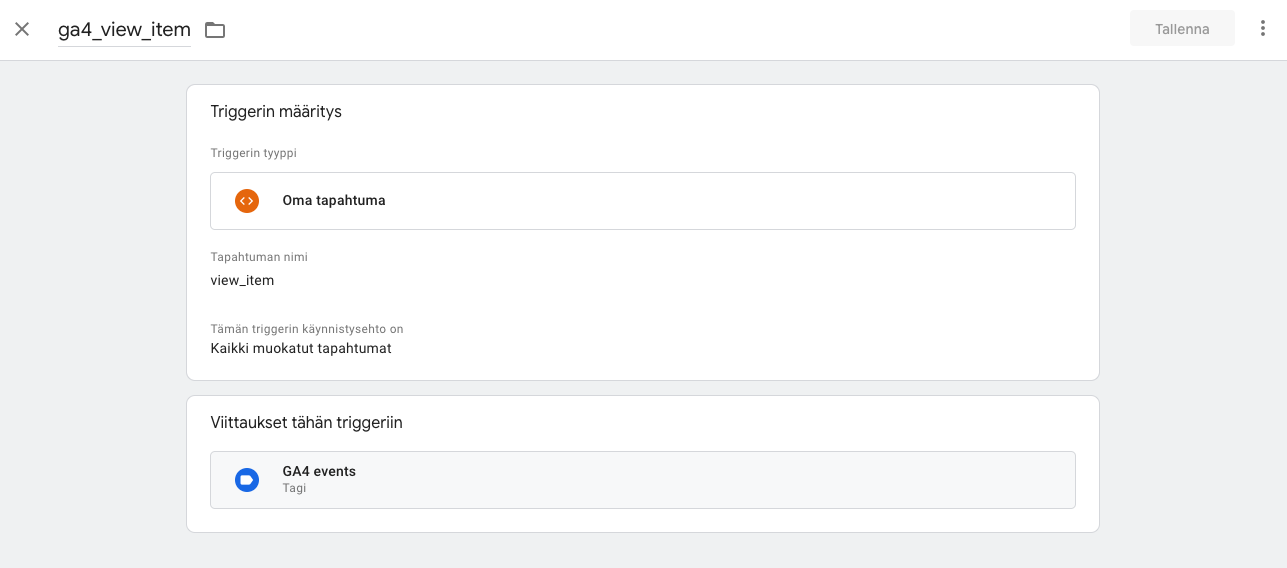
a. create triggers for view_item, begin_checkout, and purchase events
Google Analytics 4 - where can I find the measurement ID?
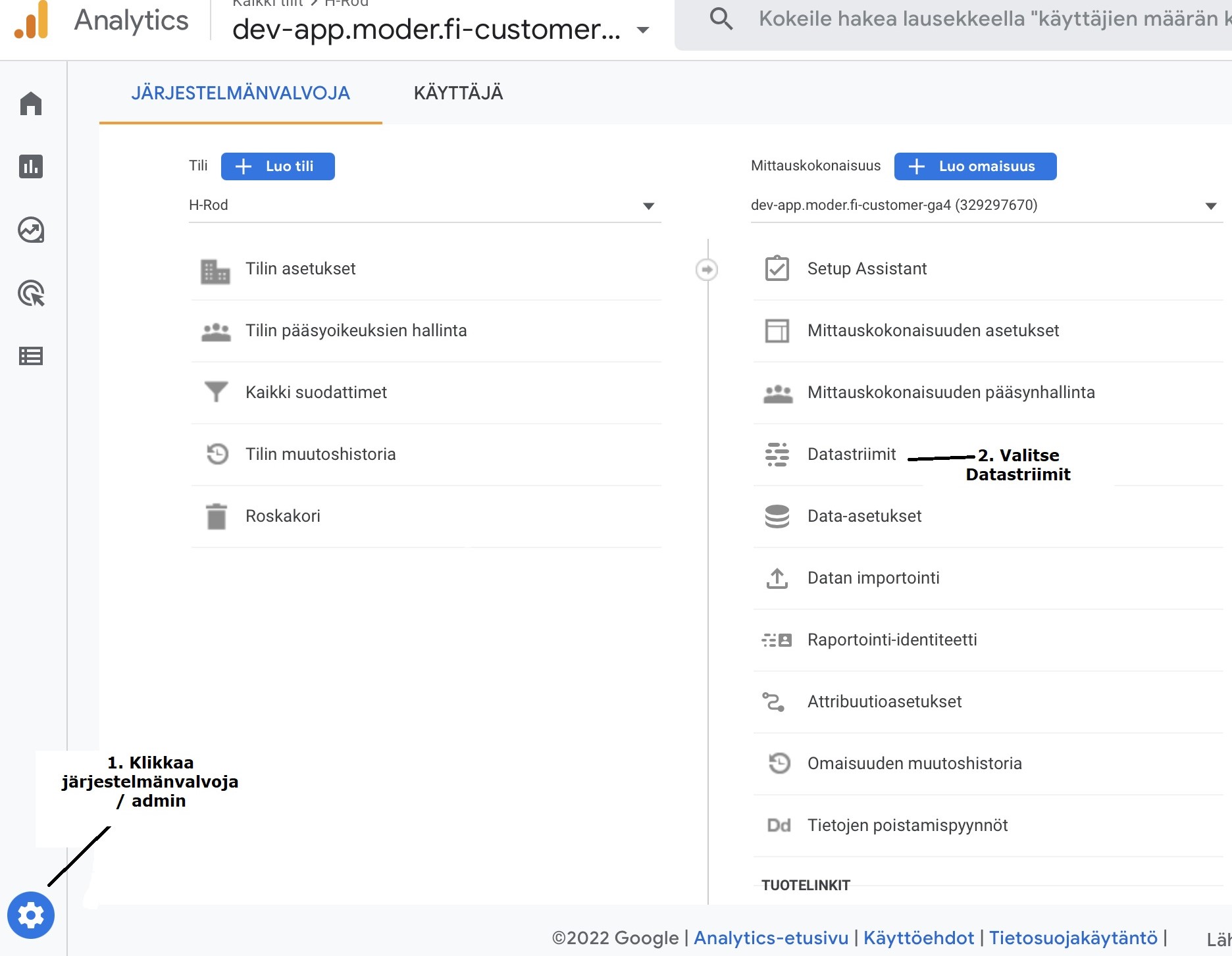
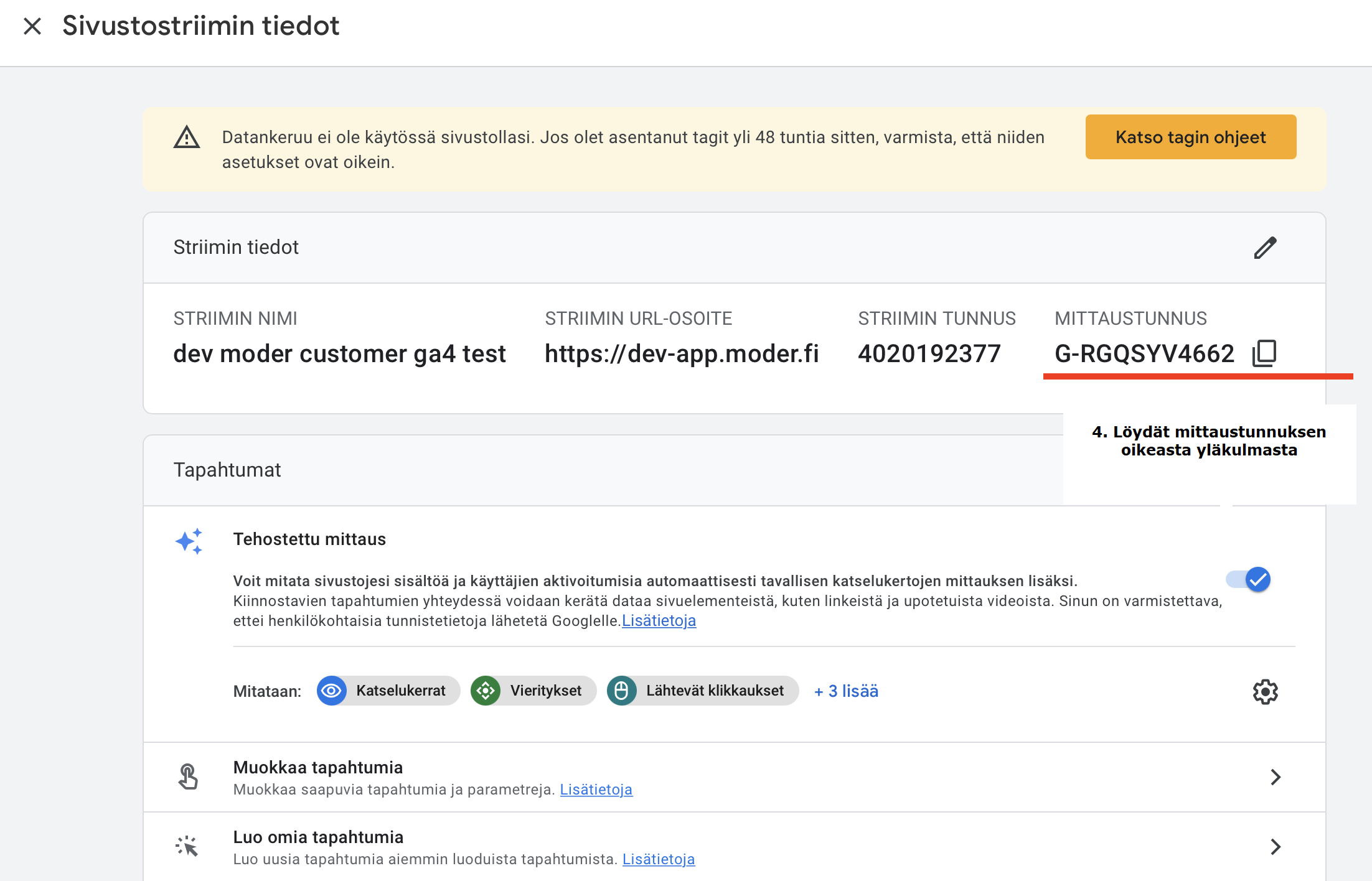
Log in to your Google Analytics account. From the lower left corner select admin/administrator (i.e., the gear icon). Choose Data Streams.
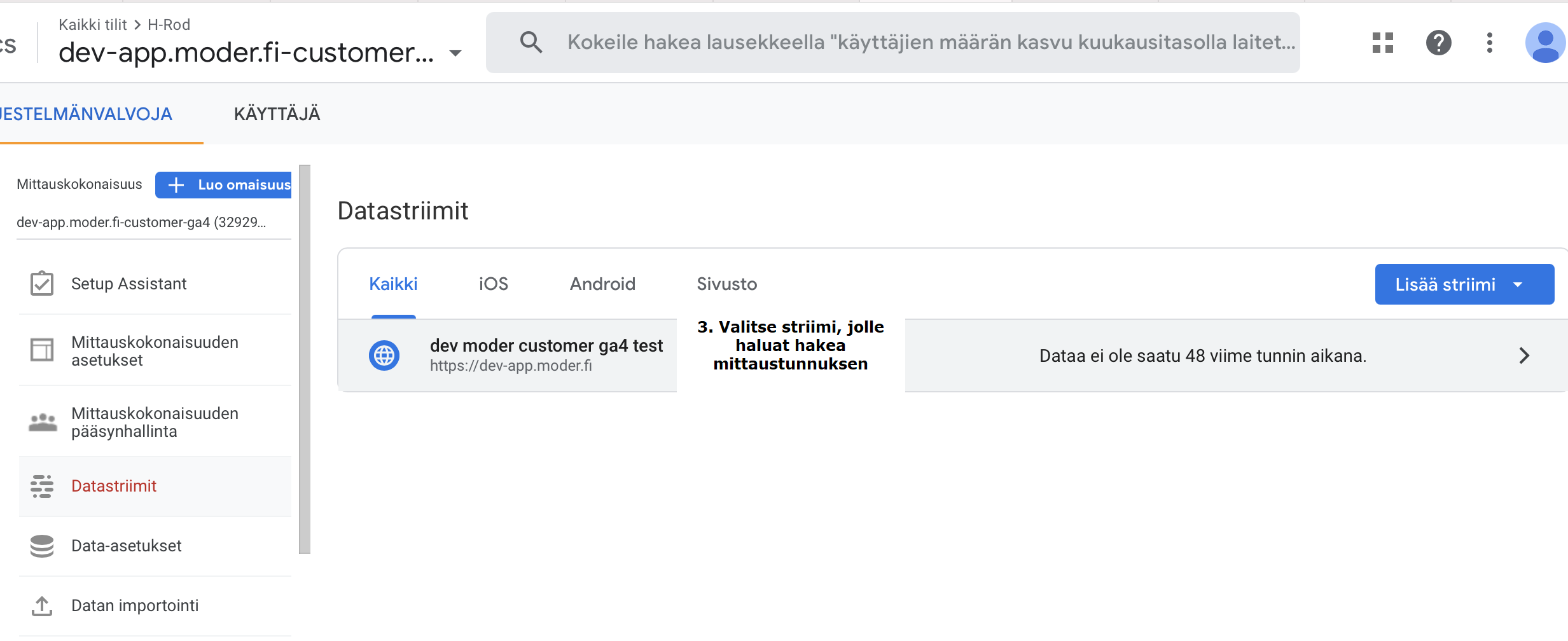
Select and click open the stream for which you want to retrieve the measurement ID.
You will find the measurement ID in the top right corner.
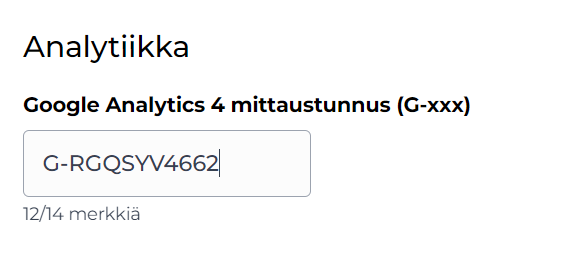
Write the measurement ID to Moder: Reservation engine - Branches - Select branch - Google Analytics 4 measurement ID (G-xxx). Note the format of the ID, including the G- prefix must be written.
Event tracking
In GA4, the usual events are listed, of course:
Page view
User engagement
Etc.
Additionally, Google now calls conversions "key events". Purchase as a key event without separate configurations.
Link to Google's material.
Events sent by Moder
Step | Event | Google event name |
Accommodation details | Guest/customer views room details | View_item (link) |
Selection of additional services, target selected (IN PROGRESS) | Guest selects the target and proceeds to choose additional services | Add_to_cart (link) |
Start checkout | Guest/customer is on the payment method selection page | Begin_checkout (link) |
Purchase | Guest/customer has paid for the purchase or confirmed the reservation request | Purchase (link) |
Examples
Minimal setup - GA4
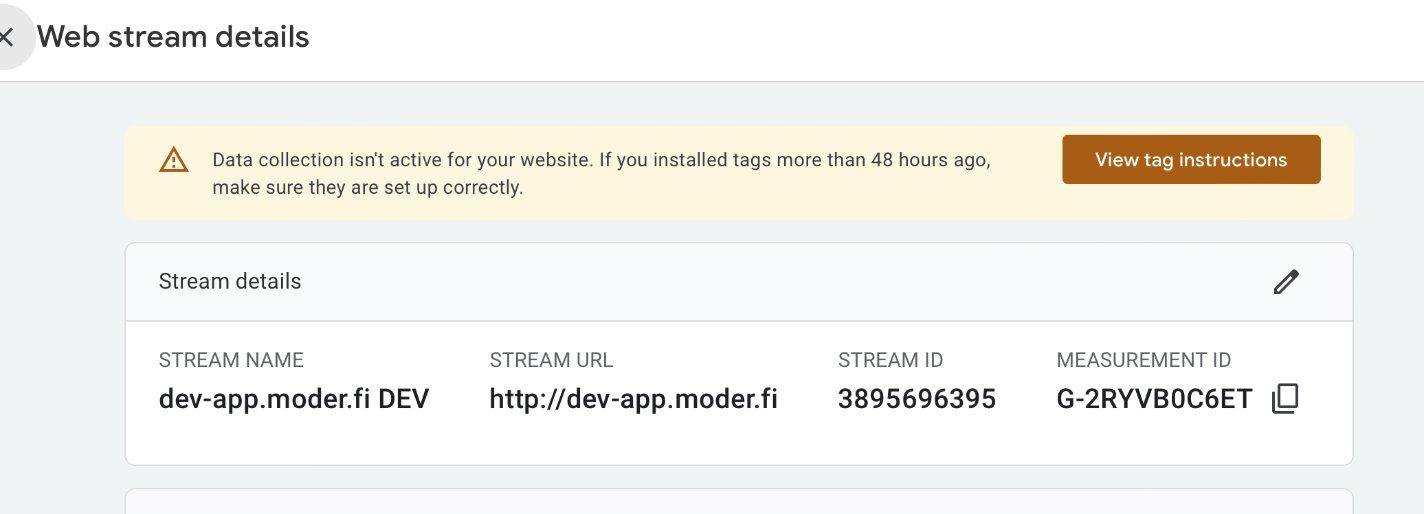
Find measurement ID in GA4 settings
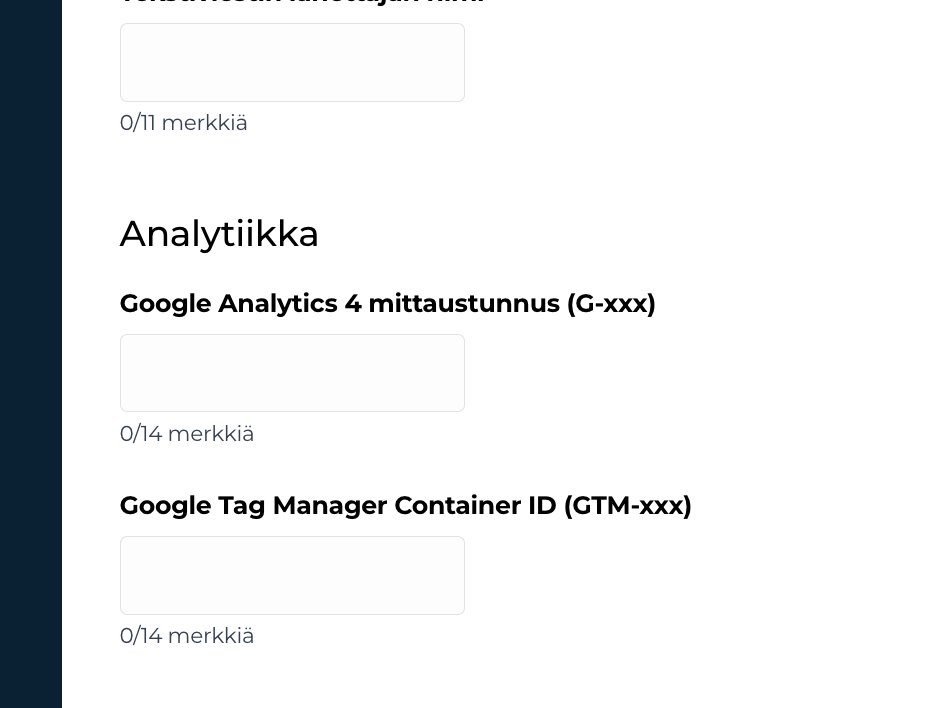
Add it to the GA4 section of Moder's e-commerce settings
Events start flowing into GA4 and you can track events and conversions ("key events"). A purchase is automatically marked as a "key event". Read more
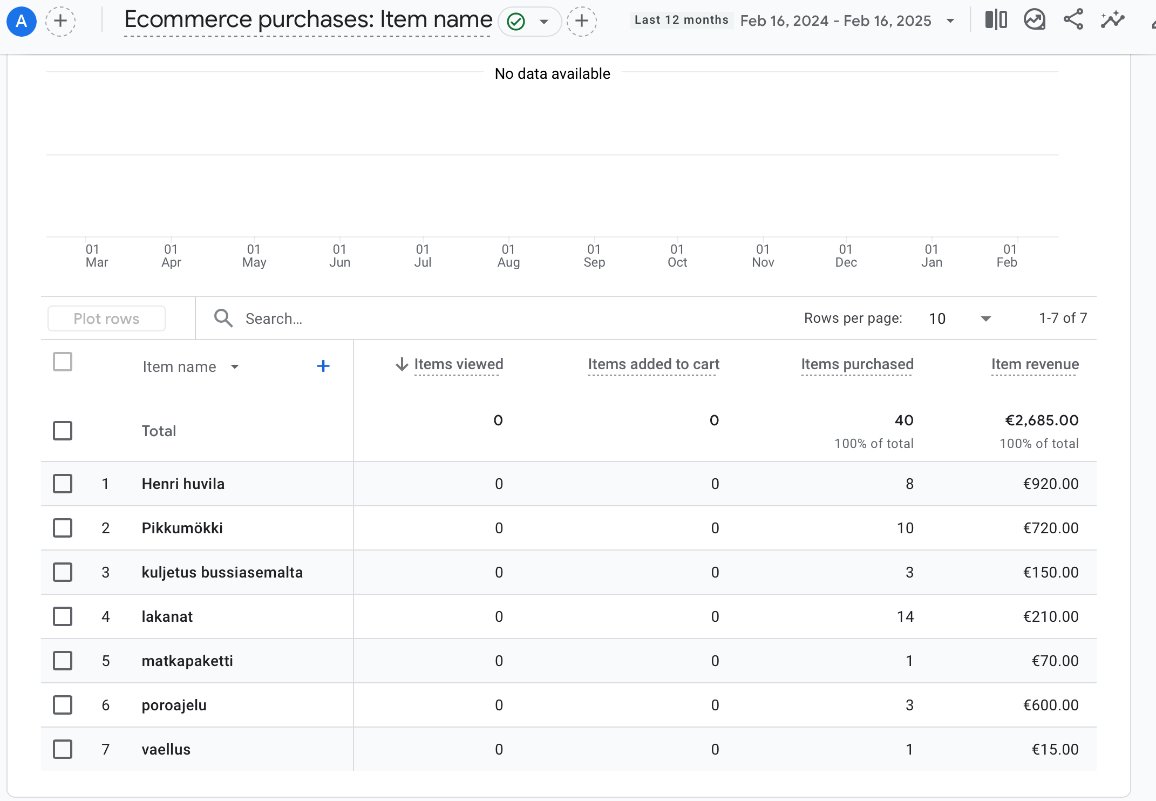
Minimal setup - Google Tag Manager
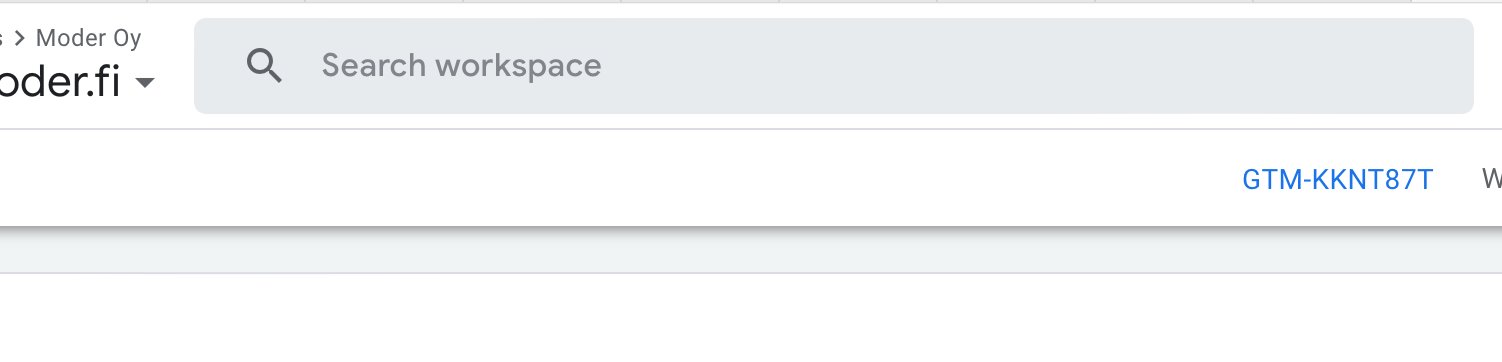
Find the GTM container ID in the settings
Add it to the GTM section in Modern's eCommerce settings
Add a GA4 tag to GTM for basic tracking
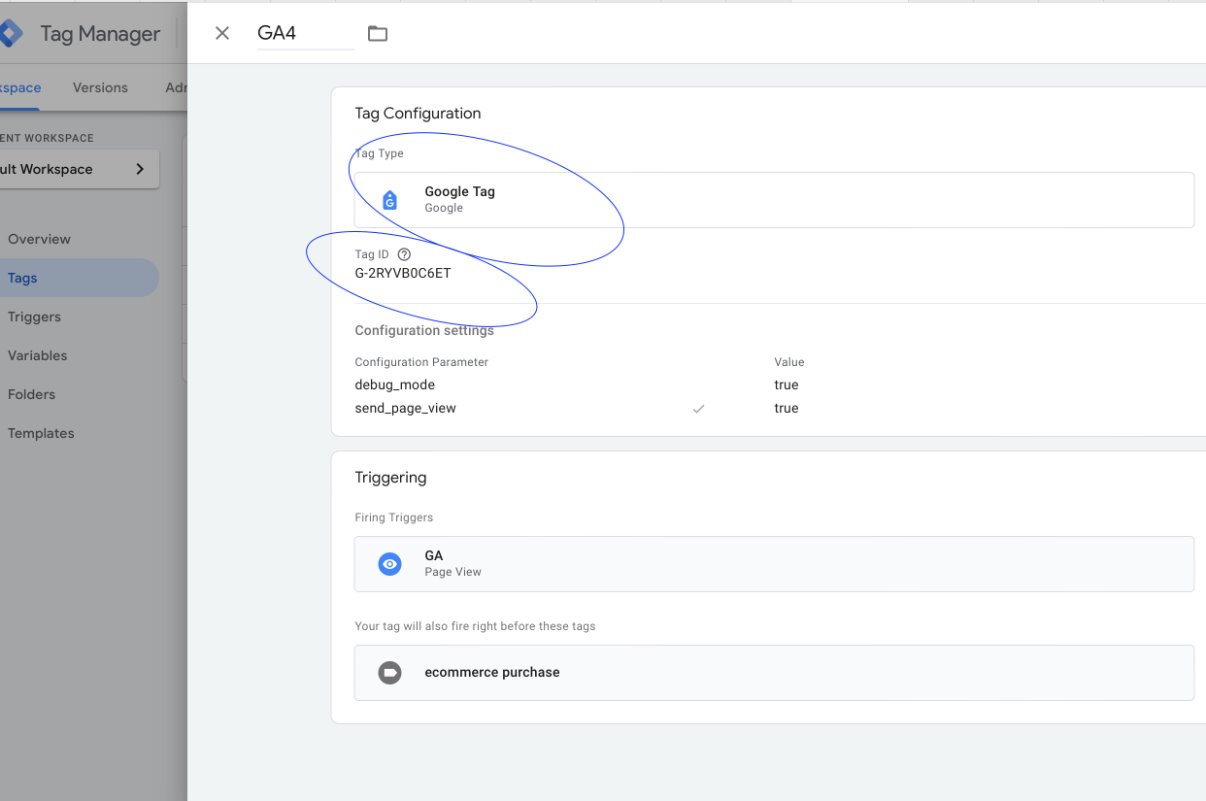
Add a GA4 event tag to GTM for purchase events (and any desired other events). Publish the containers.
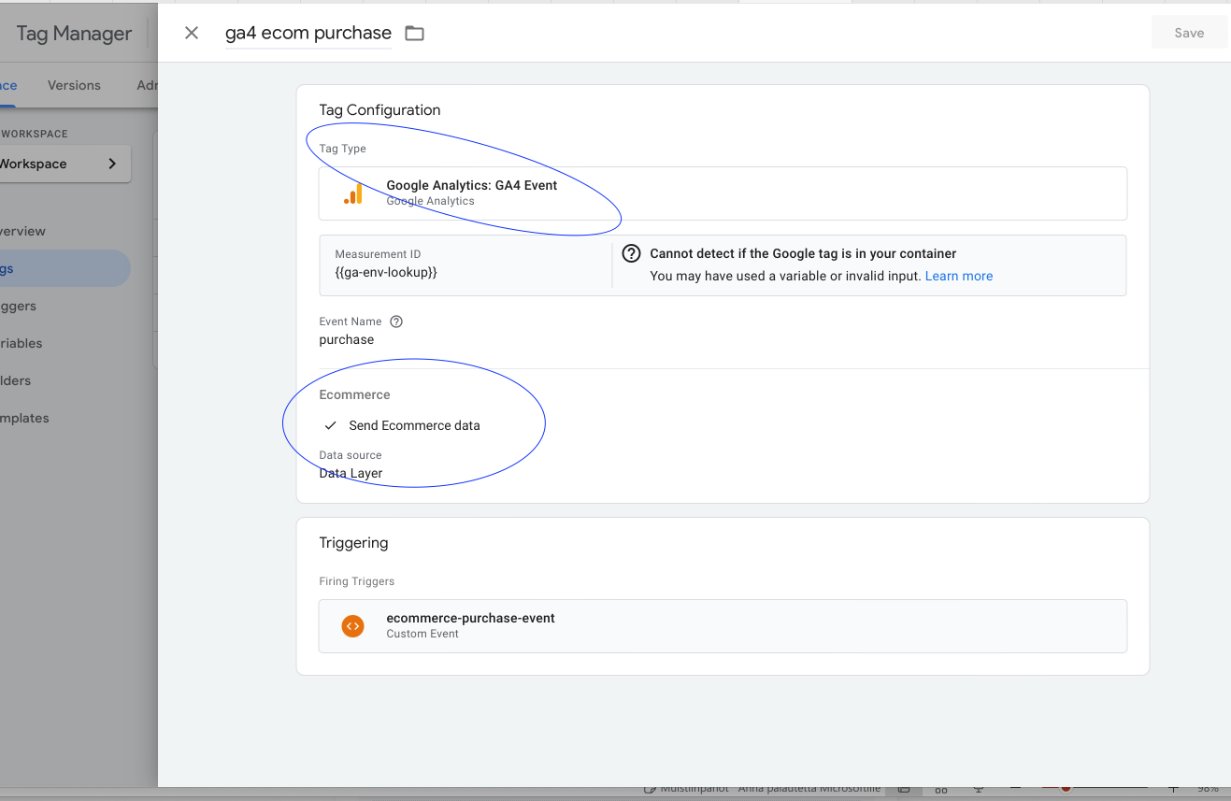
Events will start flowing into GA4 and can be examined there.