Activity reservation: Multibook
Last updated: February 18, 2026
Activity Booking with Multibook
MultiBook works on a shopping cart principle, making reservation management clear and intuitive:
1. Select products for the cart
Start by going to the Activities tab, and select the products you want to add to the cart.
2. Add additional services
Add desired additional services to the reservation, such as equipment or trail snacks, which make the reservation a complete package.
3. Enter the booker's details
Finally, add the booker's information and other necessary reservation details. You can edit and complete the reservation as needed before saving.
The MultiBook tool is used by opening it from Moder's main menu. MultiBook can be easily found in two different ways, and both options take you directly to the MultiBook view, where you can start creating and managing new bookings.
How to open MultiBook
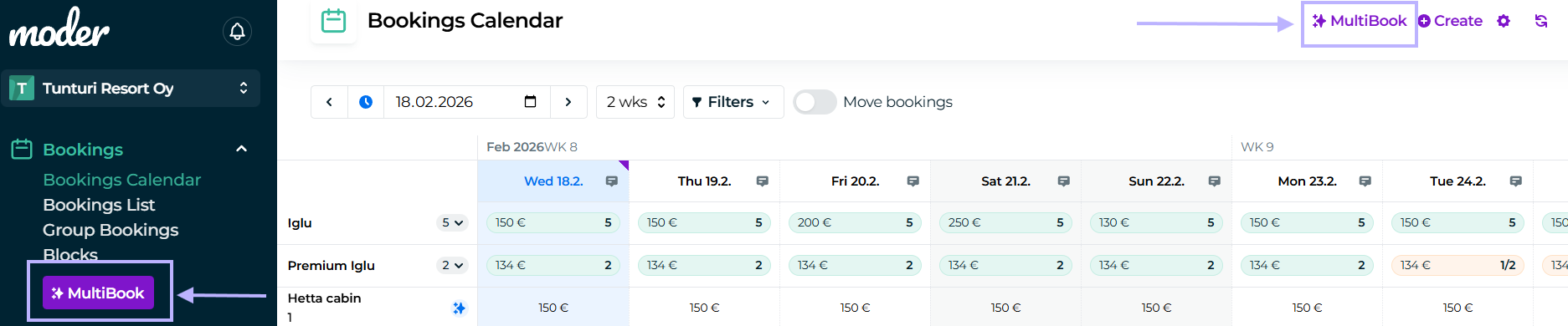
From the left side: Click the "MultiBook" button on Moder's left side. This opens the MultiBook view directly.
From the top right corner: Click the "MultiBook" button in the top right corner of Moder. This option also leads directly to the MultiBook view.
When MultiBook is opened, you can go to the Activities tab, select the product bundles you want, add additional services, and enter the booker's details easily and quickly.
When the MultiBook view is opened, start by searching for availability as follows.
1. Choose reservation details
a. reservation start date,
b. duration and
c. required number of people.
2. Availability check
You can also, if you wish, take advantage of MultiBook's filtering options: you can filter products by location, selecting one or more products, or using the free text search field.
The calendar below MultiBook updates based on your search criteria and shows the products that have availability for your chosen date and number of guests.
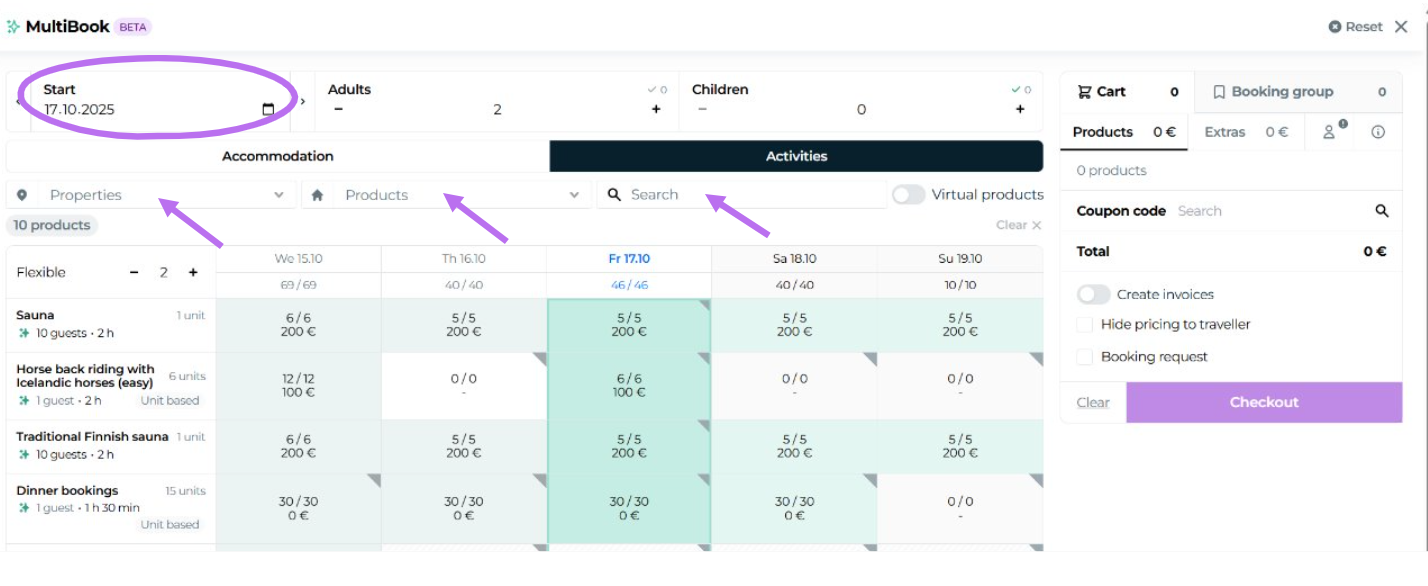
This way, searching for availability and selecting products with MultiBook is easy and fast.
Once availability is found, choose the room types or activities suitable for the reservation that you want to add to the cart.
Go to MultiBook Activities-tab, where you find all hourly-based products. After that, the process proceeds as with accommodation products.
A) Using the Autofill button (green star)
Press the Autofill button (green star), and MultiBook selects the correct number of hourly-based products for the first available departure and moves them to the cart.
B) Manual selection from the calendar
Select a day from the calendar by clicking the desired date.
Select the number of people and units from the bottom bar.
Edit the price if necessary.
Add the selected products to the cart by clicking "Add to cart".
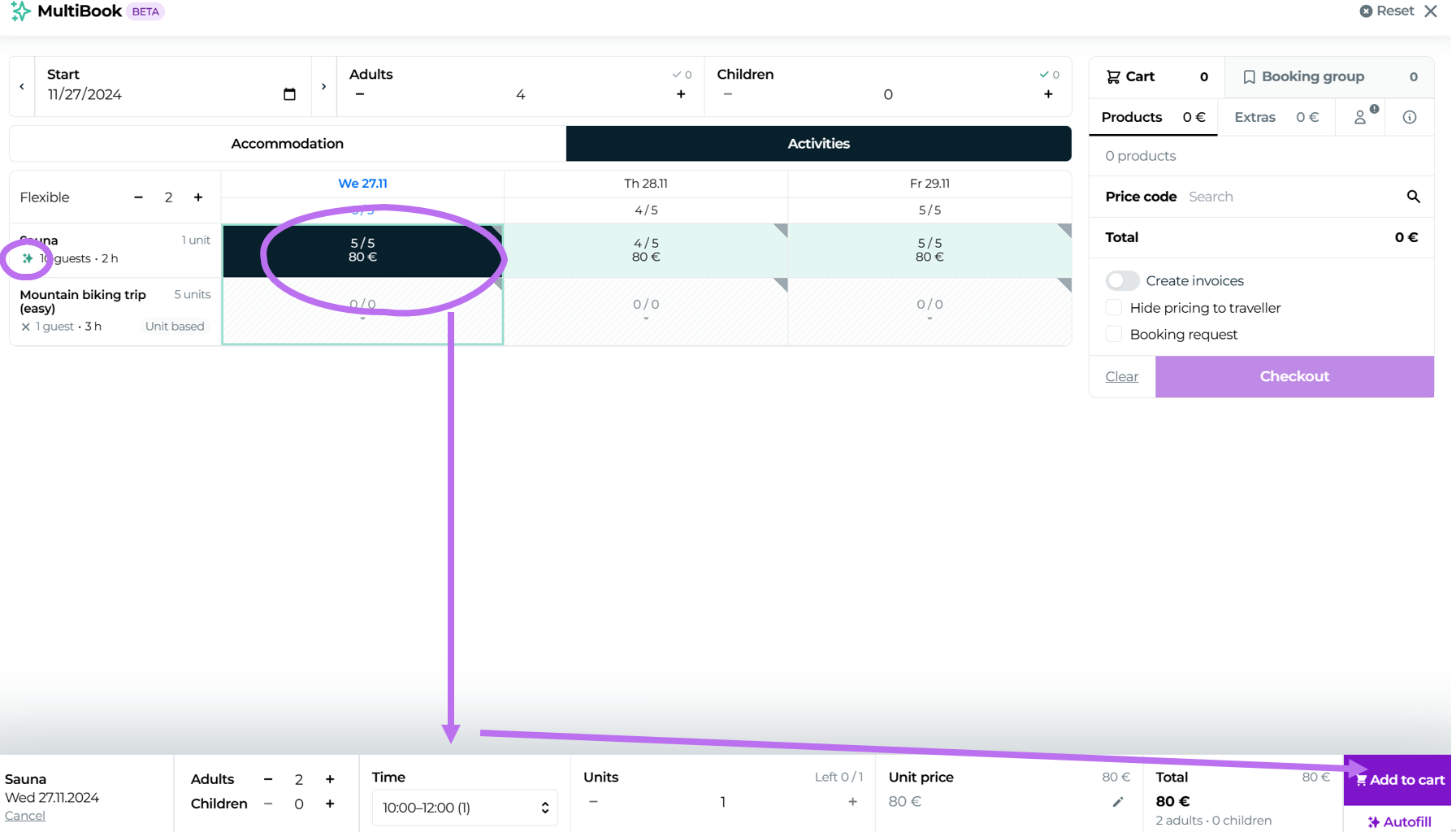
When you have selected the desired products, you move to the shopping cart where you can edit reservations, add or remove products, and finalize the reservation.
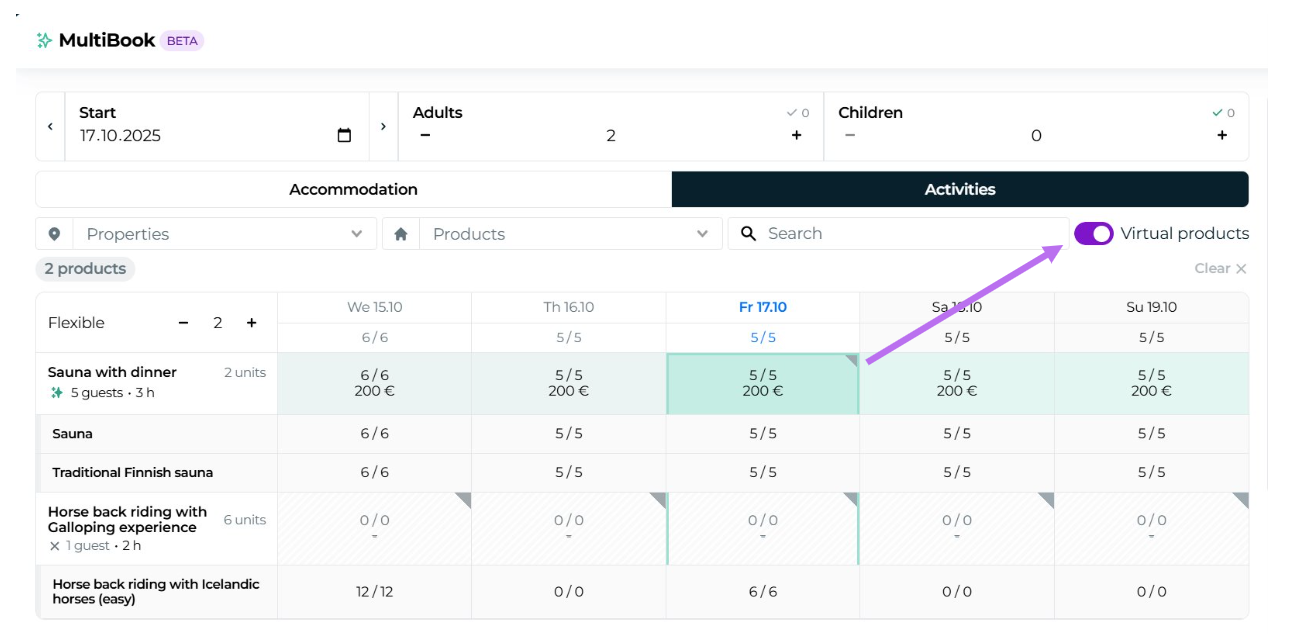
Do you also want to add virtual products to the reservation?
You can also reserve virtual products through MultiBook by activating "Virtual Products"-slider button.
You can book virtual products in MultiBook's cart in the same way as regular accommodation and activity products.
Editing products in the cart
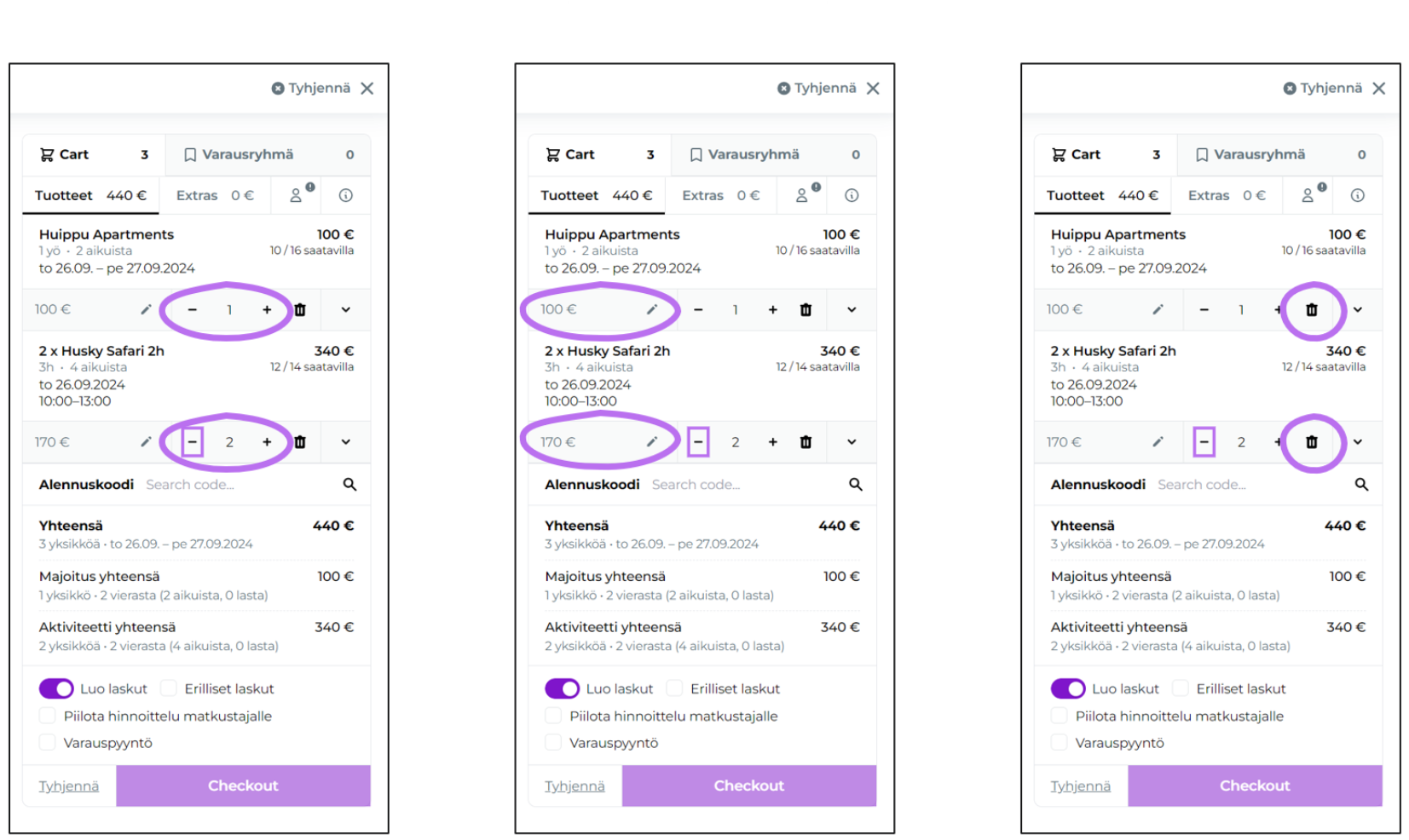
Once you have added the products to the cart in MultiBook, you can edit them flexibly according to your needs before finalizing the reservation. This step gives you the opportunity to fine-tune the reservation's contents and ensure that all products and prices related to the booking are correct.
Edit product quantity
You can easily increase or decrease the quantity of products, whether it's a room, villa, activity, ticket, venue, or any other travel product. This allows reservations to be quickly adjusted to meet the needs of a group or client.
Change price
If you need to adjust a price, for example to apply a discount, a special offer, or a negotiated price, you can do it directly in the shopping cart. Price adjustment is flexible and easy, ensuring that the reservation is priced correctly.
Remove product
If any product is unnecessary, you can remove it directly from the shopping cart with a single click. This gives you full control over the reservation's contents and ensures that only the necessary products are included in the reservation.
Selection of additional services for a reservation
Adding additional services to a reservation in MultiBook provides the ability to offer customers complete experiences alongside accommodation or activities. Additional services can include, for example, breakfast, massage, equipment rental, or other products that complement the customer's booking. This way you add and edit additional services to a reservation:
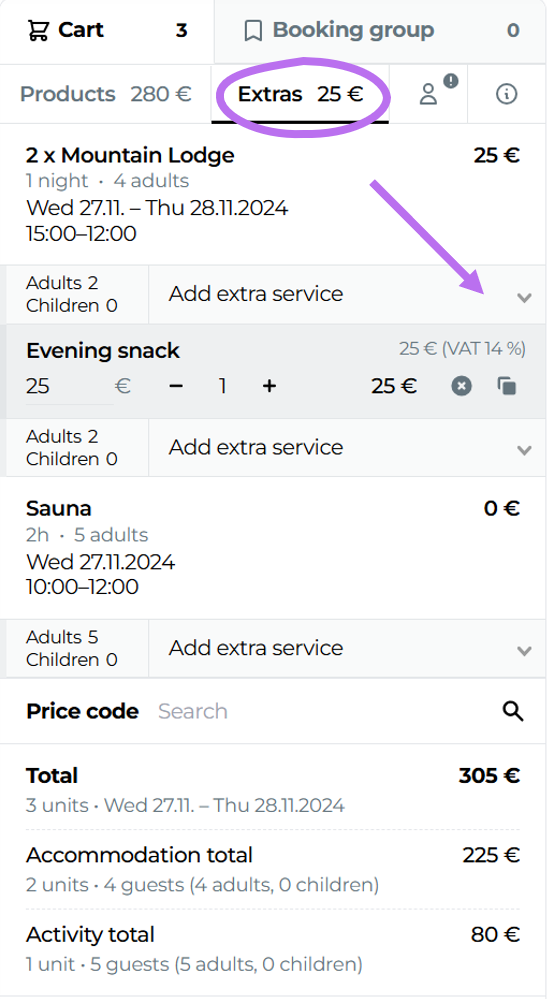
Switch to the Extras tab
Go to the Extras tab at the top of MultiBook. This view shows all available add-on services you can add to the reservation.
Select extra services under the product
Select the desired extra services directly from the drop-down menu under the product.
You can select extra services for each product individually, giving you the ability to tailor the services to meet the specific needs of each reservation.
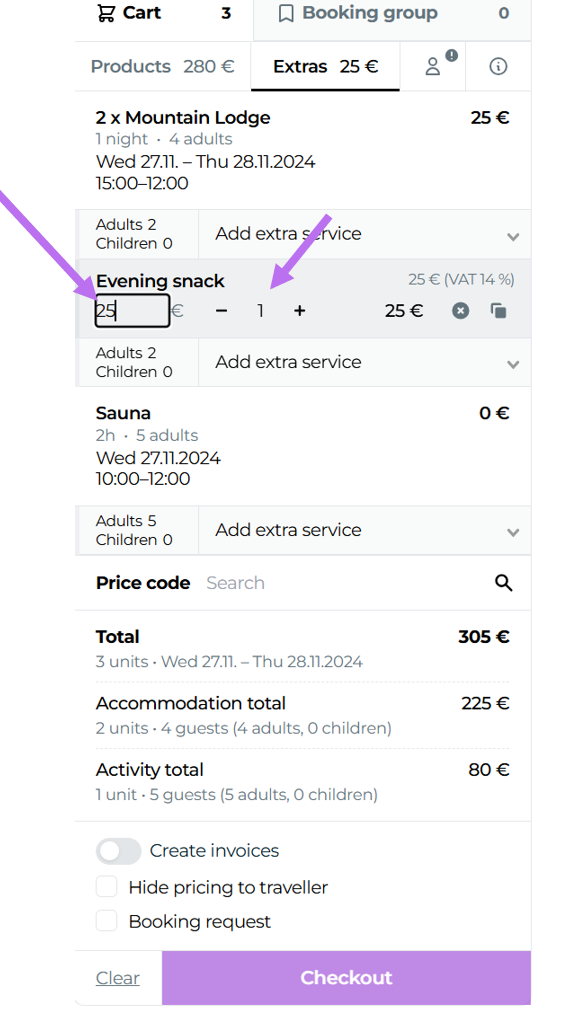
You can edit the amount and price of extra services directly after selection. This flexibility helps ensure that the reservation meets the customer's wishes and budget.
Customer contact information
New customers
Fill in the customer's contact details manually by completing all required fields. The more completely you fill out the information, the better your customer registry will serve you in the future.
Minimum information that should be filled in:
Name
Phone number
Email
Returning customers
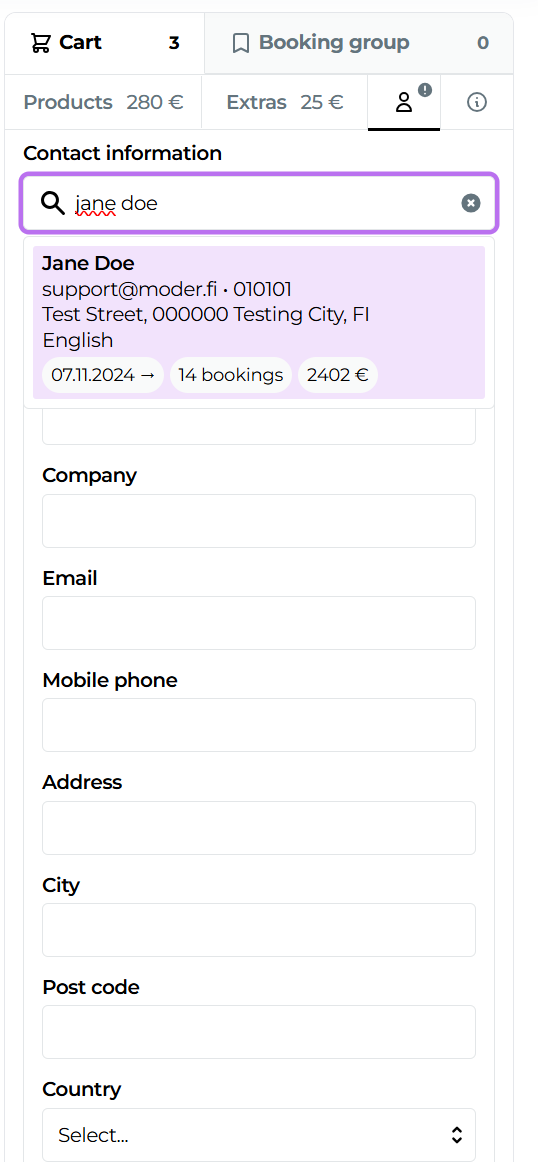
If it is a returning customer, you can use the "Search from contacts" function. By typing five characters of the customer's name, phone number, or email address, MultiBook retrieves the corresponding information from the customer register and displays the search results, allowing you to easily select the customer's details.
Reservation note types
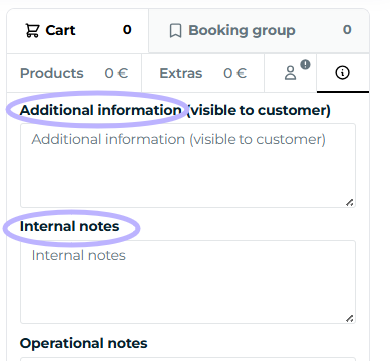
Additional Information
In the Additional Requests field you can record the customer's special requests, such as allergy information, extra pillows, a late check-in time, or other information related to service requests. These notes are visible to the customer, for example in the GuestApp and in the booking confirmation.
Internal notes
Internal notes are for the company's internal use. They are not visible to the customer and may include, for example, special room service requests, payment terms, or other notes intended for staff. These notes help keep internal communication clear and easily accessible.
How to use a discount code in MultiBook
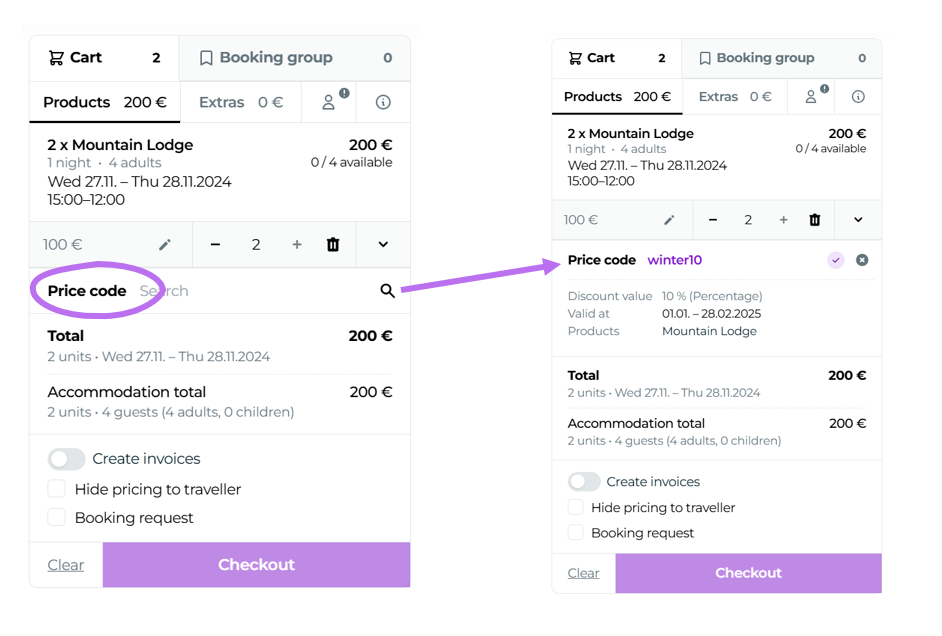
1. Set the discount code before confirming the reservation
2. MultiBook allocates the discount code to the products in the shopping cart when the following conditions are met:
Code validity: The discount code must be valid during the selected booking period.
Product applicability: The discount code must be applicable to the products in the cart, such as rooms, activities, or additional services.
3. When the discount code is added, the new price appears directly in the shopping cart. This way you see the discounted price immediately and can verify that the code works correctly.
Options before the Checkout button
Create an invoice directly for the reservation?
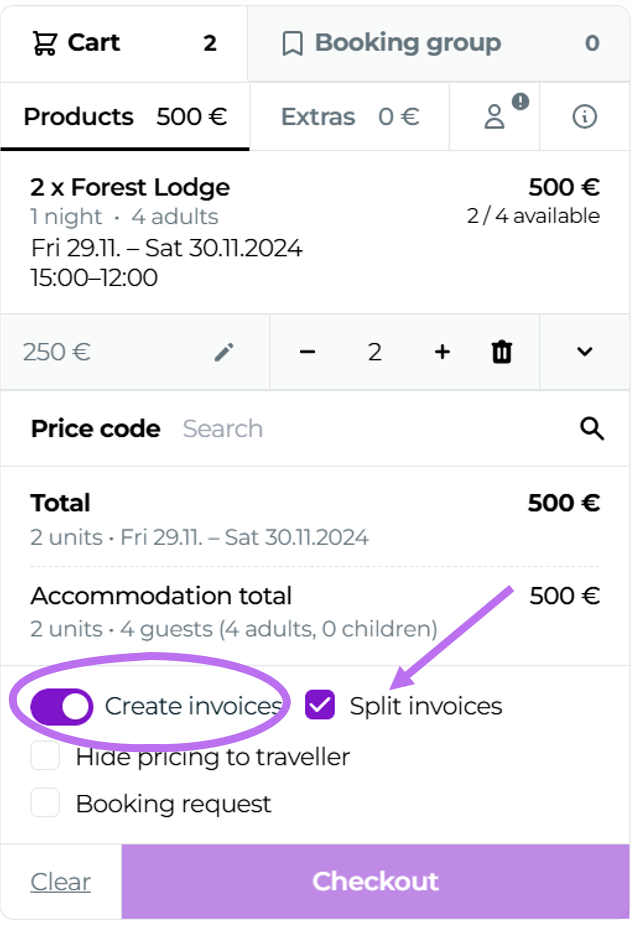
MultiBook creates a single invoice for the reservation by default, which includes all reservation line items (rooms, activities, additional services). This invoice is easily accessible through the main reservation and can be sent to the customer either as a payment link or in PDF format. Sending must be done separately manually.
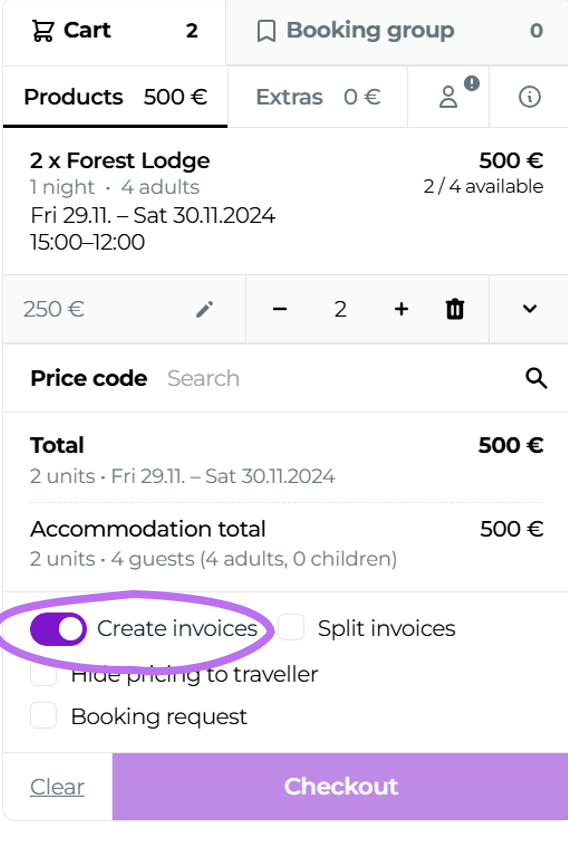
Click Create invoices -toggle active, so that the reservation total becomes a single invoice containing all selected products.
Do you want separate invoices for each room or activity?
If you want to create separate invoices for each accommodation unit or activity, select "Separate invoices". This option is useful, for example, in situations where a reservation includes multiple rooms or activities, and customers want to pay separately.
Click Create invoices -toggle active, which results in a single invoice for the entire reservation that includes all selected products.
Select "Split invoices", whereby MultiBook splits the reservation's products onto separate invoices. This works well in situations where the reservation is shared among multiple customers.
You can choose to hide price information from GuestApp and the booking confirmation. This is especially convenient in quote or group booking situations where the prices are to be kept hidden from the customer.
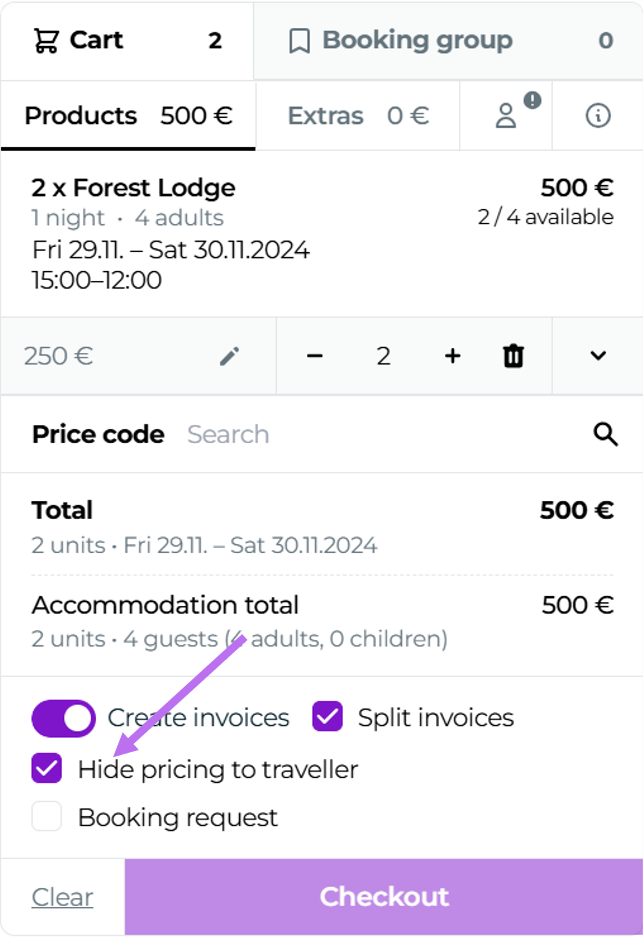
Hiding prices can also be useful, for example in provisional bookings, where changes are still expected, or when the reservation has been made for the travel organizer and billing is not desired at this stage.
Finalizing a reservation essentially means clicking the Checkout button. This saves the reservation and makes it visible, for example, in the reservation calendar and the reservation list.
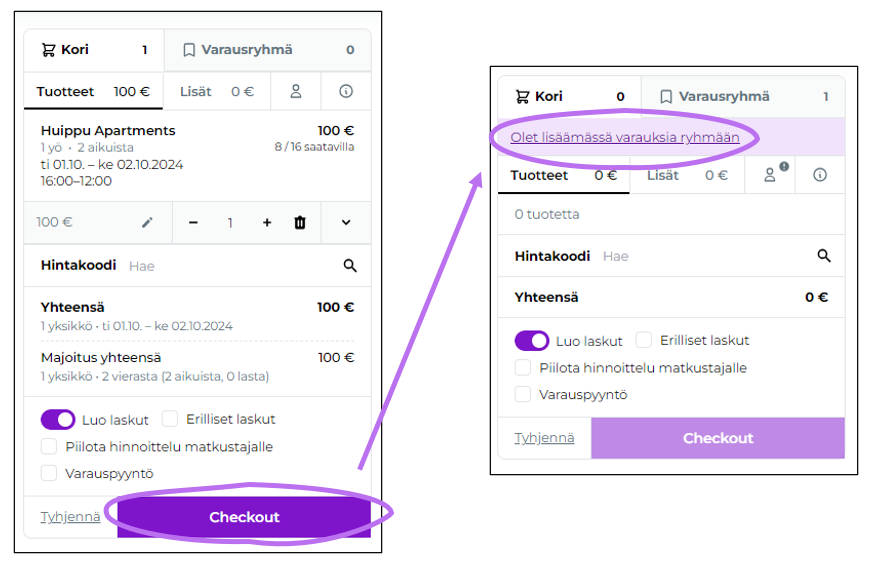
After pressing the Checkout button, you remain in the reservation creation view and can immediately continue adding new reservations if you wish – your shopping cart moves to the top of the page with the text "You are adding reservations to a group" and by clicking this link you can see the details of the just-created reservation.
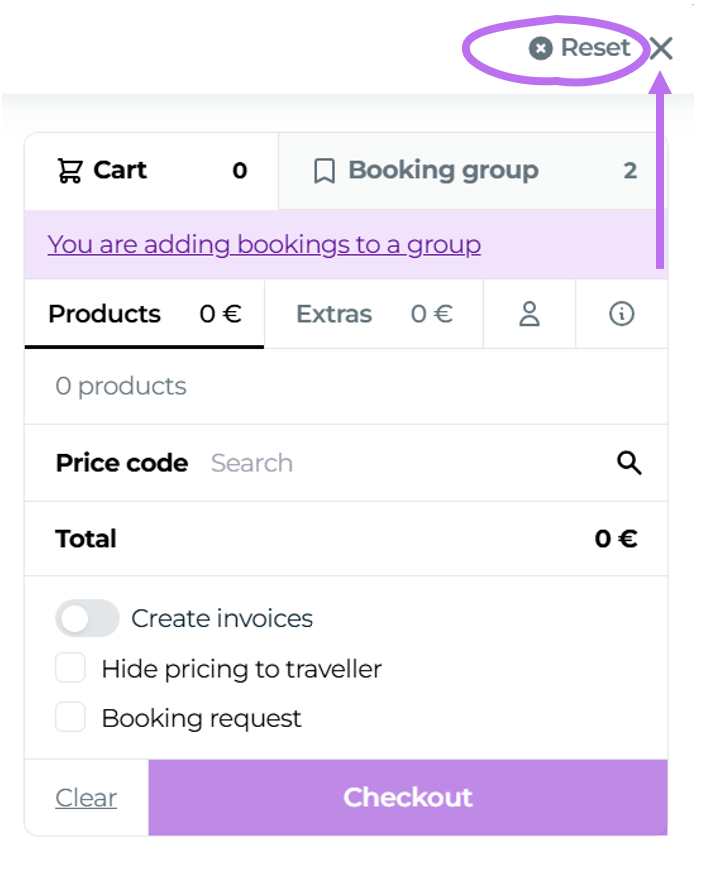
If you want to make a completely new reservation with Multibook, click the "Reset" button in the top corner and the reservation you just created will disappear from the Multibook tool. However, the reservation you just created remains saved in your Moderi and you can view it, for example, from the reservation calendar.
Editing a reservation
Editing a reservation in Moder is fast and flexible, but it is important to ensure that changes are saved correctly and that any price changes are updated manually, especially when the reservation's duration or dates are changed. This helps ensure that the reservation stays up-to-date and meets the customer's needs.
You can open the reservation to edit directly from the booking calendar by clicking the reservation and selecting "Edit".
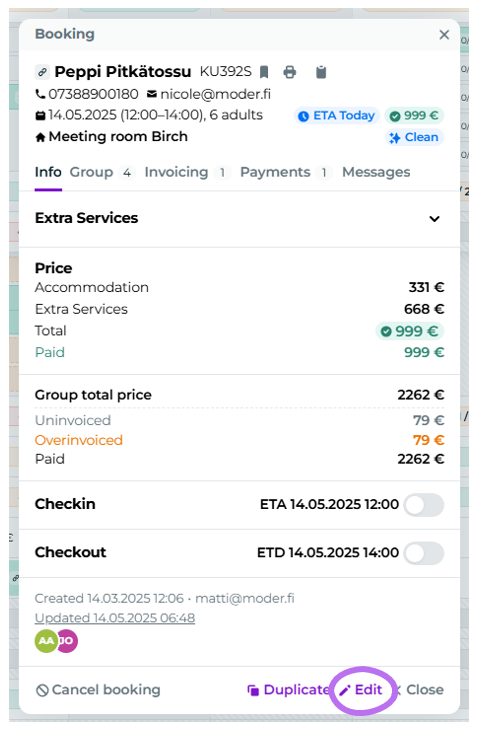
Edit the desired information, such as the date, number of guests, price, or additional services. You can update all reservation details as needed.
Reservation cancellation
Go to the desired reservation either from the reservation calendar or the reservation list. Click the "Cancel reservation" button at the bottom of the reservation. The system will ask if you are sure you want to cancel the reservation. Press "Yes", and the reservation will be cancelled and removed from the reservation calendar.
Viewing cancelled reservations
Filtering on the reservation list
Cancelled reservations are found on the reservation list. You can search for cancelled reservations by going to the reservation list and selecting from the top bar filters "Include cancelled" or "Only cancelled". You can use the filter with, for example, the passenger's name or the reservation number.
Credit invoices
Credit notes are needed when a payment must be refunded to the customer in whole or in part, for example due to a cancellation. In Moder, a credit note can be easily created based on the original invoice, but it is important to note that the actual refund must be done directly through the payment service provider, such as Paytrail or Stripe, or via bank transfer.
Management and operation of activity reservation
Bookings list
The reservation and payment status of activity bookings can be checked from the bookings list.

Reservation calendar
Reservations can also be checked in the reservation calendar view.
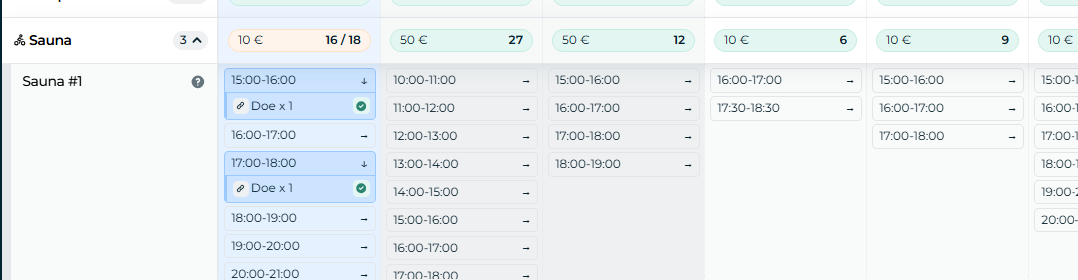
Slot Manifest
The slot manifest is an excellent tool when you want to examine the departures of a specific activity reservation, i.e., booked slots, customers, or even payment statuses.
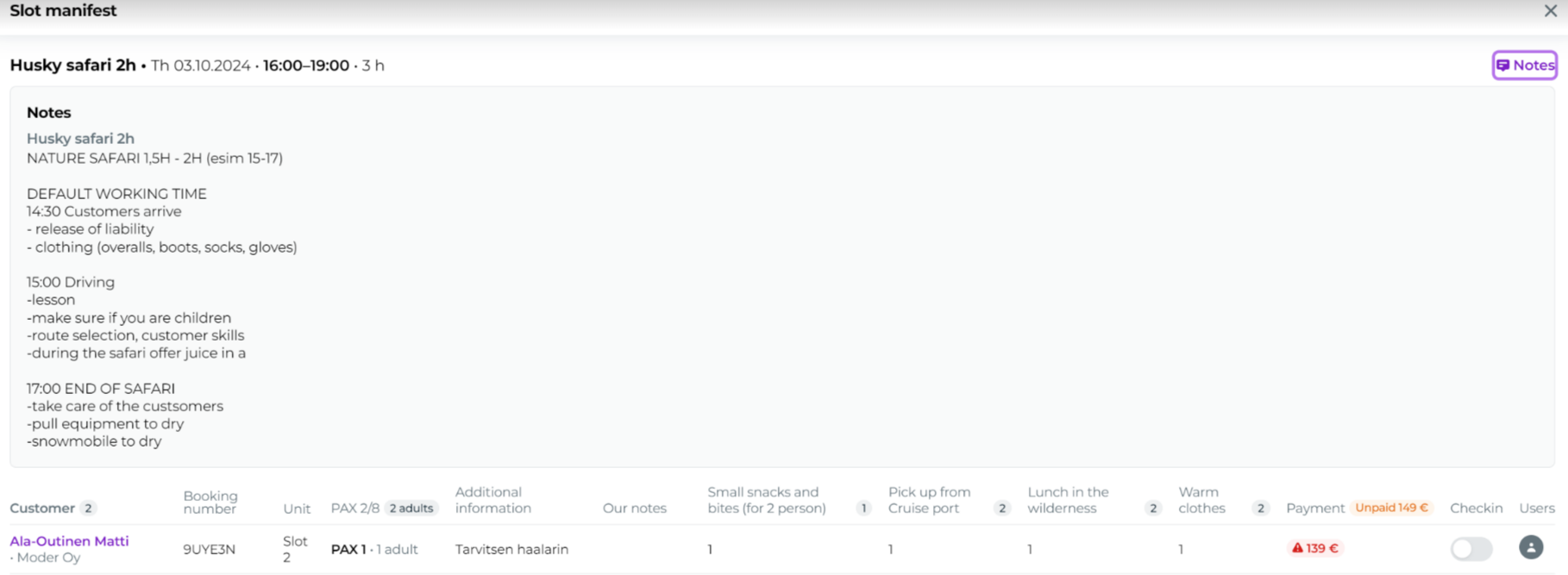
You can access the departure manifest by clicking the activity reservation of a unit-based seat reservation:
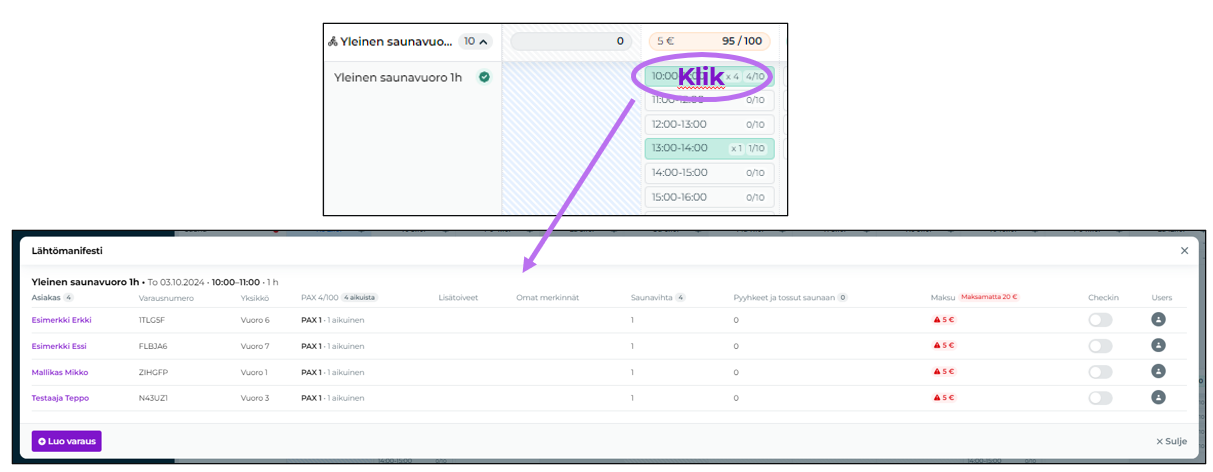
What can you do with the slot manifest?
The slot manifest shows who has purchased tickets or is joining the experience:
1. You see, for each reservation, the booker, the number of booked seats (x adults, x children), the reservation number, as well as purchased additional services and the reservation's payment status
2. From the summary line you can see the total number of people, the number of adults and children, as well as a summary of sold additional services and their quantities
3. Check-in: you can check the customers in: This can be conveniently used to mark which customers have already arrived for the trip / used their tickets
4. You can also allocate a guide or responsible person to the trip on a per-booking basis

Additionally, by clicking the "Notes" section, you will see the internal additional information defined for that product. These may include, for example, a link to safety instructions or guidance on how the service is delivered and a schedule estimate for the various sections: