Booking calendar
Last updated: September 8, 2026
In the bookings calendar section you can create new reservations, view and retrieve existing reservations, make modifications to reservations, and cancel reservations. Through reservations you can also easily send payment links or invoices.
IMPORTANT!
When a reservation is entered into the system through this, the generated pricing rules do not restrict making the reservation. Through this you can create a shorter minimum time or a longer maximum time, and you can also price the reservation freely without the restrictions set by the pricing rules.
Bookings Calendar
Below are the calendar features explained as well as the meaning of the different colors and symbols.
Calendar Color Codes
Bookings with a blue background are currently "active" bookings; they have either a check‑in or check‑out today or they are ongoing bookings
Bookings with a green background are future bookings
Bookings with a purple background are bookings that came from sales channels.
In front of each booking that comes from a sales channel there is an icon that indicates more precisely which channel the booking came from
Bookings with a brown background are out‑of‑order bookings
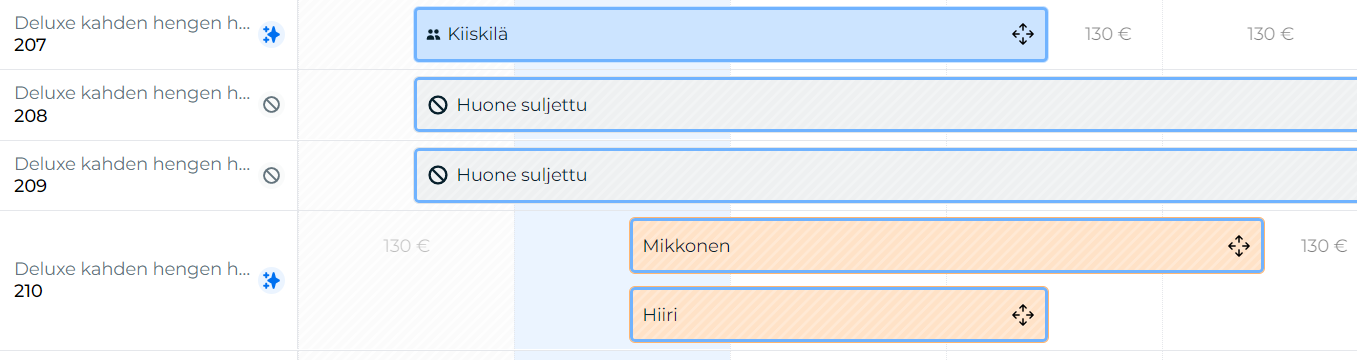
Double booking: both bookings are shown in the calendar with an orange background. In the example below there is a double booking in room number 210.
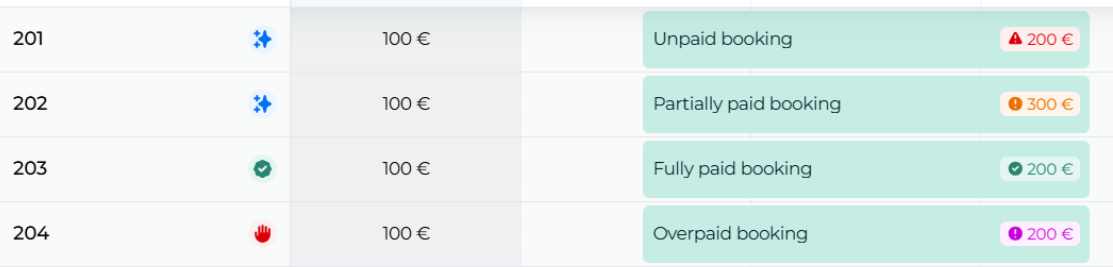
Payment marking color codes and symbols
Red triangle: booking has not been paid at all
Orange circle: booking is partially paid
Green check-mark: booking is fully paid
Lilac upward arrow: the booking has been overpaid
Check-in, check-out and group reservation symbols
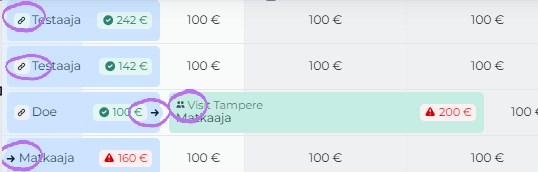
Two people before the name: indicates that the reservation is part of a group reservation
Arrow (->) before the name: indicates that the reservation has been checked in
Check mark after the name: indicates that the reservation has been checked out and fully paid (no open balance)
Arrow (->) after the name: indicates that the reservation has been checked out but is partially unpaid (open balance)
Pale green "paper clip" before the name: indicates that this is the primary reservation of linked bookings
Grey "paper clip" before the name: indicates that it is linked, but not a primary reservation
Room condition symbols and room information
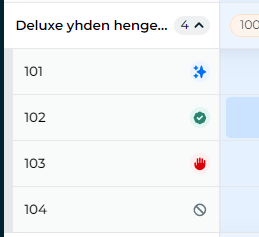
- blue stars = clean
- green tick = inspected
- red hand = dirty
- gray stop sign = not in use
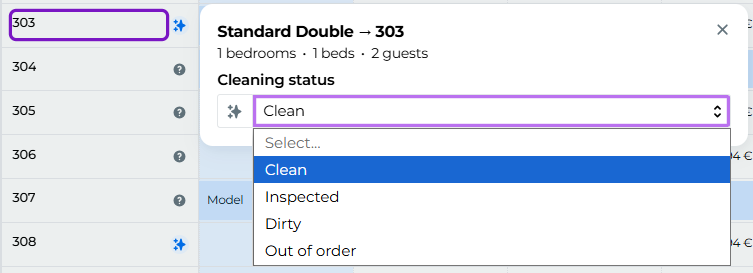
Next to each room name there is a symbol that indicates the room's current cleaning status. If a room does not yet have any cleaning status at all (i.e., the room has never been manually assigned a cleaning status), a question mark (?) appears next to the name.
You can conveniently change the cleaning status directly from the booking calendar. Click the room name, whose status you want to change. A drop-down box will open for you, where you can make the desired change.
At the same time, you can conveniently see other information about the room, e.g., how many people can stay in it. If additional information has been added to the room (Properties -> via Rooms), the provided extra details will also become visible.
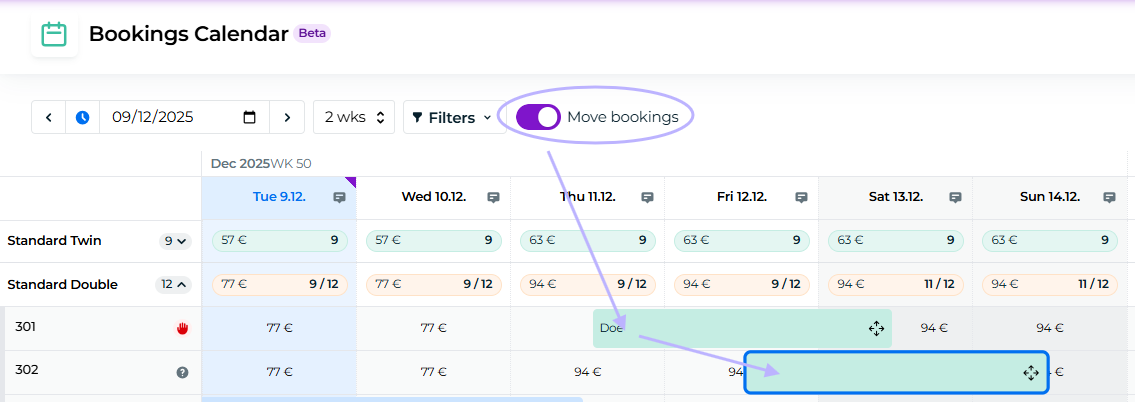
Move bookings -function
Activate the move bookings -function using the slider button at the top of the booking calendar. This enables moving reservations within the calendar.
When the reservation transfer function is on, the edge of the reservation calendar glows violet, so you remember to be especially careful and disable the function immediately when you no longer need it.
Select the reservation to transfer
Click with the mouse on the reservation you want to transfer. The reservation will be highlighted as a selection indicator.
Select a new room and date
Move the mouse to the room and date where you want to move the reservation. At this point the reservation still appears at its old location, and the reservation's blue‑bordered version moves with the mouse in the calendar.
When you are at the correct spot, click the mouse again.
Confirm move
The system asks for confirmation to move the reservation to the specified room or date. Make sure the information is correct, and press "Yes" to confirm the move. If you do not want to make the move, press "Cancel".
Rearranging room types in the booking calendar
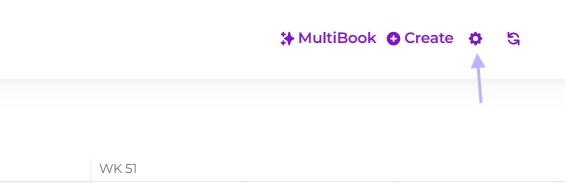
You can change the order of room categories in the reservation calendar via the gear icon. After clicking that, you can see a Reorder button. You can change the order of room categories simply by dragging them to the desired order. The order is saved automatically, so you do not need to save your changes.
Please note that the order of rooms within a room category cannot be changed at this time. Rooms will appear in the reservation calendar in alphabetical or numerical order.
Creating a new reservation from the calendar
The easiest and quickest way to create a new reservation (especially for a near-future or same‑day arriving guest) is to do it directly from the calendar view.
Please note that you can only book a single accommodation or a single activity slot directly from the calendar. Booking multiple accommodations or activity slots at once is possible using Multibook.
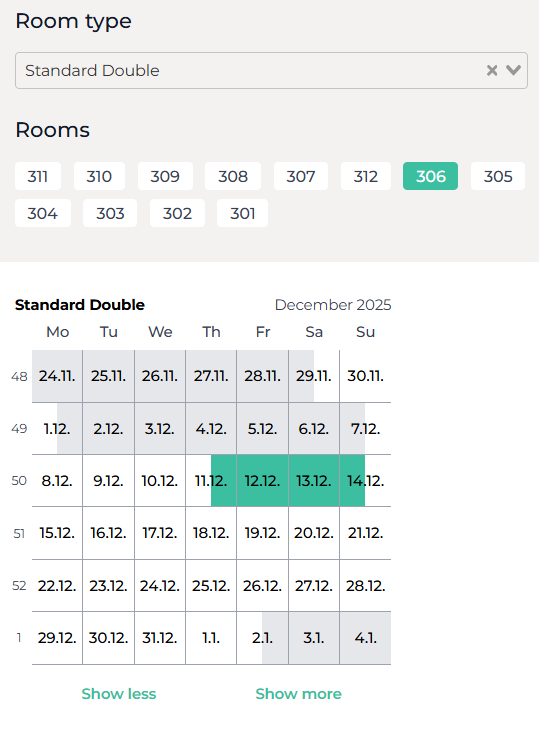
Click on the date for the appropriate room type in the reservation calendar when the traveler is arriving. Then Moder will open a new reservation template for you. Next, click on the checkout date in the calendar within the reservation template, after which you will be able to fill in the remaining required details for the reservation.
In the calendar view, dates shown in gray indicate that this room already has an existing booking for those dates.
Next, the reservation specifies how many people will be staying in the room. The system automatically calculates the price according to the pricing rules, if an extra charge has been set for additional guests.
If a discount has been agreed upon with the traveler or a price deviating from the regular pricing, the price can be easily adjusted by entering the agreed price "New price" -field.
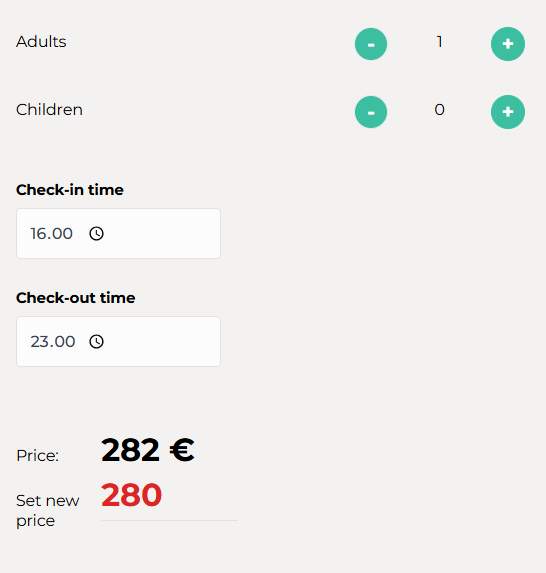
After this, the traveller's contact details are filled in for the reservation. When you make a reservation in Moder manually, you can decide yourself which information to add to the reservation (the reservation does not force you to fill in all fields). If the traveller is making the reservation themselves through your online shop, the shop forces the traveller to fill in all contact details.
Additional information
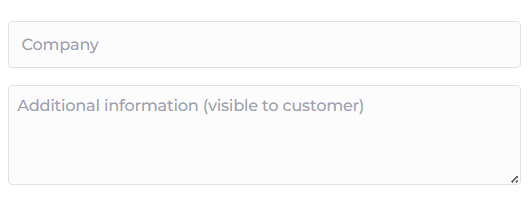
In the company field you can optionally enter the company's name or a reference for the invoice. Both pieces of information will appear on the invoice.
In the empty field you can write the traveler's additional requests or any agreed extra services (for example extra pillows in the room). Please note that the information entered in this field will be visible to the traveler both on the booking confirmation and in the GuestApp.
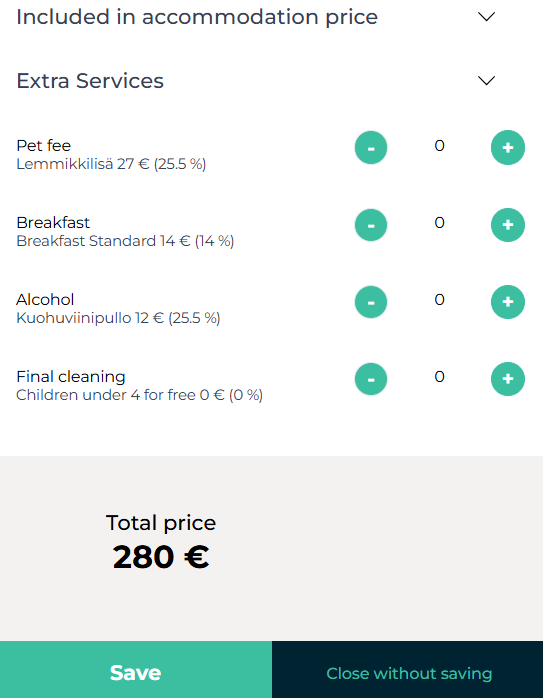
Additional services that are set to be included in the price of the respective room type are automatically added to the reservation. In addition, you can add paid extra services to the reservation that are available for that room type. The total price updates automatically when you add paid extra services to the reservation.
When the reservation has selected dates, added traveler information and possible special requests, and added the desired additional services, you can save the reservation by clicking the "Save" -button. At that point, the reservation will appear in both your reservation calendar and the reservation list.
Sending the reservation confirmation
A booking entered manually into Moder does not automatically send a booking confirmation email to the traveler, but you can, if you wish, send it to the traveler by opening the booking after the first save and then navigating messages -tab.
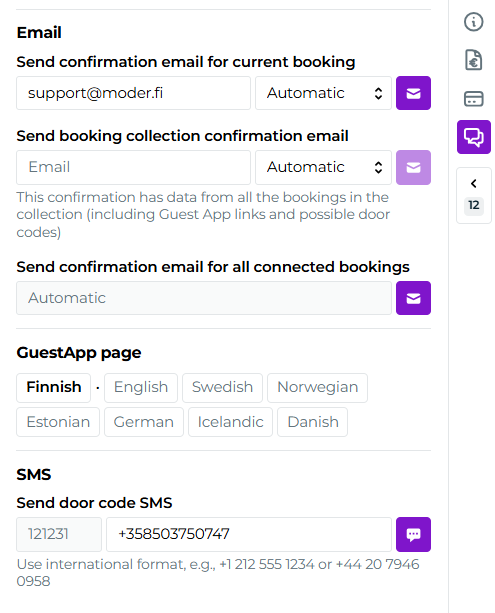
If no language was selected for the reservation when it was made, the automatic language selection cannot retrieve a language from anywhere. From the dropdown menu you can manually choose which language the booking confirmation will be sent in. You can leave it to automatic if you chose a languge for the booking in the previous steps.
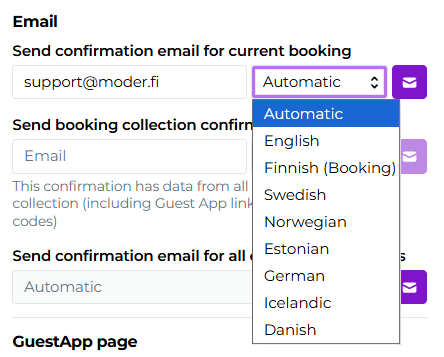
Please note that if you have English selected as the language for Moder's backend, and you have chosen to receive copies of confirmations, the copies will always be in English, even if you send the confirmation to the customer in another language supported by Moder.
Your copy also does not show the customer's GuestApp link.
If a traveler makes a reservation themselves through the online store, they automatically receive a reservation confirmation email, provided that Paytrail is used in the online store, i.e., the customer is directed to complete the payment for the reservation before the reservation is confirmed. If the online store does not use Paytrail, all reservations to Moder will come in as unpaid reservation requests, which then need to be manually sent a confirmation email.
Editing a booking
You can edit all reservation details in Moder simply by clicking the reservation open and changing the desired information and pressing save after editing. You can open the reservation to be edited directly from the reservation calendar (click the mouse over the reservation, and the reservation will open -> click "Edit") or by searching for the desired reservation through the reservation list and clicking the customer's name, which will open the reservation and allow you to edit it "Edit" through the "Edit" button.
Remember to press "Save" button from the lower left corner of the reservation so that the changes are saved to the reservation.
Change history
The reservation change history feature shows, day by day, what changes have been made to the reservation. The change entries also include information about the user name, who have edited the reservation.
Open reservation preview window
Click ”Latest update xx.xx.xxxx”
View changes
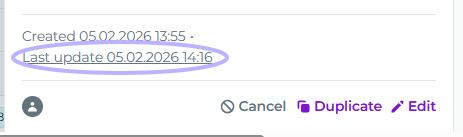
Change history details:
Username with which the change was made
Name of the edited data
Red: deleted information
Green: added information
Cancelling a booking
To cancel a reservation, first open the desired reservation (see section "Editing a reservation") and press the left-hand button at the bottom of the reservation "Cancel reservation" -button. After that the system will ask again if you really want to cancel the reservation. Press "yes", which will cancel the reservation and it will disappear from the reservation calendar.
If you wish, you can also find canceled reservations by going to the reservation list and selecting your status from the top bar filter "Cancelled inside" or "Only cancelled" and by searching, for example, by the passenger's name or reservation number.

Refund
Please note that Moder does not do it automatically and you cannot process a refund for a cancelled reservation there. You must do this manually if needed, either by bank transfer or via Paytrail's merchant portal, if the traveler has paid for the reservation using online payment through Paytrail. If you are using Stripe instead of Paytrail, the refund must be carried out in the same way to the traveler through Stripe's portal.
After the refund, it is advisable to create a credit note in Moder so that Moder's reports remain up to date.
Out of order reservation
You can block a specific room from use or sale by making a not in use reservation for it.
Start making a reservation as in previous examples either "New reservation" -button or through the reservation calendar. When you have made the date selections, click the checkmark at "Not in use". At this point the reservation will no longer request guest information, but you can instead write, if you wish, a reason why the particular room is out of service. Press save.
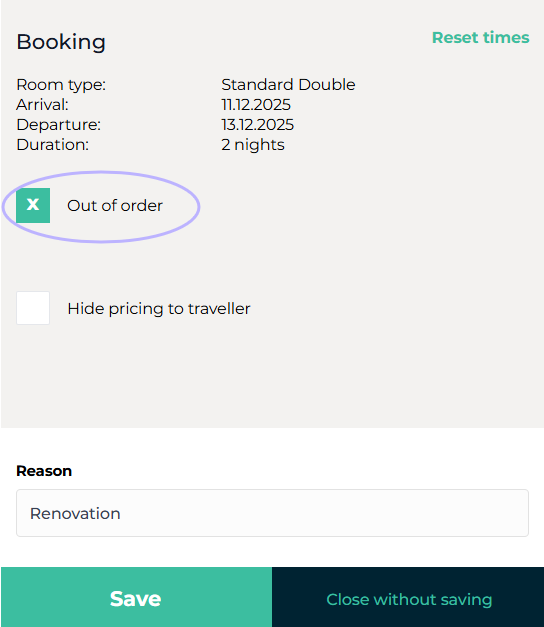
Out of order reservations appear in your reservation calendar in the manner shown in the picture.

Bookings list
From the reservation list you will find all reservations made for your accommodation. You can search for a specific reservation using various criteria, such as the traveler's name, reservation number, phone number, or even email.
The reservation list also has various filters available. With the filters you can, for example, view all unpaid reservations or include cancelled reservations in the list.
On the right side of each reservation, the payment status of the reservation is also displayed. There are four types of statuses:
Red triangle: reservation has not been paid at all
Orange circle: reservation is partially paid
Green check-mark: reservation is fully paid
Purple arrow upwards: reservation has been overpaid

By clicking the customer's name, you can open the reservation preview and editing. If the reservation has come into Moderi from an external sales channel (for example Airbnb, Booking.com), the name of the booking channel appears below the customer's name.