Operations
Last updated: April 13, 2026
Operations in Moder are operational management tools that help you handle daily tasks, such as housekeeping and maintenance.
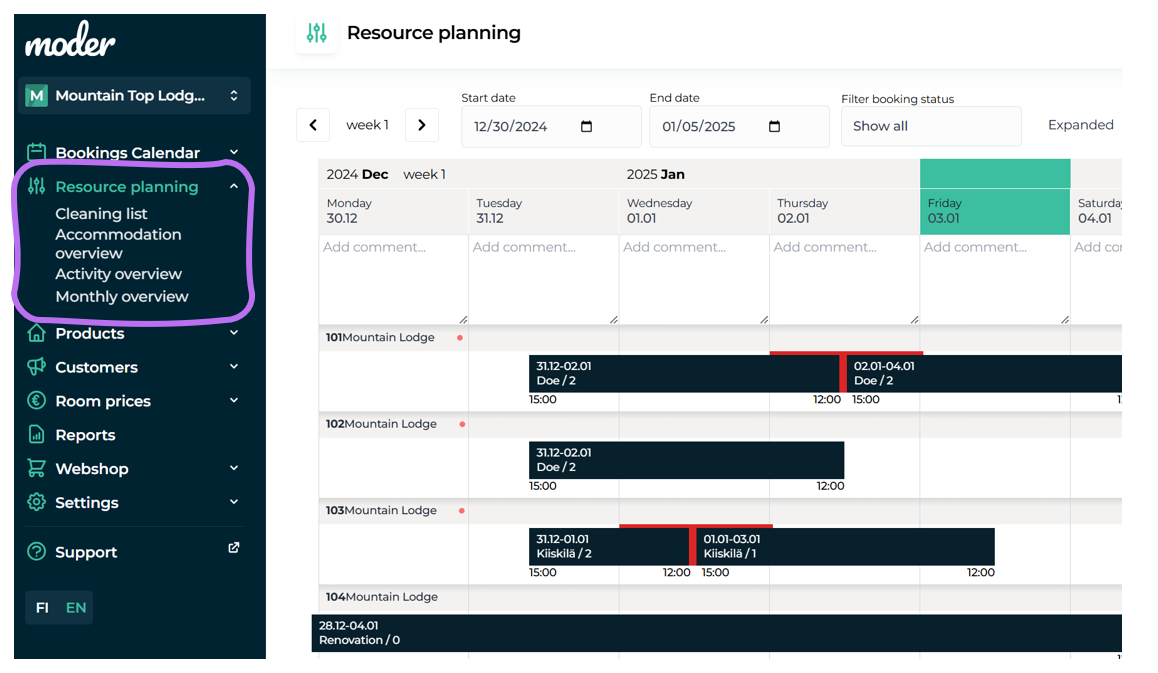
Resource planning view
In this view you see the rooms booked for the period you selected. You can filter the view and, for example, view only incoming or leaving customers. You can add comments to each day "Add comment"-section.
In this view you can choose between two options: compact and expanded. If you view the compact view, you see only each room's reservation status in a compact form. If you want to see, for example, the booked additional services for each room and special requests, switch to the expanded view.
Cleaning list
This is an excellent tool when cleaning rooms and spaces. The cleaning list shows all the company's premises. In this view, the cleaning or maintenance partner can mark an item as cleaned, or you can do it yourself if you are responsible for your company's cleaning and maintenance tasks.
You can also easily use this method to notify other staff when you have inspected and cleaned the sauna or meeting room – in addition to rooms, cabins, villas, and other locations.
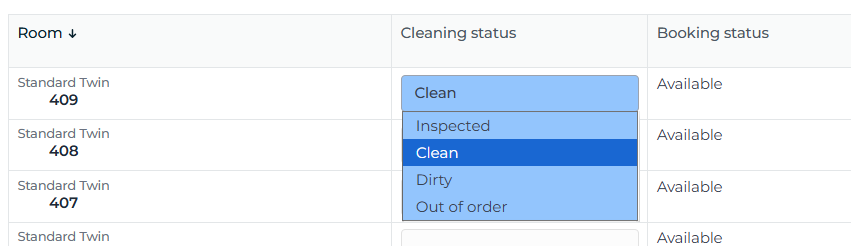
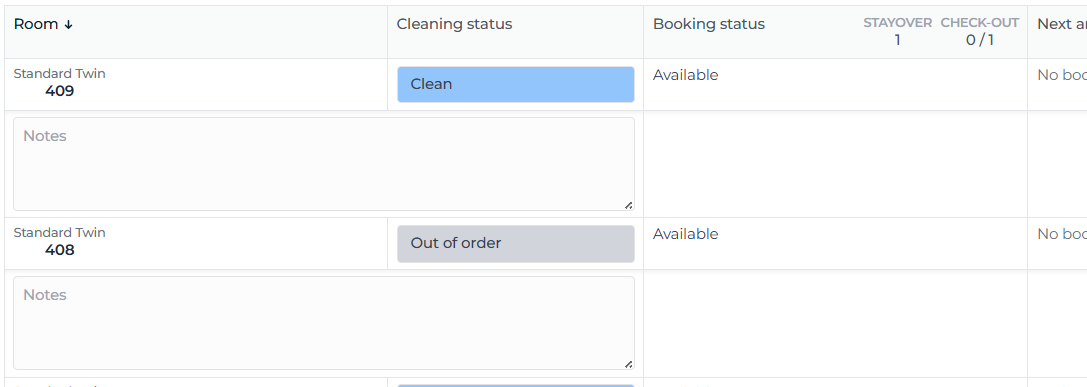
The cleaning list shows the cleaning status of each room, and here you can edit the cleaning statuses yourself. On the cleaning list you can also see the day's check-outs and check-ins and their status, as well as stayovers.
On the cleaning list you can also see the number of arrivals and any rooms taken out of service (Out of order).
Filters
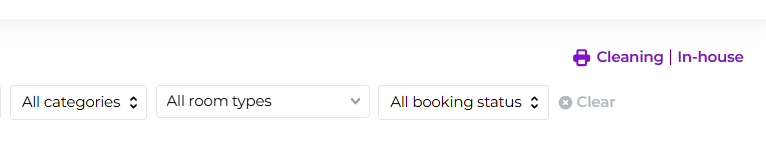
You can filter rooms, for example by room type or by location:

You can change the room's cleaning status from the dropdown for each room.
You can also make this view a check-in function for a reservation. Then press the "Check-in today 16:00" -button, and the reservation is checked in. Note that when the reservation is checked in, the status of that room automatically changes to dirty.

Printing
At the top right there is a convenient Print button, which you can use to print today's cleaning list view or alternatively the in-house view, i.e., the list of reservations that are checked in.
This cleaning view also offers both a compact and an expanded view. The default is always the compact view, but if you select the expanded view, you will also see each reservation's additional services, extra requests, and any notes possibly written for the room. You can write notes for each room on the right-hand side "Notes" -column.
Accommodation overview
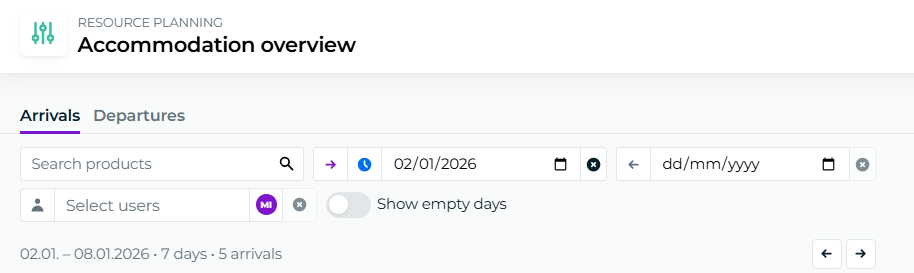
This tool is excellent for daily work, as it conveniently displays the number of booked additional services per target, as a summary, activities and staffing numbers.
Changing the room cleaning status is also easy to do in this view.
How should the weekly view be read and what can be seen from it?
At the top of the weekly view, beneath the date, there is a summary of one‑day period's one‑time additional services reserved, such as linens, final cleaning, and even pets. This makes it easy to see at a glance how many, for example, final cleanings are booked for a single day.
You also see the services booked per reservation, the number of people, and the booked nights.
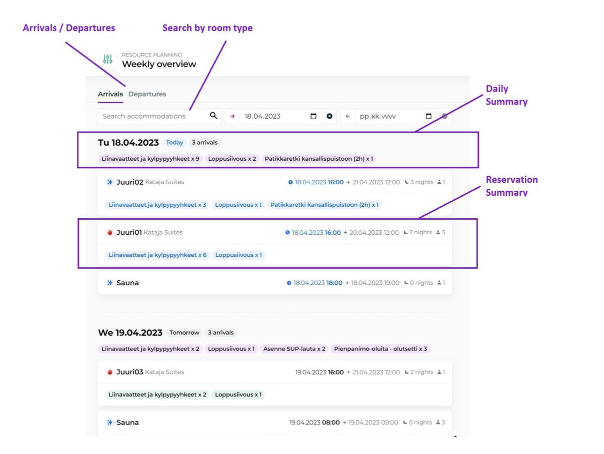
As in other views, also in the weekly view, you have multiple filtering options that facilitate your work.
Extra
All extra services in a single view: Moder's extra services view provides you with a complete overview of all sold add‑on services – all centralized. This comprehensive picture helps plan staff resources for, for example, a restaurant, reception, or cleaning.
Where does the data come from?
In Moder, additional services are targeted to a specific day. In each service's settings you can specify whether it should be automatically recorded to the check‑in date, check‑out date, or the stay duration. Services can also be attached to a reservation manually for a specific day. Based on these settings, the additional services view shows an exact day‑by‑day breakdown of the sold services.
Key features
Daily overview of all sold add-on services
Filter by time period, location, or product category
Filters in the add-on services view
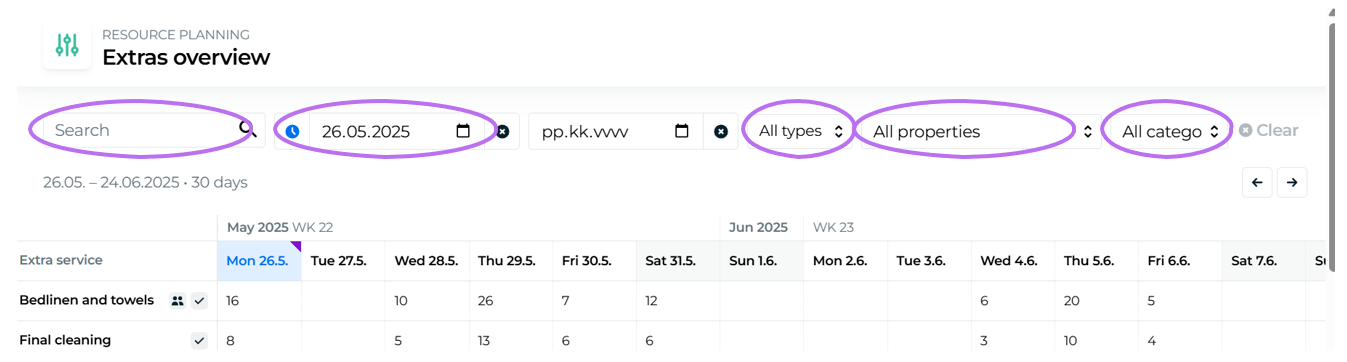
You can filter the view in many different ways:
Search by product name: Enter the full name or part of the name to narrow results
Select time range: View services for a single day or the whole month
By product type: Filter between separate ancillary services and services included in accommodation (e.g., breakfast)
By product category: Select one or more categories to limit the view
Displayed Information
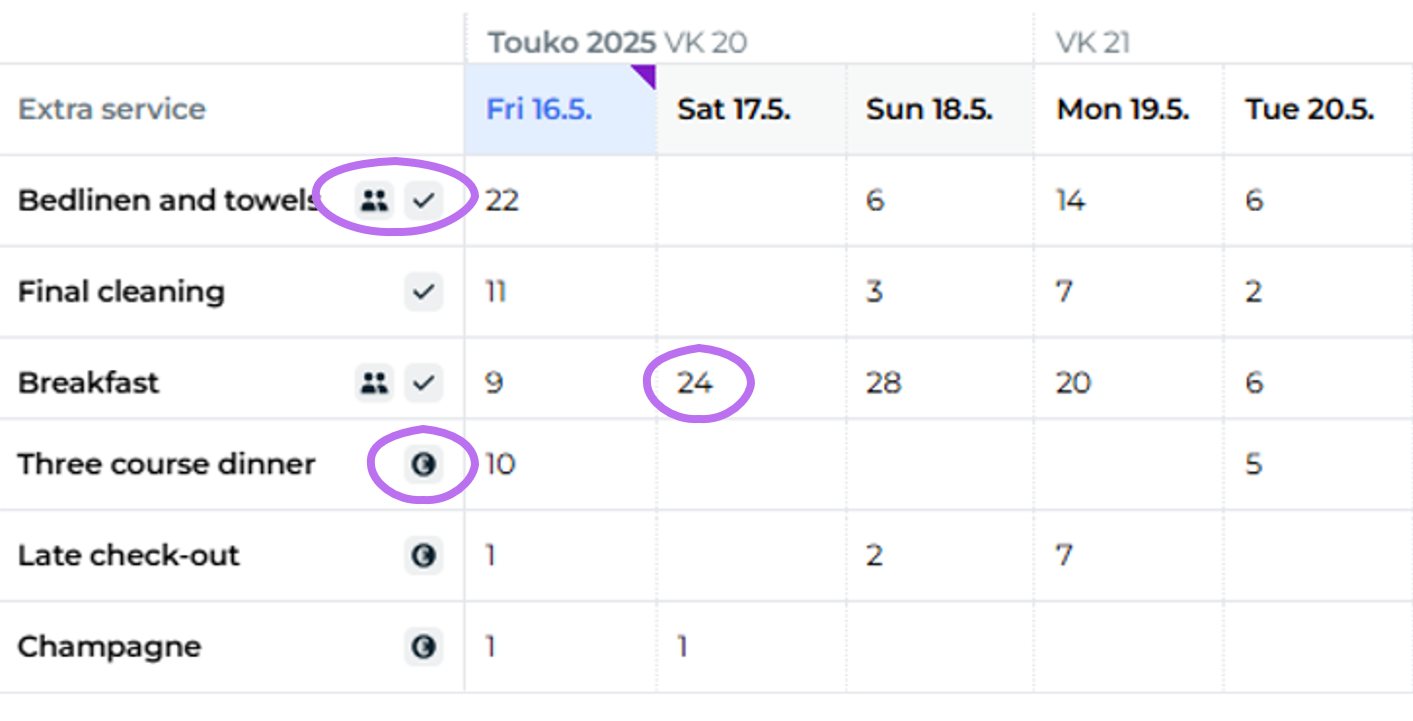
The view shows the daily counts of reserved services. Examples:
Bedding: Included in the accommodation price (✅-icon) and calculated based on the number of guests. Targeted to the arrival date in the service settings.
Final cleaning: Included in the accommodation price and targeted to the checkout date. Visible on that day.
Breakfast: Included in the price, calculated based on the number of guests and applied to the accommodation and checkout dates. The view shows the correct daily amounts.
Dinner: A separately sold service (?-icon). Visible on the day it is assigned.
Late checkout: Paid extra service, set for the checkout date. Easily visible in the amount for that day.
Detailed additional service list
The Modern Extras view has received a powerful new feature: daily additional service listings for each sold service. You can click any cell and open a detailed view of where the bookings for those services come from.
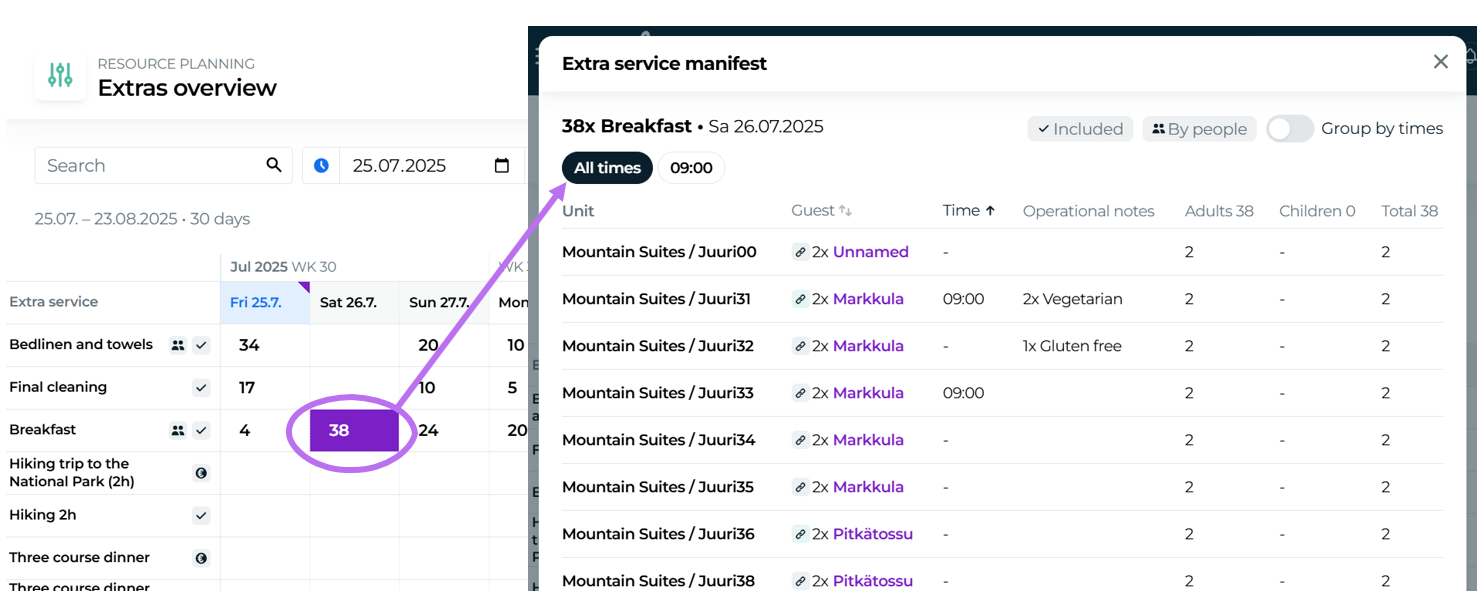
Key features:
Reservation-specific breakdown
You can see exactly which rooms and guests the additional services relate to – an excellent aid for planning the restaurant or cleaning team.Grouping by time
You can view all additional services together or separated by a specified time (e.g., 08:00 vs. 09:00 breakfast).
You can switch the view: "all times" and between specific times.Functional notes
You can easily see special notes, such as dietary restrictions (e.g., “2x Vegetarian” or “1x Gluten‑free”).Included in price & guest count
You can see whether the service is included in the reservation price and whether it is calculated based on the number of guests. This facilitates billing and practical arrangements.Flexible sorting and grouping
You can sort the list by room, name, or time – and group services according to your needs.
Examples of use cases:
Breakfast preparation – You know exactly how many breakfasts need to be prepared and for which guests.
Meeting room catering – You see immediately how many lunches are needed and which rooms they should be delivered to.
Cleaning team organization – You see precisely which rooms require final cleaning or towel replacement.
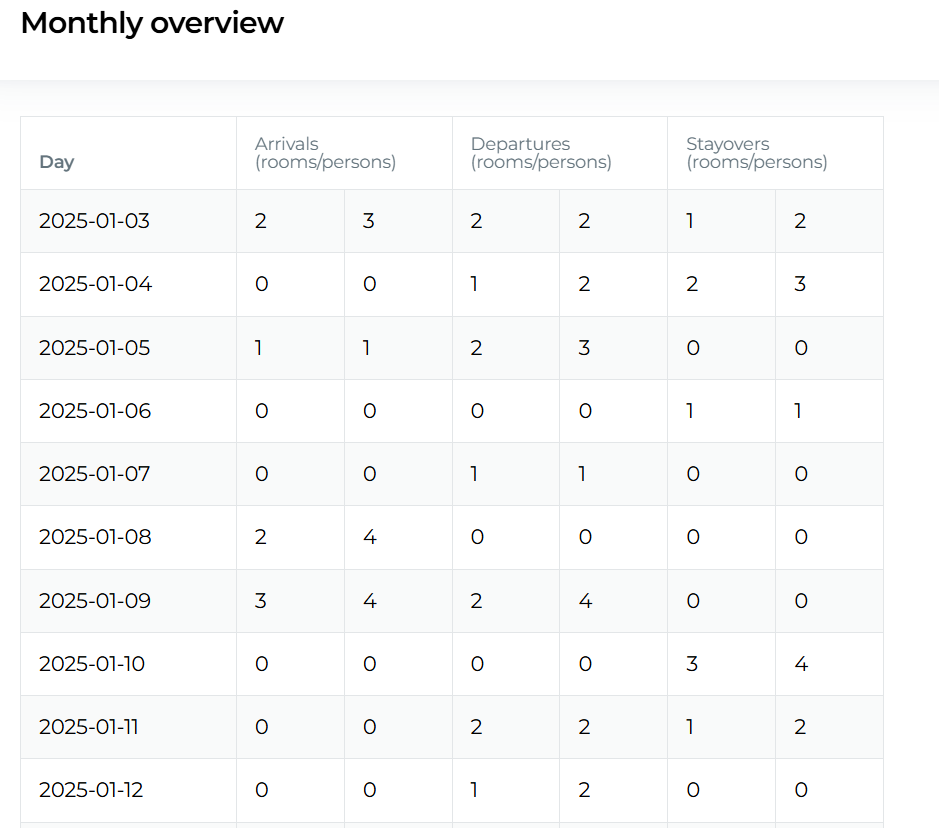
Monthly View
What do I use the monthly view for?
The monthly view is an excellent tool for planning your own work as well as maintenance and cleaning tasks over a longer period. This section is easy to read, as you can see at a glance the arriving, departing, and overnight guests as well as rooms.
With this tool, you can easily calculate the number of people arriving for breakfast, for example.
Cleaning user role and rights in Moderi
With cleaning permissions, the user has the rights to see only the Resource planning section, which is an essential area for the cleaner's work. The user does not see customers' names, the price of bookings, and cannot open the booking preview window.
Daily work with operations management tools
For everyday work at Moder, we primarily recommend all the workflow management tools, because by reviewing all of them you get a good overview of today's events, past events, tomorrow's events, and even future bookings up to a month ahead.
However, in our opinion the Cleaning List and Week View are the best tools for daily work. They are specifically designed so that it is as easy as possible to use them from both the cleaning and maintenance perspective, as well as from the viewpoint of a tourism entrepreneur:
Cleaning list you can easily edit cleaning statuses, view daily events, and see when a room, property, cottage, igloo, villa, activity or even an apartment is next booked.
Moder is primarily designed for use on mobile, i.e., on a phone or tablet, so if you carry a phone (or tablet) with you at work, you can check and update the cleaning status.
You can also print an arrivals list or an in‑house list for yourself, if you need a paper version.
Weekly view is an excellent tool when you want to view reservations one at a time as well as the day's events in aggregate – both arrivals, departures, and even activities.
With this tool you can easily prepare for additional services and know to which destination to bring, for example, a baby travel crib or where a pet might be arriving.
Notes
Daily notes
In the main view of the resource planning you can write day-specific notes that appear for the given day. Notes can be written as an Administrator and as a Front desk user, and the notes can be read by the Key Service user and also by the Cleaning user.
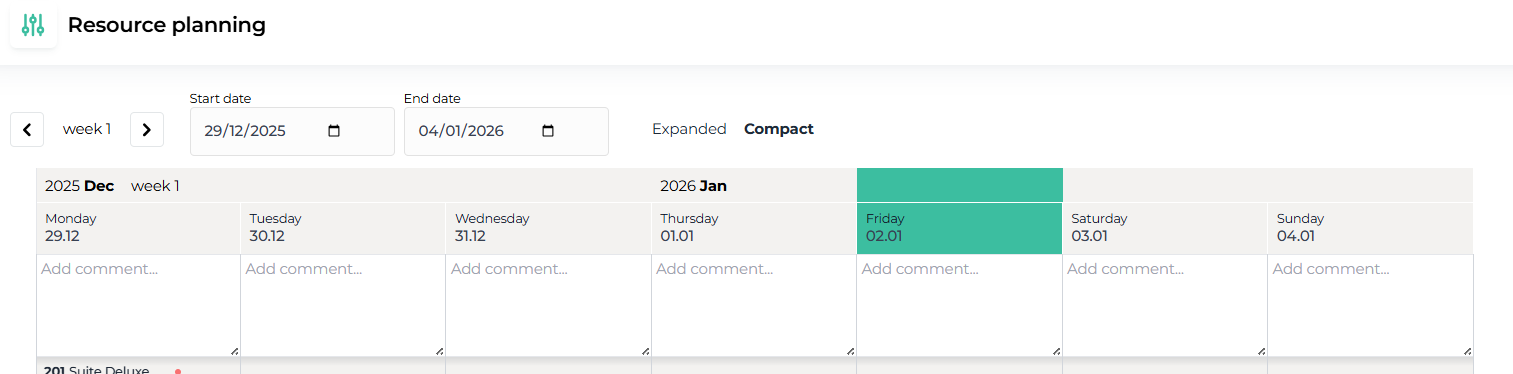
If there is something special to do during the day, it can be communicated to the whole team via a day-specific note. The information could be, for example, the on-call person, an additional service to be delivered to a room (a bottle of sparkling wine), or even a renovation taking place at the site, which affects the work during the day.
Room-specific notes
You can also write room-specific notes on the cleaning list, which appear in the overview. An example is a burnt light bulb or a sofa leg that needs repair. These notes are also visible to the Key Service and Cleaning user roles.
Notification emails
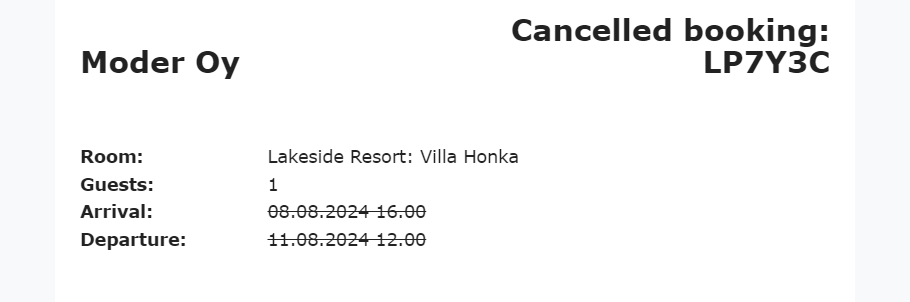
As an admin, you can set notification emails for reservations of items, for example to a cleaning and maintenance partner. This way, your partner always receives information about new reservations for the item, booked additional services, and cancellations.
Notification emails were set for each unit individually under the Products tab in your Moderi. Below is an example image of the notifications that your cleaning or maintenance partner will receive.
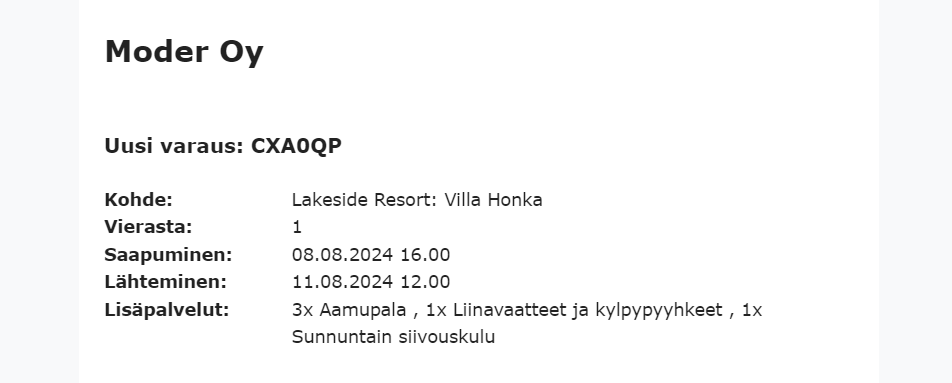
However, it is important to keep in mind that if a reservation is later updated, for example by adding a new additional service, no separate notification email will be sent automatically for these.