Reporting
Last updated: July 14, 2026
The Reports tab allows you to monitor your business performance through numbers and access the necessary reports for your accountant. With reports, you can review bookings, sales, statistics, and other key metrics that help you manage and optimize your business operations.
Reports provide comprehensive tools for tracking, analyzing, and supporting decision-making for your business.
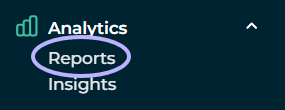
You can find Moder’s reports in the menu on the left-hand side.
Search criteria
When viewing reports, you can define search filters to narrow down the report contents according to your needs.
Select a Report
First, choose the report you want from the Report Library.
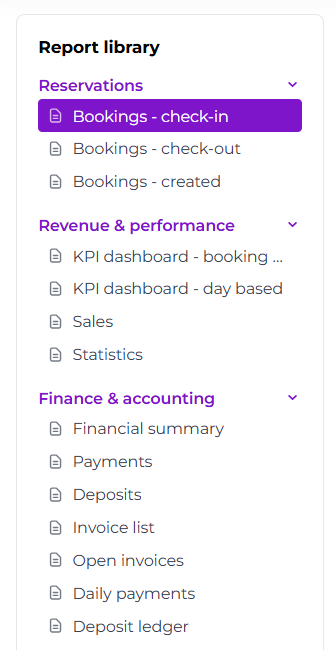
Once you've selected a report, you'll immediately see the report's calculation logic. For example, here's the calculation logic for the Reservations – Check-in report.

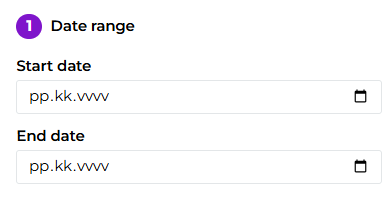
Next, define the date range you want to report on. This allows you to focus on a specific period, such as a month, quarter, or the entire year.
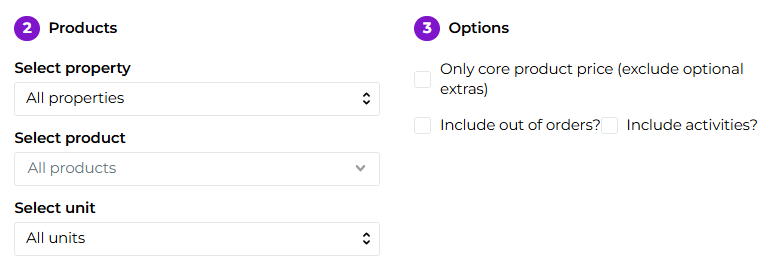
You can also filter the report by a specific location, room type, or room. Additionally, you can choose whether to include reservations that are out of service:
Export to Excel or PDF
Click Show Report to generate the report. It will open as a PDF in a new browser tab.
All reports can also be exported directly to Excel by clicking the Export to Excel button. This allows you to further process, analyze, or share the report data as needed.
Reservations
Reservations section contains reports that compile data on a per-reservation basis. The reports primarily retrieve reservations within the reporting period based on the reservation start date. An exception is the Reservations check-out report, which retrieves reservations based on the reservation end date.
Bookings - check-in
This Bookings - check-in report provides a comprehensive overview of all bookings that began during the specified time period.
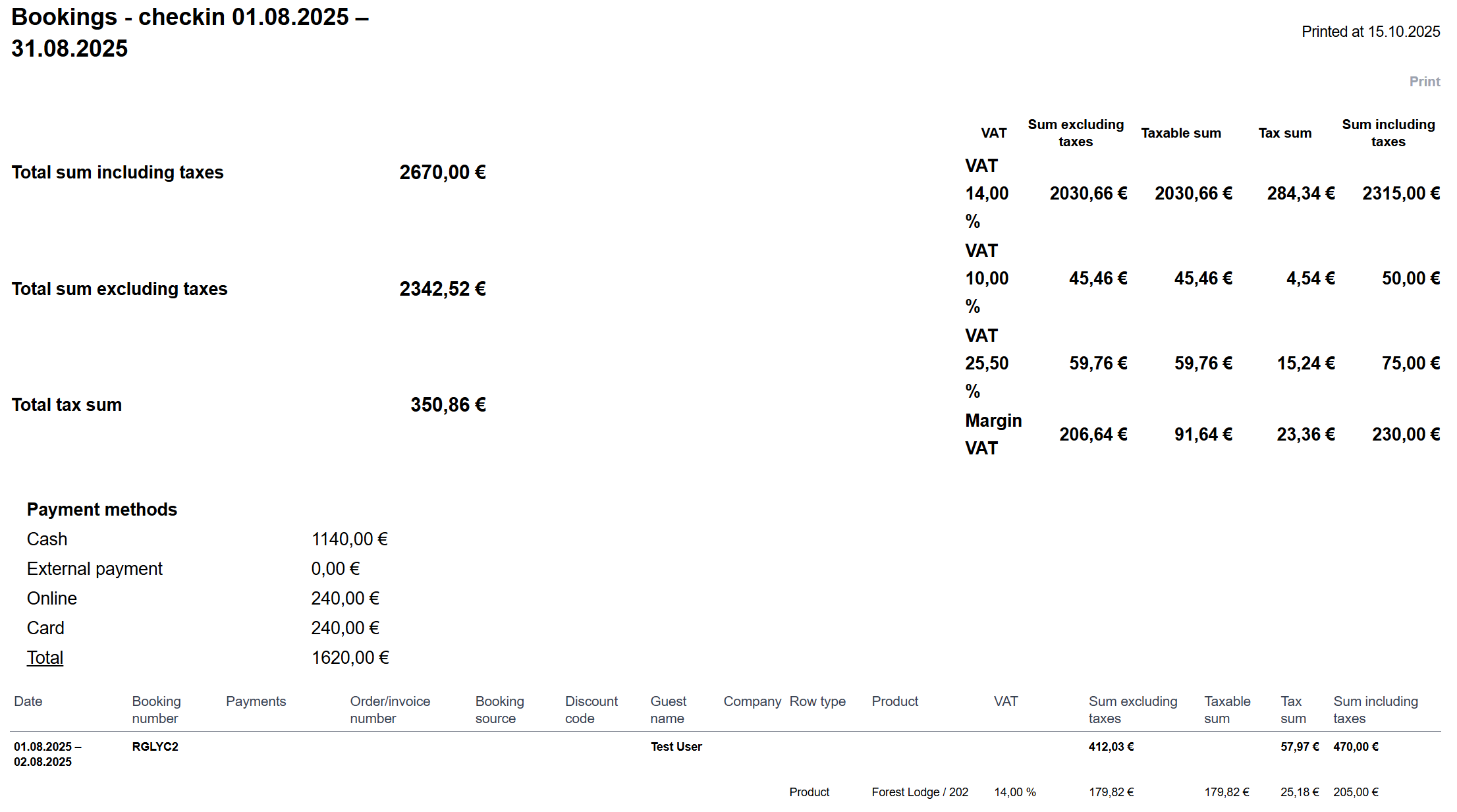
Key details of the report
Booking source:
Webshop: Bookings made directly through your company's webshop.
Back-end system: Bookings created manually in Moder's booking calendar, typically by staff.
External sales channel: Bookings made via third-party platforms such as Booking.com or similar channels.
Destination: Displays bookings from cross-selling with another Moder platform, useful if your properties are listed across multiple destinations.
Tax breakdown:
Shows detailed tax information related to bookings. This breakdown is essential for financial management and accounting, as it provides specific details about the taxes associated with each booking. It also helps assess the impact of taxation on different bookings and sales channels.
Payment method breakdown:
Lists payment methods, such as online payments processed through Paytrail or Stripe, separately.
NOTE: This report does not include canceled bookings.
This report effectively tracks booking origins, payments, and taxes, making it a valuable asset for business analysis and management.
Bookings - check-out
This report is designed to list all bookings that ended during the selected time period.
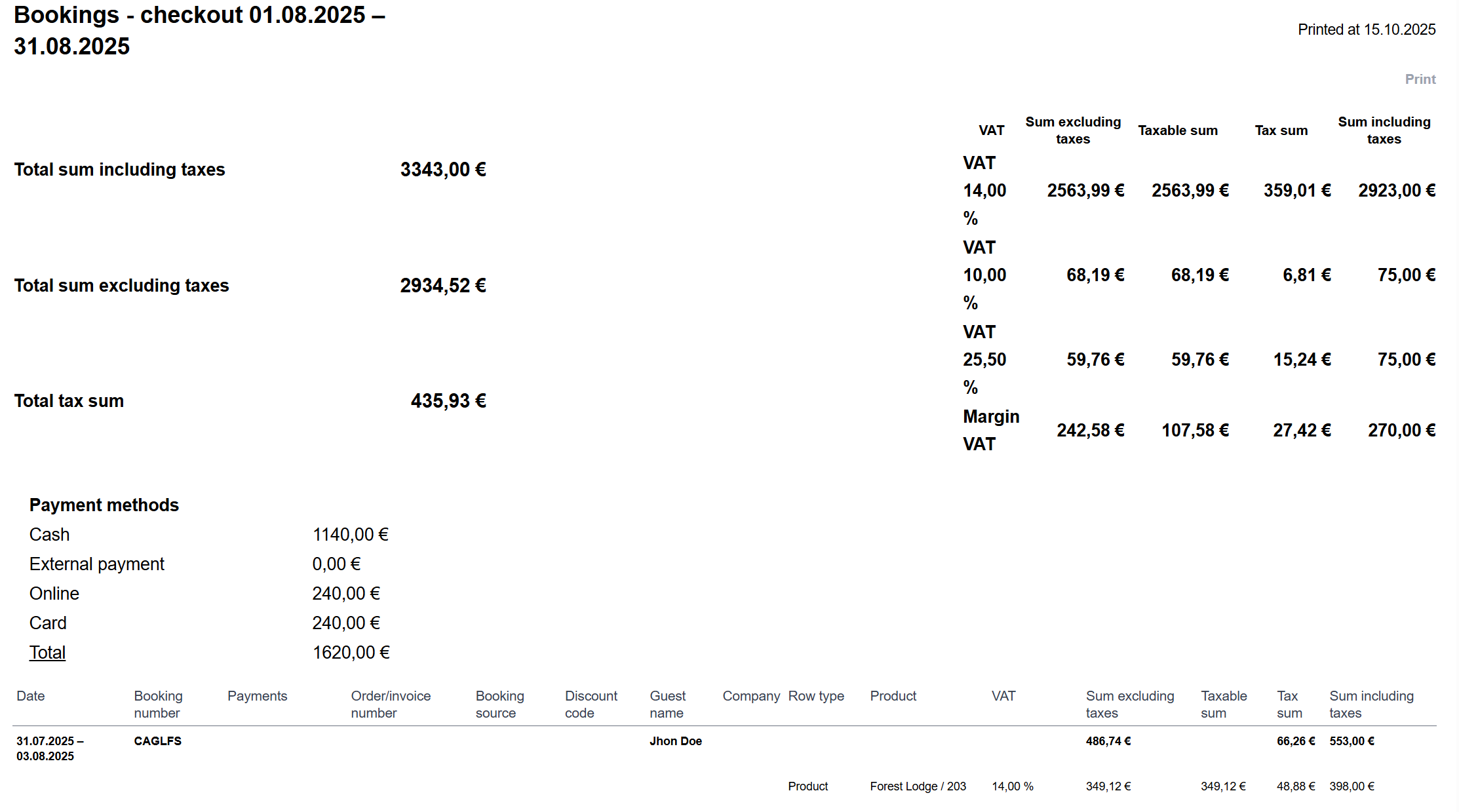
It is particularly useful for accounting purposes, as it provides a view of bookings that should no longer have any changes in sales or duration since all bookings in this report have already ended. This often makes it a better option for accounting compared to the Bookings - check-in report.
Key details of the report
Booking source:
Webshop
Back-end system
External sales channel
Destination (if properties are cross-sold with another Moder platform)
Tax breakdown:
Provides detailed information on the taxes associated with bookings.
Payment method breakdown:
Includes details on payments, such as online payments made via Paytrail or Stripe.
If the "Total sum including taxes" and "Payment methods total" amounts do not match, this indicates that there are bookings in the report that have either not been marked as paid or have overpayments (payment entries exceeding the booking amount). In such cases, check the payment entries for completed bookings in the selected time period.
Canceled bookings are not included in the report.
Purpose of the report
This report provides reliable data to support accounting and financial reporting, especially when reviewing completed bookings whose details should no longer be modified.
It is particularly valuable for accounting as it focuses solely on completed bookings, making it a dependable source for financial analysis and reporting. The breakdowns of booking sources, taxes, and payment methods offer a clear overview of bookings and help identify potential discrepancies in payment entries.
The exclusion of canceled bookings ensures that the report focuses only on relevant data.
Bookings - created
The Bookings - created report provides a detailed overview of all bookings created within the selected time period.
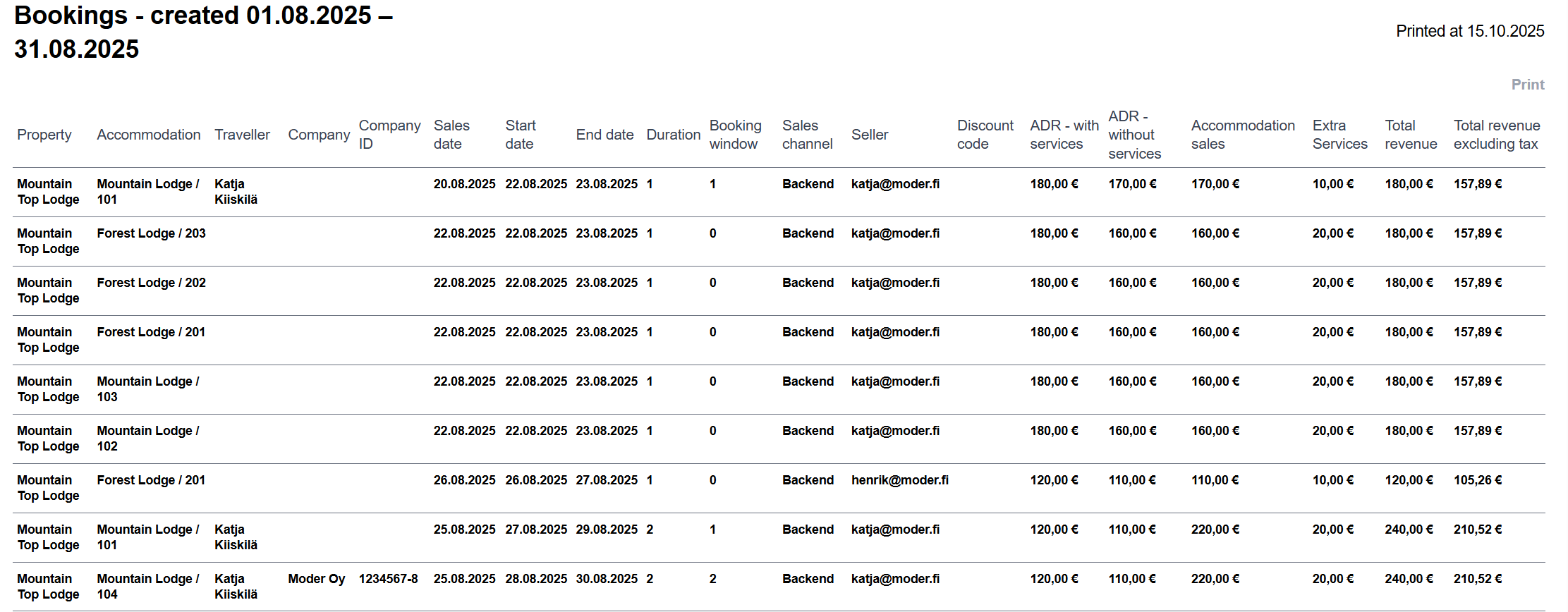
This report is a valuable tool for monitoring and analyzing accommodation business performance, especially regarding sales channels and employee contributions.
Key details of the report
Booking period:
The report includes all bookings created during the selected time range.
Booking channels and employees:
The report displays the channel through which each booking was made (e.g., webshop, external sales channel). If the booking was created directly in Moder's booking calendar (back-end), the report also shows the name of the employee who created the booking.
Discount codes:
If a discount code was applied to a booking, it will be displayed in the report. This allows you to track the impact of discounts and promotional campaigns.
Use cases of the report
Use the report to review and track new bookings, as well as to evaluate the productivity of marketing campaigns.
For best results, export the report to Excel for further sorting, analysis, and visualization.
This report is an essential tool for measuring the impact of sales and marketing efforts, helping businesses understand which channels and campaigns deliver the best results.
Revenue & performance
KPI dashboard - booking based
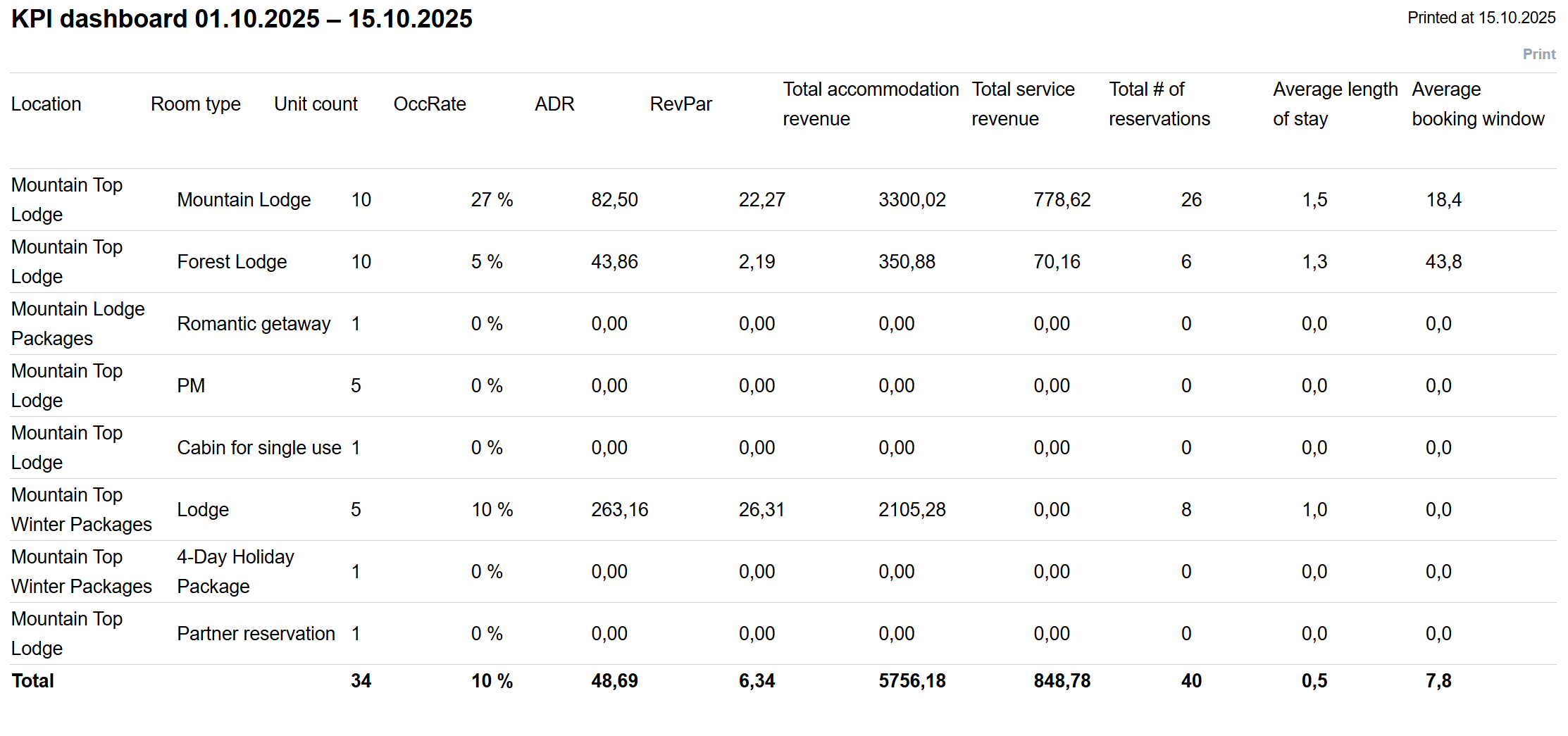
The KPI dashboard - booking based report is designed to provide accommodation businesses with key metrics for analyzing performance and comparing different time periods. It includes the most important figures for effectively evaluating operational efficiency and profitability.
Key details of the report
Occupancy rate (OccRate): Displays the occupancy rate by room type, indicating how full the accommodation has been during the selected time period.
Average daily rate (ADR): Shows the average selling price per room type, helping to monitor the effectiveness of pricing strategies.
Revenue per available room (RevPAR): Indicates the average revenue per available room by room type, a crucial metric for assessing the productivity of the accommodation.
Monthly accommodation revenue (Total accommodation revenue): Presents the total accommodation revenue for the selected period, with figures shown as tax-exclusive.
Average booking window: Displays how far in advance guests typically book their stay. This metric helps with planning pricing strategies and targeted marketing efforts.
The report provides valuable insights into the performance of your accommodation, supporting data-driven decision-making. By tracking these metrics, you can monitor profitability, optimize strategies, and improve results over time.
KPI dashboard - day based
The daily KPI report (Key Performance Indicator report) gives you access to the most important hospitality industry metrics, helping you monitor your company’s performance accurately and in real time:
Occupancy rate – shows how much of your accommodation capacity is booked during a given period
ADR (Average Daily Rate) – the average room rate per sold room
RevPaR (Revenue per Available Room) – revenue per available room; combines occupancy rate and ADR
TRevPaR (Total Revenue per Available Room) – total revenue per available room, including both optional and included extra services
Total main product revenue – total revenue from accommodation sales (includes included extra services but excludes optional extra services)
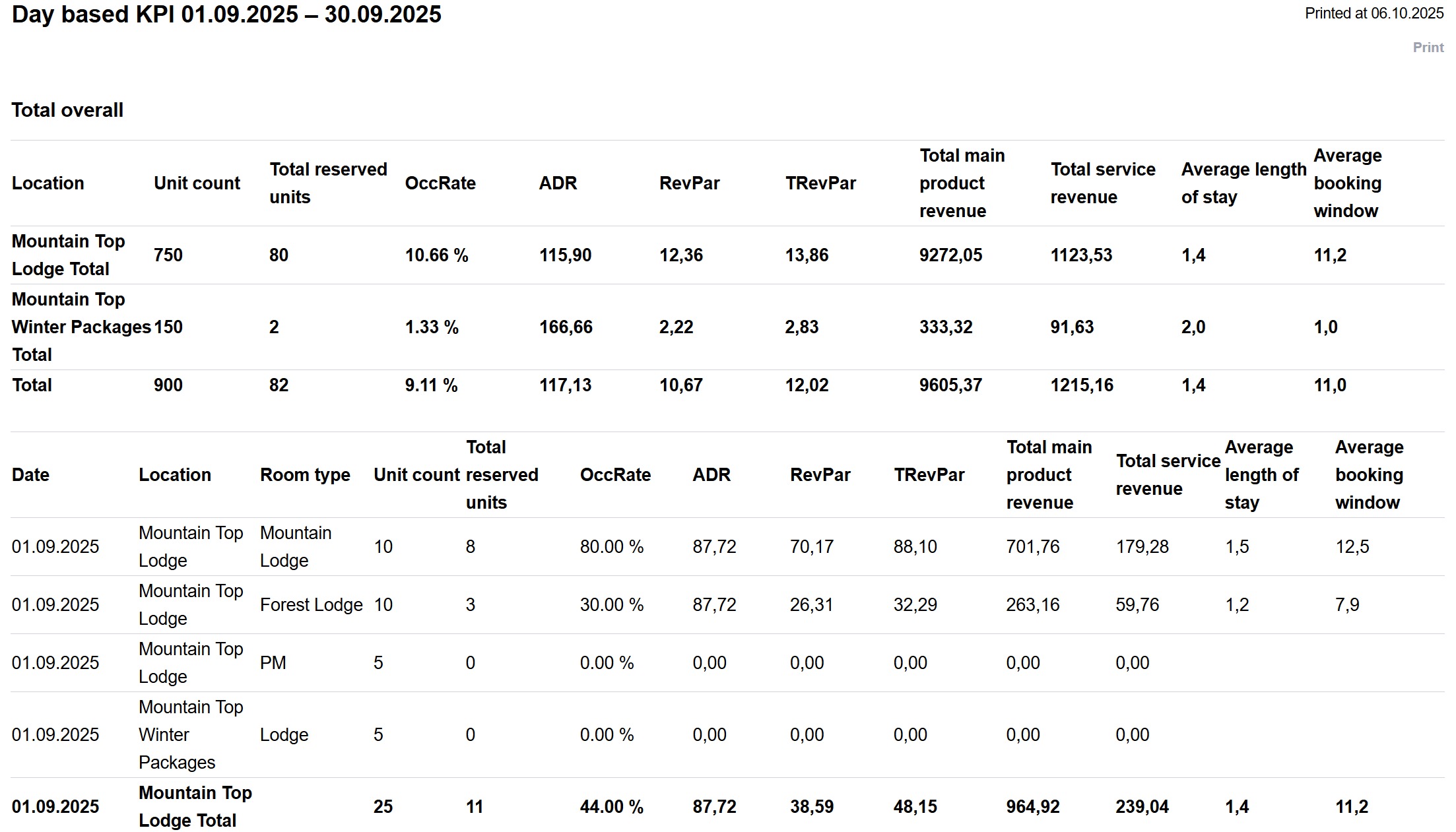
In addition, the report includes complementary KPIs that help you better understand customer behavior and revenue structure:
Total service revenue – shows how much income comes from extra services that are booked together with the accommodation
Average length of stay – indicates the average number of nights guests stay
Average booking window – shows how many days before arrival bookings are made on average
How to get the most out of the new KPI report?
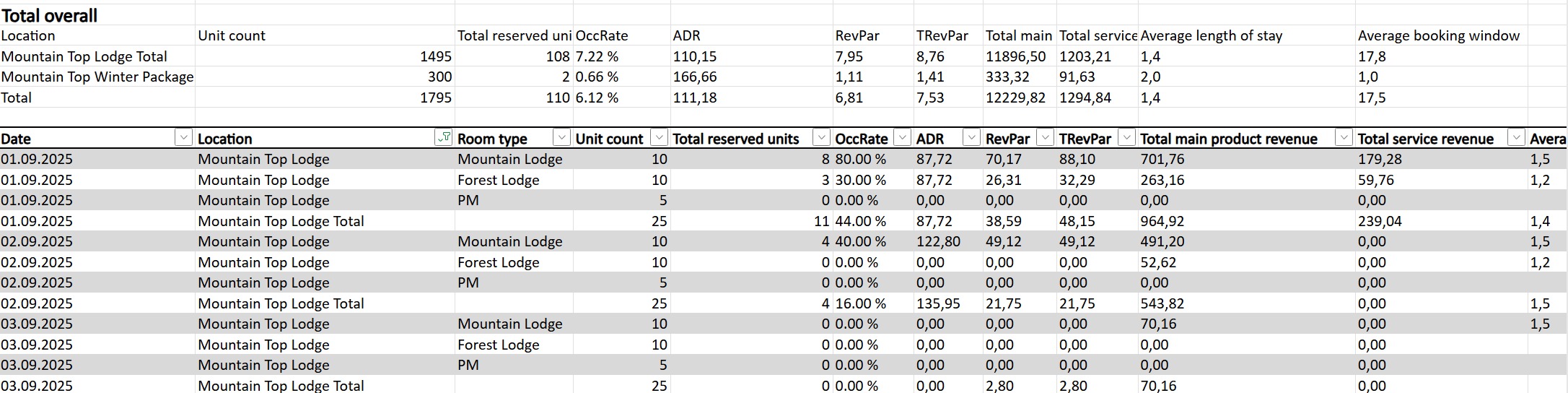
To make the most of the daily KPI report, export it to Excel, convert the data into a table, and use filters. This allows you to flexibly view data across different time periods, compare results, and identify trends that support smarter business decisions.
We’ll demonstrate how to edit the Excel file and use filters in in this short video– showing you just how easily you can uncover insights that matter most for your business.
Sales
The sales report lists all sales during the reporting period on a daily basis.
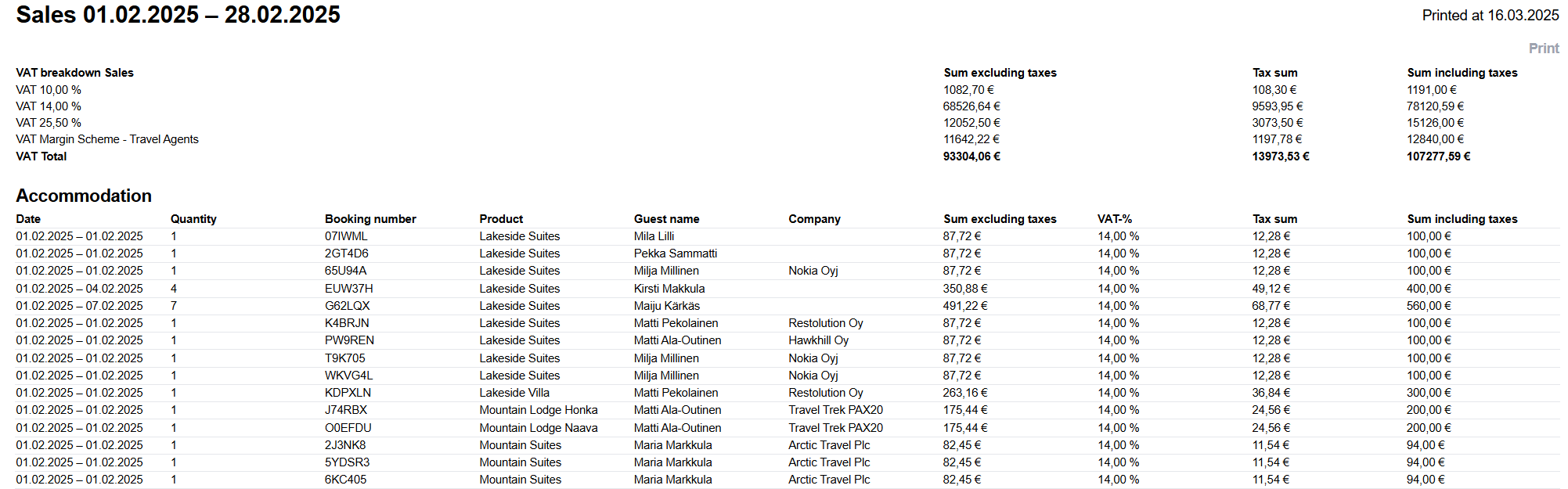
What the report shows
Total sales, broken down by VAT
Sales by product category and the reservations that generated the sales
Reservation details: date, sales quantity, and reservation number
Booker details: traveler and company information
How the report works
The report functions in the same way as the Financial summary:
Reservations: Reservations are split into daily sales. If a reservation spans across reporting periods, the sales are divided by day and allocated to the respective periods.
Extra services
Per-night services: Per-night extra services (e.g., breakfast included in the price and automatically calculated for each day and each guest) are divided into nightly sales.
Other extra services: Extra services for an additional charge (e.g., pet fee) are recorded on the check-in date, i.e., the first night.
Canceled reservations
If a reservation is canceled and has not been paid (no prepayment) → it does not appear on the report.
If a reservation is canceled and paid, but no credit note has been issued (prepayment received) → the reservation remains on the report, but is marked as canceled without a credit note (NO CREDIT NOTE). In this case, the payment also appears under both prepayments and prepayment reversals.
If a reservation is canceled and a credit note has been issued → the reservation is removed from sales and prepayments → the credit note is recorded under payment methods.
Statistics report
This report compiles various statistical data from a selected time period, making it a valuable tool for analyzing and reporting statistics.
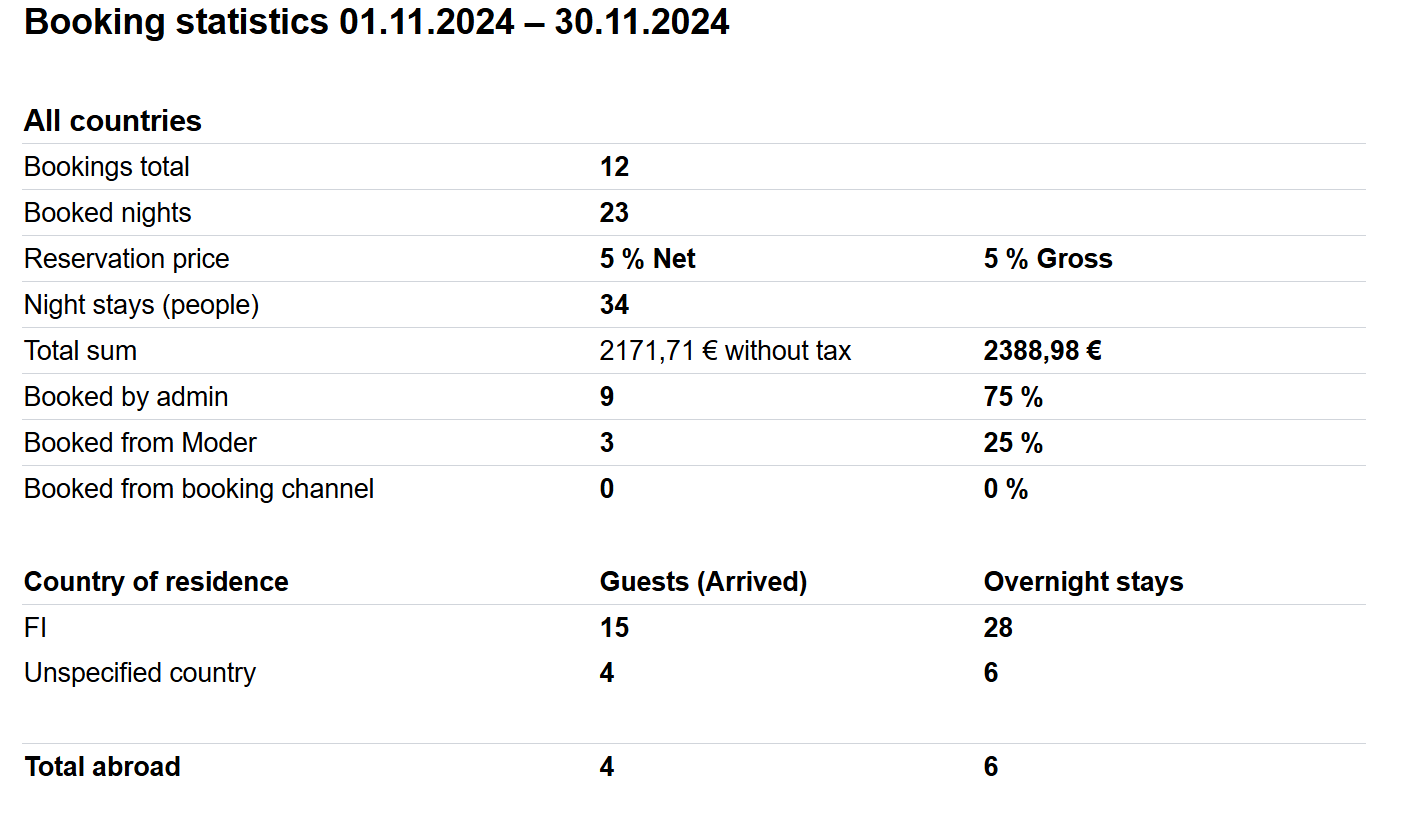
Key details of the report
Statistics on foreign guests: The report provides data, such as the number of overnight stays by foreign guests during the selected time period. This is particularly useful if you need to report monthly foreign guest statistics to Statistics Finland. Note that the data is accurate only if the guest’s country has been correctly entered for each reservation.
Moder does not yet offer direct integration with Statistics Finland, so figures must be manually retrieved from this report and entered on Statistics Finland’s website.Reservation sources: The report shows how many bookings originated from different sales channels, such as external booking platforms ("Booked via external booking channel") and your webshop ("Booked via booking page").
This report is a useful tool for analyzing sales and accommodation booking statistics, particularly for breaking down bookings by source and reporting them to authorities like Statistics Finland.
Finance & accounting
The Finance & accounting section begins with the Financial Summary report, which compiles daily data.
If you want to examine a specific part of the financial summary in more detail, there are also dedicated detailed reports for each section located below the financial summary within the same section.
Financial summary
This report is specifically designed to meet the needs of accounting and provides a comprehensive overview of sales on a monthly basis. It is an ideal tool for reviewing materials for accounting, offering detailed breakdowns of sales, deposits, and outstanding invoices.
Key details of the report
Sales during the period:
Displays all sales within the selected period, including sold products and services.
Prepayments (deposits):
Shows reservations prepaid during the selected period.
Realized prepayments:
Includes prepayments converted into sales, such as completed stays or utilized services. This section functions as a "guest ledger."
Payments during the period:
Lists all payments made within the period, categorized by payment method.
Outstanding invoices:
Displays all unpaid invoices and their VAT breakdowns.
VAT breakdown:
Details VAT for sales, prepayments, and realized prepayments.
Important notes
The report may contain large amounts of data, so downloading it might take time.
The report can be filtered by location, but no other filters are available.
Sales for reservations spanning multiple months are evenly distributed across those months.
Extra services on the report:
Per-night services: Services like breakfast are allocated nightly for each guest.
Extra charge services: For example, pet fees are assigned to the check-in date (the first night).
Canceled bookings:
Unpaid reservation: The reservation is removed from the report entirely.
Paid reservation without a credit note: The reservation remains on the report with a "NO CREDIT NOTE" label, and the payment is listed under deposits and realized prepayments.
Paid reservation with a credit note: The reservation and deposit are removed from the report, and the credit note is recorded under payment methods.
Financial summary report sections explained:
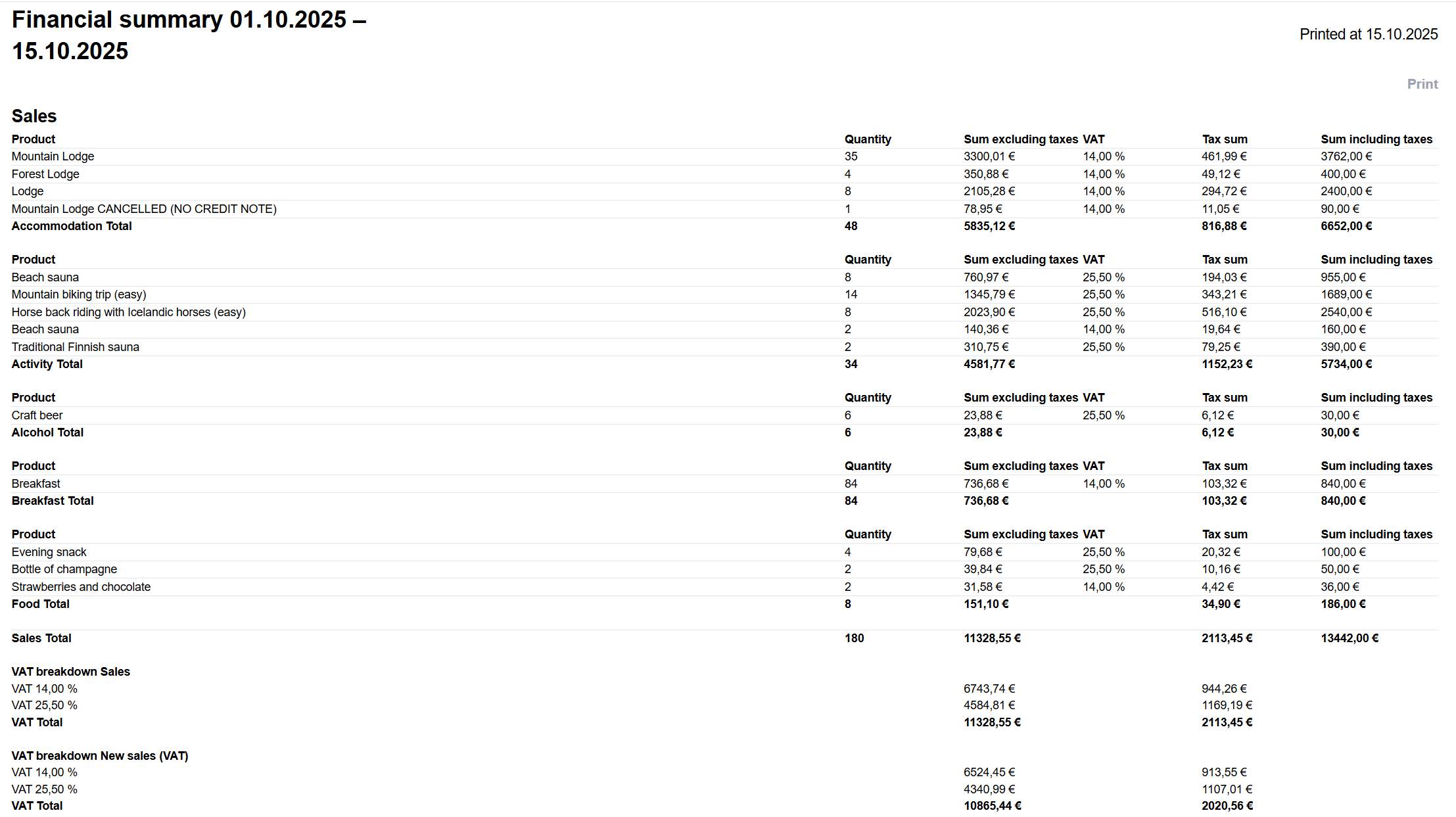
Sales section
Displays the sales that occurred during the selected period, including products and services. The report categorizes the sold products for better clarity. If you see "Property Account" at the bottom of the categories, it refers to invoices created without an associated reservation.
The sales section also includes canceled reservations for which a credit note has not been issued. These canceled reservations are marked with the label (NO CREDIT NOTE), indicating that no credit note has been created.
Below the sales section, you will find a VAT breakdown for the period's sales and new sales.
The upper VAT breakdown reflects the total sales for the period.
The lower VAT breakdown covers new sales that have not yet been recorded as prepayments.
Deposit removals section
Realized prepayments refer to completed stays or utilized services. This section also includes a VAT breakdown specifically for the realized prepayments.

Deposit payments section
Lists all prepaid reservations along with their VAT breakdown for the selected period.

Payments section
Includes all payments that were taken during the selected period.

Open invoices section
Displays all open and unpaid invoices along with their VAT breakdown. These are invoices created during the selected period. If you wish to view additional open invoices, refer to the Open Receivables report.

This report is an essential tool for managing accounting, as it provides precise details on sales, prepayments, open invoices, and VAT. It ensures that all accounting-relevant transactions are accurately recorded and properly categorized.
Payments
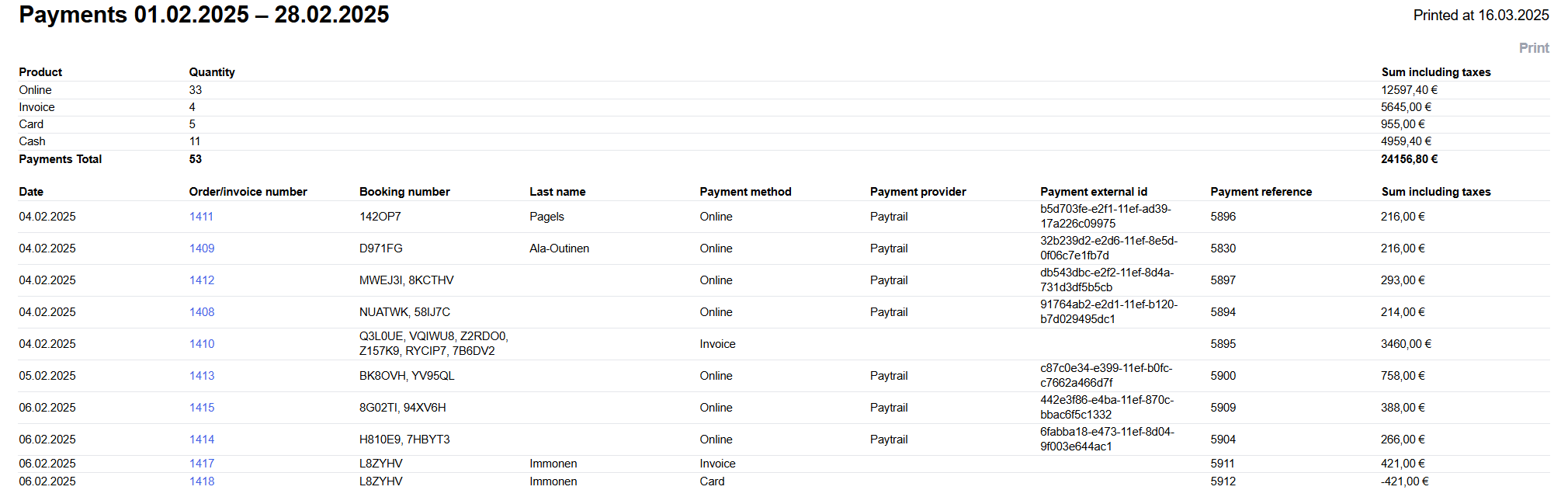
The payments report shows all payments during the reporting period. The data matches the Financial summary report. With this report, you can verify payment allocations and investigate possible error situations.
What the report shows
Total payment amounts: All payments by payment method, by quantity, and the total sum of payments
Payment transactions: A chronological list of payment transactions
Payment allocation: Which invoices the payments are allocated to. The report includes a link to open the invoice directly for review.
Reservations: Which reservations the payments are allocated to
Payment method: The method used for the payment
Payment provider: Paytrail or Stripe, if the payment was made through the POS or webshop
Payment provider ID: A unique ID provided by the payment provider (Stripe or Paytrail) for reconciliation purposes
Payment reference: The payment reference that Moder passes on to the payment service provider (Stripe or Paytrail)
Total payment amount
Deposits
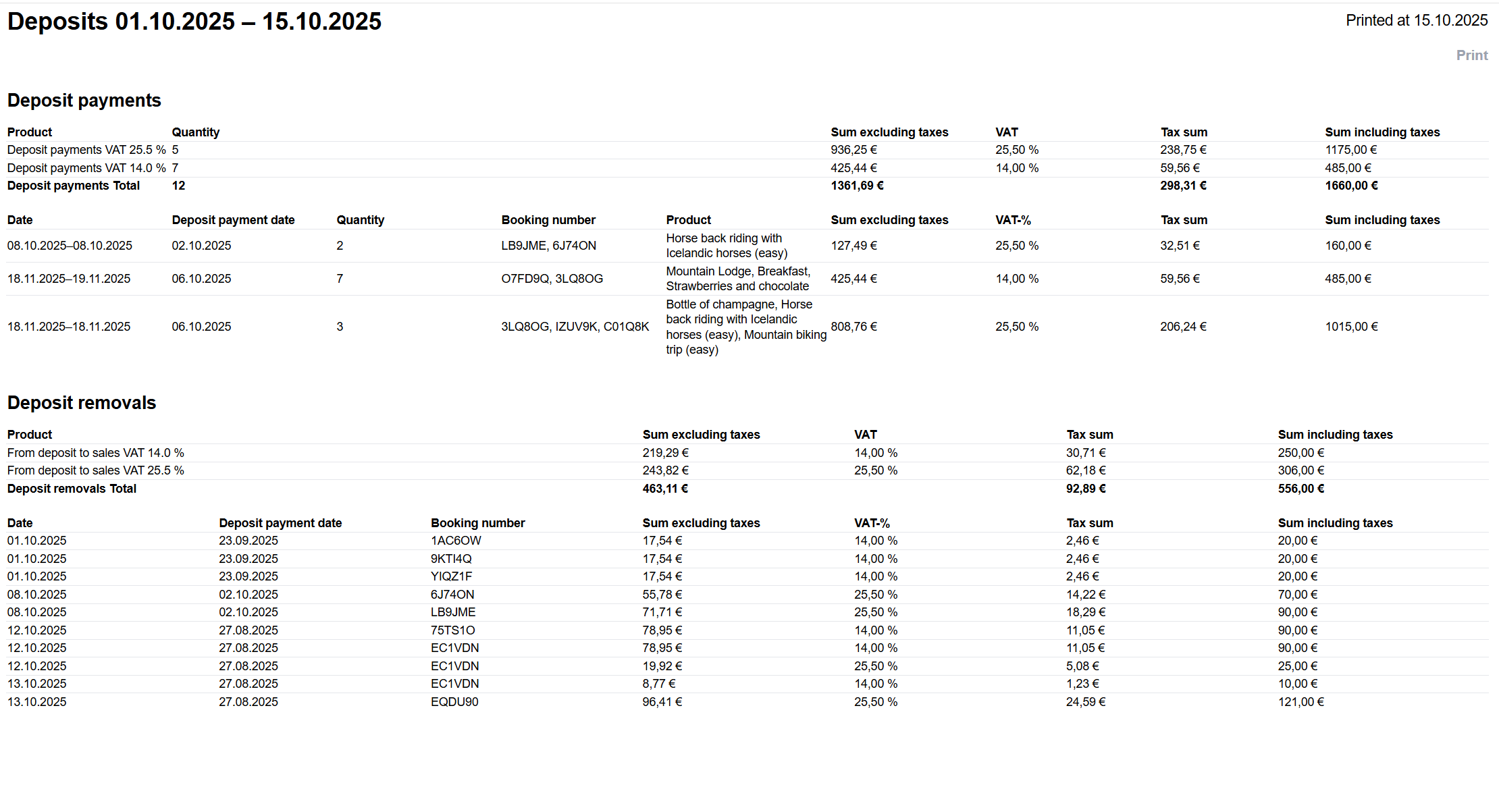
The deposits report shows new deposits and released deposits during the reporting period. The report summarizes the status of deposits on a daily basis.
What the report shows
Total amount of new deposits by VAT rate
New deposits: Line-level details of how the new deposits were formed
Total amount of released deposits by VAT rate
Released deposits: Line-level details of released deposits by reservation
Reservations: Which reservations the deposit changes are linked to
Deposit payments
Lists all deposit payments during the reporting period. Deposits are all reservations where the payment occurred before the reservation start date. For example, a webshop booking paid in advance, or a back-office booking where an invoice and payment record were created before the reservation began.
Deposit removals
This section lists reservations that were paid in advance and where the reservation has taken place (the product was delivered to the customer) during the reporting period.
Invoice list
Invoice list report provides a detailed overview of all invoices and orders within a selected time period.
This report is an essential tool for financial management as it offers an accurate view of the company's billing and order situation, as well as the status of payments. It allows you to track the progress of invoices and orders, manage cash flow, and ensure all financial transactions are up to date.
Key details of the report
Invoices:
All sent PDF invoices: The report includes all invoices sent to customers. Invoice details help track when invoices were sent and ensure they are properly scheduled.
Invoice date determines report appearance: The date on the invoice, not the due date, determines when it appears in the report. For example, an invoice dated 25 September with a due date of 5 October will appear in the September report. This ensures a clear timeline in invoicing.
Orders:
Webshop orders: The report includes all bookings from the webshop that have been paid via Stripe. These details provide precise insights into webshop sales and help monitor revenue generated directly through the webshop.
Payment status:
Status indicators: The report shows the payment status of invoices, such as the amount paid and the outstanding balance. This information is crucial for financial management and payment tracking, helping to identify which invoices have been paid and which remain open. It also helps monitor payment delays or unpaid invoices, critical for cash flow management.
Note! If a booking is canceled but still has an associated invoice or payment received via Stripe, these invoices and payments will appear in the report. This ensures all financial transactions, including those related to canceled bookings, are properly recorded and tracked.
Purpose of the report
The report is a vital tool for tracking invoices and orders, supporting financial management by providing a clear overview of all open and paid invoices as well as webshop orders.
Open invoices
Open invoices report provides an up-to-date view of all outstanding invoices and receivables.
The Open Invoices report shows the status of open invoices as of the selected end date — regardless of when the report is generated. The start date must be selected, but it has no effect, as the report displays open receivables according to the chosen end date.
For example, when reviewing open invoices as of September 30, 2025, the report will show the same information on October 1, 2025, or even January 1, 2026, even if the invoices have been paid later:
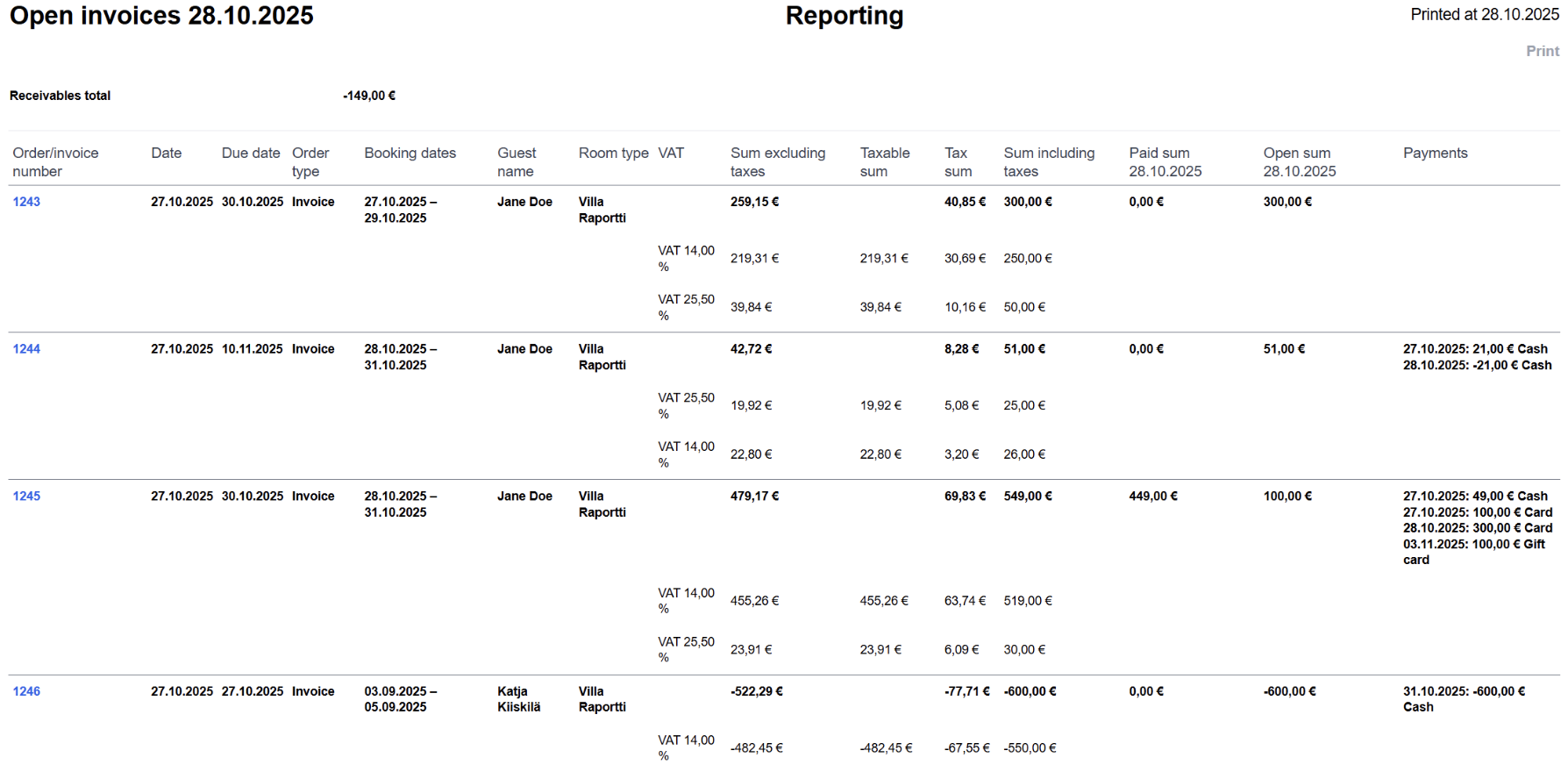
The Open Amount and Paid Amount columns include date information, and the invoice numbers are links that take you directly to the respective invoices.
Key details of the report
Report period:
The report displays invoices that are outstanding or were paid after the selected end date.
Start date: While a start date is required for generating the report, its role is minimal, as the focus is on invoices that remain outstanding on the selected end date.
Outstanding receivables:
The report compiles all invoices that are still open receivables as of the end date. This includes invoices that have not yet been paid or were paid after the selected date.
Purpose of the report
The report helps businesses monitor sales receivables and ensure all outstanding invoices are up to date.
It is a critical tool for financial management, particularly for payment monitoring and cash flow management.
Deposits report
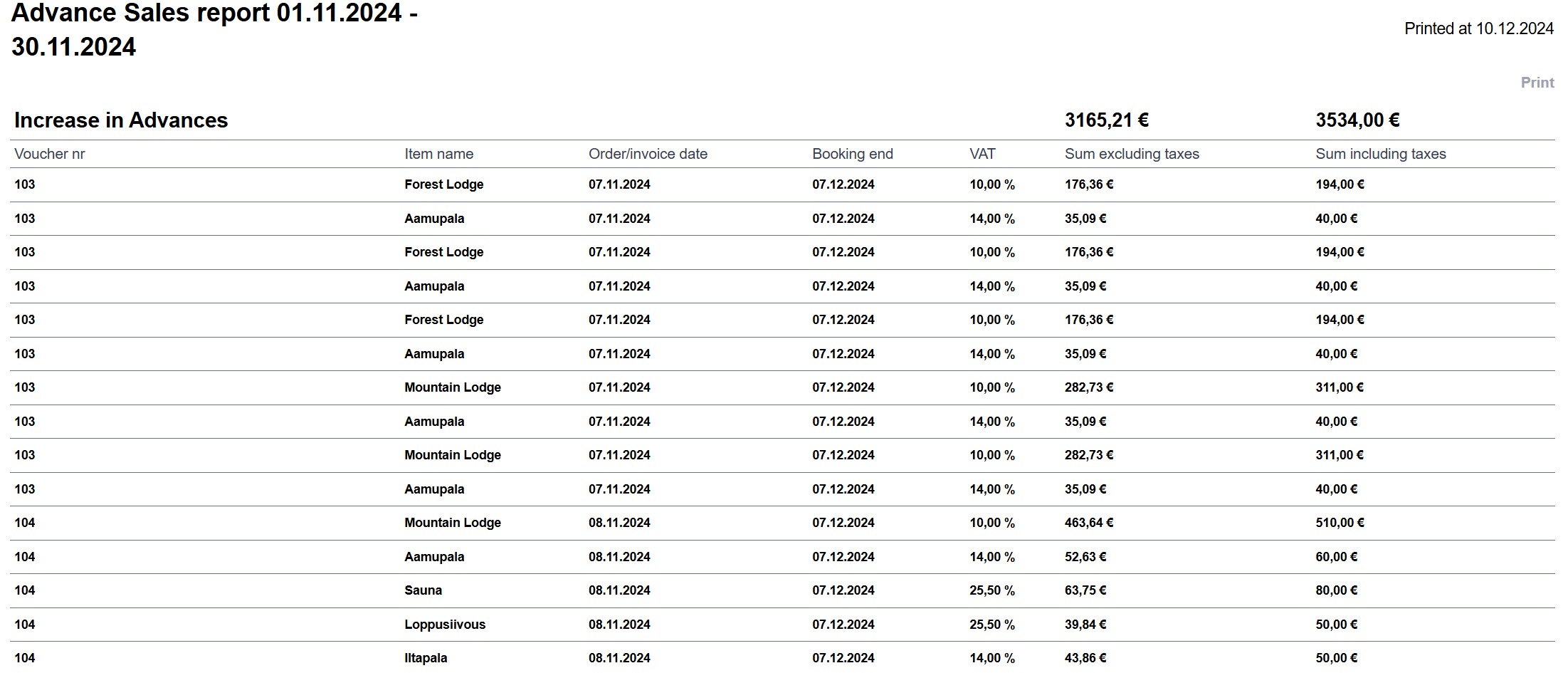
Deposits report provides an overview of open advance payments and invoices on the Moder platform for a selected time period. The report categorizes advances into additions and deductions and includes information about invoices and advance payments related to future bookings.
Key details of the report
Increase in advances:
This section lists all new invoices or advance payments made during the selected period.
It includes both webshop bookings paid online and manually created invoices in Moder.
The payment status of the invoice is irrelevant, so both paid and unpaid invoices related to future bookings are shown here.
Decrease in advances:
This section contains all invoices and advance payments associated with bookings that ended by the selected report date.
Once a booking concludes, the related advance payment or invoice is recorded as sales and removed from the advances category.
Open advances:
This section records all advances added on the selected date, as well as other open advance payments or invoices tied to future bookings.
The report does not account for the payment status of the invoices, including all future booking-related invoices, whether paid or unpaid.
Purpose of the report
The report helps monitor advance payments and invoices related to future bookings and manage the company's advance sales.
It provides a clear view of the status of advance payments and supports the accounting management of advances and sales.
Note that the report does not distinguish whether a booking is paid or unpaid. This is a key difference compared to the Deposit ledger report.
This report is an essential tool for businesses aiming to track advance sales and ensure all payments related to future bookings are up to date and well-managed.
Daily payments report
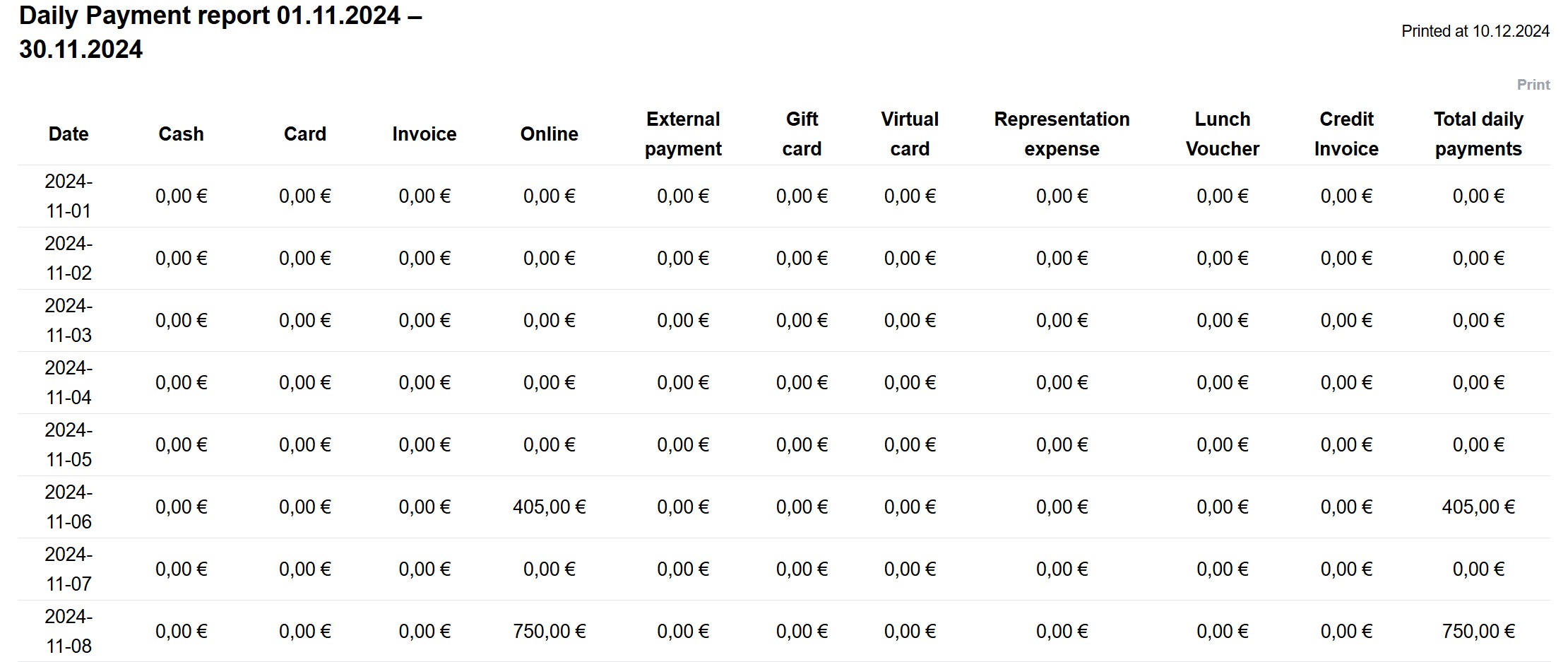
Daily payment report provides a detailed breakdown of daily payment transactions by payment method. The report shows how much was recorded for each payment method on a given day, including card payments, gift cards, cash payments, and online payments (via Stripe).
Key details of the report
Daily payment method breakdown:
The report displays how much was recorded for each payment method on a specific day, such as card payments, gift cards, cash payments, etc.
Online payments are logged on the payment date for payments received through Stripe.
Total payment amounts:
The report also provides the total amount across all payment methods per day, making it easier to monitor and report on daily cash flow.
Purpose of the report
The report is useful for tracking daily payment transactions and managing finances.
It provides a clear view of the payment methods used and the total payments received each day, supporting cash flow management and financial analysis.
This report is an essential tool for businesses aiming to monitor and manage daily payment transactions accurately by payment method, offering a clear overview of cash flow and payment trends.
Exports & other
Bookings export report
This report serves as a versatile tool for customer record management and marketing support. It compiles all bookings created within a selected time frame. For example, if you select the period from September 1–15, 2023, the report will include all bookings created during that time. Additionally, it includes information on whether the customer has consented to marketing during the booking process.
Key details of the report
Booking information:
Booking duration: Start and end dates of the reservation.
Booking number: Unique identifier for each booking.
Booking source: Source of the booking, e.g., Booking.com or another platform.
Discount code: Displays any discount code applied to the booking.
Customer information:
Name: Customer’s name.
Address: Customer’s address.
Email address: Contact information for marketing and communication.
Accommodation details:
Accommodation and unit: Specific details about the booked accommodation.
Additional information: Notes or other details added to the booking.
Booking language: The language used during the booking process.
Payment details:
Accommodation charges: Booking amounts shown both with and without taxes.
Amount paid: Indicates how much the customer has already paid.
Additional services: Reports on any extra services included in the booking.
Marketing permissions:
Marketing consent: Indicates whether the customer has agreed to receive marketing communications.
This report is a valuable tool for managing customer information, tracking bookings, and planning marketing activities. It provides a clear overview of customer details and booking specifics, enabling effective targeting of marketing campaigns and improved customer relationship management.