Group bookings
Last updated: April 10, 2026
Let's explore the world of group bookings! Group reservations can be found in Moder's left menu under Bookings Calendar:

Creating a group booking
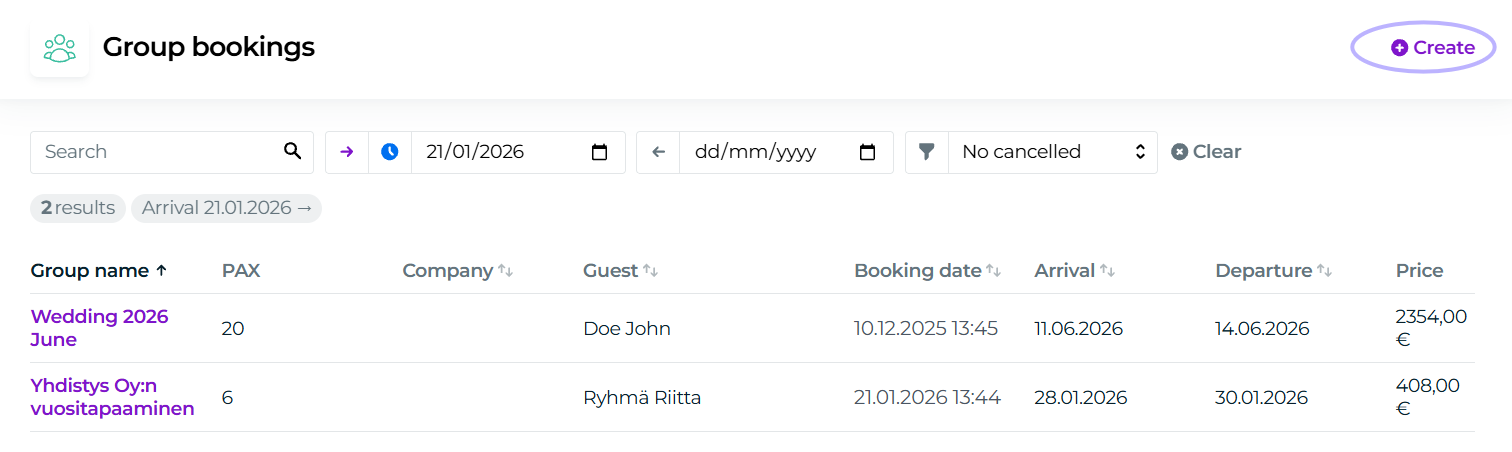
Start creating a group booking from the top right of the page, +Create button:
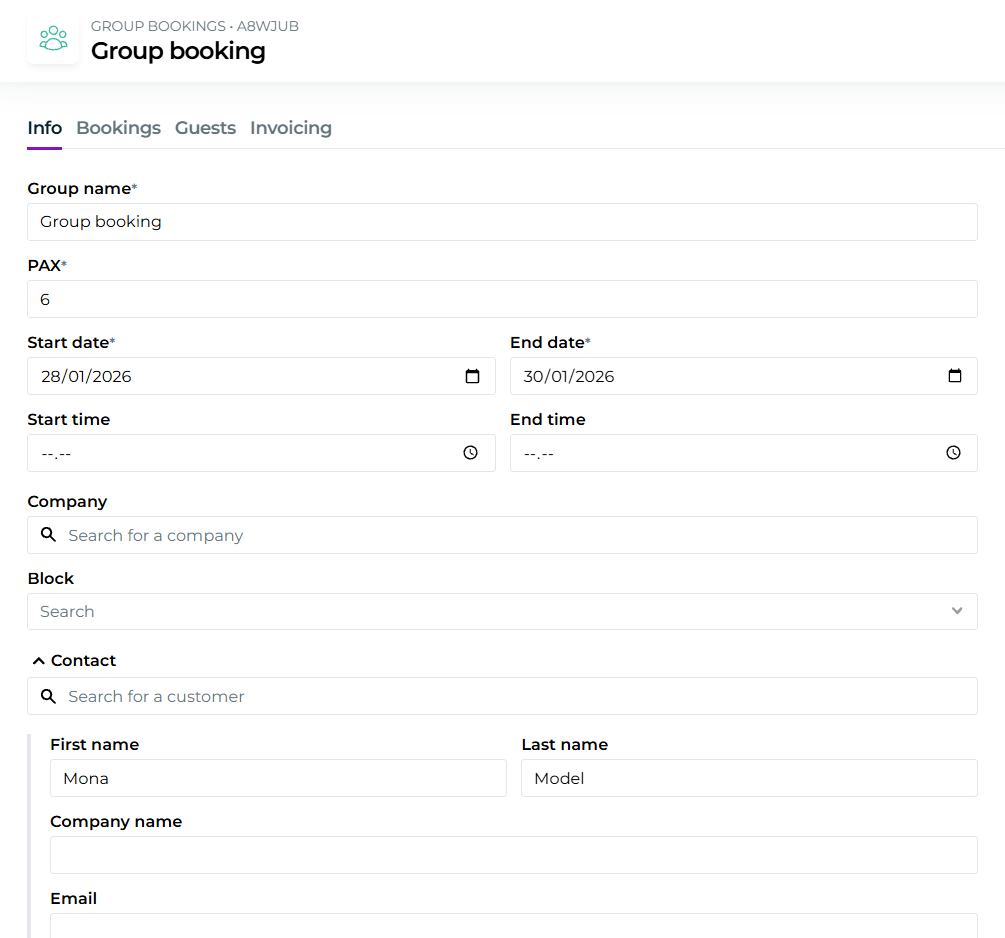
Fill in the group's details on the opening page. Fields marked with an asterisk are required:
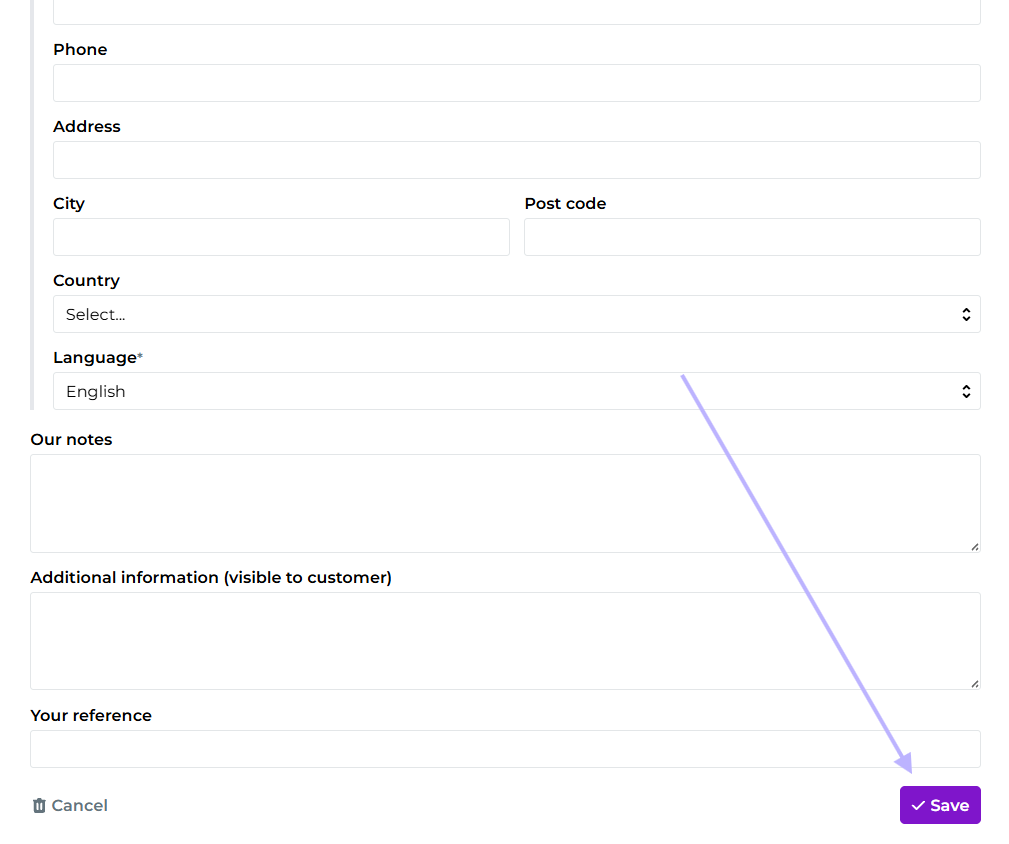
Also remember to save the group from the bottom after entering the information:
Booking rooms and activities for a group
Open the group booking and go to the Bookings tab. We recommend using Multibook for making reservations
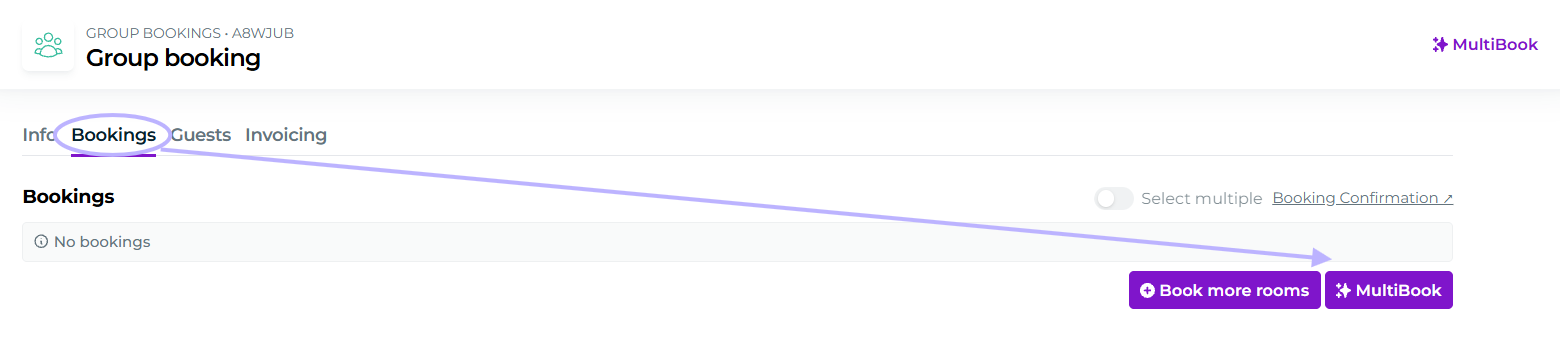
The "Book more rooms" feature is the so-called "old way", but of course you can also use it if you wish.
Select the dates for the group reservation in Multibook, add how many units you want to book, and add to the basket:
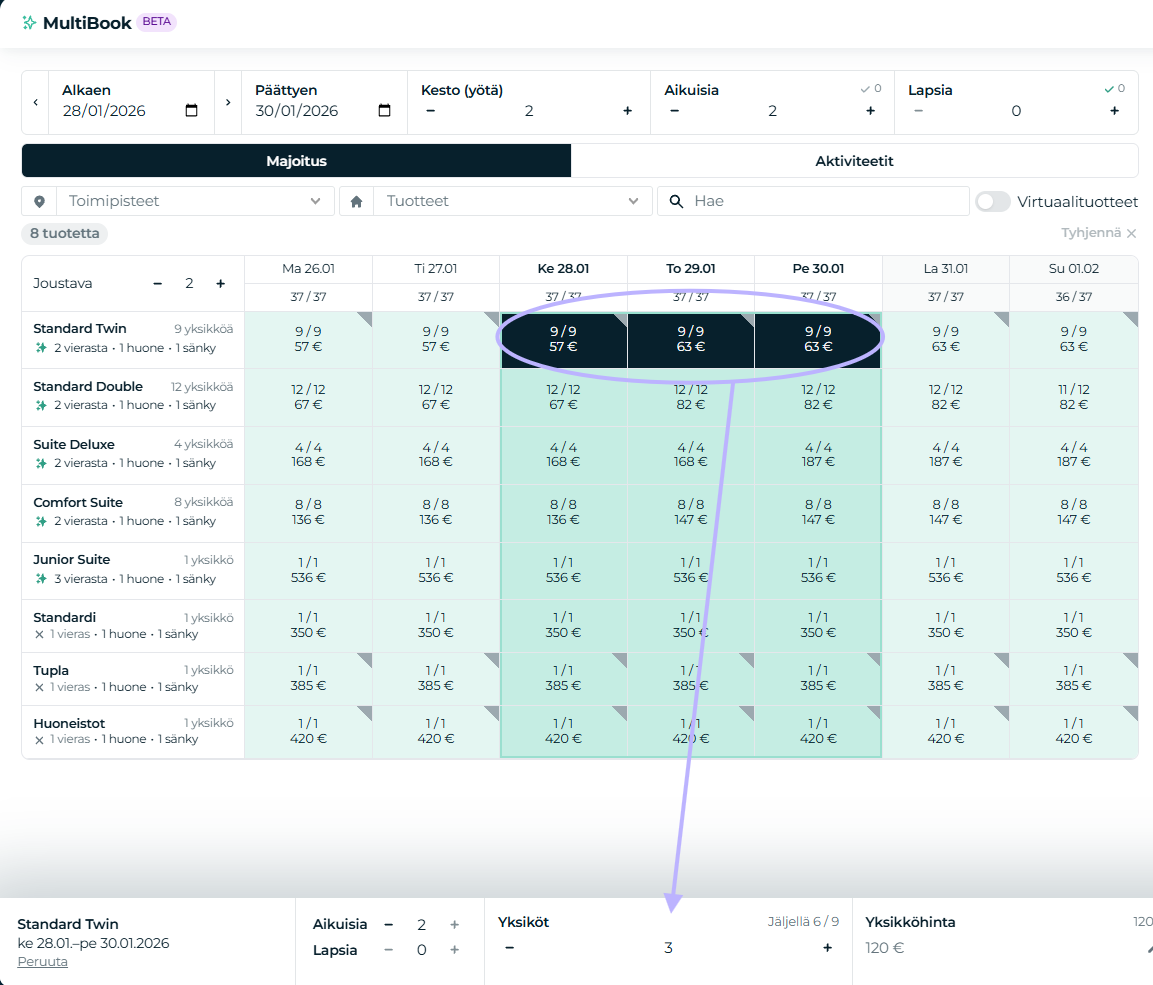
More information about using Multibook for accommodation reservations can be found in this guide:
📄 Accommodation reservation: Multibook
More information about using Multibook for activity reservations can be found in this guide:
📄 Activity reservation: Multibook
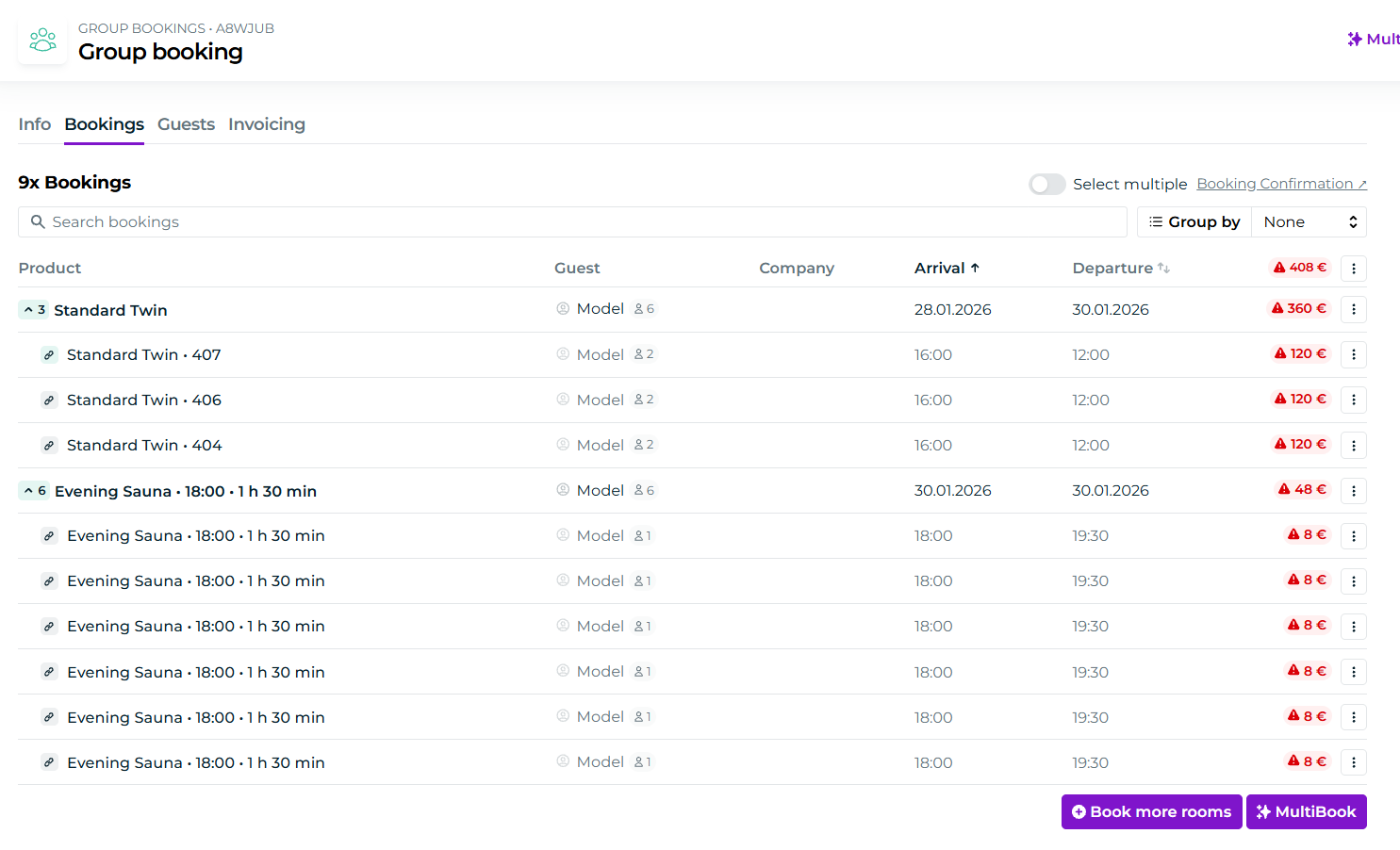
When you have booked your desired accommodations and activities, they will appear on the Reservations tab:
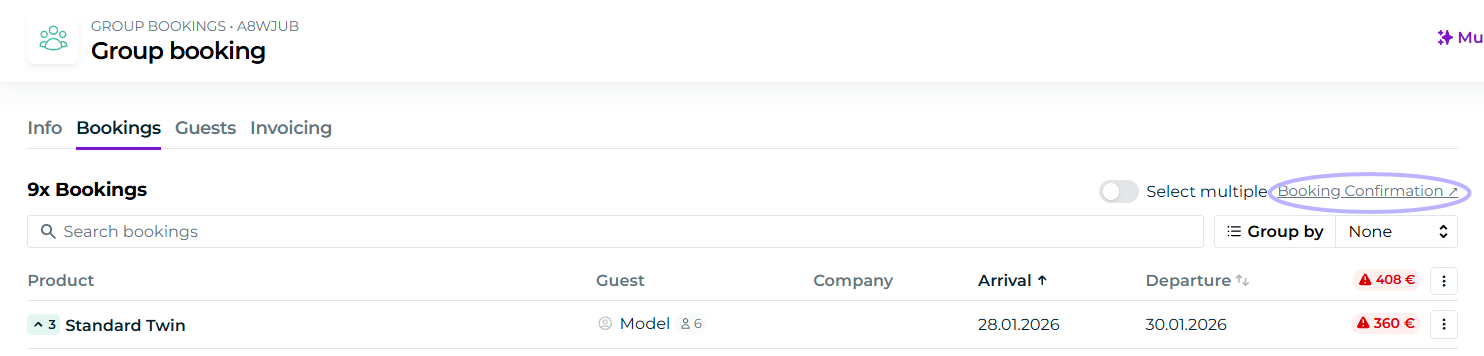
You can also see what the booking confirmation looks like. This is done via this link:
Sending the booking confirmation
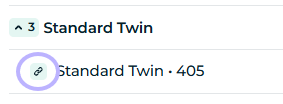
Sending the booking confirmation is done from the main reservation of a group booking. You recognize it by the green link icon:
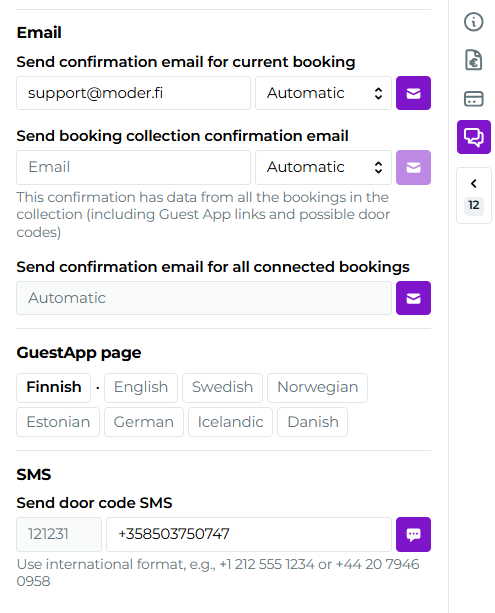
The booking confirmation is sent from the reservation's Messages tab. You can send either an individual booking confirmation, or a compilation of all collected reservations:
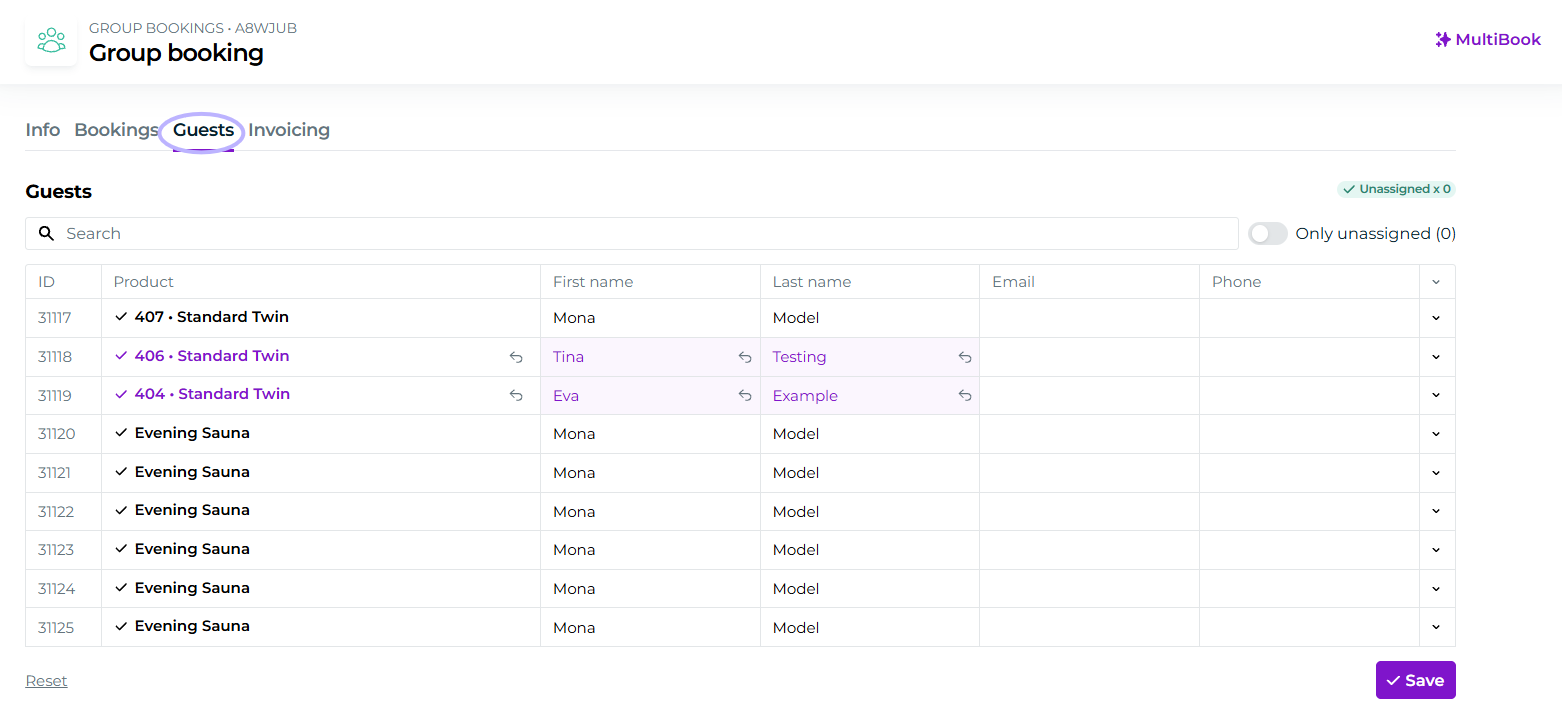
Guests tab
On the Guests tab you can edit the names, email addresses, and phone numbers of the reservations included in the group, per room and activity:
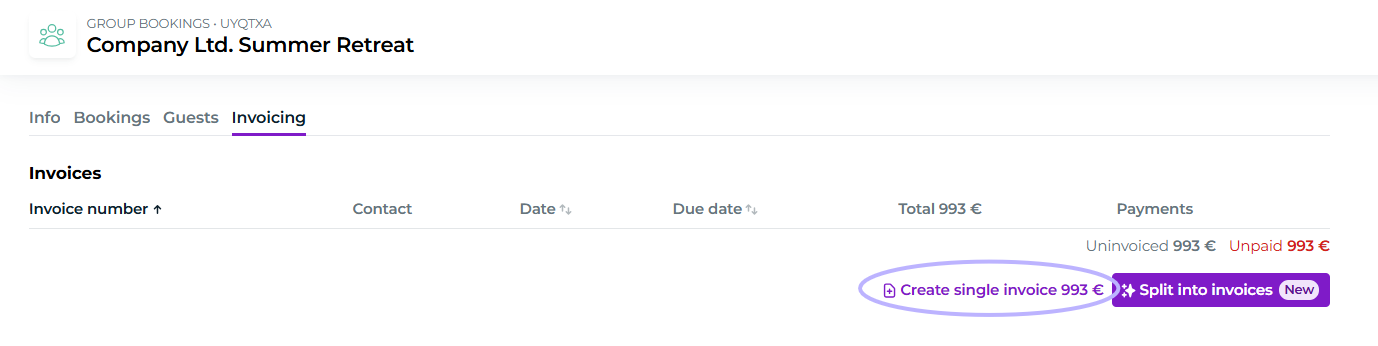
Invoicing tab
On the Invoicing tab you can create a consolidated invoice for all reservations included in the group:
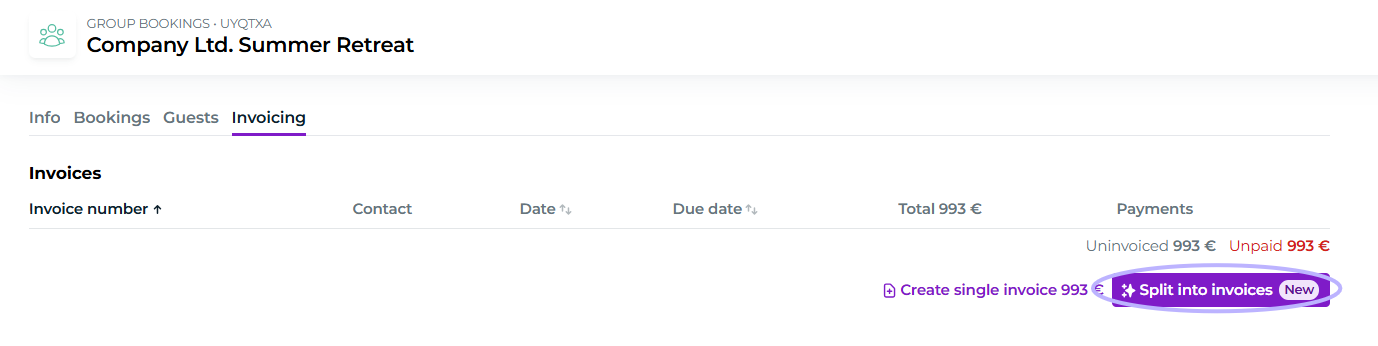
You can also split products to separate invoices from Split into invoices -button:
More on creating invoices in this guide: