Credit invoice
Last updated: September 30, 2026
Credit notes are necessary when a payment needs to be refunded to a customer in whole or in part, for example due to an incorrect invoice or a cancellation.
If an invoice rows needs to be modified after saving, the original invoice must be credited, the booking itself updated, and then a new invoice created.
In Moder, a credit note can be created easily based on the original invoice, but it is important to note that the actual refund must be made directly through the payment service provider, such as Paytrail or Stripe, or via bank transfer.
Creating a credit invoice
You can easily create a credit note in Moder by opening the desired invoice to which the credit or partial credit is made, and clicking the top right "Create credit note"-button. You can edit the credit note as needed before saving.
Paytrail or Stripe Payment Refund
Please note that you cannot return money to the traveler from Moder. If the traveler paid through Paytrail, the refund must be made from the Paytrail merchant portal. If you are using Stripe, the refund must be made through Stripe's portal.
Open invoice
Go to the reservation whose payment has been refunded and open the original invoice. Alternatively, you can find the invoice from the invoices list.

Create credit note
Open the three dot menu from the top right corner of the invoice:
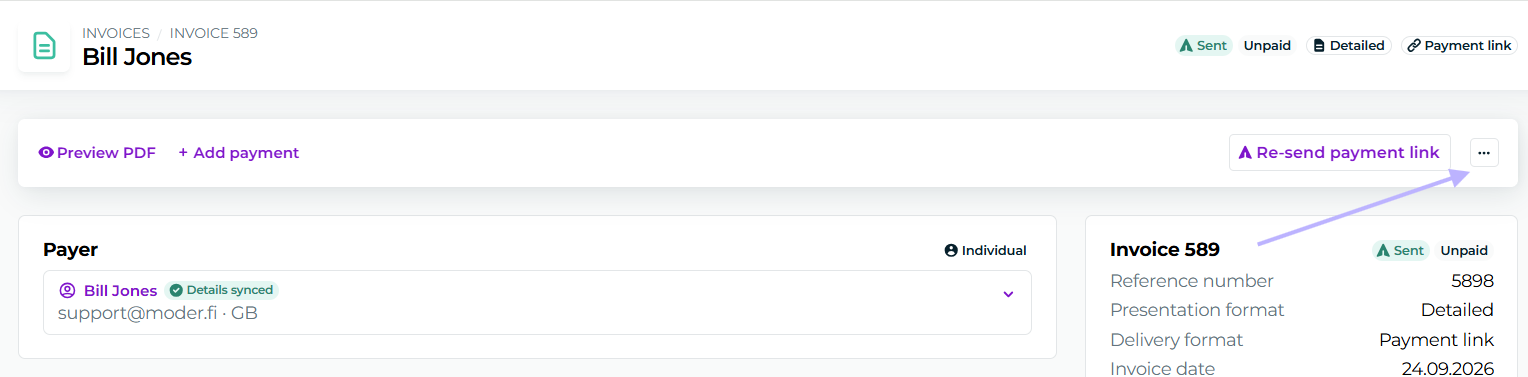
Then click Create credit invoice
You can also create a credit invoice directly from the booking's invoicing tab without opening the original invoice:
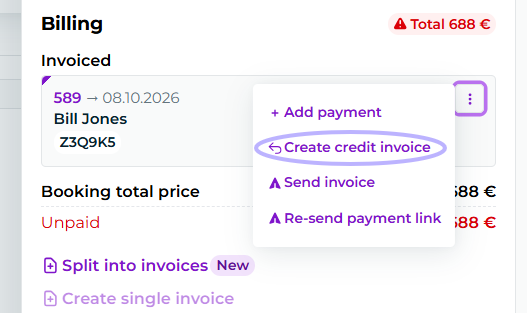
The credit invoice will be created with all the invoice row as negative automatically.
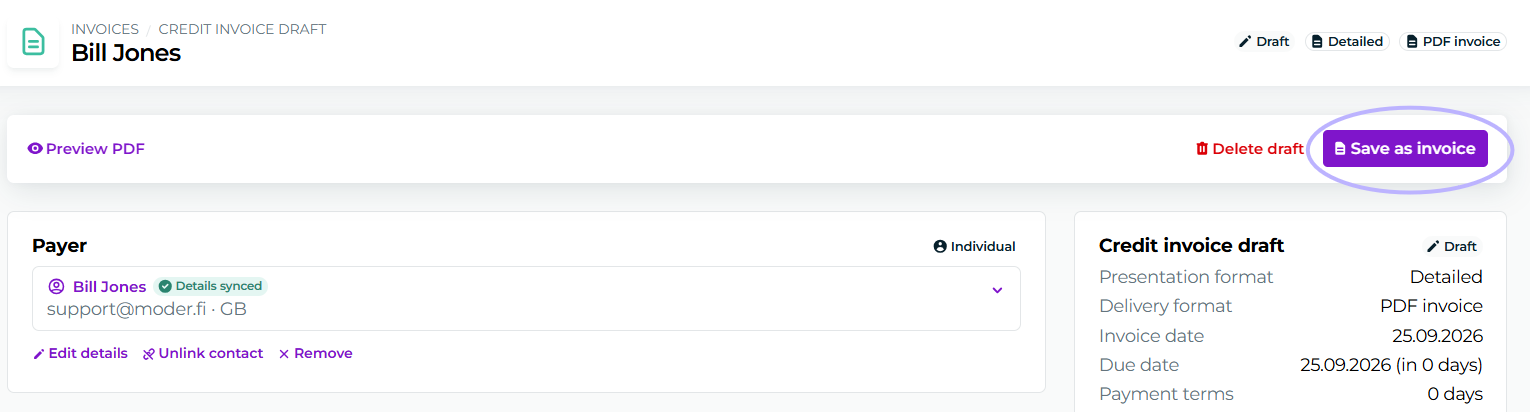
Save credit note
Check the information and save the credit note.
Credit note payment entry
If the original invoice has a payment mark, please also mark the credit invoice as paid with a negative sign so that your credit invoice actually reduces the reports by the amount you refunded to the customer.
If the original invoice does not have a payment mark, meaning it was never paid, there is no need to mark the credit invoice as paid either.
Handling the booking after refund
After issuing a credit invoice and processing the refund, it is important to update the booking itself to ensure reports and sales data remain accurate.
In the case of a full refund: Cancel the reservation after you have created the credit invoice and marked it as paid. Note that once the booking is canceled, previous invoices can no longer be reattached to the bookings.
In the case of a partial refund: Adjust the reservation price to reflect the remaining revenue (the amount left after the refund).