Activity: creation, editing, and management
Last updated: May 26, 2026
Activity in Moder is essentially an hour-based product, which is quite suitable for selling many different kinds of products.
The only restriction, however, is that the activity cannot currently be sold overnight in Moder - the activity must therefore occur within a single day when activity is selected as the type of the item in Moder. You can, if you wish, create for example a sauna or a meeting room as an activity product that operates overnight.
Time-based products can be sold such that you can, for example, sell multiple spots, i.e., units, to a public sauna session, or alternatively sell a single sauna session for private use. In other words, we are talking about unit booking or private booking.
Creating an activity product
Basic information
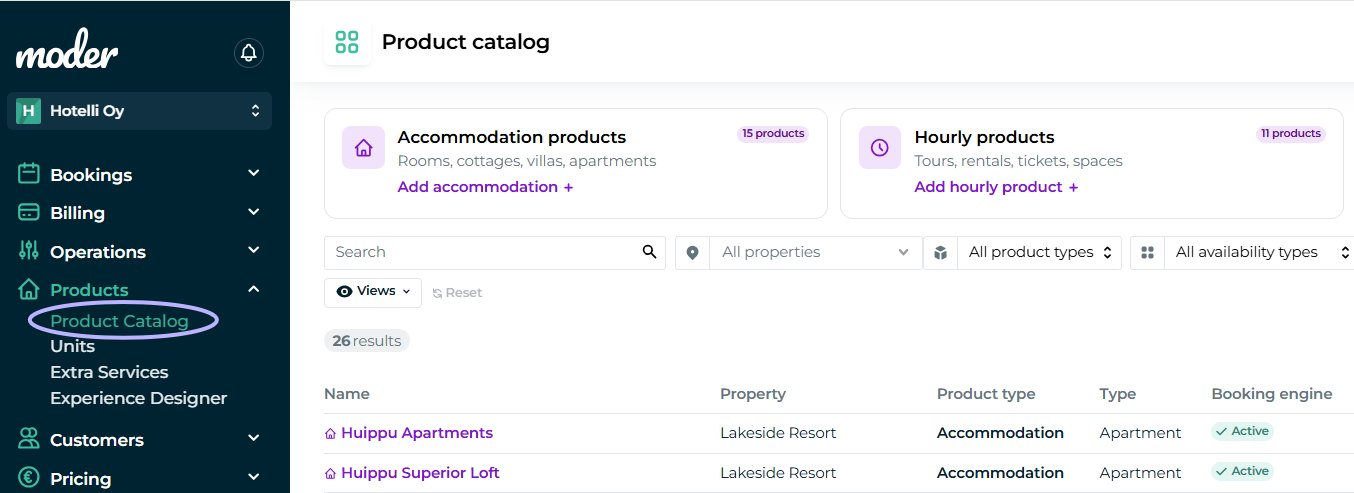
Go Product catalog in your Moder. From here you can create and edit all sellable items and products.
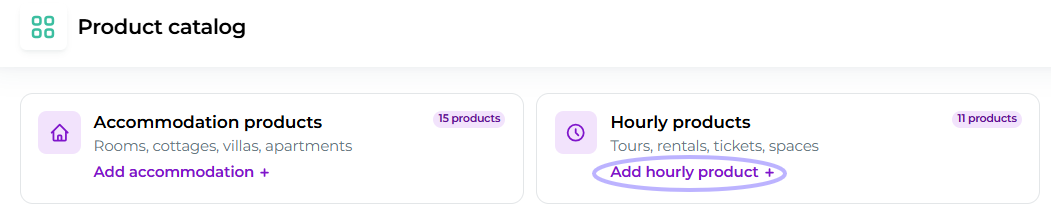
When you want to create more items or products, you can create them by clicking the "Add hourly product +" -button:
Next, the basic information of the item will be revealed to you first. Most of this information is the kind that appears to your customers in the online store
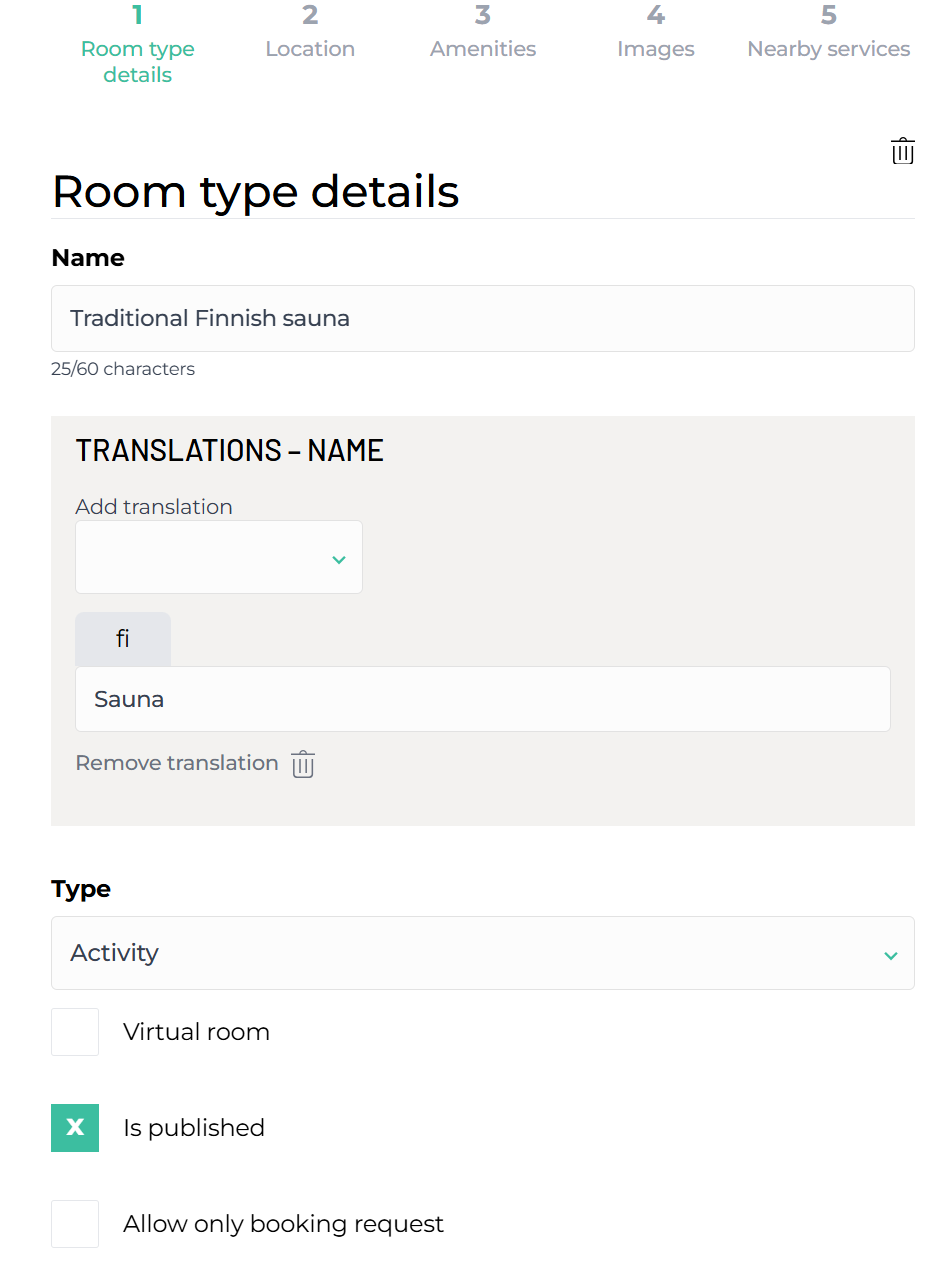
Name and translation
First of all, give a name to your activity. You can also set the translation for the desired webshop language right under the name – you have already set the desired webshop languages in the Settings section.
If you leave the translation field empty, the name you set will appear on all webshop language versions with the above name. If you want a different name for your product in another language, set the translation for your product's name.
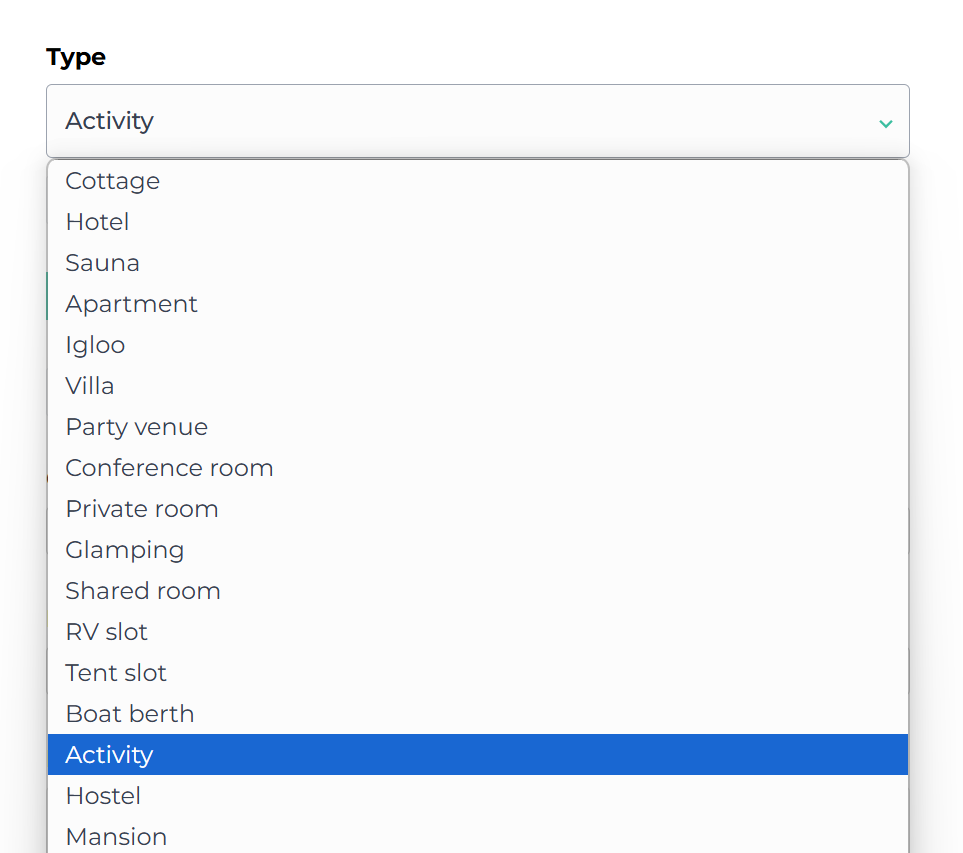
Type
Then select the target type as Activity from the dropdown. This information will also be visible to your customer in the online store.
Virtual room, active & booking request
Choose whether the destination is a virtual destination, active, or works with a reservation request.
Virtual room
A virtual room essentially means an accommodation package in Moder.
Active
Active (is published) means that the destination is bookable from your online store. You can also create destinations that are not active – for example for internal use only.
Note! The activity appearing in the online store requires pricing. The activity you created will not yet be visible in the online store at this stage, but only once a price has been set for it.
Allow only booking request
When this toggle is turned on, your customers can make only a booking request through the online store – they completely skip the Paytrail or Stripe payment step.
You receive a customer's reservation to Moderi normally via a reservation request, which you can approve or reject. More on this topic in the following courses, which cover reservation management and operation.
Connected products
Here you can connect an existing activity into the activity reservation you are creating now.
The difference in the 'connected products' section below is that you can attach accommodation properties to the combination below, as in this 'connected products' section you can link, for example, two activities to be booked in the same purchase funnel.
Products connected to
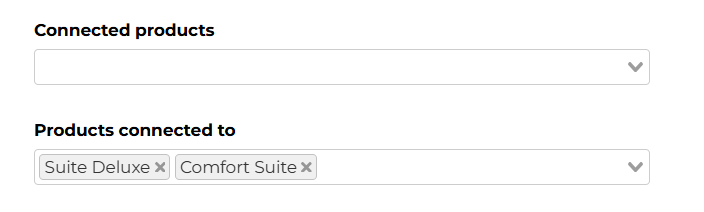
Here you can combine an accommodation property with the activity of your choice – thus you can sell hourly activity products together with the accommodation, and they will then move to the same purchase funnel in your online store.
Check-in instructions
In this section you can write instructions regarding check-in – for example when the reception closes, where possible sauna keys can be collected, where to park the car, and other important information about the guest's arrival.
This information will be visible in the guest's GuestApp view.
Private activity
Products sold as private bookings are customized activities or services that are available for only one booking at a time, for example a private sauna session, a party venue, or another location booked for private use.
Private bookings differ from unit bookings, where the same location can be booked by multiple customers simultaneously, such as slots sold for a public sauna session.
We are therefore creating a new activity location and have reached Basic Information on the page almost at the bottom. The next choice in front of you concerns the maximum number of people who can be accommodated.
Even though this now discusses the number of guests, this refers to the maximum possible number of people, that you can take responsibility for in the activity.
Default duration (min)
A default duration is always set for the activity, and it is done with minute precision.
Unit-based
Since we are now creating a private reservation, we do not set a checkmark here.
Unit-based activity
Unit-based bookings are products that can be sold to multiple customers simultaneously. Examples of unit bookings include common sauna sessions, group activities, or other services where a certain number of spots or units are sold for a single time slot.
Unlike private bookings, unit bookings allow the same activity or space to be sold to multiple customers simultaneously.
Unit reservations are especially suitable when you want to offer services where customers can book a spot without having to reserve the entire venue for themselves. This is a perfect solution, for example, for group events, open sauna sessions, or other similar situations where the same space or service is used by multiple customers.
We are therefore creating a new activity venue and have reached Basic Information on the page almost to the bottom - we are exactly at the same point as earlier when looking at how to build a private activity reservation.
Default duration (min)
A default duration is always set for the activity, and it is done with minute precision.
Unit-based
Now there is a difference from the previous private activity—because we are now creating a unit-based entity, we put a checkmark on it. This way Moder understands that we are creating a unit-based, i.e., reservation-based, functioning activity.
Note! Unit-based activity requires units to operate as well.
Adding units to a unit-based activity
Since this is a unit-based activity reservation, we still need to add the units, i.e., the reservable spots.
Maximum number of people that can be accommodated
Even though we are now talking about the number of occupants, this refers to the maximum possible number of people that you can assign to a unit-based activity.

In our example we are now building a general 2h Husky safari, where we price each person attending a session separately. So we set the number of people to one.
Set the desired number of places
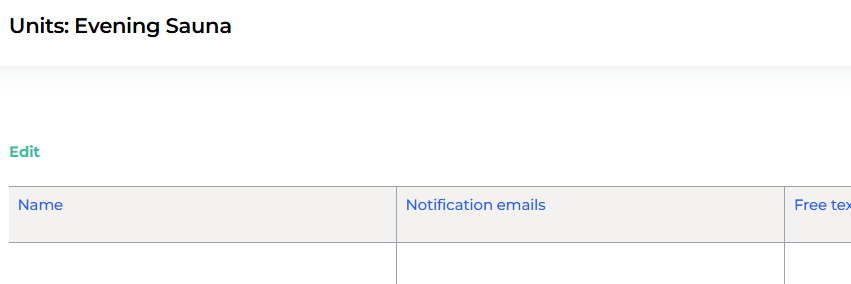
Now we will proceed to add units to the unit-based activity. So go back to the Products tab and click the Units section.

Click the Edit button at the top left and you can add the desired number of units. Also remember to name the units!
Additional information for the activity product
2. Location
On this tab you can enter the address of your activity site. If you added areas in the filter settings, you can attach the desired area to the site from "Area name."
You can also add a location to Google Maps, allowing the traveler to easily view the activity site's location from the online store.
Arrival instructions and additional informationIn the -section you can write, for instance, information important for navigation directions. You can also tell the traveler here other important arrival-related information. The information will appear on the traveler's booking confirmation and on the GuestApp site.
Click "Add language" -button from the top right and you can start writing instructions in different languages.
3. Amenities
From this tab you can browse amenities that are available from your activity location – if you wish to assign any to it.
4. Images and Texts
Images: You can either upload images or drag-and-drop the images directly into Moder. Note that the images must be in .jpg format. You can easily change the order of the images by dragging.
Images appear in Moder on this page in the order you specify, so the first image is the most important for sales.
Texts: Here you can also give your item a short and long description. The short description is meant to be concise, a couple of sentences, which will appear on the web store's front page.
The long description, on the other hand, opens up for the traveler to read when they explore the item in more detail on the web store.
For both the short and long descriptions you can also add translations via the "Add language" button.
5. Nearby Services
Here you can set, if you wish, how far your destination is from the most important services.
This information is not yet transmitted to the online store for the traveler to see, but this feature will become active in the future.
Extra services for activities
1. Extra service is included in the price
Click the "Create new" button in the top right corner to add a new extra service. The extra is set up exactly the same way as, for example, accommodation listings.

Moder has pre-added certain extra service categories, but you can also choose the "Other" category if your extra service does not fit any predefined category. This category is visible only to you and is not shown to your customers.
Add a checkmark to the field "Published in the Moder online store", so the extra service becomes purchasable by travelers in your online store.
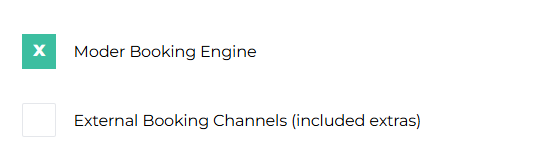
When you select that the extra service is included in the accommodation (in this case, the activity) price, you can also choose whether Moder automatically calculates the amount of extra services based on the number of guests (e.g., linens) or based on accommodation days (e.g., parking space). You can also choose both options, in which case the extra service is calculated based on both days and the number of guests.
In hourly-based activities, days are less often booked, but if you have created activity products (Party room, Meeting room, Sauna) on a daily basis, you can select it from here.
2. Extra service for extra price
Here we proceed exactly the same way as above, except for the pricing method. In this case we select the extra price and choose the maximum quantity for the product as well as the locations where we want to include the additional service in the online store.
Editing the order of extra services in the online store
You can modify the order of additional services in the online store to your desired order by clicking the gear button shown at the top right.
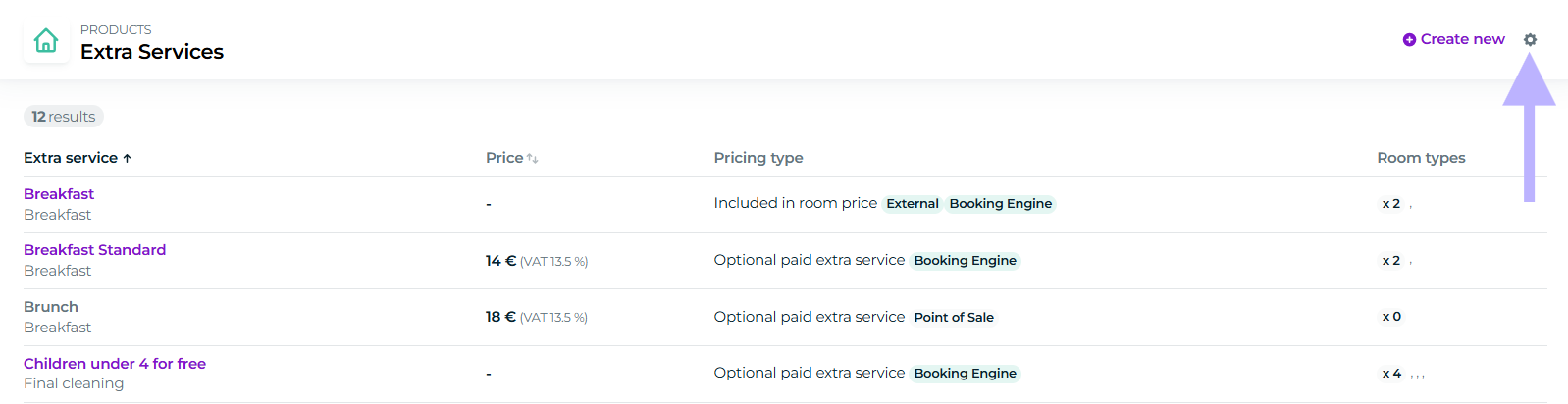
You can drag services and products to the order you want or revert to the default setting. You do not need to press the save button; the order changes instantly in your online store.
Combining an activity with accommodation
Combining an activity reservation with an accommodation reservation is really easy. Here are the steps to do it:
1. Create your desired accommodation and activity listings in Moder
2. Price both the accommodation and activity listings
3. Go to your accommodation in Moder and set your desired activity bookings in the "Products connected to" field, then click Save.
Deleting an activity product
Can be done the exact same way as deleting an accommodation product. More in this article: Archiving and deleting products