Accommodation product: creation, editing, and management
Last updated: August 25, 2026
This support article covers the creation of accommodation products, their management, editing, and shows how accommodation locations can be deleted
Creating Products
In the Products section you can create and edit all sellable locations and products.
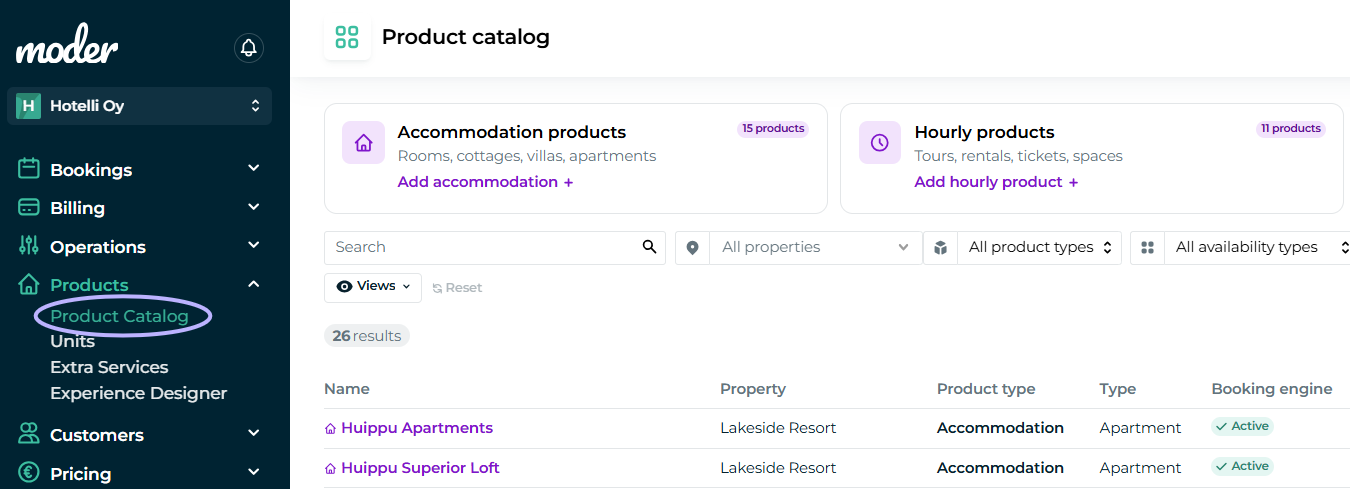
In Product catalog you can create new accommodation locations, edit existing ones, and ensure that all information is up-to-date and correct. This step is important so that accommodation locations appear correctly to customers in booking channels.
Edit Item
Start by clicking the "Edit" button displayed on the right, and you will be able to edit the accommodation you want.

Add new product
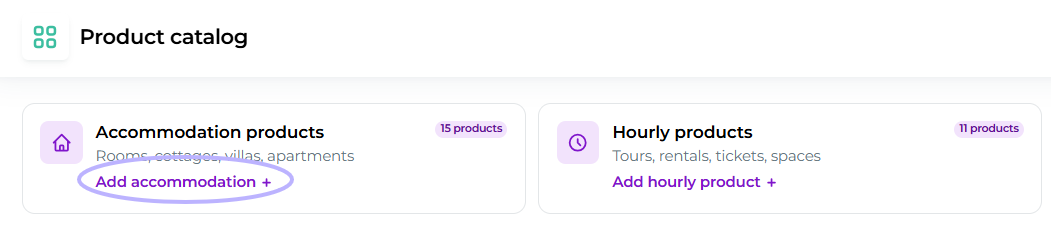
When you want to create more accommodations, you can do so by clicking the "Add accommodation" button displayed on top. This way you can create all the accommodations and other products you want in Moder.
At this point, you should also consider the structure of the rooms and roomtypes in advance – accommodation properties can be created individually or by room categories (for example, Standard, Deluxe, or Suite). This structure affects how the properties appear to customers in the booking process and how they are managed on the Moder side.
1. Basic information
Behind the edit button, the basic information of the first room type/category will be revealed to you. Most of this information is displayed to your customers in the online store.
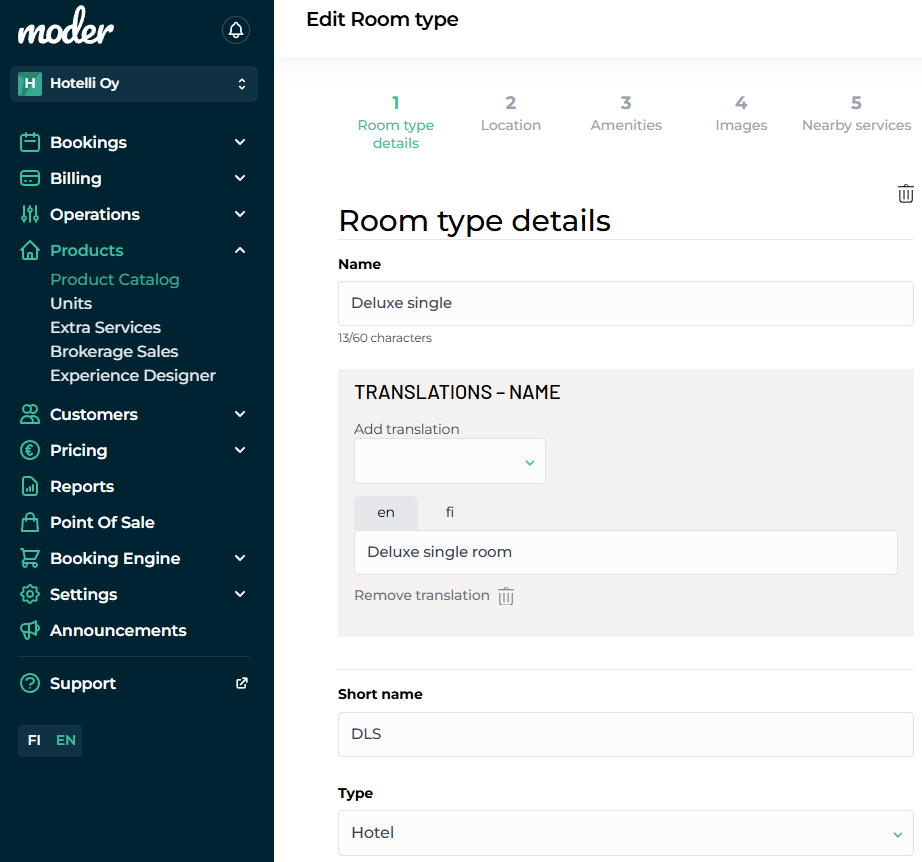
With this information you create a clear and attractive presentation of your accommodation for your customers in the online store. At this stage, the property's name, translations for different languages, and the property type are defined.
Room type details
First of all, give a name to your product.
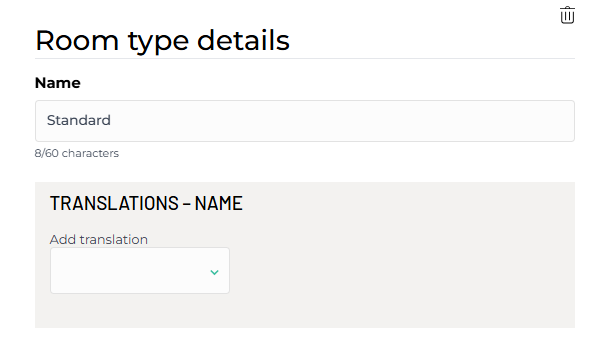
You can also immediately set a translation for the desired language of your online store under the name.
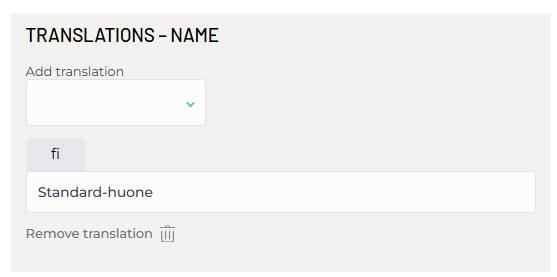
If you leave the translation field empty, the name you set will now be displayed on all language versions of the web store with the above name. If you want a different name for your item in another language, set the translation for the item's name.
Type
Then the accommodation type is selected from the dropdown box. This information will be visible to your customer in the web store.
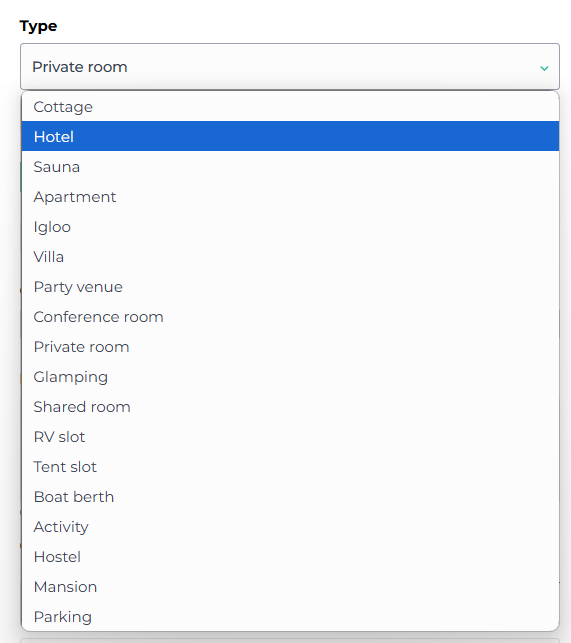
All types listed are for accommodations that span more than one day, except for activities – which are hourly products. So select the desired type for your accommodation from the list.
Virtual room, is published & booking request
Next, we define whether the destination is a virtual destination, whether it is active i.e., bookable, and whether it works with the reservation request feature. With these settings you can manage the destination's visibility and the reservation process more precisely.
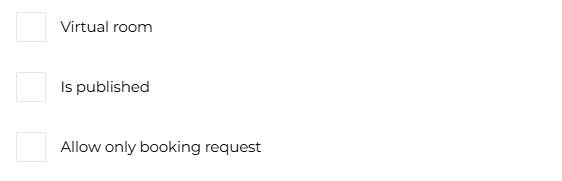
Virtual room means, in Moder, essentially a package. It is built on top of an existing product. Virtual destinations can be various packages, such as accommodation+activity bundles or seasonal packages, which combine multiple services into a single product.
Is published: with this setting you determine whether the destination is bookable in the online store and other sales channels. When this setting is on, the destination appears to your customers as a bookable product and they can make a reservation normally.
You can also create items that are not active, meaning they are not visible to customers as a booking option. These can be used, for example, for internal purposes or in situations where the item is not yet ready to be published.
When "allow only booking request"- the toggle is turned on, your customer can only make a booking request through the online store - your customer therefore completely bypasses the Paytrail or Stripe payment step.
You receive the customer's reservation in Moderi as a booking request, which you can approve or reject.
Connected products
In this section you can combine an accommodation with a desired activity destination, allowing you to sell hourly activity products alongside the accommodation.
You can select multiple products from the dropdown to sell, once you have first created the possible activity products in Moderi.

This means that the customer can choose both accommodation and hourly-based products in the same sales funnel in the online store. Hourly-based products become selectable in the online store after booking the accommodation, on the experiences tab.
In the Combined Products section you can therefore link the accommodation to the activity of your choice, such as hourly-based activities. This enables selling accommodation and activity offerings together, so they move through the same purchase funnel in your online store. This is an excellent way to increase sales and offer customers attractive bundles that enhance their booking experience.
Internal notes
Internal notes can be used very flexibly and can be used to record, for example, the detailed characteristics of accommodation properties, such as size, equipment, and special features. Maintenance history and upcoming maintenance needs can be stored to ensure maintenance efficiency, and for example, notes can be made about special equipment such as saunas or hot tubs for internal use.
Check-in instructions
In this section you can write instructions regarding check‑in – for example when the reception closes, where any keys can be collected, where to leave the car in the parking, and other important information about the guest's arrival. This information appears in the guest's GuestApp view.
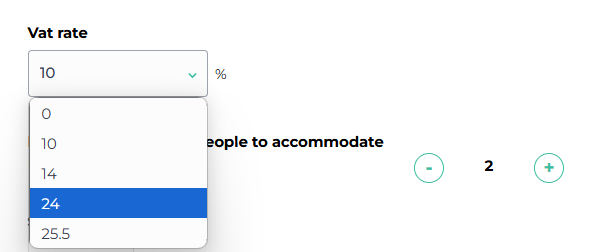
VAT Rate
Select the appropriate tax rate for your property from the dropdown menu. Common tax rates for accommodation services are, for example, 13.5 % or 25,5 % depending on local tax legislation and the type of property. The tax rate is visible to the guest during the booking stage and invoicing.
Property details
Next, we fill in the accommodation's basic information, such as square footage, maximum number of guests, and beds. With this information, customers get a comprehensive understanding of the property already at the booking stage. At this stage we also set the property's check-in and check-out times, which are essential for both the guest's arrival and departure.
If you have a lock integration in use, the check-in and check-out times determine when the door code created by the lock integration is valid.
2. Location
On this tab you can enter the address of your accommodation. If you added areas to the filters in the settings, you can attach the desired area to the property from the "Place" field.
You can also add Google Maps location, allowing the traveler to easily view the destination's location from the online store. If you save the Google Maps address, remember to click the "Add" button that appears next to it.
Arrival instructions and additional information-section you can write, for example, information important for driving directions. You can also tell the traveler other important information related to arrival. The information will appear on the traveler's reservation confirmation and the GuestApp website.
Click the "Add language" button from the top right and you can write the instructions in different languages.
3. Amenities
From this tab you can tick the amenities that are available at your accommodation.
From here you can also allow pets at your property by checking the "Pets allowed" box.
4. Images and Text
Images
Through this tab, you can indeed add images and captions to your item.
You can either upload images or drag-and-drop the pictures directly into Moder. Please note that the images must be in .jpg format. You can easily rearrange the images by dragging.
The images appear in Moder on this page in the order you specify, so the first image is the most important for sales.
Guidelines for image size:
The maximum size of a single image is 10 MB
There is no upper limit to the number of images per item, so you can add as many images to Moder as you want, but generally 20-25 images per item should be considered the maximum.
Images will be displayed in the reservation search with an aspect ratio of 3:2
The aspect ratio does not have to be 3:2, because they are cropped automatically. The most important thing is that the images are landscape orientation.
Information is lost from the top and bottom of vertical images during cropping. Also, if the aspect ratio is low (e.g., 16:9), the right and left sides of the image get cropped away.
The image width should be at least 1920px (in a 3:2 aspect ratio the size is 1920x1280). Images are automatically reduced, so the image can be larger as well.
Texts
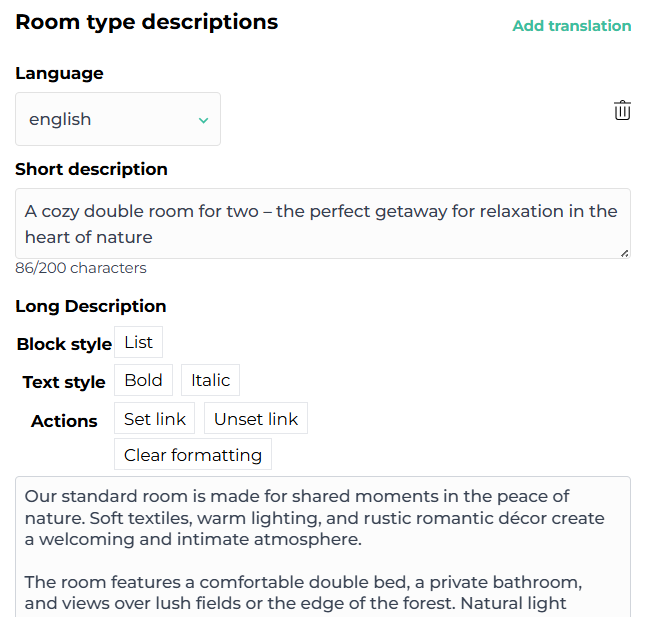
Here you can also provide a short and long description for your item. The short description is intended to be concise, a couple of sentences, which will appear on the storefront of the online shop
The long description, on the other hand, opens up for the traveler to read when they explore the item in more detail – such as via the "Explore" button in the example image below. You can also format your text using the available formatting tools:
For both short and long descriptions, you can also add translations via the "Add translation" button.
5. Nearby services
Here you can optionally set how far your location is from the nearest important services.
This information is not yet transmitted to the online store for the traveler to see, but this feature will become active in the future.
Structure and management
Units
In Moder, units refer to a room, object, product, place, or simply a unit. Each individual room, cottage, villa, sellable husky safari location, caravan spot, glamping tent, or sauna is its own unit.
A unit also refers to places sold in activity sales. You can find more information about accommodation units in a separate our support article.
Accommodations - room category or individual units?
This choice depends entirely on how you want to sell accommodation listings in your Moderi. However, a few things about this are good to know from the customer's perspective:
Room Category means simply that you have, for example, many identical Standard rooms for sale, and from the customer's point of view in the online store it doesn't make much difference. The customer does not need to know which room they will get when booking a room-category item.
If you want to sell items by room category in your moderator, place them under the units.
Individually added accommodation product means that you add each property separately for sale in Moder. Then the customer selects the desired accommodation, room, or villa from the online store and books it.
Editing order
You can edit the order of the accommodation properties you have built in your own view as well as in the online store.
In your view
The personal view refers to the reservation calendar view.
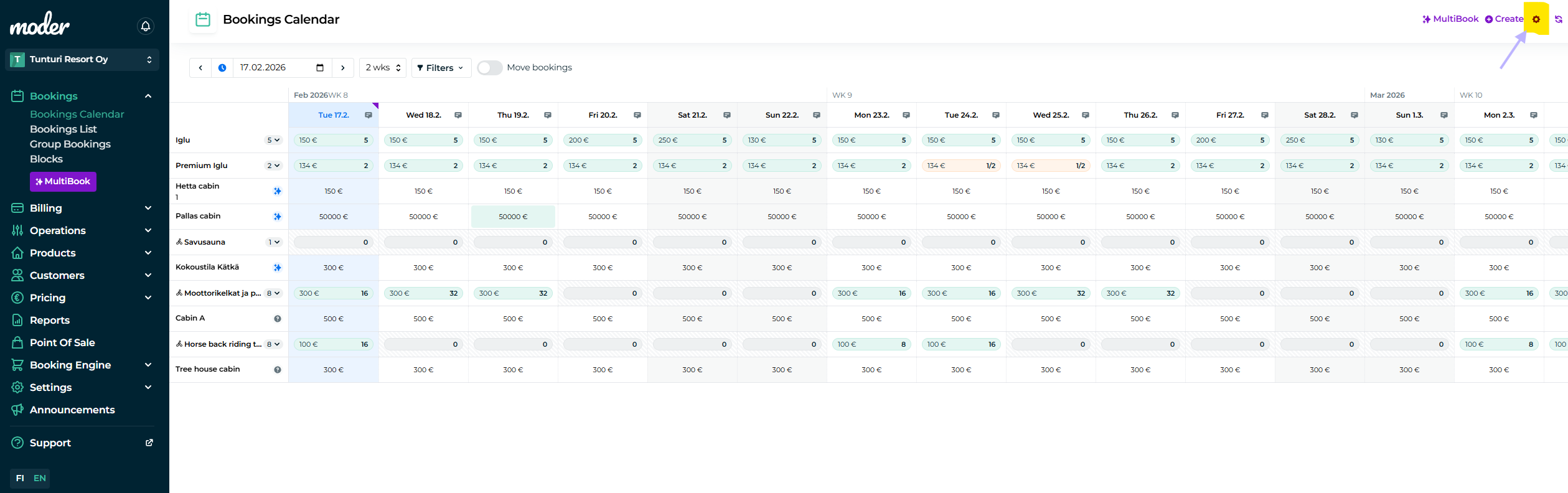
Then go to the reservation calendar and click the cogwheel button at the top right.
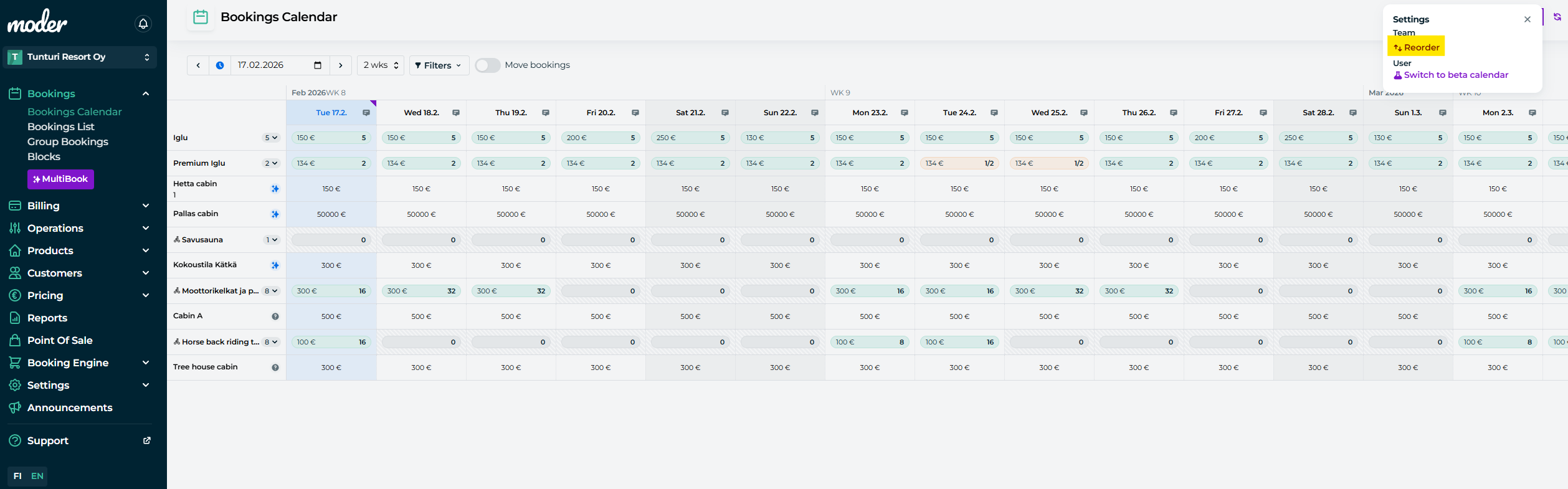
after that click "Reorder".
Online store
You can change the order of accommodation listings in the online store from the Product catalog - tab

Click the "Reorder" button at the top right, and now you can edit the view of accommodation listings visible in the online store to your liking.
Archiving and deleting products
In Moder, a product can either be archived or deleted entirely.
Archiving is a convenient way to remove a product from view and take it off sale without having to delete it completely.
To fully delete a product from Moder, all existing bookings must first be moved to another room type or canceled. This includes past and future bookings, as well as out of order bookings.
Let’s go through both methods!
Archiving
Archiving allows you to easily remove a product from sales, the calendar, and listings without needing to cancel past bookings.
Here’s how:
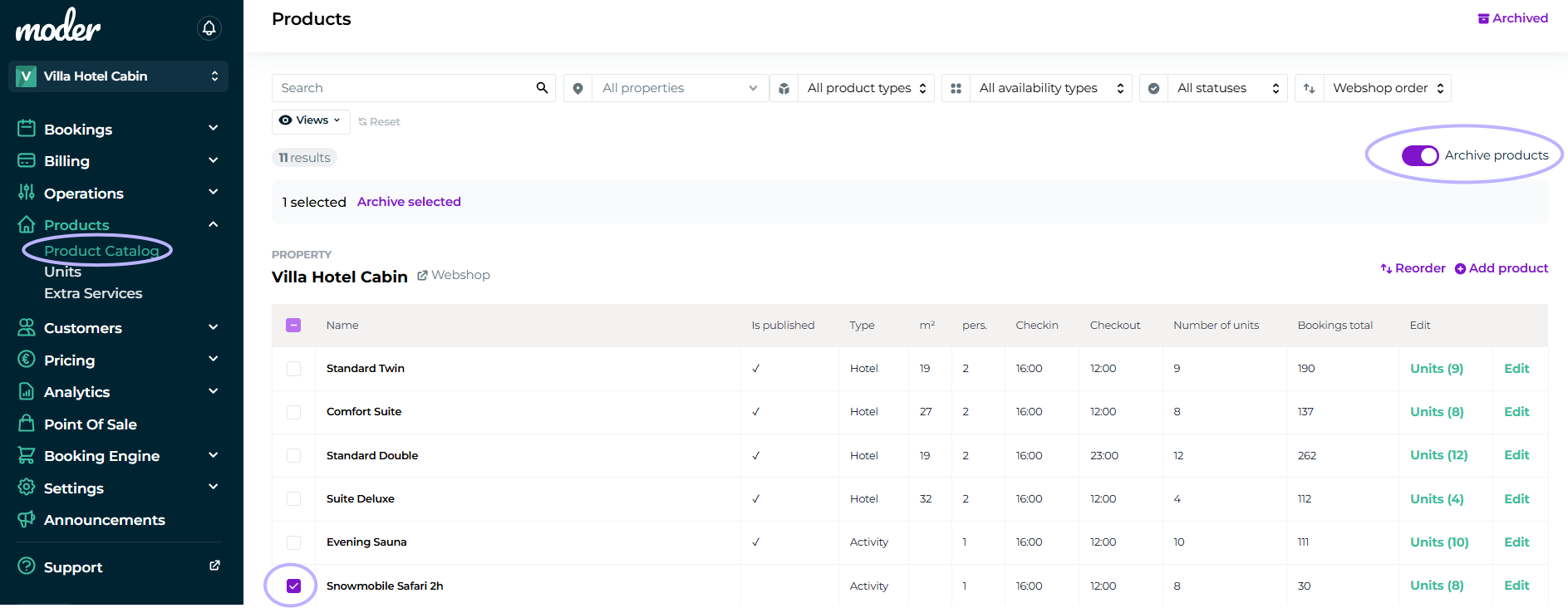
Go to Products → Product Catalog
Click the “Archive products” toggle
Check the box next to the product you want to archive
Click “Archive selected”
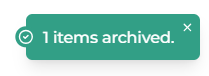
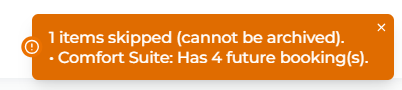
Moder will notify you whether the archiving was successful or not, and provide a reason if it failed:
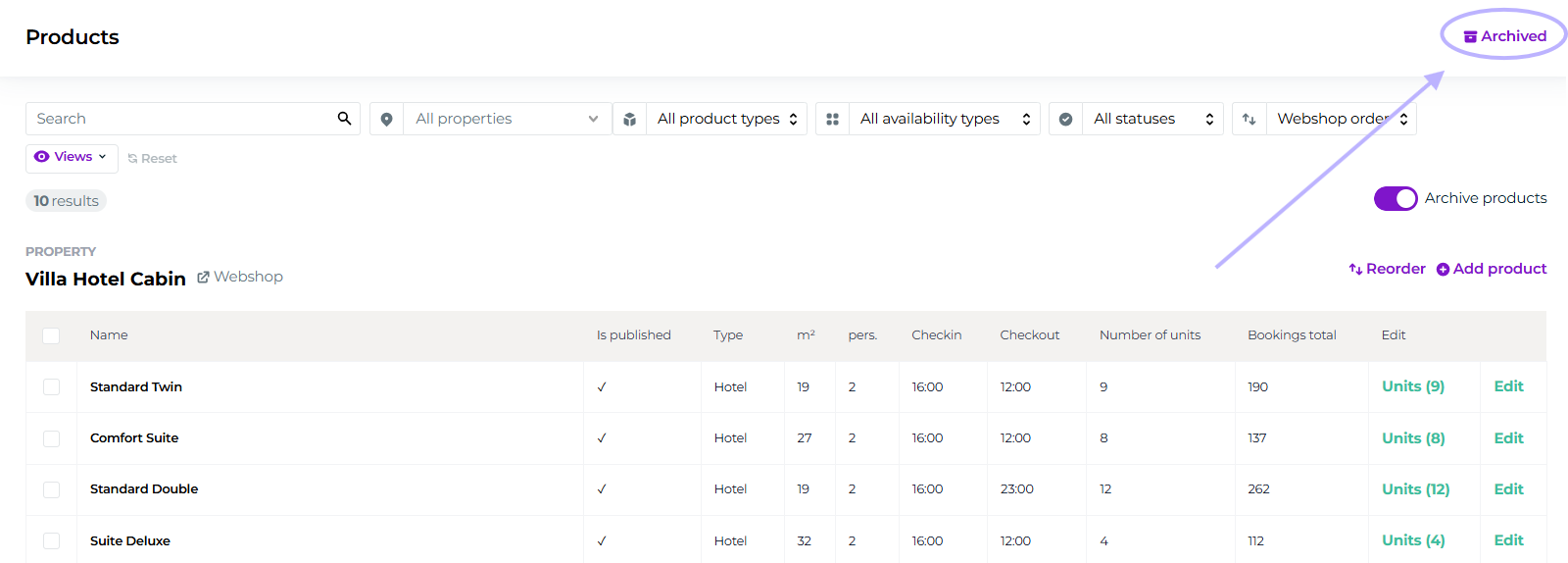
You can also see already archived products from the catalogs top right corner:
Limitations
Products cannot be archived if they are:
Used in future reservations
Part of an allocation/block
Included in a package
Used in cross-selling
Note! Cross-selling must be completely removed from the destination side before the product can be archived. It is not enough for the destination to simply archive the product.
Unarchive
On the Archived products page, you can also restore a previously archived product:
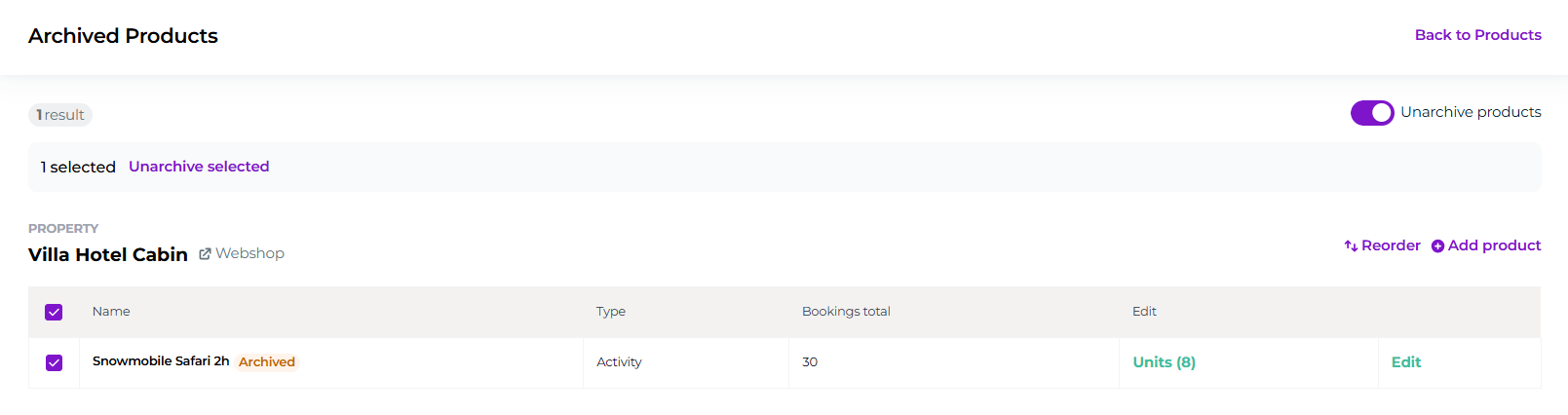
Enable Unarchive products toggle
Checkmark the product you want to unarchive
Click Unarchive selected
Deleting products
Removing a single room/unit
Open the Product catalog - tab, and click the "units" button.

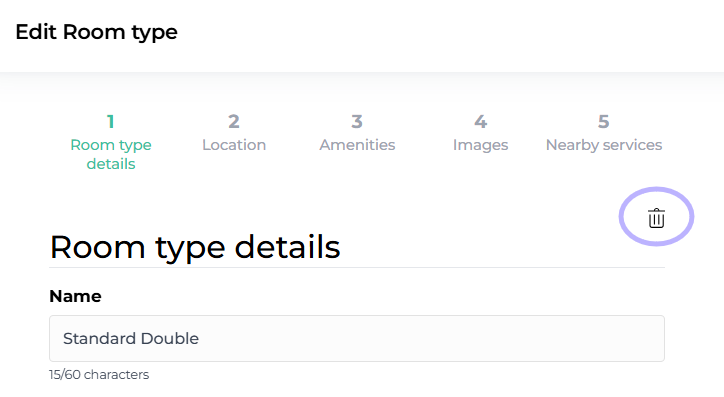
Click "edit" and click the "trash bin" next to the room to be deleted, then save the changes.
Note that you will receive an error message that the deletion cannot be performed if the room has bookings.
Removing a Room Type
Open the Product catalog - tab, and click the "edit" button there.

Click the "trash can" and save the changes. Note that deletion will also fail in this option if the room type has reservations. Therefore cancel any existing reservations first, or move them elsewhere before deletion.