Moder widget setup guide
Last updated: September 24, 2026
What is a widget?
With Moder's website widget you can add to your websites search bar, through which customers can check availability and go directly to book products. The widget provides a smooth booking experience without the customer having to search for a reservation page separately.
The widget can be configured for a specific location, room type, or language, and its appearance can be customized to match the website's look.
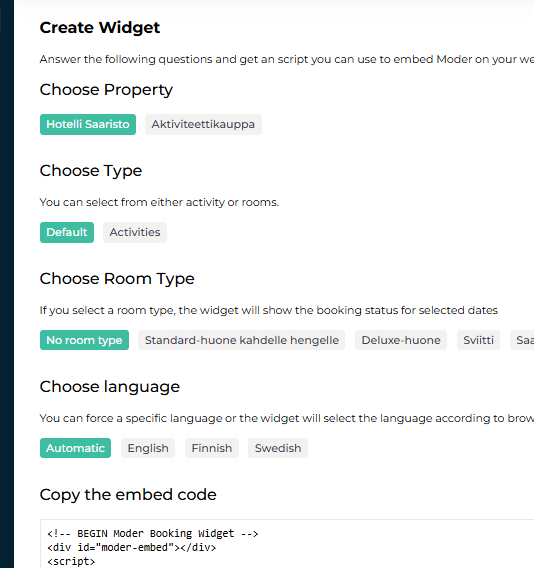
Briefly: By selecting the first options for all questions, you get a universal widget for your homepage, where all your products are displayed:
If you need more instructions on adding the widget, read them below:
1. Open widget settings
Go to the following in Moder:
Booking Engine → Widgets
Here you can create a new widget and generate an embed code for your website.
2. Configure widget settings
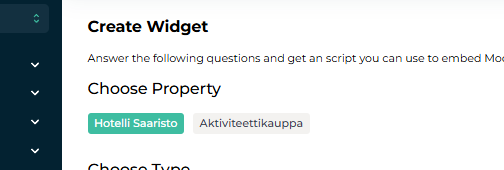
Property
Select the property for which the widget is created.
Type
Choose whether the widget is used:
Search all items (Default)
Search only activities (Activities)

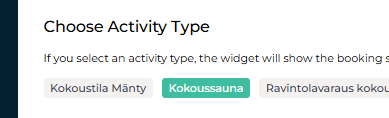
Important to know about the activity widget
In the activity selection you can choose only one activity for the widget, not all of your activity items. Therefore, you cannot make a "No room type" selection in this option, which is described below.
Room type
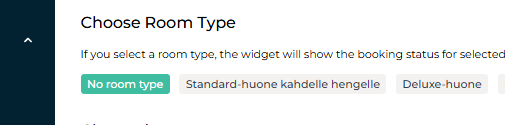
You can limit the widget to show availability only for a specific room type.
Select "No room type", if you want to display all available room types and activities.
Language
Select the widget language:
Automatic
Finnish
English
Swedish
When Automatic is selected, the widget uses the customer's browser language setting. If that language is not available, the widget defaults to English. Our recommendation is to use the automatic selection.

3. Copy embed code
When the settings are ready, copy the generated embed code by clicking:
Copy the embed code to clipboard
The code contains everything needed to add the widget to the website.
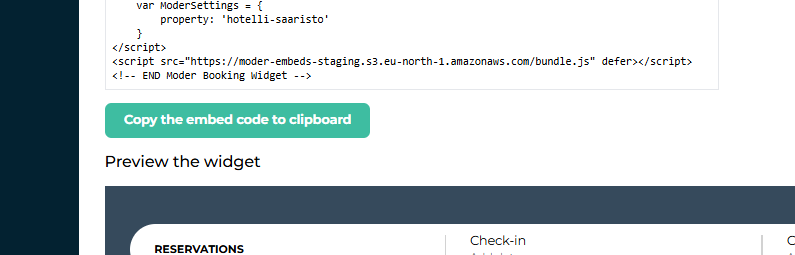
4. Add widget to website
Provide the embed code to your website administrator or developer and ask them to add it to the desired page.
Common placement locations are:
Homepage
Reservation page
Landing pages
Campaign pages
5. Test the widget
After installation, ensure that:
Widget loads correctly
Date selection works
Number of people selection works
The Search button directs the customer to the correct Moder reservation page
Widget works on both computer and mobile devices
Widget FAQ
Can the widget's appearance be modified?
Yes. The widget's appearance can be customized using CSS to match the look of your website.
Where can I get help with customizing the widget?
The easiest way to get help is from the person who places the widget on your website – the website owner. At Moder we do not modify our customers widgets.
Can I use the widget in multiple languages?
Yes. You can use automatic language selection or create separate widgets for different languages.
What happens when the customer clicks the Search button?
The customer is taken to Moder's reservation page, where they can view availability and finalize the reservation.
Does the widget work on mobile devices?
Yes. The widget is designed to work on the most common browsers as well as on computers, tablets, and phones.
Here’s also a PDF version in case you’d like to share the instructions with, for example, the person who manages or builds your website: