6.5.2025 Daily editing, day locking & payments -tab
Last updated: January 21, 2026
A big new update to daily booking editing is here!
We also threw in a brand new Payments-tab in the booking preview view. At the same time, day-locking was introduced in Moder – meaning past bookings can no longer be casually edited
New daily booking editing
Daily booking editing now allows you to modify, for example, all products and extra services on a per-day basis, add times and notes to services, and conveniently update the booker's details. All the old features remain - but better than ever!
The edit booking section now includes, among others, the following:
Edit guest details
Change date
Change room and unit
Add info, notes, and order description
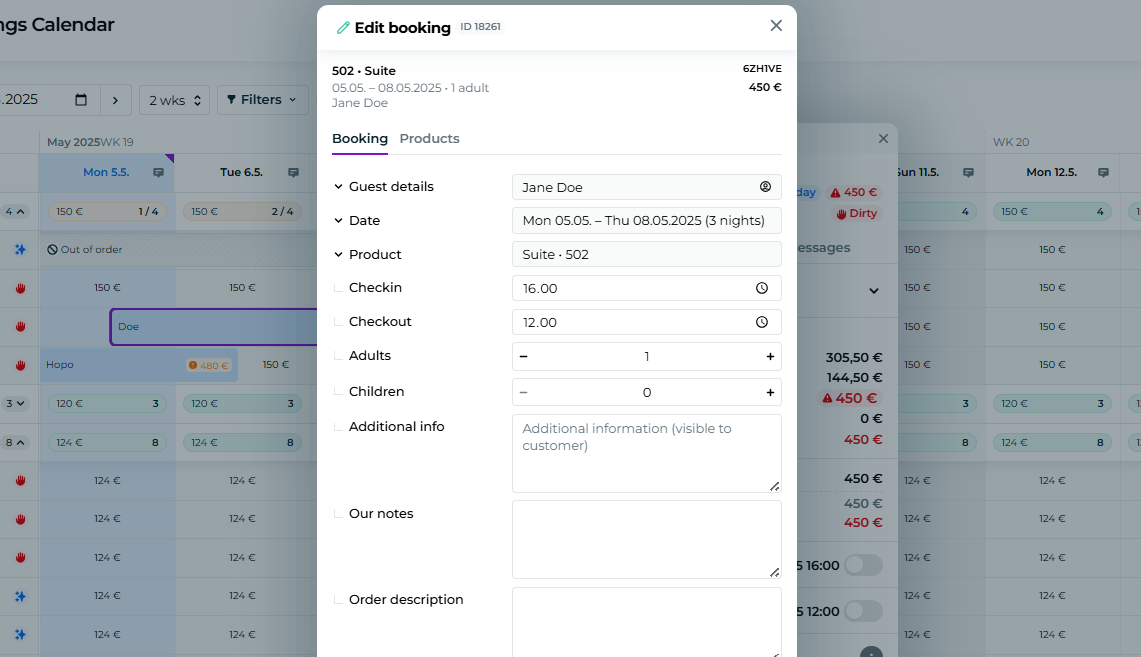
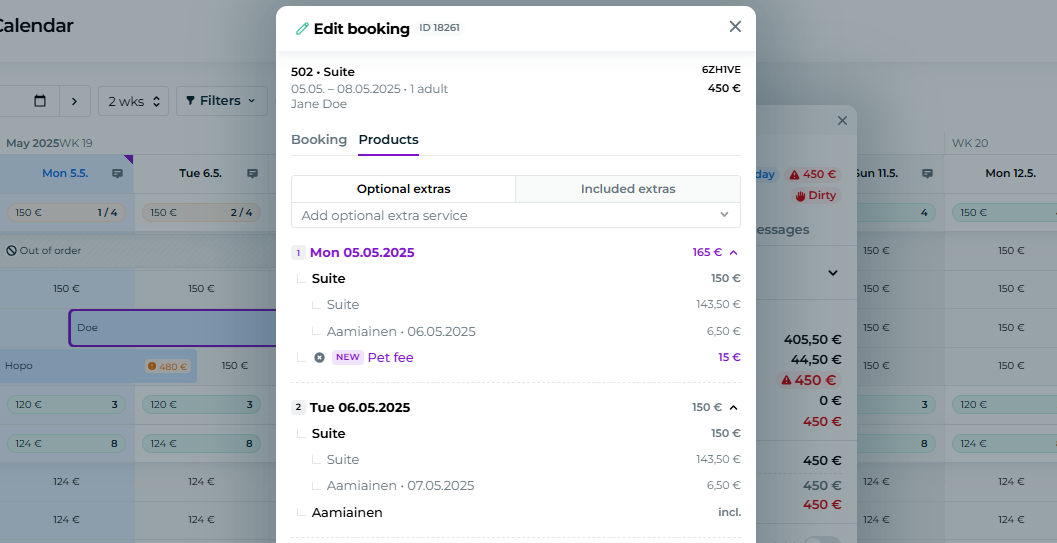
You can also edit products on a daily basis:
Assign extra services to different days
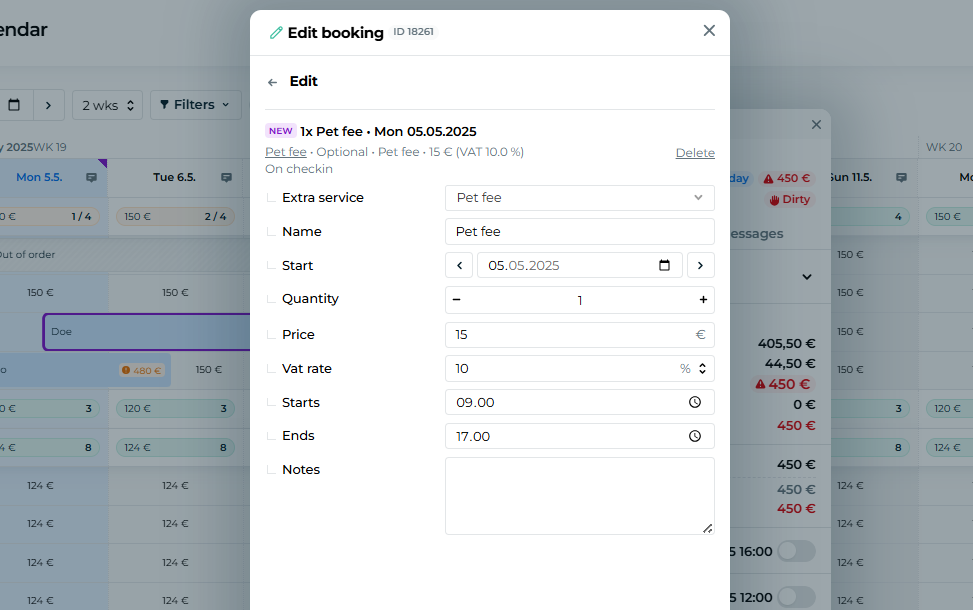
You can now edit extra services more efficiently than ever before:
Edit the quantity, price, tax rate, and time
You can also add comments
More instructions for editing a booking.
Read detailed instructions on how to edit a booking and its products in our guide:
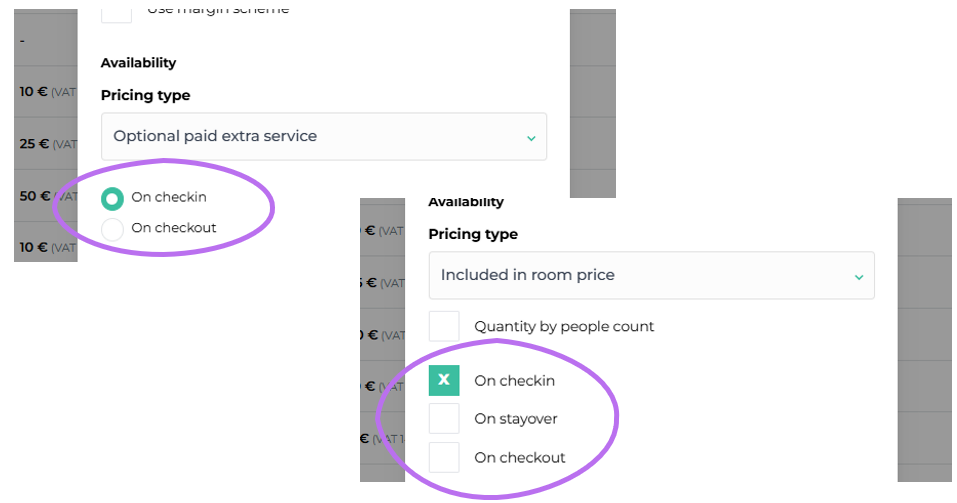
You can also set up extra services in a new way from now on:
Training video on editing bookings.
Below is a training video on the new booking and product editing features:
Daily edit lock
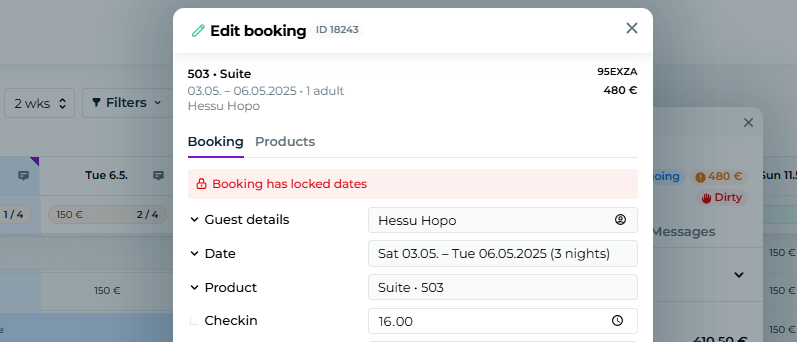
From now on, past bookings and products will be locked and can't be casually edited. Any changes must be made using admin or front desk user roles.
An updated support article on this topic can be found here:
"Booking has locked dates" - Daily edit lock
New Payments tab
On the new Payments tab, you can assign payments either to the invoice or directly to the booking.
This feature is familiar from the old Edit section – just in a fresh new location.
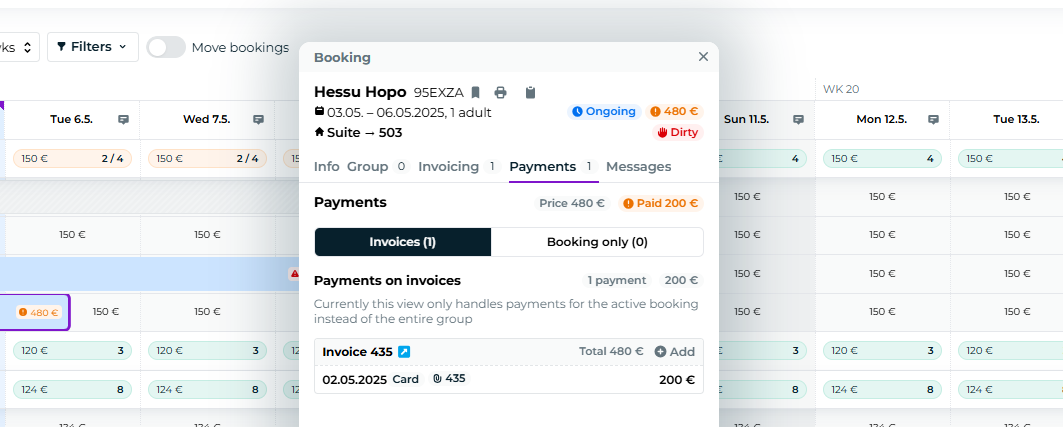
Payments – To invoice
In this section, you’ll see all open invoices related to the active booking. Invoices are created separately on the Invoices tab.
To add a payment entry, click the "Add" button next to the invoice.
To edit a payment entry, open the corresponding invoice.
Payments – Booking only
From the "Booking Only" tab, you can create payment entries directly linked to the booking.
Click the "Add" button to enter a new payment.
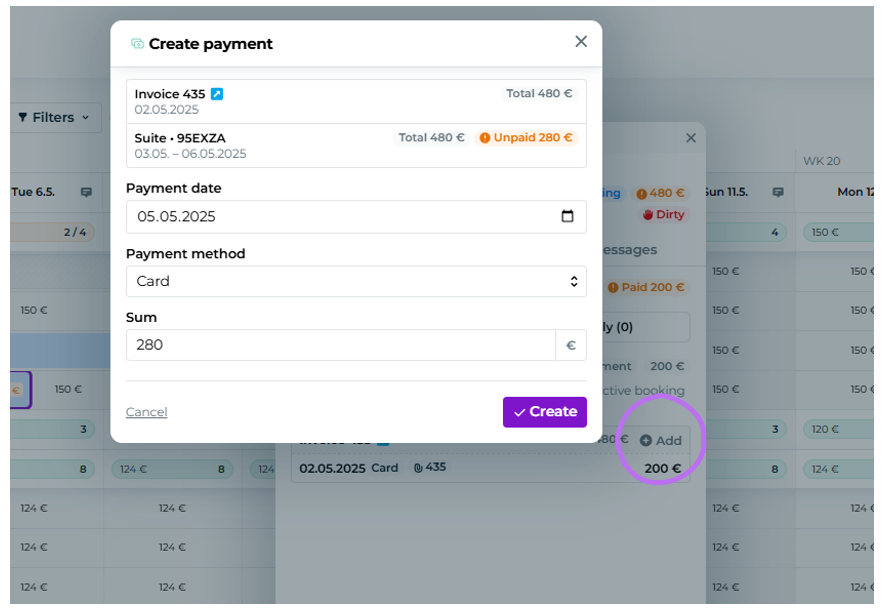
Creating a payment entry
To create a payment, click the "+ Add" button.
Select the payment date, payment method, and amount.
This will create a payment entry applied to either the invoice or the booking.