Scheduled messages
Last updated: September 7, 2026
Moder's Scheduled messages -section you can create and manage email messages that are designed to send important information and messages to customers automatically. With these messages you can improve communication smoothness and provide customers with the best possible service experience.
The scheduled messages are sent from: no-reply@noreply.moder.fi
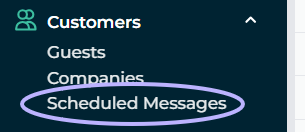
Scheduled messages- section is found in Moder from the Customers tab:
With the scheduled messages, you can send automatic emails to travelers at different stages of their booking. For example, you can send a welcome message before check‑in, which includes important arrival instructions and a welcome greeting. After check‑out you can schedule a thank‑you message and a feedback survey, which collect valuable feedback for improving your service.
Examples of scheduled messages
Welcome message
Sent before check-in and includes important arrival information, such as check-in instructions, contact details and other important information that enhances the customer's arrival experience.
Thank-you message and feedback survey
Sent after check-out to thank the customer for the visit and request feedback on the experience. This message helps improve customer relationships and gather valuable information for developing the accommodation service.
Sending door code via text message
In the Scheduled Messages section you can also activate the sending of the door code as a text message, which is automatically sent before the customer arrives. This feature ensures that customers receive all the information they need for their arrival conveniently directly to their phone, improving the smoothness of the visit especially in self-service locations.
Scheduled email
Scheduled email messages make customer communication easier by automating the sending of important messages at various stages of the reservation process. Follow the instructions below to create a scheduled email message:
Create new message
Click the plus icon to create a new scheduled email message
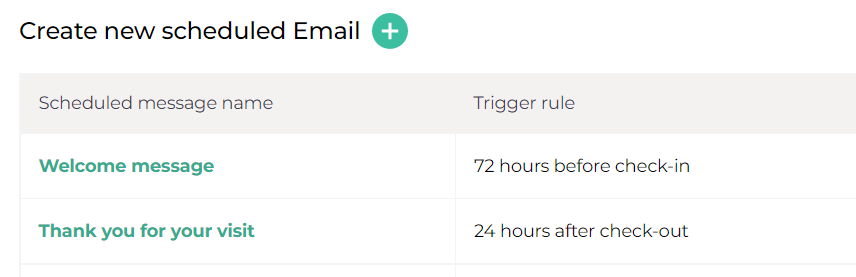
1. Give the message your desired name
2. Select sending rule option
Select when the message will be sent to the customer. You can choose from the following options:
a. after the reservation,
b. before check-in,
c. after check-in,
d. before check-out,
e. after logging out.
Define the send time in hours based on how many hours after the selected rule the message is sent. For example, if the check-in time is set to 15:00 and the message is scheduled to be sent 3 hours after arrival, the customer receives the message at 18:00 on the same day.
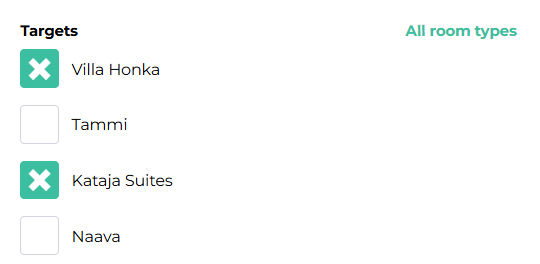
Select the targets to which the message will be sent for the made reservations
You can choose, if you wish, only specific target(s) to which the message is sent, or direct the same message to all of your targets at once.
Add message title and content
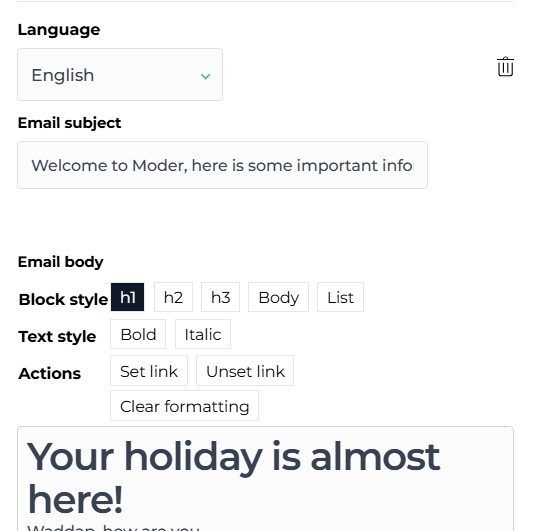
Enter a subject for the email and fill in your desired message in the "Email content" field. If you want to add the message in different languages, click the "Add translation" button, select the language you want, and write the message and subject in that language.
Create the necessary language versions
Adding a new language version
a. Click "add language"
b. Select the correct language from the dropdown menu
c. Add the message in that language.
Important considerations
a. Not for virtual packages
Scheduled messages cannot currently be set for virtual packages.
b. What if the message does not get through?
If the message does not get through or the customer makes a reservation after the scheduled message's delivery time, Moder will attempt to resend the message once, 12 hours after the first delivery attempt.
Example: If a scheduled message is set to be sent 72 hours before the guest's arrival, but it does not get delivered on the first attempt or the reservation is made within 72–60 hours before arrival, Moder will try to resend the message 12 hours later. If the message does not get delivered on the second attempt either, the message must be sent manually.
Scheduled text message
The scheduled text message feature is primarily designed for sending door codes, but it can also be used as a welcome message before the guest's arrival.
The SMS sending rule is always set to be sent before login, so the customer receives the necessary information on time.
Message template and door code settings
The SMS template is standardized and cannot be edited, but its content can be viewed at the end of the SMS settings.
If a door code has been defined for the room type (Locations → Rooms), the door code is automatically retrieved and included in the SMS to be sent.
Scheduled text message
The maximum length of a text message is 160 characters. In Moder’s door code message, certain information must always be included. If the message content exceeds the 160-character limit, the system automatically removes content from the beginning of the message, because the most important information — the door code - is located at the end of the message.
Below is an example from Moder’s test environment showing what the message looks like:
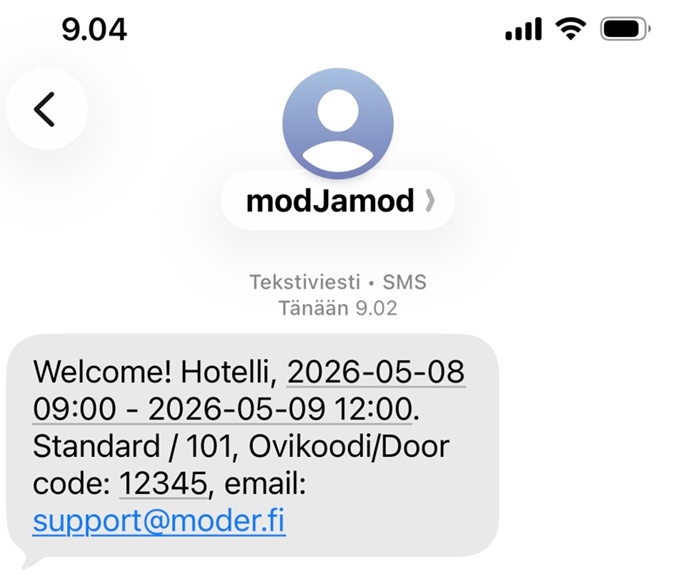
The message always begins with “Welcome!”
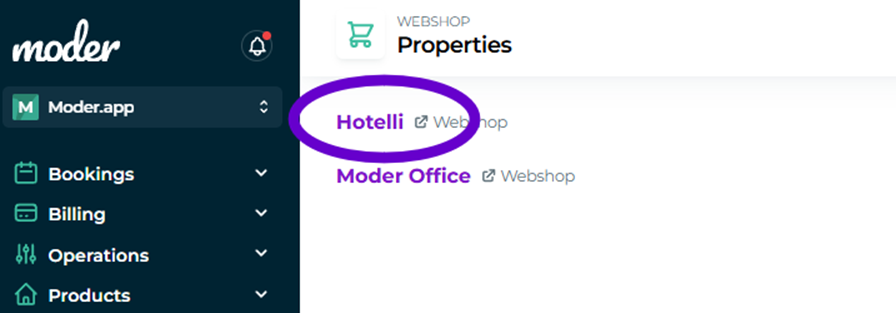
This is followed by the name of the specific property/location.
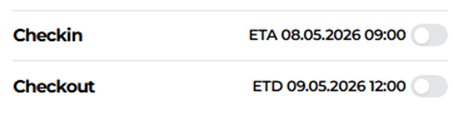
This is followed by the booking’s arrival date and time, then a dash in between, followed by the departure date and time.
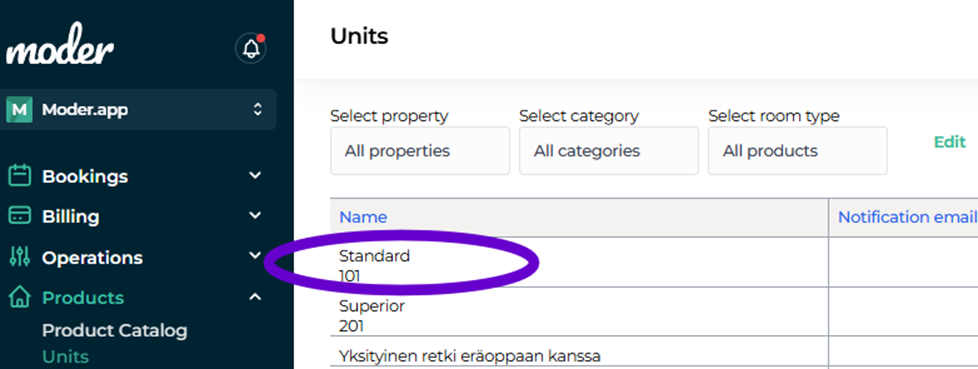
After the booking schedule, the name of the reserved unit is added to the message.
After the unit name, the door code is added, for example 12345. After the code, the email address configured in Moder under Settings → Company → Root user is included.

Things to note about door code management
Moder does not support automatically changing codes, so if you want to change the door code, you must make the change manually in the property type settings before sending the message.
NOTE! If you have an integrated lock system with Moderiin, each reservation automatically generates its own unique door code via the integration. This code is sent as a text message to the customer when the scheduled text message function is activated.
Text message sender name
You can set the name of the text message sender as follows:
Go to Webshop → Properties → SMS sender name.
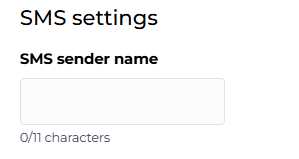
The sender name can be at most 11 characters long. If the name is not specifically defined, Moder uses the first 11 characters of the office name as the sender name.
Scheduled text messages can be set one at a time, and with them you can ensure that your customers receive the correct information, such as the door code, at the right time before their arrival.
PIN code in GuestApp
The customer receives a reservation confirmation with a link to a personal GuestApp, where all reservation details are displayed in summary. PIN code will appear there at check‑in time, and will be visible for the duration of the reservation.
Sometimes the text message may not reach the customer. For this reason we recommend informing the customer also, for example in the property's check‑in instructions or in other scheduled messages, that the PIN code will also be visible in the GuestApp.