Cash or credit card receipt: how do I make one in Moder?
Last updated: December 9, 2025
Please note that the following card payment receipt instructions apply only if you do not have a Stripe payment terminal integrated into Moder.
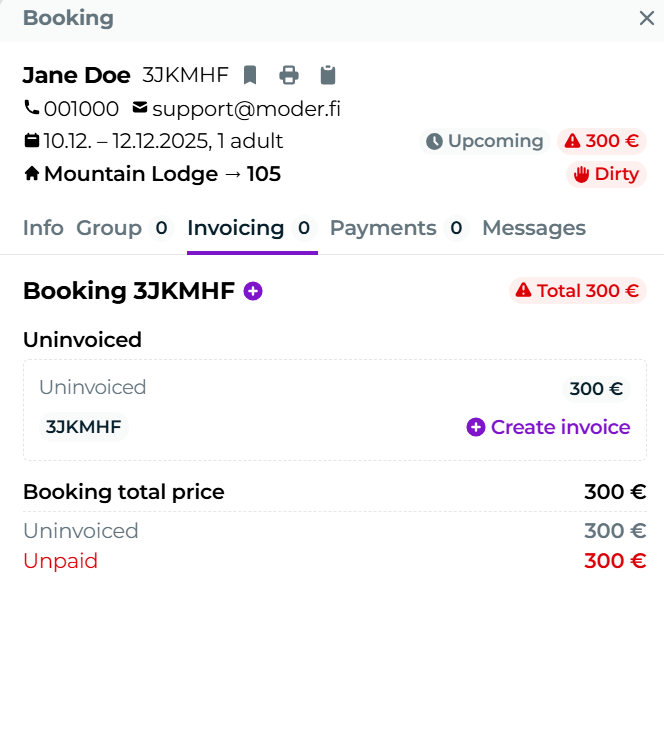
Go to the reservation for which you want to create a cash or card payment receipt.
Navigate to the "Invoicing" tab of the reservation. Click "Create Invoice".
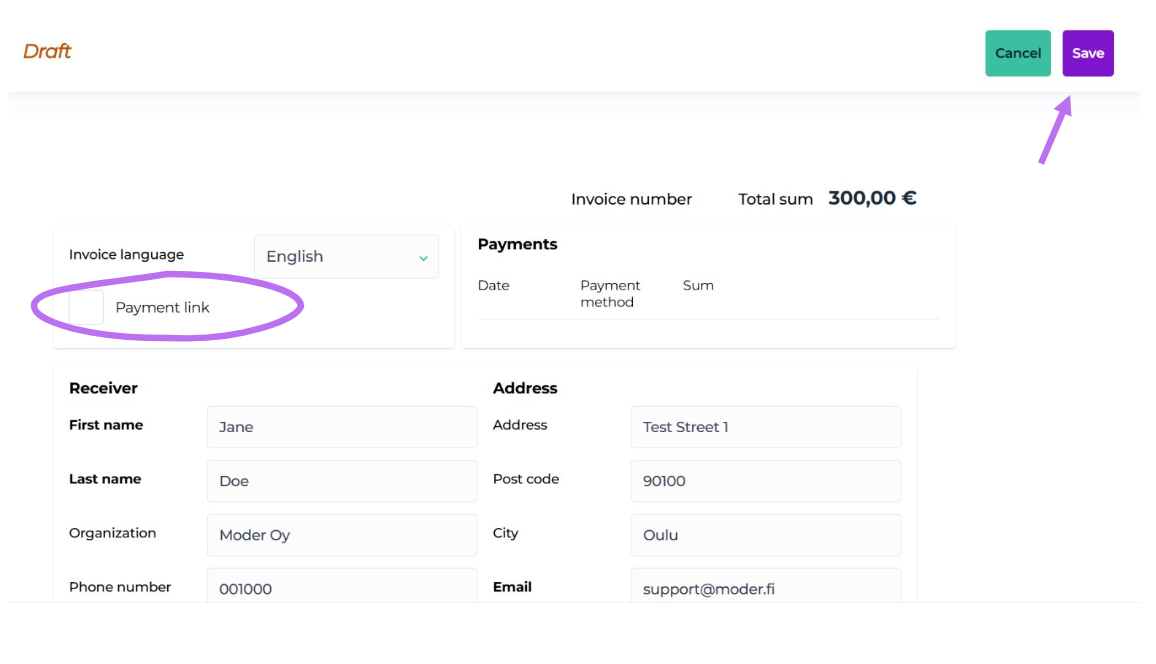
On the invoice, remove the tick from the "Payment link" and edit the other required fields. Put "Payment term" -field to 0, which makes the invoice due date the invoice creation date. Click "Save" and then also "Save invoice".
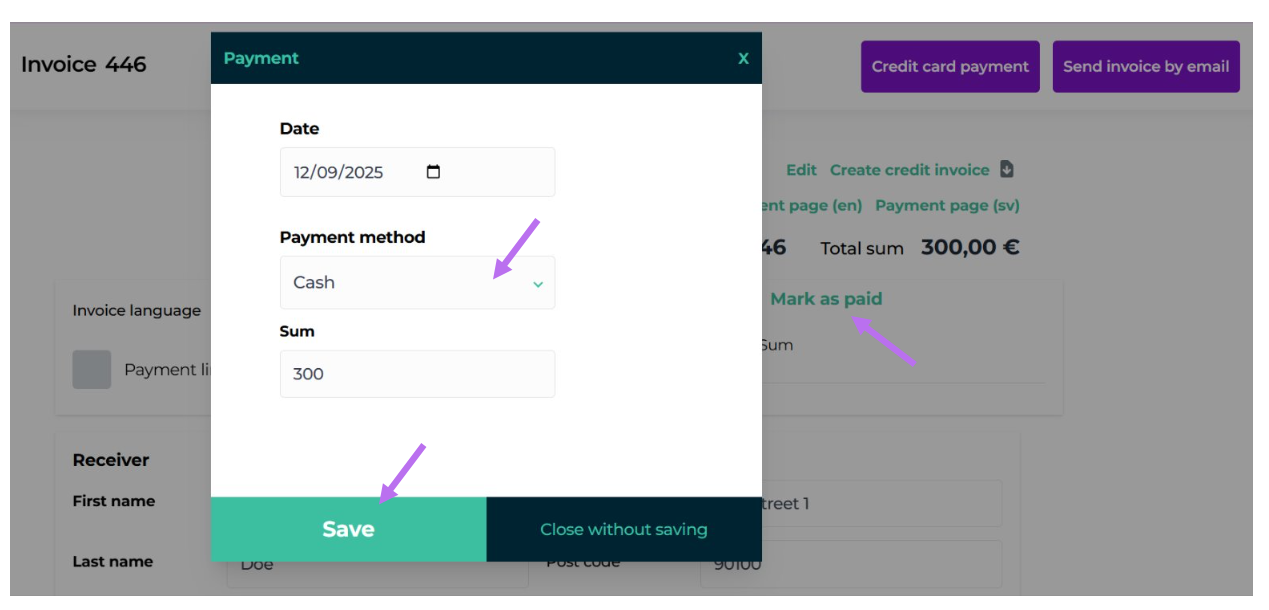
Click on the invoice "Mark as paid" and change the invoice payment method to cash, card or any other desired payment method. Click "Save".
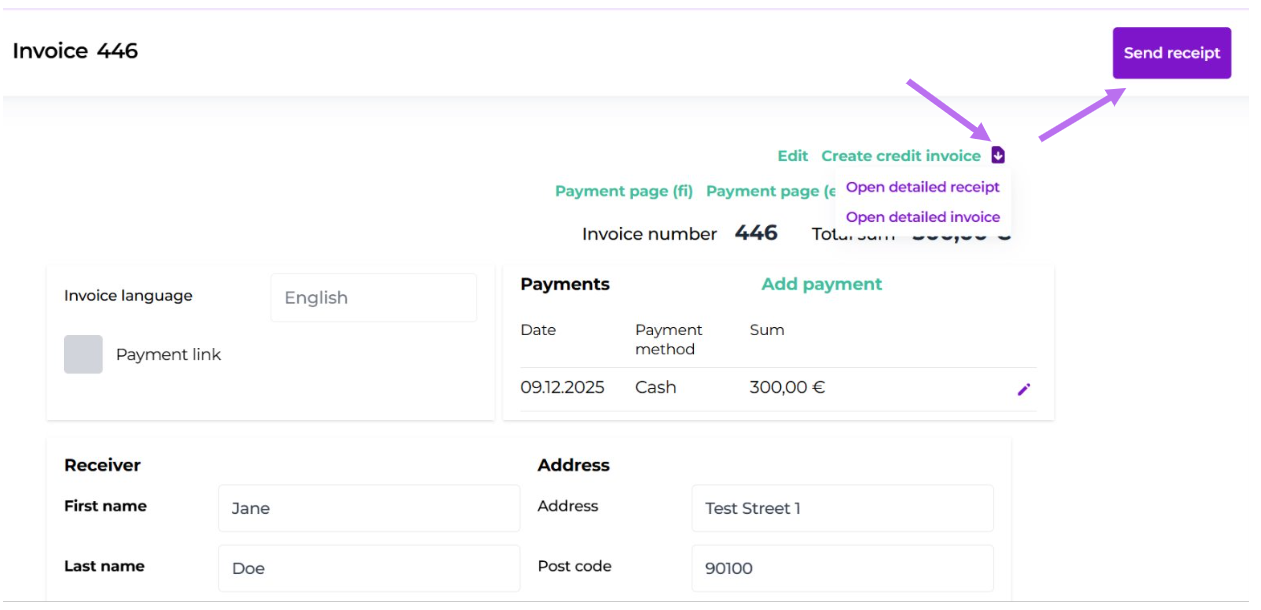
The invoice is now marked as paid, and a receipt has been generated. You can now either send the receipt to the customer's email by clicking the button "Send receipt" or open the printable PDF version of the receipt via the down‑arrow icon.