Cross-selling, or destination setting
Last updated: December 16, 2025
The destination feature essentially means that different Moder platforms can cross-sell each other's activity or accommodation products. The destination setting is not enabled in Moder automatically, but it can be activated by contacting our customer support support@moder.fi.
Since this is an agreement between two different parties, the destination (= Moder platform where items are brought from another Moder) and the partner (= Moder platform where items are exported to another platform), we need written permission from both parties to merge the items.
We want to sell our partner's items on our Moder platform, how do we proceed?
Contact Moder's customer support support@moder.fi and tell customer support that you would like to enable the cross‑selling feature in Moder. In Moder this feature is called "Destination".
Customer support will confirm to you when the feature has been added to your Moder app.
After the addition, a new feature called Destination will appear in your Moder (Products --> Destination management)
Next we need a written confirmation from the partner and from you that cross-selling is approved by both parties.
When the written confirmation has been received from both parties, our customer support technical staff will be asked to connect the products created in Partner-Moder to your Moder platform.
After this, the combined items should appear in Destination-Moder by going to Products --> Destination management.
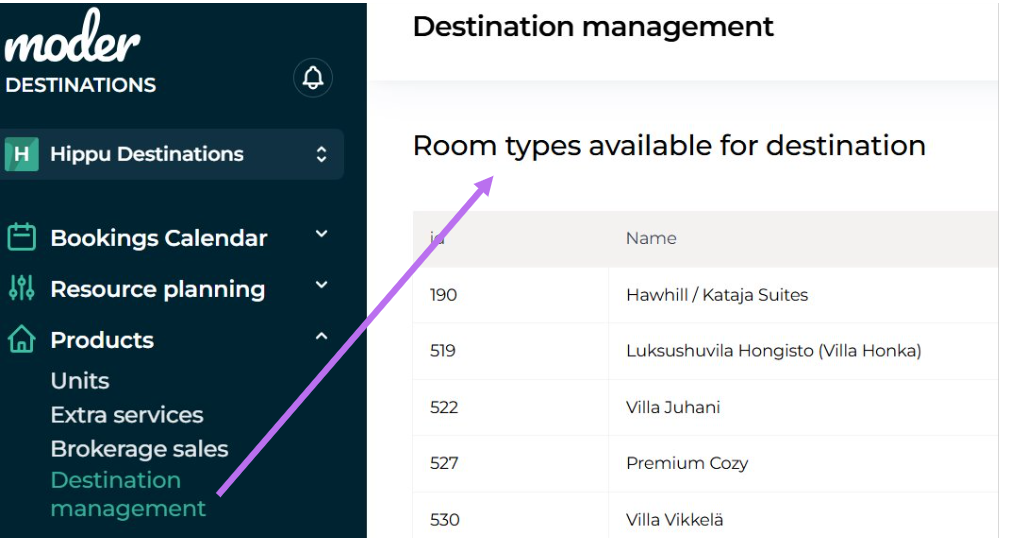
Next, the desired cross-selling items need to be built in Destination-Moder as virtual room types, so that they appear in their booking calendar and also in their online store. Instructions for this are in the next section.
How are the products built as virtual products in Destination-Model?
Start creating a new product in the usual way by going to the Products section and clicking "Add product" in the top right corner.
On the first page ("Room type details") operate as follows:
Give the product a name and select the product type from the dropdown
The product can be given the same name as in Partner-Moder OR a custom name, e.g., Hawkhill - Villa Adele. Giving a custom name can be justified so that it shows which Partner-Moder products are being sold
Check the box "Virtual room".
Select "Original room type" from the drop down box the Partner-Moder product you want to add to your online store
Select "Availability from" the same product as you selected on the "Original room type" line.
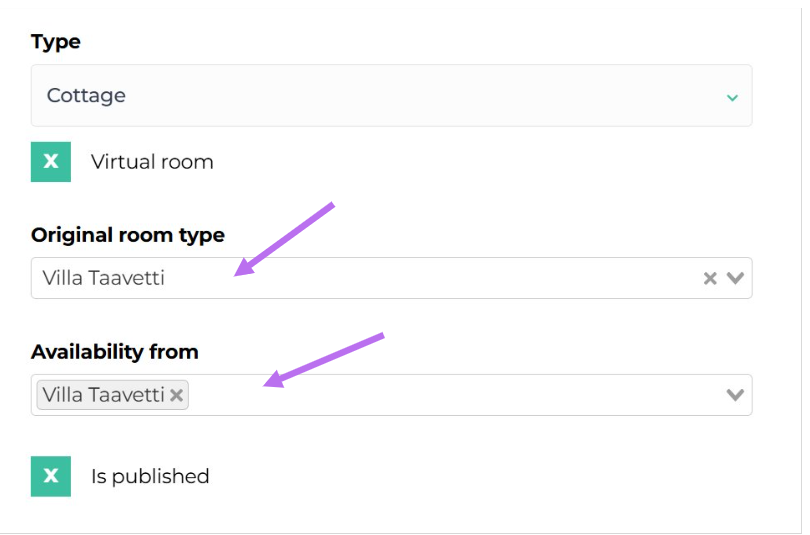
Also add the following information to the "Room type details" page:
Square meters (if known)
Accommodation capacity
Number of bedrooms
Number of bathrooms and toilets
Then press "Save and continue".
Provide the property with location details on tab number 2.
Here you can give the property Destination-Moder's own arrival instructions, which will appear on the booking confirmation and in the GuestApp application
Other product details, such as images and text descriptions, come directly from the original Partner-Moder. Likewise, the product's pricing comes directly from the original Partner-Moder.
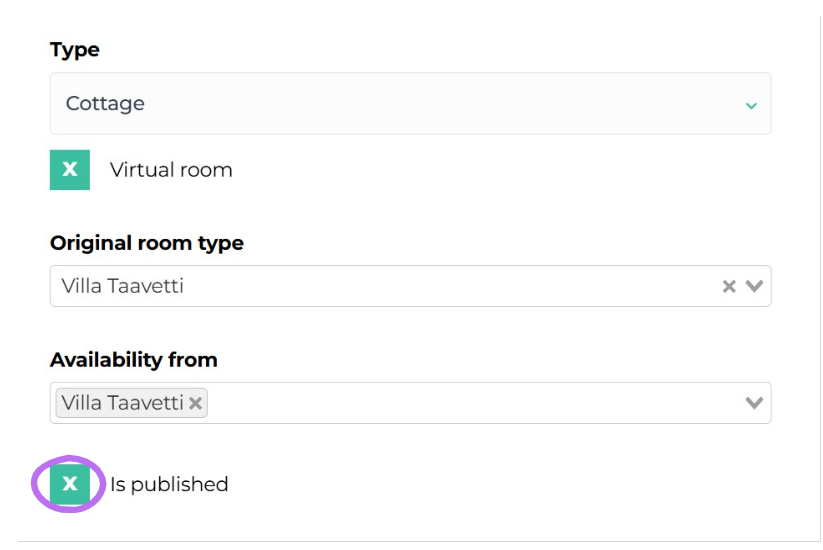
Remember to publish the product to your online store once everything is ready. This is done from the "Room type details" tab by checking the box "Is published".
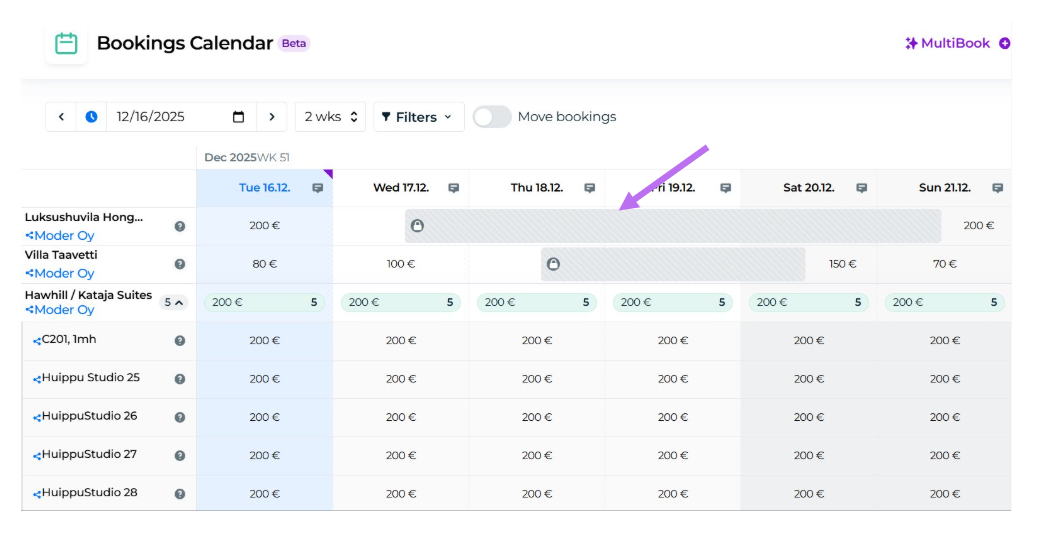
After this, the products linked from Partner-Moder will appear in your booking calendar in a picture display way (the blue "link" indicates that the products are linked from another Moder). You can make bookings for the product in the normal way.
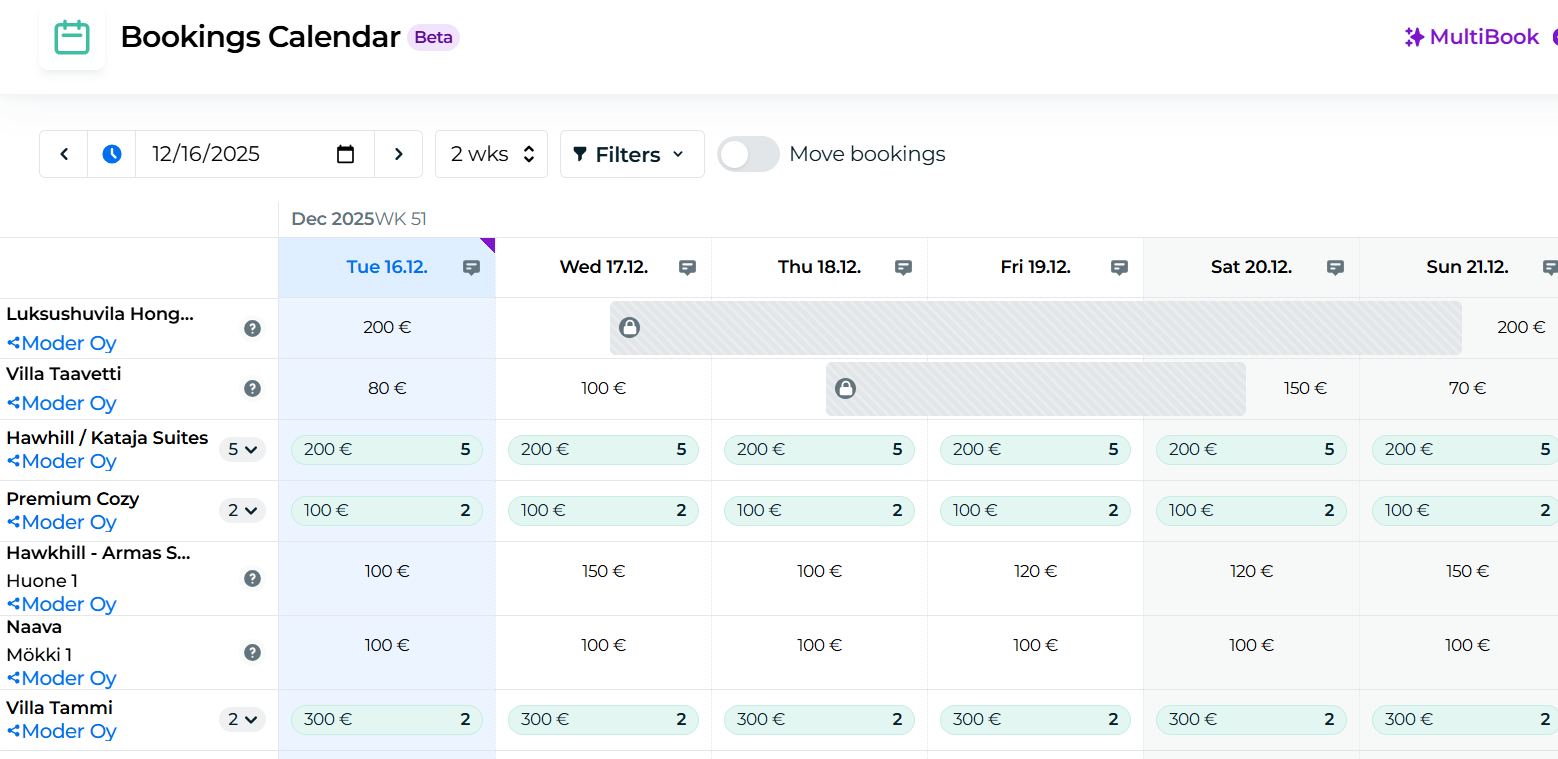
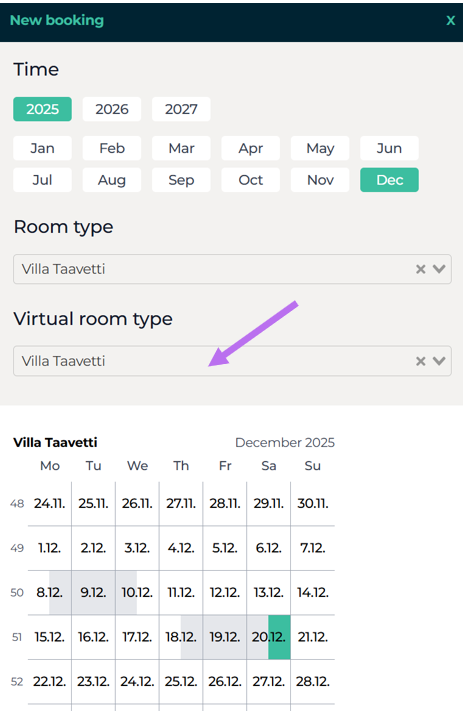
The only exception when making a reservation compared to a normal room type is that for the virtual room type reservation you still need to select the product under "Virtual room type" from the drop down menu.
Already booked periods are shown with a bar marked with a lock icon (i.e., these times are already booked in Partner-Moder).
How do Extra services and scheduled messages work with destination products?
Extra services
Extra services come to your online store from the original Partner-Moder, meaning the destination offers the same extra services in your own online store as in the original Partner-Moder's online store.
In Destination-Moder, you can also create your own extra services, which are sold exclusively in Destination-Moder.
Scheduled emails
Scheduled email messages work so that the traveler will receive the messages from both Moders: the scheduled email messages set in the original Moder and the scheduled email messages you set.
PIN code comes from the original Moder, for which reason the scheduled SMS should not be enabled on the Destination-Moder for cross‑selling products.
GuestApp
The data displayed in GuestApp:
From Destination-Moder
Contact information
Company information
Arrival instructions
Reservation details
Partner-Moderator
Pictures
PIN code
Check-in instructions