Orderit
Last updated: December 15, 2025
Well-prepared orders help staff stay up to date on the event’s progress, meet customer expectations, and minimize the risk of errors. With orders, the entire team can see the event’s needs and special requirements at a glance, making collaboration smoother and improving the overall customer experience.
Orders include all the essential details needed to ensure the success of the event — such as the schedule, dietary requirements, and other important information.
Adding an order to an existing reservation
An order can be easily added to any existing reservation.
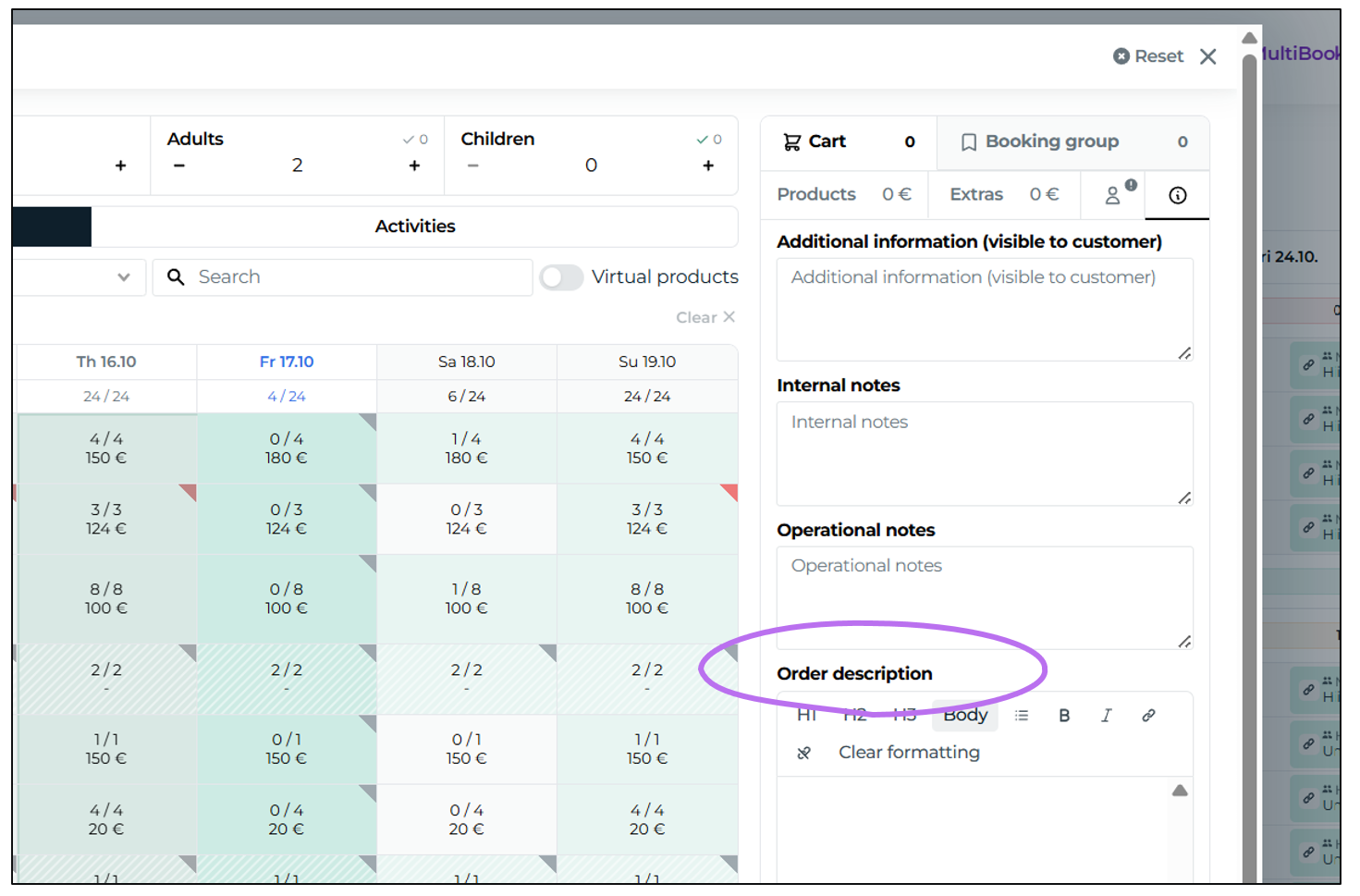
In MultiBook you can add an order already at the reservation creation stage:
You can also add an order later to the reservation by clicking the reservation and pressing the Edit button and going to Notes-section. Orders are found at the bottom:
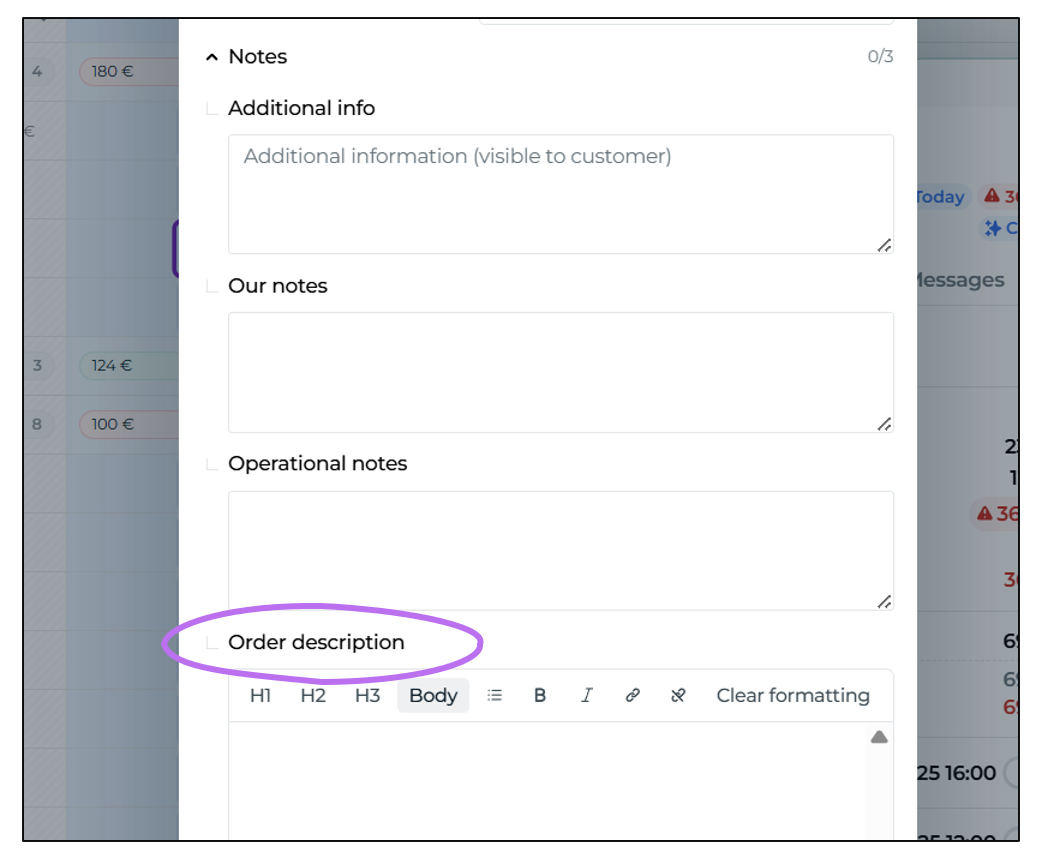
An order in Moder is a free‑text field with limited text‑formatting options and you can add up to 10 000 characters to an order. Remember to press Save on the reservation at the end, after you have added the order details!
Editing an order
You can access the order to edit easily through the same path where you added it for the reservation, i.e., according to the above instructions.
Good to know about handling orders in Moder
When you add an order to one reservation within a group booking, it will appear in all reservations of that group booking. Here’s an example of what that means:
You have a group with four booked products
You add an order to one of the reservations
If you want to view the group’s order, you can open any reservation in the group and click "Print order" summary to see the text entered in the original order
If you wish to edit the order, find the original reservation where the order was saved - edit and save there
If you add a second order to another reservation, it will not appear in the printed summary; only the original saved order will show - therefore, a single group booking can only have one order
For this reason, we recommend always adding the order details to the main reservation of the group booking and editing it from there whenever changes occur
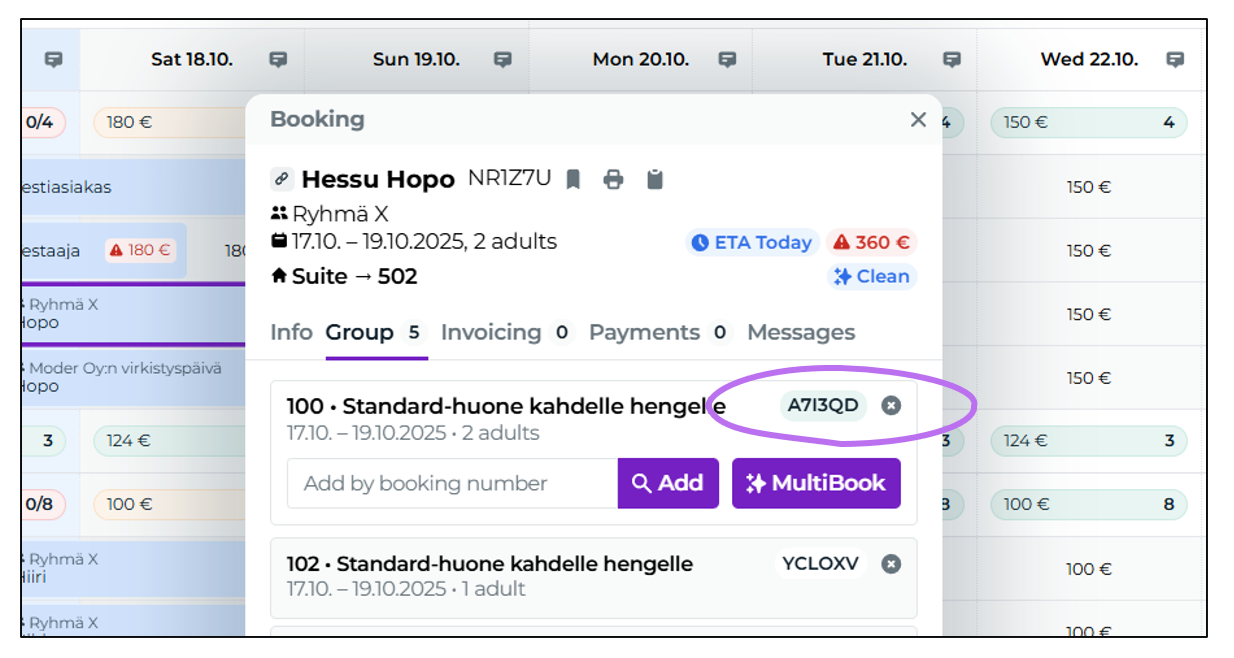
You can identify the main reservation by its light green background in the group booking view:
Printing an order
Printing an order in Moder is easy - but as mentioned above, it’s best to always update the order from the main reservation.
To print an order:
Select the main reservation in the group booking (the one with the light green background)
Click the Print order summary button in the top corner
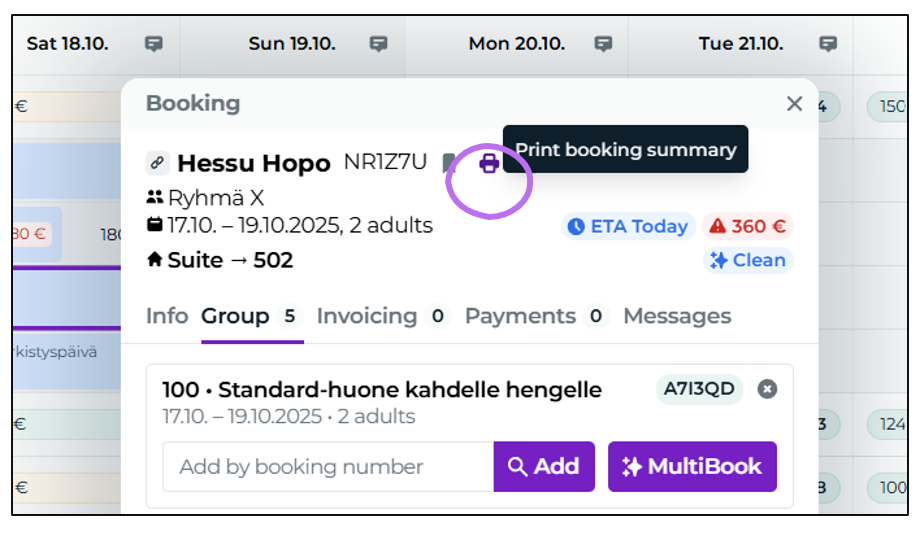
The order will open in a print-friendly format. The included extra services, pax count, and reservations will automatically appear in the summary from the entire group booking.