Accommodation product: units
Last updated: May 26, 2026
Accommodation - room categories or individually?
If you are just starting to create units for your accommodations, it's good to pause and consider the structure of your Moder. Then carefully ponder the following reflection:
Room Category means that you have, for example, many identical Standard rooms for sale, and from the customer's point of view in the online shop, the selection does not matter. The customer does not need to know which specific room they will receive when reserving a room‑category item. If you want items sold by room category in your Moder, place them under the units.
Individually added accommodation means that you add each property individually for sale in Moder. In this case, the customer selects the desired accommodation, room, or cottage themselves from the online shop and books it.
Units
In Moder, units refer to a room, destination, product, place, or simply a unit. Each individual room, cottage, villa, husky safari seat, caravan spot, glamping tent, or sauna is its own unit.
You will find all the units you have created listed Product catalog -tab. You will also find the same view from each of the destinations you have created via the Products tab, but presented per destination.
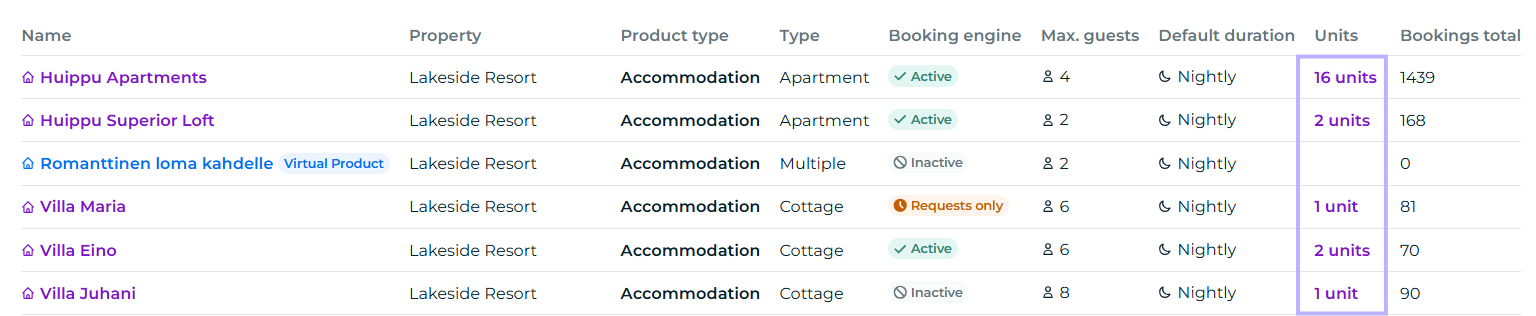
In the example below, the standard room units (i.e., rooms 100-105) are shown via the Units button:
Naming and editing a unit
A unit can therefore be named and edited in two different places - you can go directly to the tab "Units" Moder, or alternatively Product catalog - tab and select the desired units there on a per‑target basis.
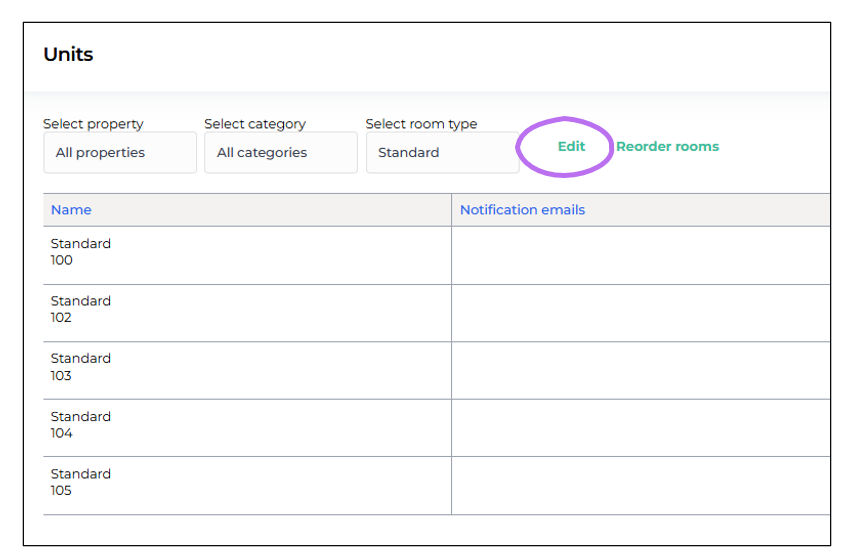
Naming individual units (e.g., a single cottage or villa) is not required, but it is required in room category listings. You can name and edit your accommodation’s units by clicking the "Edit" button.
Notification Emails
You can set an individual notification email for each unit (in the example below for Kataja apartments). This feature is useful, for example, for cleaners, maintenance staff, housekeepers, or even a key service.

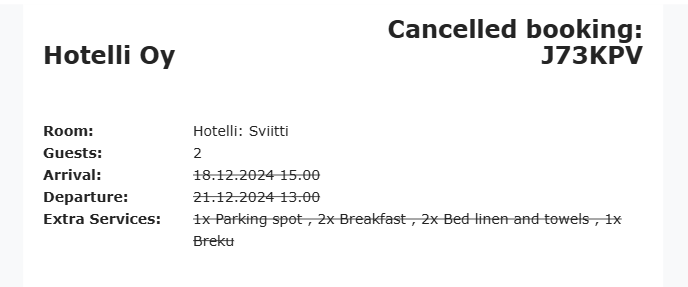
This function sends a notification email when a reservation arrives for the property or when it is canceled.
Below is an example of a received notification email.
No notification email is sent for reservation changes, and cancellations of channel bookings (e.g., Booking.com) do not currently trigger a notification email.
Free text
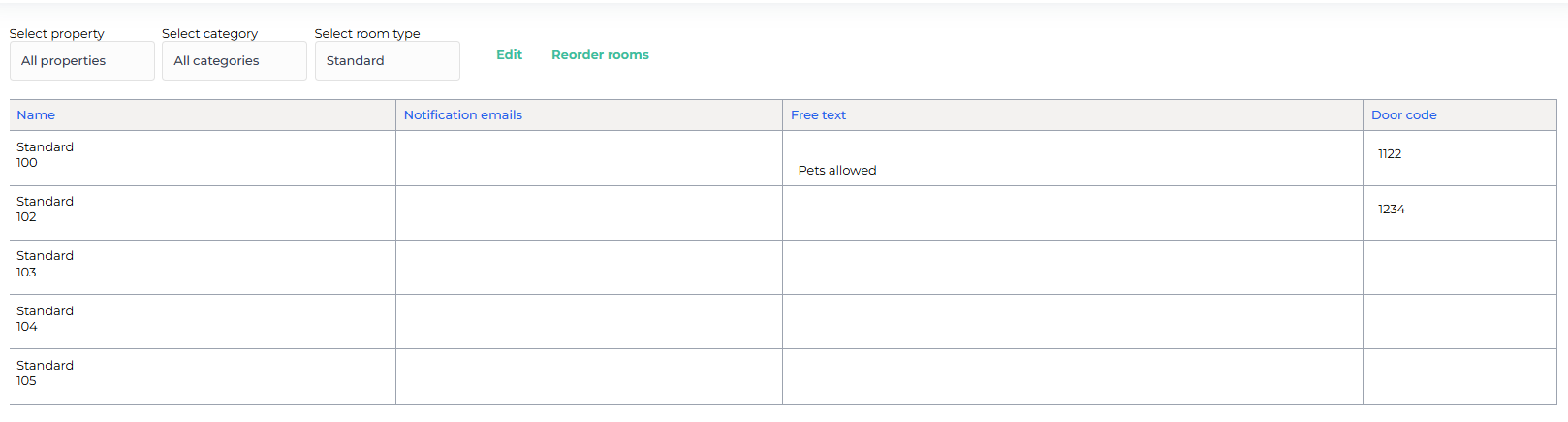
In the free text field you can add some location-specific information for internal use. This field is not visible to the customer, but you can see the text written here from your property's units or alternatively from the Booking Calendar.

Door code
Here you can set a property-specific door code. You can enable the door code and send it to the customer by turning on the scheduled text message, which you can find under the Customers section.
NOTE! If you have a lock integration in Moder, then you should not set a door code here. Lock integrations create a unique door code for each reservation.
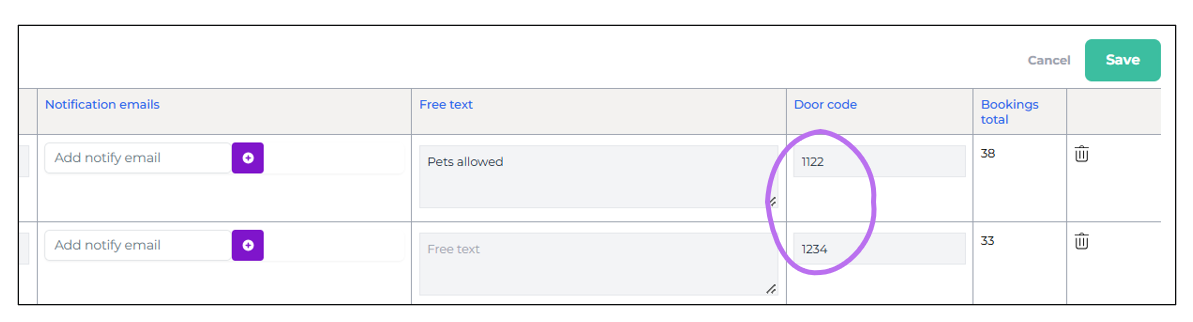
So set the door code in the field displayed on the right and remember to press "Save."
Then go to the Customers section in your Moder, and click the "New scheduled text message" button.
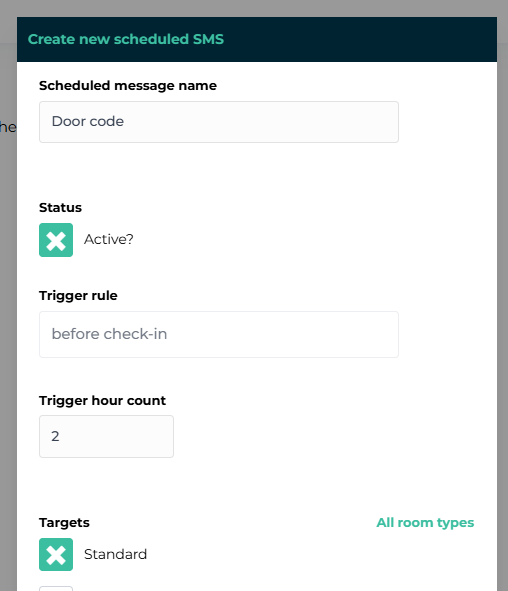
After this, set the title of the text message to Door Code, the desired number of hours for the rule's scheduling, and select the destinations to which the text message will be sent. Press the Save button at the end.
Now the traveler receives the door code 2 hours before arrival at their destination.