Brokerage sales features (commission-based sales)
Last updated: January 30, 2026
This article explains how Moder’s brokerage sales features work. With this feature, you can sell properties owned by partners or other parties in your own webshop, calculate commissions using Moder, and provide owners and partners with an owner view where they can manage the availability of their own properties.
Attached to this guide is an Excel spreadsheet containing Moder’s brokerage sales formulas. You can download the spreadsheet to your computer and use it to run test calculations with your own brokerage sales examples.
Operating principle
With Moder’s brokerage sales feature, you can create separate user accounts for the property owner and/or the property manager. You can then link these accounts to selected products (accommodation or activities).
At the moment, Moder’s brokerage sales features support commission-based sales.
What is the difference between brokerage sales and commission-based sales?
In commission-based sales, the service provider operates in its own name but on behalf of the principal. In this case, the traveller perceives that they are purchasing the service or renting the accommodation from the service provider, not from the actual owner of the property. For example, invoices are issued in the name of the service provider.
In brokerage sales, services are offered in the name of and on behalf of the principal. In other words, the traveller perceives that they are purchasing the service or renting the accommodation directly from the owner, and invoices are also issued in the owner’s name.
In the tourism industry, the model is typically commission-based sales, even though the term brokerage sales is commonly used in everyday language.
Although there may not be a significant business difference between these two models, their VAT treatment differs considerably.
How do I enable the brokerage sales features?
You can enable Moder’s brokerage sales features by sending a request to our support team at support@moder.fi. We will ask our tech team to activate the brokerage sales feature in your Moder environment and will notify you once the feature is available.
Adding a property owner and a brokerage sales formula
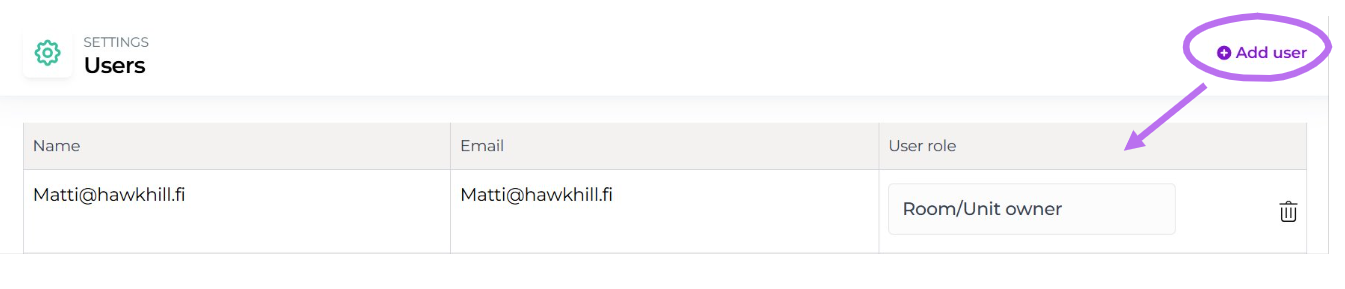
First, add the property owner as a user in Moder by going to Settings → Users. Select “Room/unit owner” as the role.
Next, go to the Brokerage sales section (Products → Brokerage sales) and open the “Owners” tab.
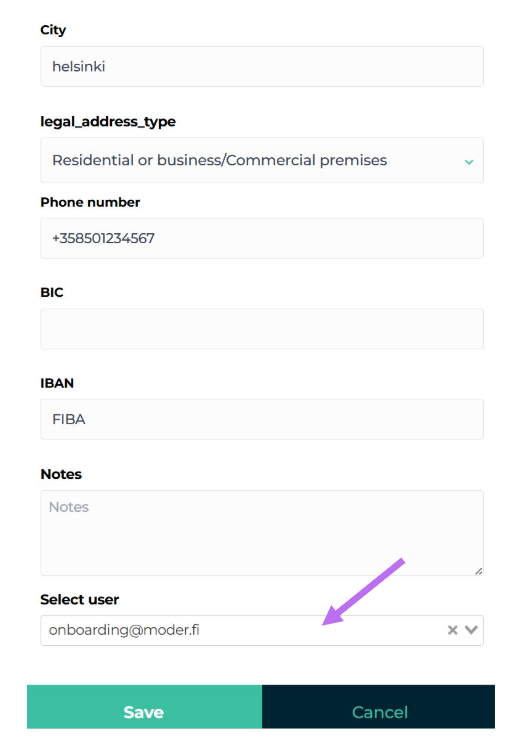
Click “Create owner” in the top-right corner.
Enter the owner’s name and contact details. Then link the user account you just created to the owner.
Note: If there are many owners, not all added owners may be immediately visible in the dropdown list. The easiest way to find the correct owner is to start typing the owner’s email address into the field.
Click "Save".
Next, inside the Brokerage sales feature, Go to the “Rooms” tab.
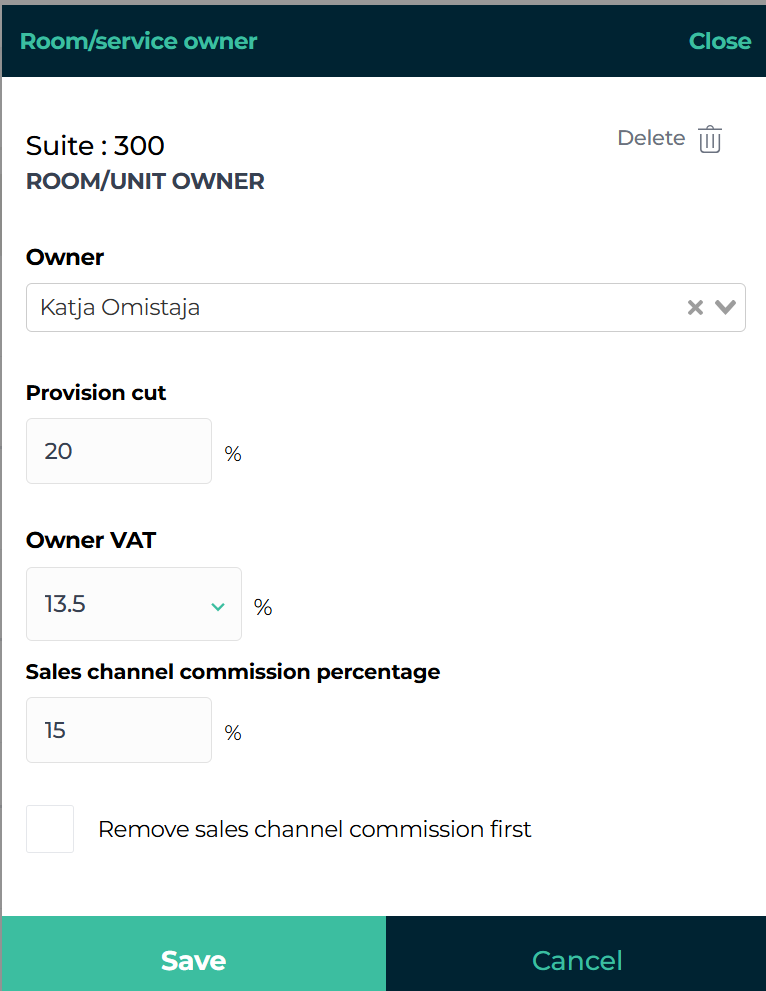
Link the owner to the property/unit you want by clicking “Add owner” next to the relevant property/unit.
Select the owner you just created from the dropdown menu and enter the commission percentage ("Provision cut") and the owner’s VAT rate.
You can edit the Sales channel commission percentage separately. The default setting is 10%.
At the moment, we do not yet recommend selecting “Remove sales channel commission first”, as an update related to the brokerage sales report is still in progress.
Click "Save".
Adding notification email for new bookings
If you wish, you can set up email notifications for the owner about new and cancelled bookings. Here’s how:
In Moder, go to Products → Units.
Click "Edit".
Add the owner’s email address to the property they own so they receive an email notification when a new booking is made or when a booking is cancelled.
First, enter the owner’s email address in the column labeled “Notification emails.”
Then click the plus icon next to the column.
Remember to click “Save” in the top-right corner so the notification email is saved in the system.
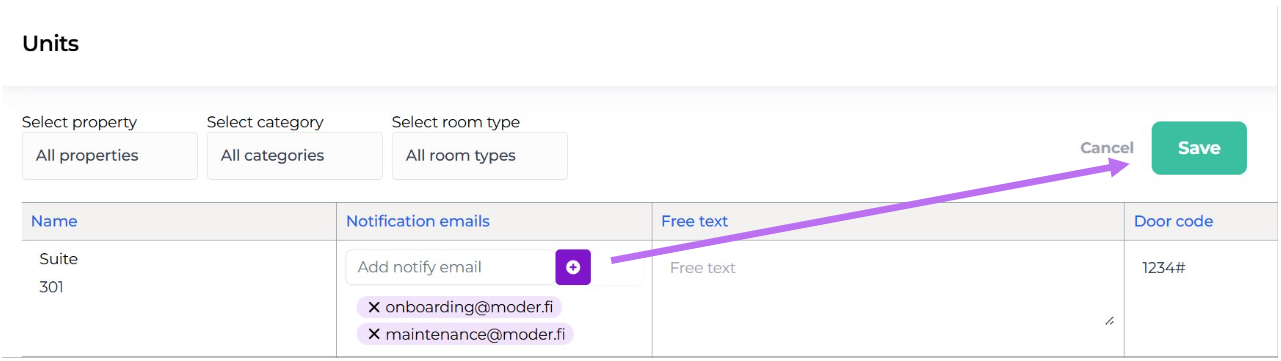
You can add multiple notification email addresses to the same property (for example, the owner’s and the property manager’s email addresses).
Adding a property manager to a property
Add the property manager to Moder’s users by going to Settings → Users.
Most commonly, the property manager’s user role is set to “Cleaning” (the user cannot see customers’ personal data) or “Key service” (the user can see the guests’ names and contact details).
Next, go to Products → Brokerage sales in Moder and open the “Owners” tab.
Click “Create owner” in the top-right corner. Enter a name for the “owner” (in this case, the property manager) and add at least a phone number in the contact details. Then link the property manager’s user account you just created to the “owner”.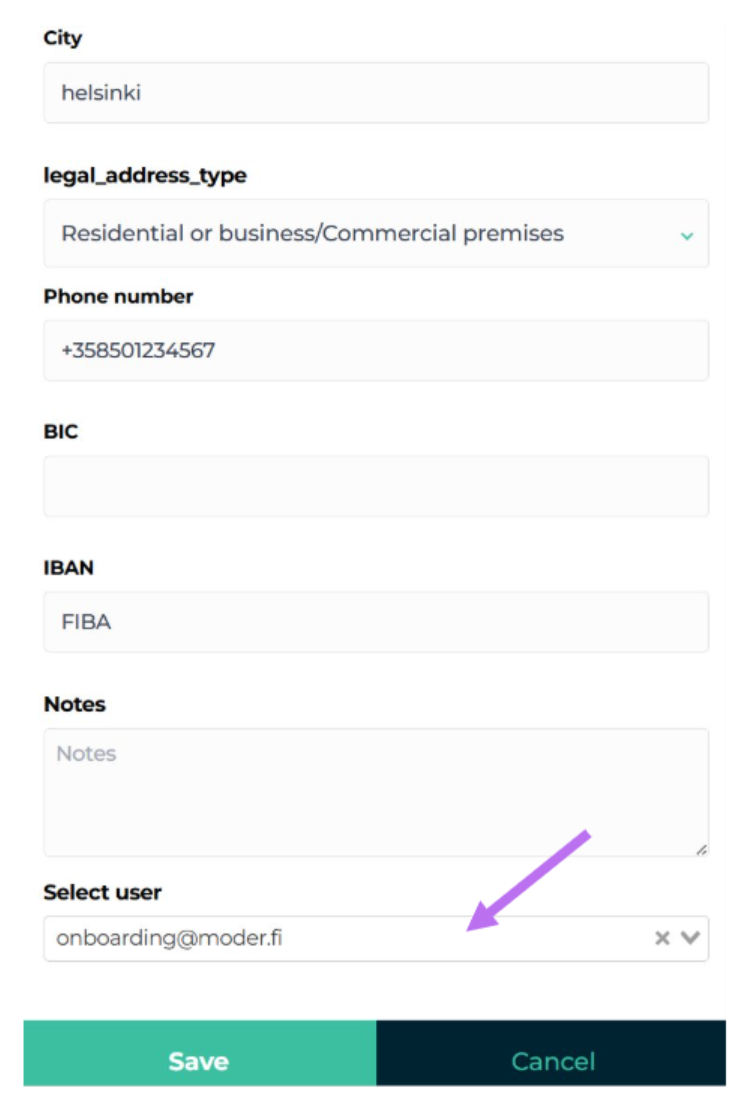
Click "Save".
Next, in the same Brokerage sales section, go to the “Rooms” tab.
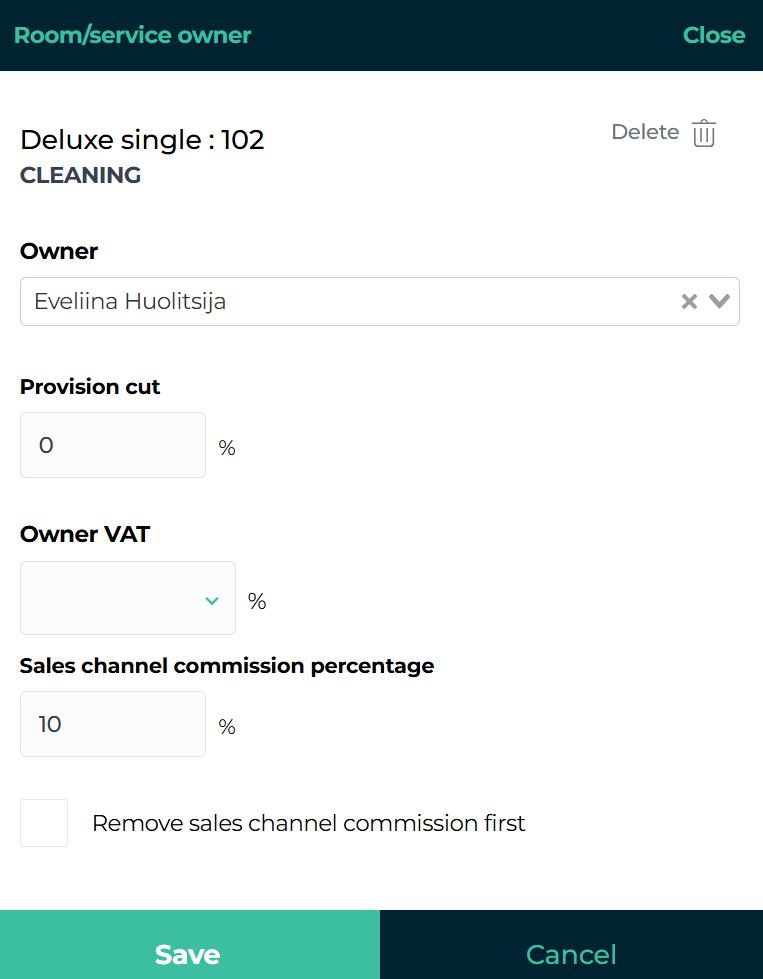
Assign the property manager you just created to the desired property or properties: click “Add maintainer” and select the correct person as the caretaker from the “Owner” dropdown menu.
You do not need to fill in the other fields (such as the Owner VAT field).
Click "Save".
Adding notification email for new bookings
If you wish, you can set up email notifications for the Property Manager about new and cancelled bookings. Here’s how:
In Moder, go to Products → Units.
Click "Edit".
Add the Property Manager’s email address to the property they own so they receive an email notification when a new booking is made or when a booking is cancelled.
First, enter the owner’s email address in the column labeled “Notification emails.”
Then click the plus icon next to the column.
Remember to click “Save” in the top-right corner so the notification email is saved in the system.
You can add multiple notification email addresses to the same property (for example, the owner’s and the property manager’s email addresses).
Owner/property manager notification email content
If you have added the owner’s or property manager’s email address to the notification email list in Products → Units, they will receive an email notification whenever a new booking is made for their property or when a booking is cancelled.
Please note that notification emails are not sent for booking modifications. For example, if you add an extra service (such as bed linen) to a booking afterwards, no automatic notification email will be sent to the owner or property manager.
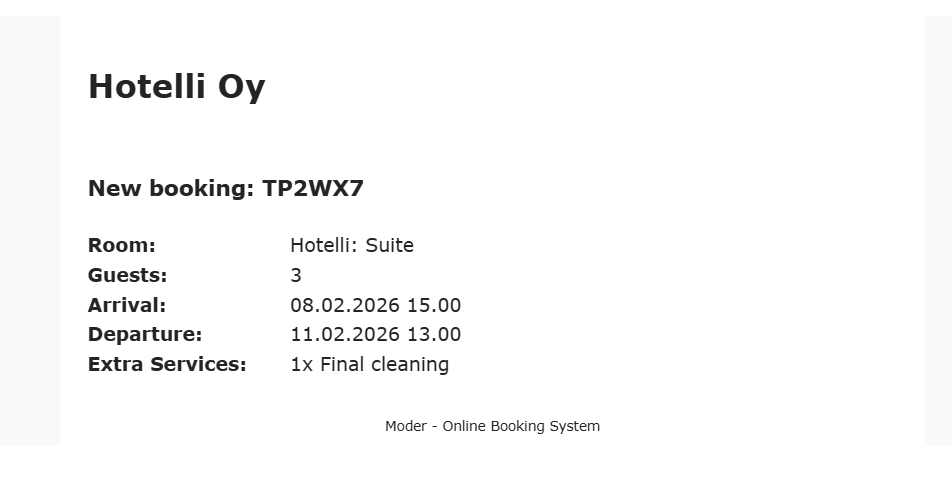
The notification email includes the following information:
Property name
Booking dates
Number of guests
Ordered extra services (including extra services included in the price)
The notification does not include the traveller’s name or contact details
Example of a notification email:
Brokerage sales report
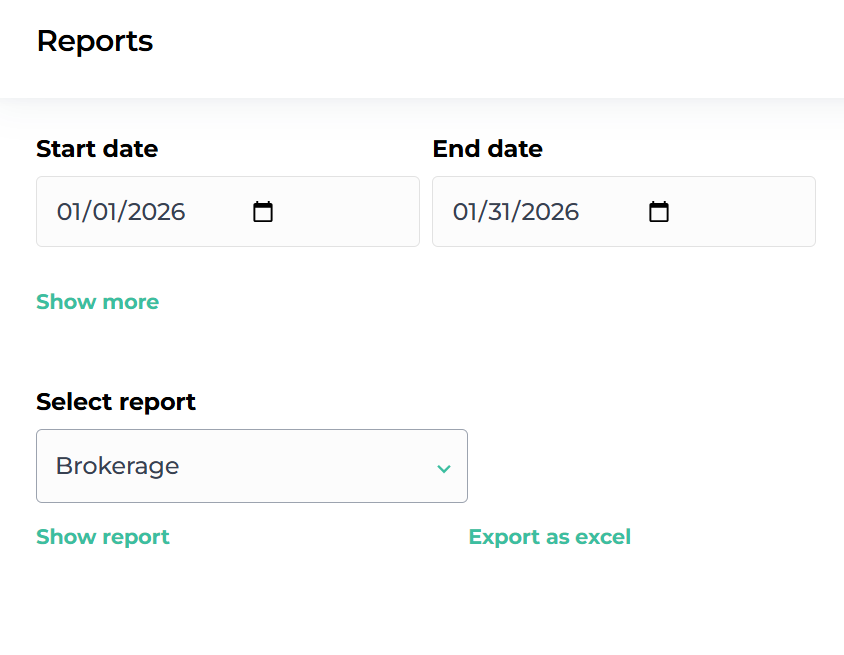
You can find the brokerage sales report in Moder under Reports. First, set the time period for the report, then select “Brokerage sales” from the dropdown menu. Click “Show report” to view the report as a PDF, or “Export to Excel” to export it directly to Excel.
Please note that the general filtering options in the reporting section cannot be used with the brokerage sales report. For example, the report cannot be generated by property or by product.
Also note that the brokerage sales report is calculated slightly differently for bookings coming from external booking channels (such as Booking.com or Airbnb). The calculation logic is explained in more detail later in this article.
Brokerage sales report content
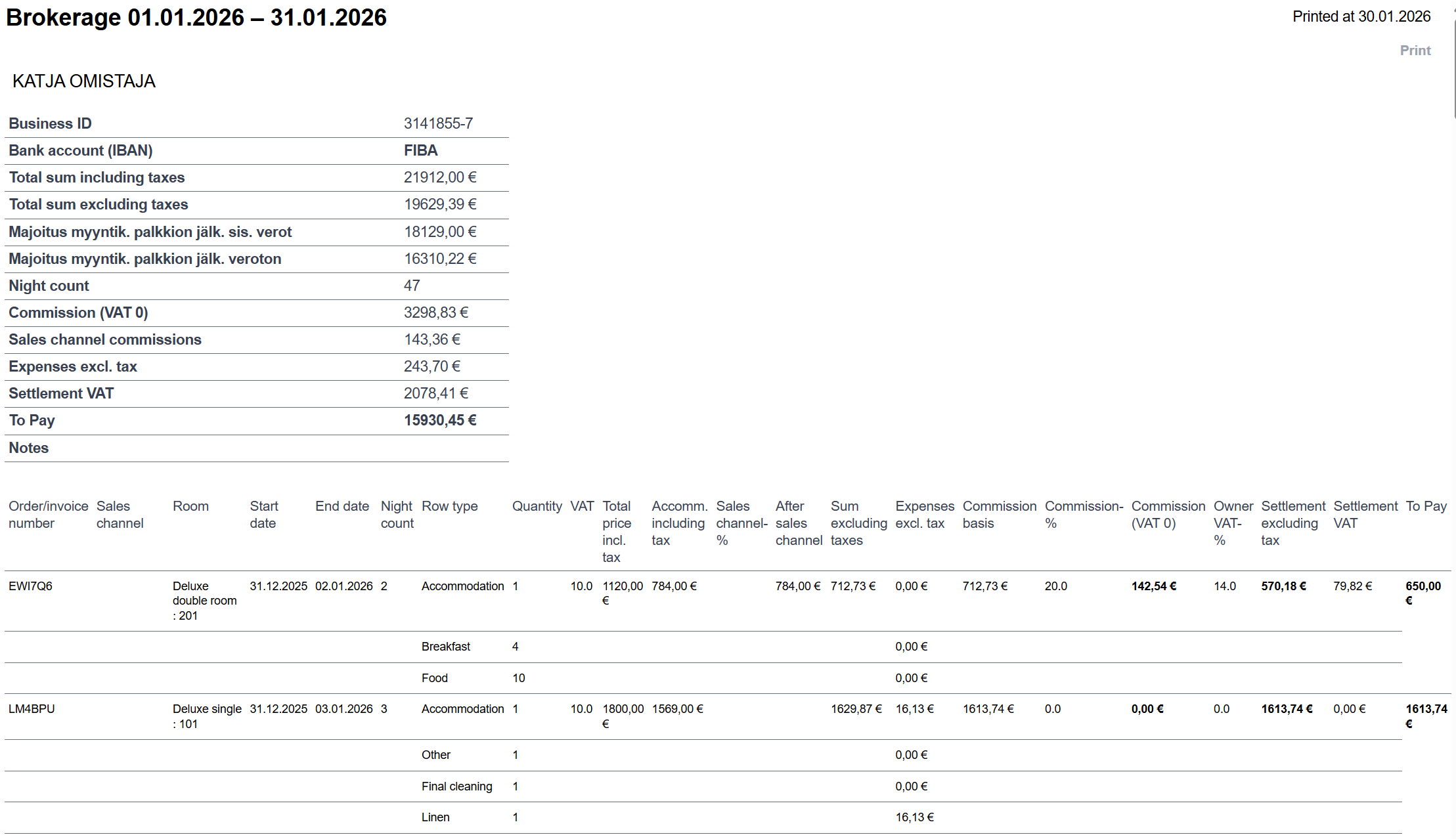
The brokerage sales report shows data for the selected period grouped by owner. For each owner, the report starts with a summary that includes total sales and deductions for the entire period, such as commission, sales channel fees (for example Booking.com), extra service costs (if a cost has been defined for the extra service), taxes, and the amount payable to the owner.
Below the summary, all bookings included in that summary are listed with reminder itemisation and their values.
Bookings are included in the report based on their end date. If the booking’s end date falls within the selected reporting period, the booking is included in the report calculation.
Setting brokerage expenses
If the intermediary offers extra services to end customers at their own expense and does not want to pay commission on these to the property owner, a brokerage expense can be set for the extra services. In this case, the value of the extra service is deducted in the brokerage sales report from the booking’s total amount excluding VAT before the commission is calculated, meaning the full sales value of the extra service remains with the intermediary.
Please note that the brokerage expense is deducted slightly differently for bookings coming from external sales channels (such as Airbnb). If the booking comes from an external channel, the commission is deducted first, and the brokerage expense is deducted afterwards.
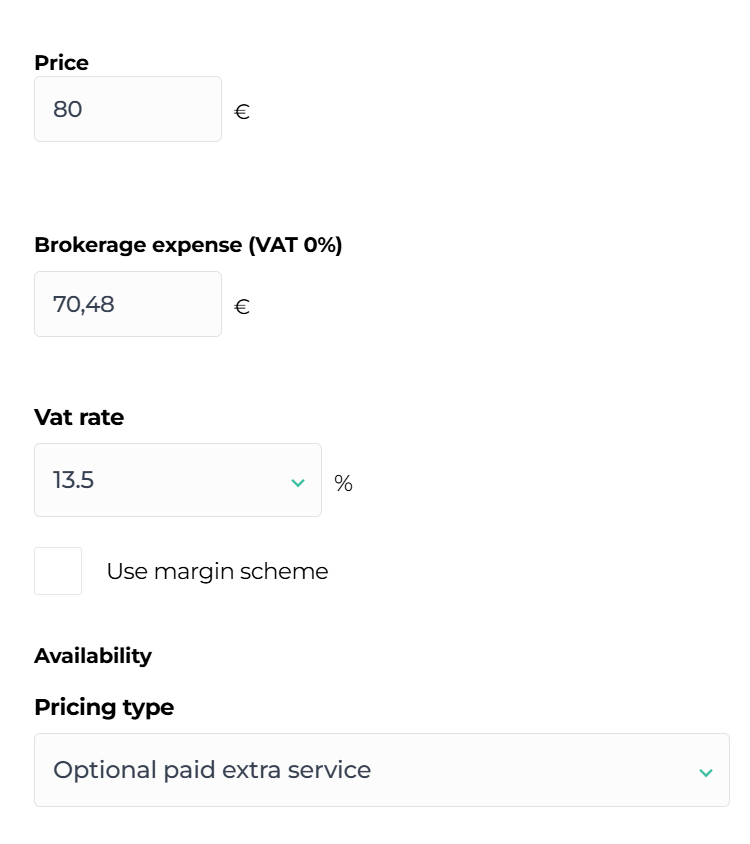
The brokerage expense is set in Moder by going to Products → Extra services, opening the desired extra service, and entering the extra service’s price excluding VAT in the field" Brokerage expense (VAT 0%)".
In the example below, the extra service (Final cleaning) has a price of €80 including VAT for the end customer, with a VAT rate of 13.5%. However, the final cleaning is provided by the intermediary, and no commission is to be paid to the owner for this service. In this case, the VAT-free value of the extra service, €70.48, is entered in the "Brokerage expense (VAT 0%)" field.
Commission calculation for bookings from external channels
Let’s look at the following example to see how commission percentages for bookings coming from external channels (such as Booking.com or Airbnb) are handled in the Moder brokerage sales report.
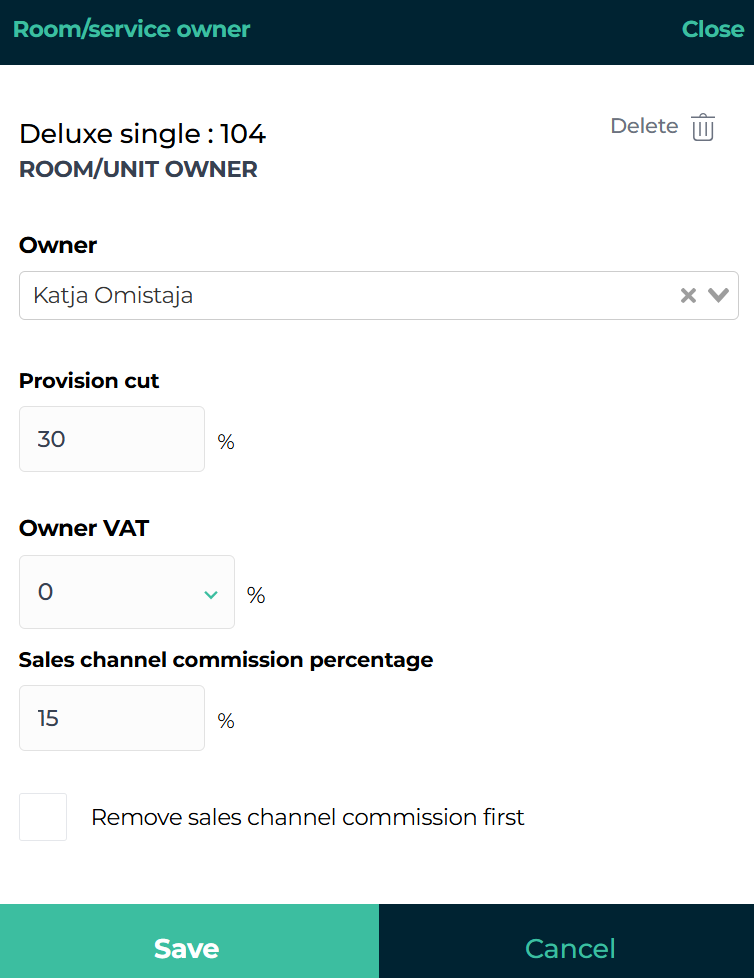
In the Brokerage sales section, the following brokerage sales formula has been set for Test Owner:
Provision cut: 30%
Sales channel commission percentage: 15%
Owner VAT rate: 0
One booking has been made for Test Owner’s Suite during the brokerage sales report period. The total value of the booking (the total price paid by the end customer) is €1,500. This booking came from an external sales channel.
The brokerage sales report shows the following for Test Owner:
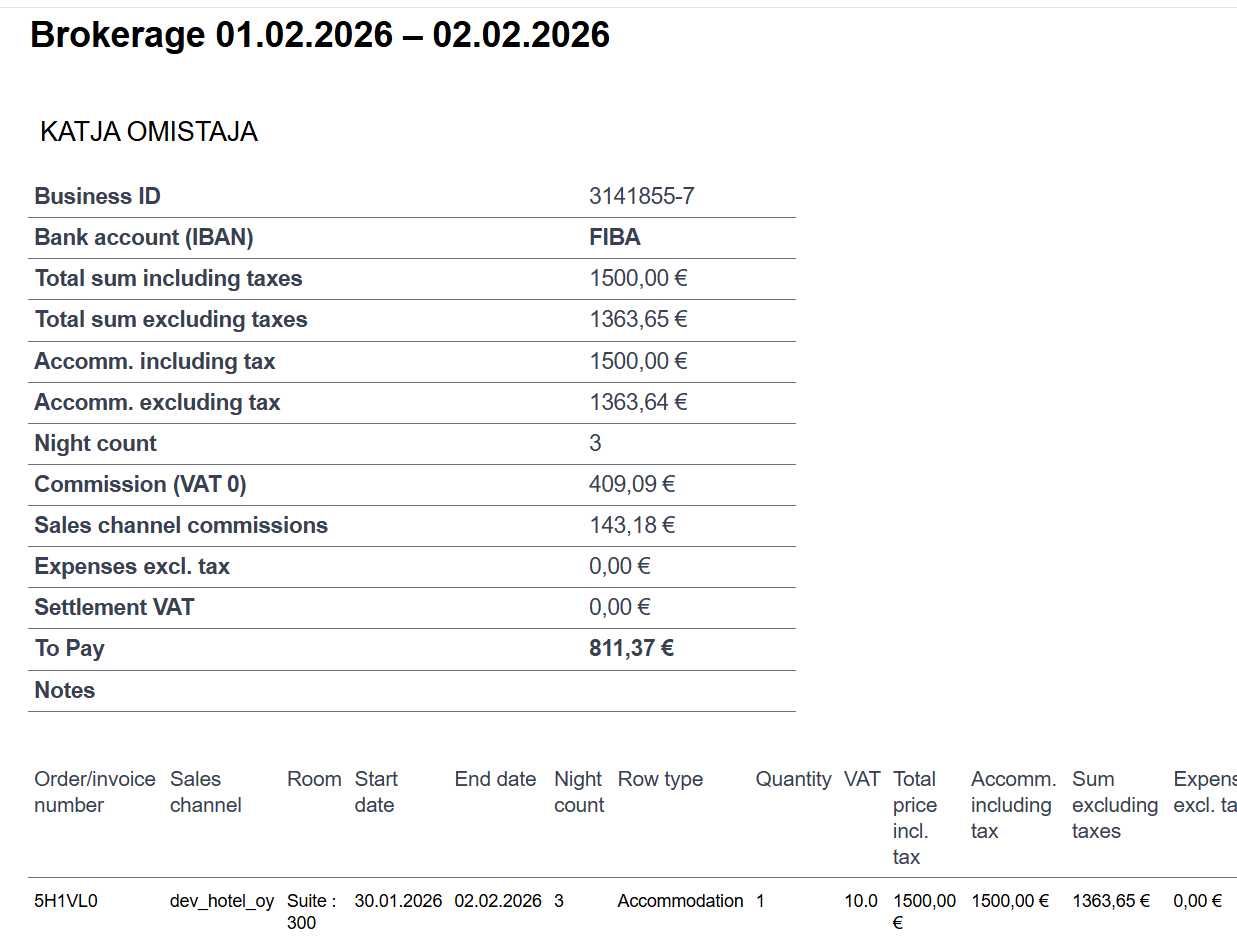
How was the commission total of €552.27 calculated in the report? Let’s break down the calculation step by step.
First, the service provider’s commission is calculated as 30% of the accommodation’s total price excluding VAT:
€1,363.64 × 0.30 = €409.09Next, the service provider’s 30% commission is deducted from the total price excluding VAT:
€1,363.64 − €409.09 = €954.55Then, the sales channel commission of 15% is calculated from the amount after the service provider’s commission has been deducted:
€954.55 × 0.15 = €143.18Finally, the service provider’s commission and the sales channel commission are added together:
€409.09 + €143.18 = €552.27