Invoices & payments: payment link and PDF invoice
Last updated: May 6, 2026
Payment link either with Paytrail or Stripe, is a convenient way to handle payments quickly and effortlessly.
When a traveler pays a booking through the payment link, the reservation is automatically recorded as paid in Moder, and you do not need to make a manual payment entry. This feature saves time and simplifies payment management. You can create payment links and invoices directly from the Invoicing tab.
You can also create regular pdf invoices, so the payment goes to your account and the payment entry must be made manually.
In this article we will go through creating both invoice types.
More about creating payment markings and receipts in this guide: payment marking and receipt
More on the invoice list in this guide: invoice list
Creating a credit invoice in this guide: credit invoice
Payment link
If you have Paytrail or Stripe credentials, you can conveniently send a payment link to the traveler From the Invoicing tab.
When the traveler pays for the reservation using the payment link, the reservation is automatically marked as paid in Moder after the payment. Thus, you do not need to do any manual work regarding payment entries.
This example covers creating a Paytrail payment link, but if you are using Stripe, creating a payment link works exactly the same way.
Click to open the desired reservation either from the reservation calendar or the reservation list. Open Billing tab and click either
+ Split into invoices
+ Create single invoice
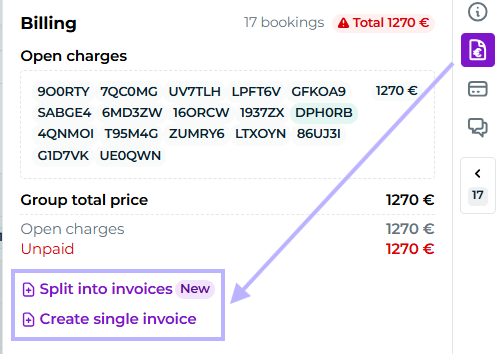
Let's create a single invoice in this first example.
A view of the invoice draft will open for you. Check that all the information on the invoice is correct. You can send the payment link to the traveler by clicking Send invoice by email. Then the traveler receives an email from no-reply@noreply.moder.fi, and the email contains a link to the payment link page. At the same time the invoice is saved from the draft as a proper invoice in Moder and a invoice number is generated for it. If you only want to save the invoice but do not wish to send it to the traveler at this point, click Save as invoice.
When the traveler pays using the payment link, the reservation is automatically marked as paid in Moder. The payment method for the reservation is always Online payment, when the reservation has been paid through Paytrail.
If you want to make modifications to the invoice before sending (for example, add invoice lines), click on the Edit, and an edit view will open, where you can modify all invoice details before sending.
When the desired edits have been made, press Save and you can send the payment link by pressing Send invoice by email button.
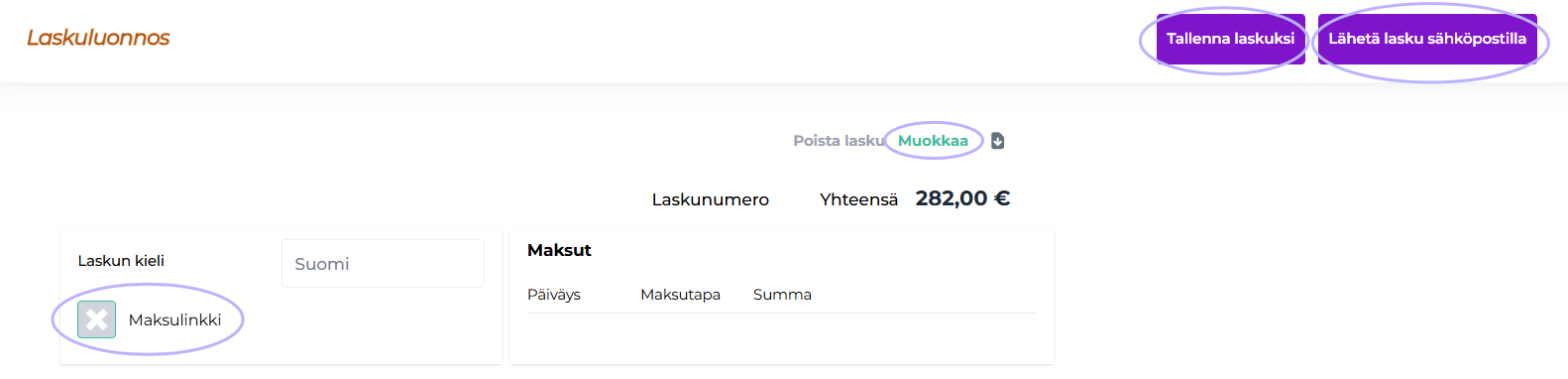
You can edit any information on the invoice as you wish (open the invoice for editing by pressing Edit. For example, you can easily delete or add invoice lines, edit prices, VAT base, etc. You can also change the payment terms as desired and add text to the invoice at the Free text before invoice lines.
Please note that Paytrail and Stripe do not support negative invoice lines, so payment links cannot contain negative lines.
Even if the invoice has already been sent once, it can be resent Send invoice by email from the button:
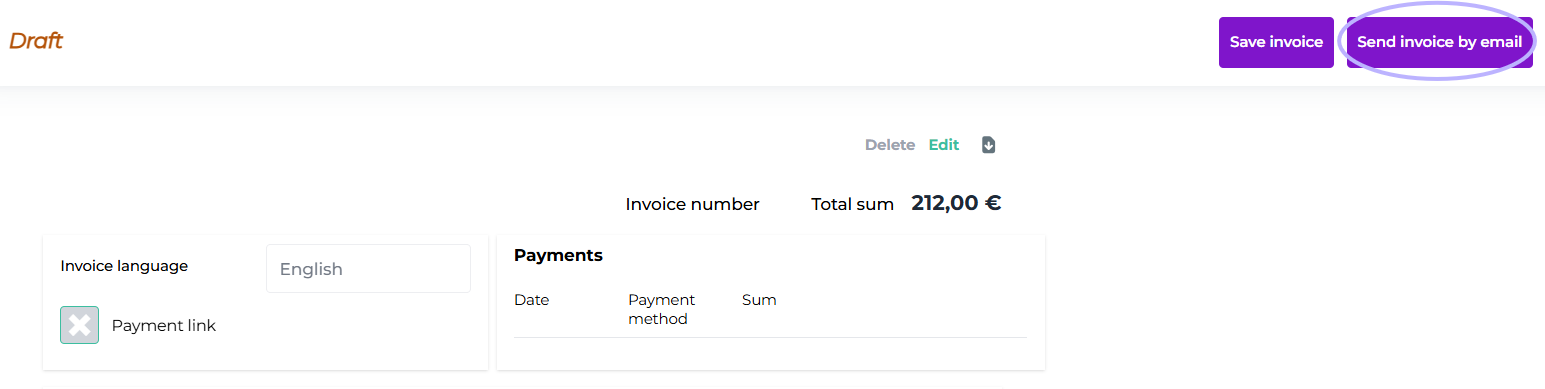
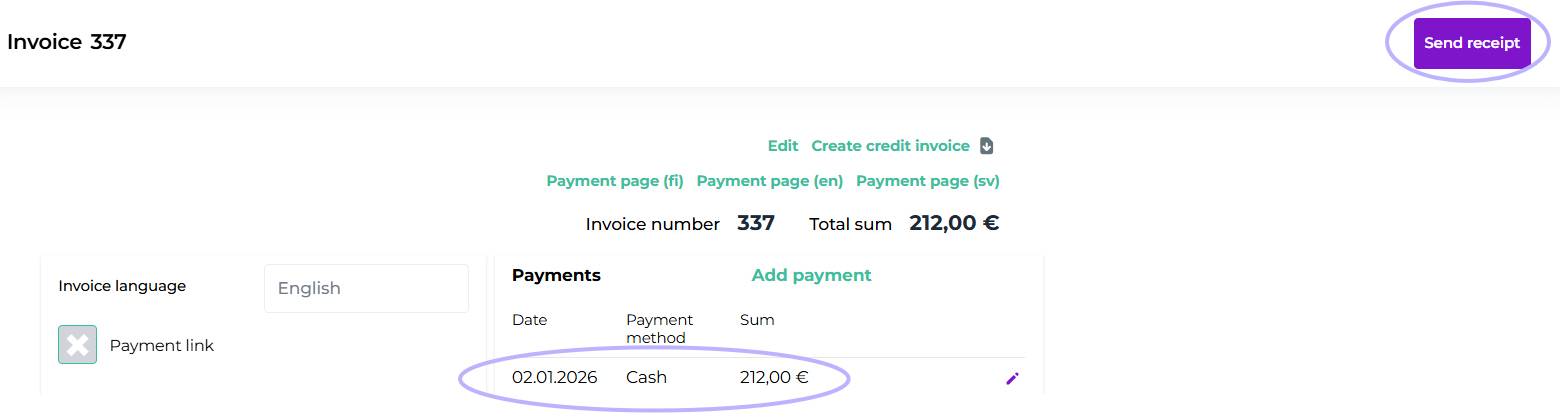
When the invoice has a payment entry, i.e., the invoice has been paid by some payment method, the Send invoice by email button changes to a button Send receipt. The receipt is sent by email from the button.
Payment link expiration
We are often asked when Paytrail payment links expire. Currently, a Paytrail payment link does not really ever expire, so even if the invoice due date has passed, the payment link is still functional.
Date and Delivery date
The date refers to the day the invoice was created. If you want to choose a different date for when the invoice was delivered, add it to the delivery date field.
Note! Even if you set the delivery date to a future date, the invoice will still not be sent automatically.
Invoices in parts
Dividing by the amount
You can also split a customer's payments into multiple invoices, for example (if you don't have pre-payments enabled).
For example a customer with a 100 euro room reservation, of which 50 euros are paid immediately, and 50 euros after a month:
You can create two separate Paytrail invoices, and set the payment term to 0 days for one, so the due date is immediate, and to 30 days for the other, so the due date is in a month.
You create the invoices normally from the reservation at the + Create invoice:
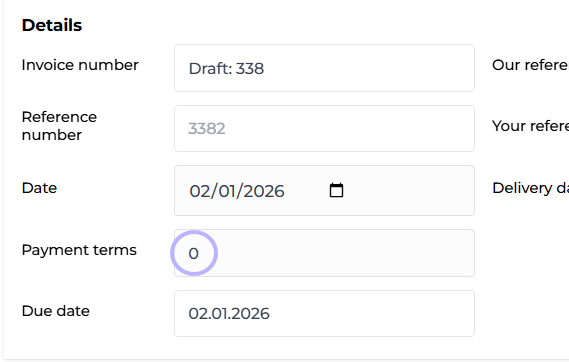
Set the payment term of the first invoice to 0 days:
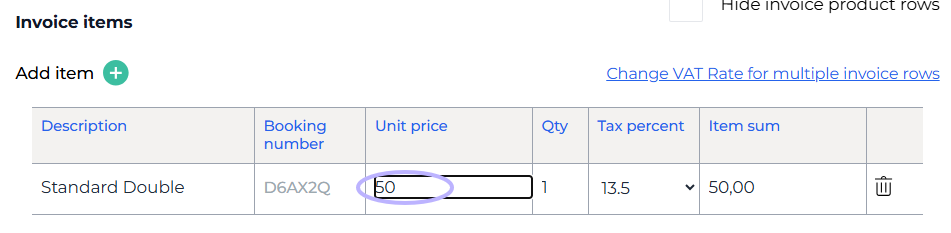
Edit the first invoice amount from here:
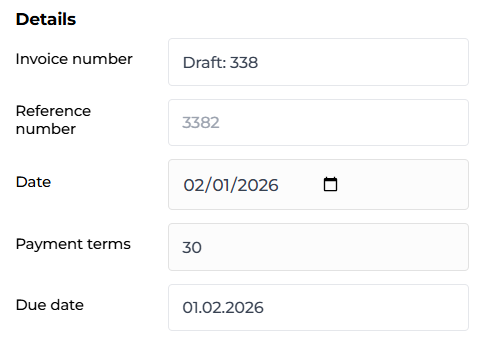
Save and create a second invoice with a 30-day payment term:
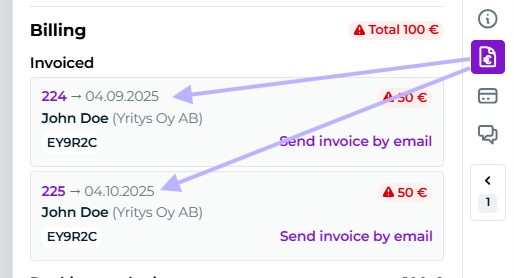
Save, after which both invoices will now be visible on the booking's invoicing tab:
Split invoices by product
Do you have a group booking or a collection of reservations, and want to split products onto different invoices? You can do it using this button:
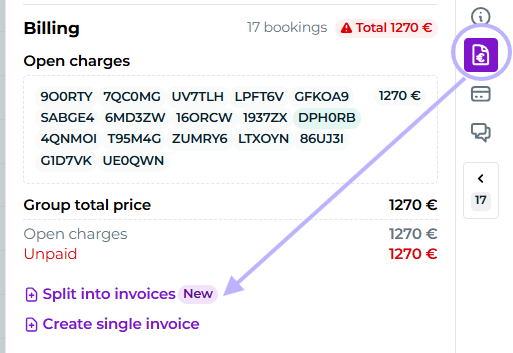
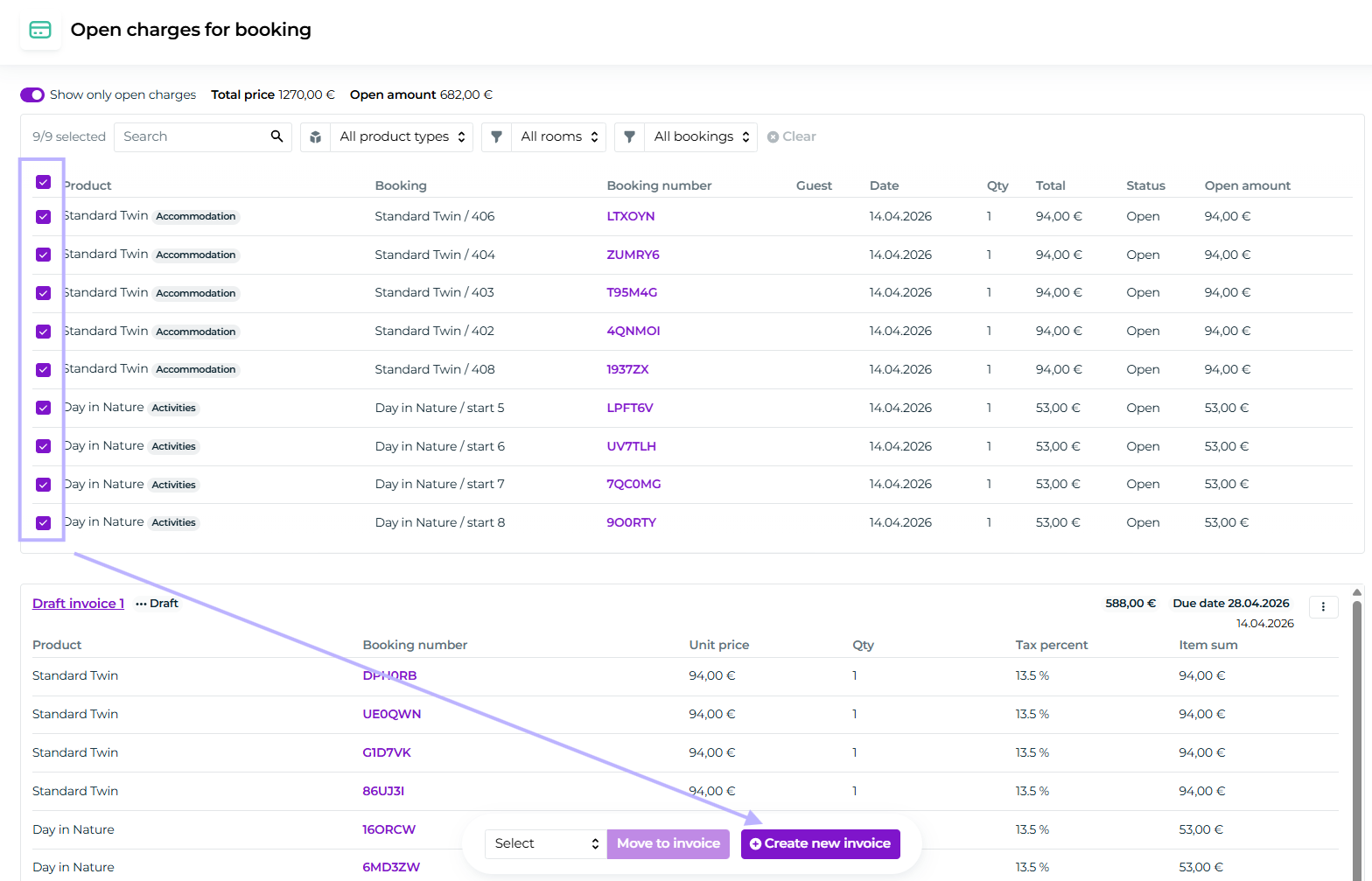
After this, on the Open charges page, select the products that will be included in the first invoice. In this example, we will split 4 Standard Twin rooms and 4 Day in Nature activities from the reservation onto one invoice, and the remaining products onto another invoice.
First, select the products for the first invoice:
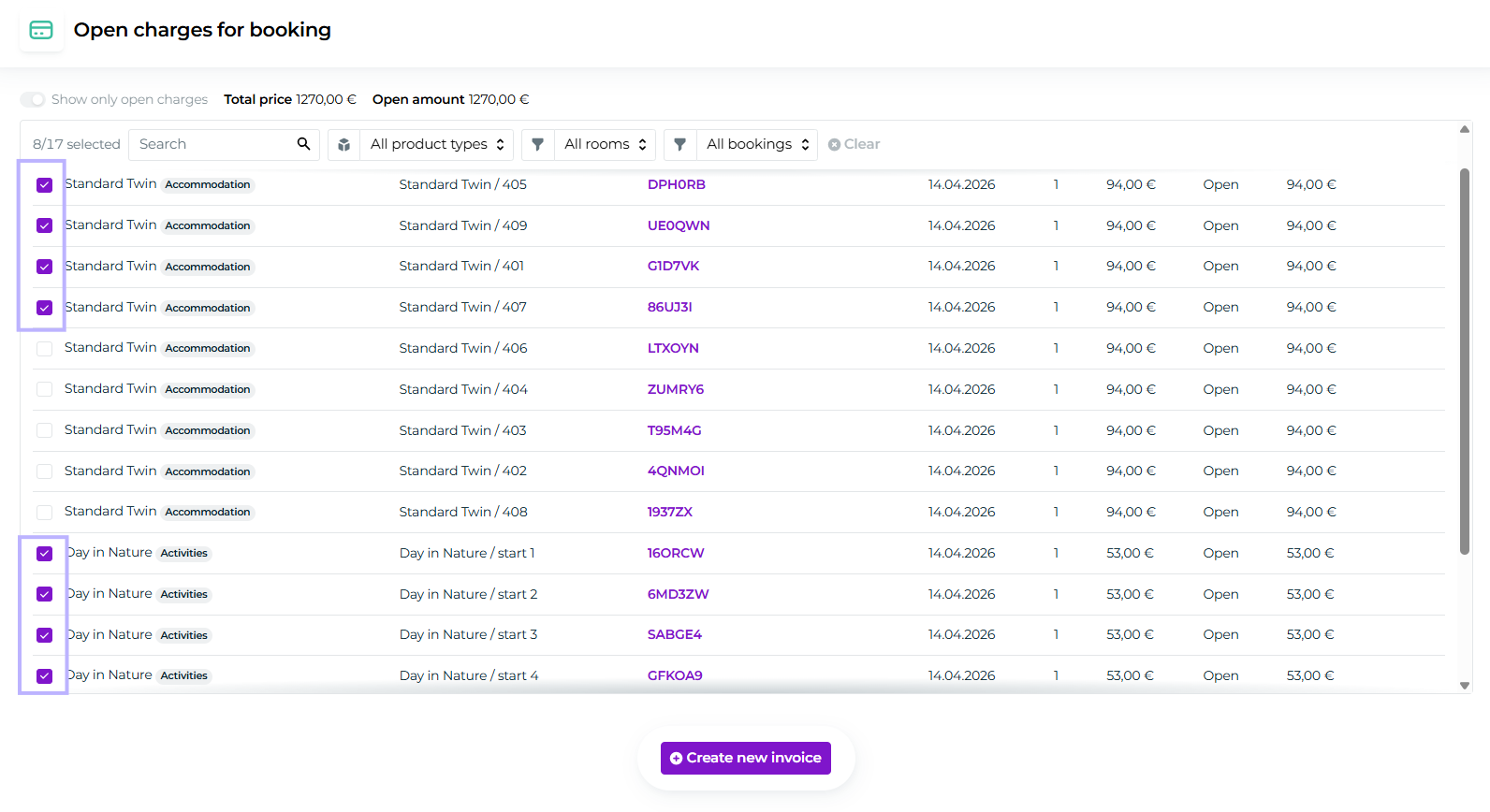
Then click + Create new invoice
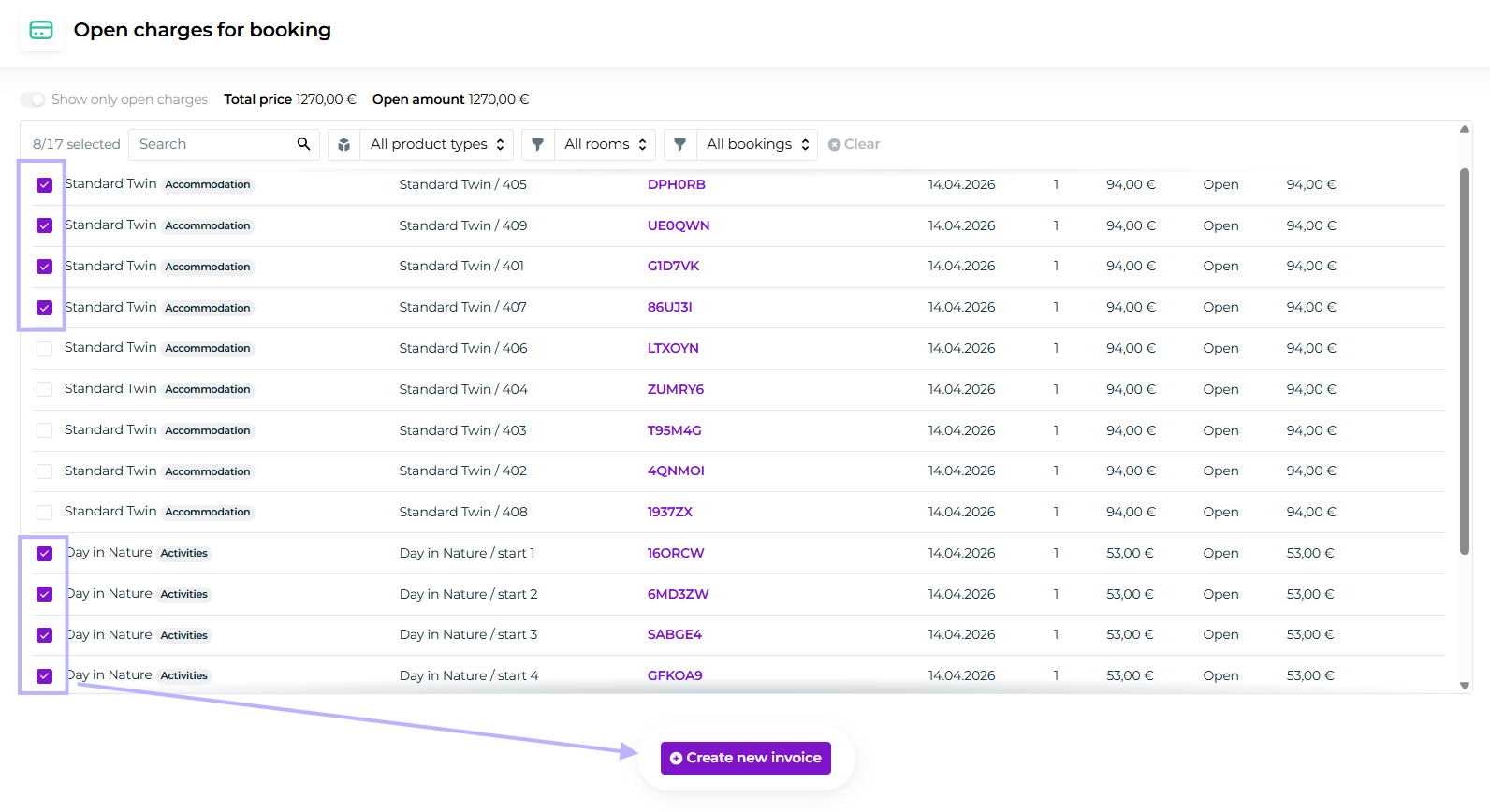
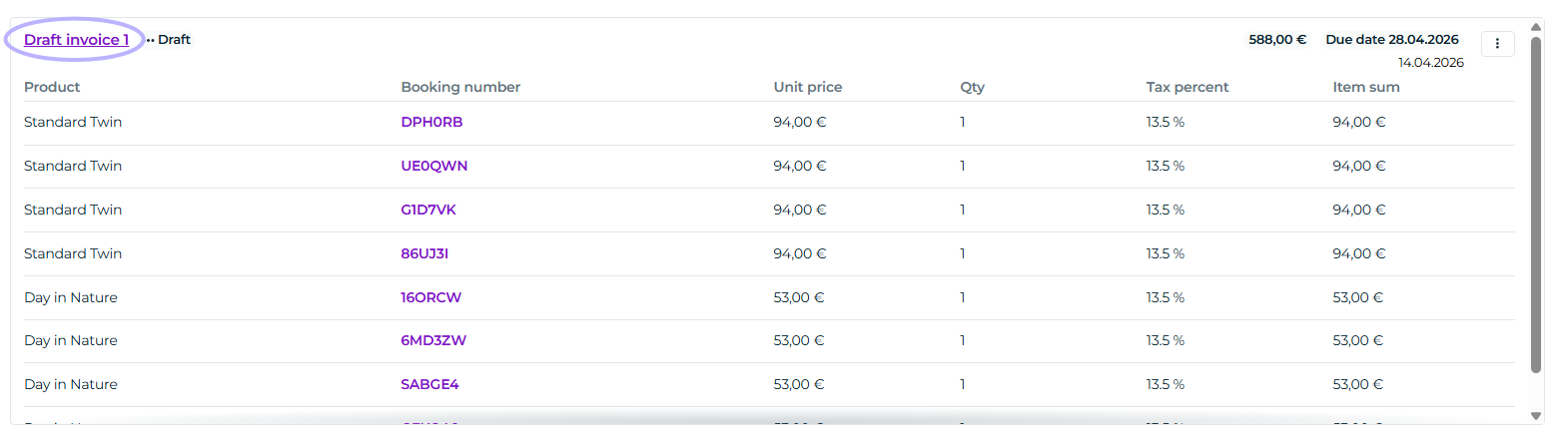
The products will be added to the first invoice draft:
Let's select the rest of the products to another draft:
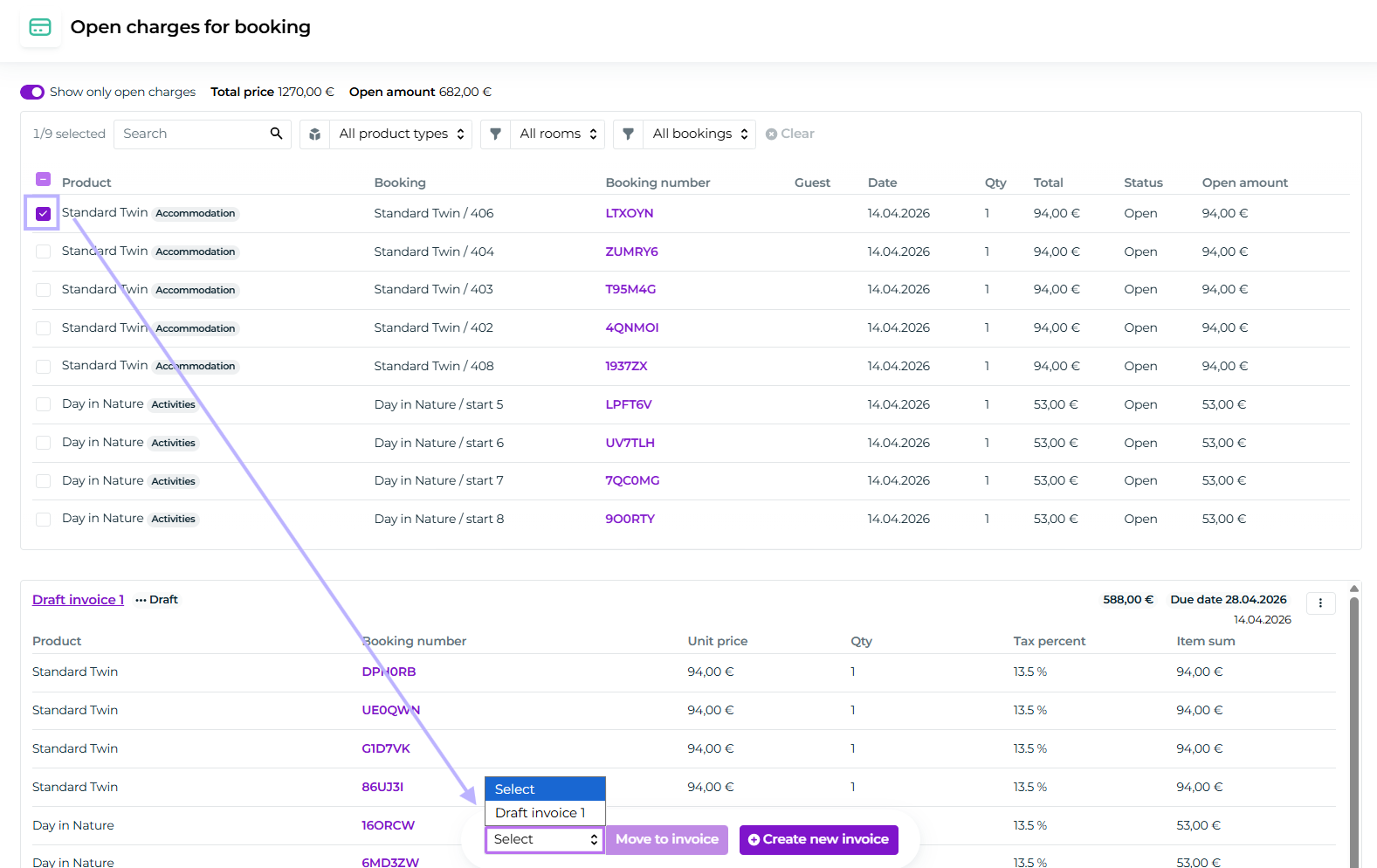
Or alternatively, we can move to an existing draft:
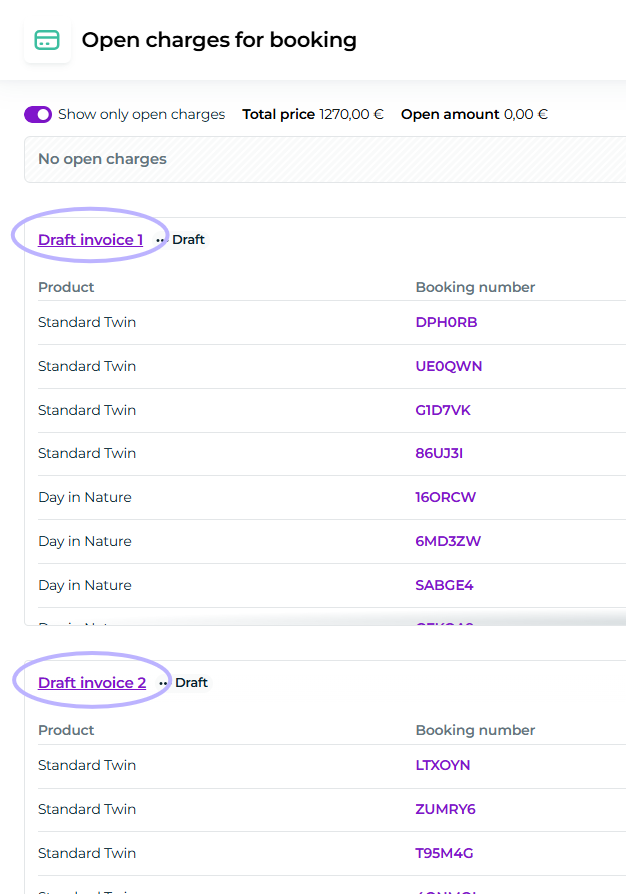
Now we have two drafts. You can navigate to the invoices itself by clicking the Draft invoice title:
Save and send the invoices as normal.
PDF invoices
In Moder, it is also possible to send "old school" pdf-invoices.
Click the invoice draft open for editing by pressing Edit.
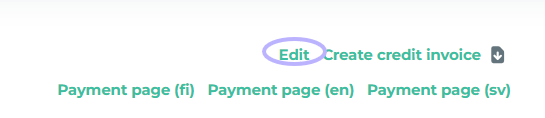
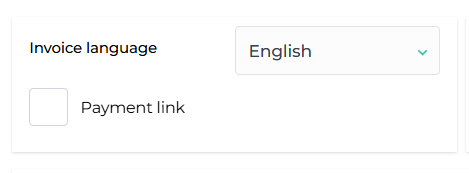
Remove the check from the field Payment link. Check the invoice details and edit if necessary. Press Save and then Send the invoice by email.
Marking a PDF invoice as paid
Please note that for PDF invoices you must manually mark the invoice as paid in Moder when the traveler has made a payment to your account. Also ensure that you have entered the bank details into Moder Settings > Company before sending PDF invoices. Moder will automatically retrieve the bank details for the invoice then.
When the traveler has paid the invoice to your bank account, manually make a payment entry in Moder:
- open the invoice either Invoices through the Invoices section or by going to the traveler's reservation
- press the button Mark as paid
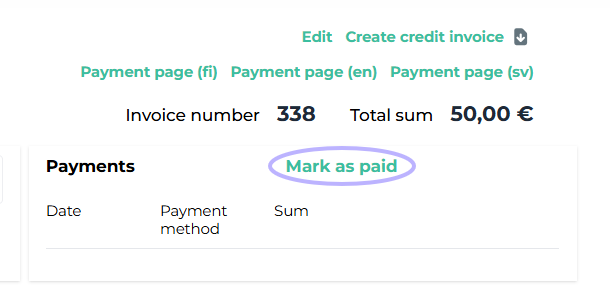
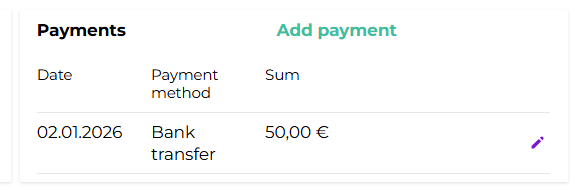
Payment note will appear on the invoice. You can edit or delete the payment note via the pencil icon on the right side. If the invoice is tied to a specific reservation and the invoice amount equals the reservation's total amount, Moder will also mark that reservation as paid.