Accommodation: pricing
Last updated: April 23, 2026
In the Moder Pricing section, pricing for all properties is managed. This support article focuses on accommodation pricing.
In the Pricing section you can set specific base prices for each room type and property, and create pricing rules for dates that deviate from the base prices.
Base Price
For a room type to be bookable from the web store or sales channel, it must be assigned a base price.
You can build the base price by clicking open "Pricing" -> Plus icon at the defect type where you want to build the price first.
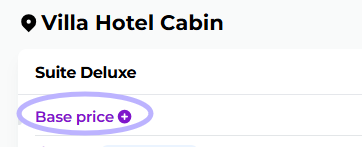
Example of building base pricing
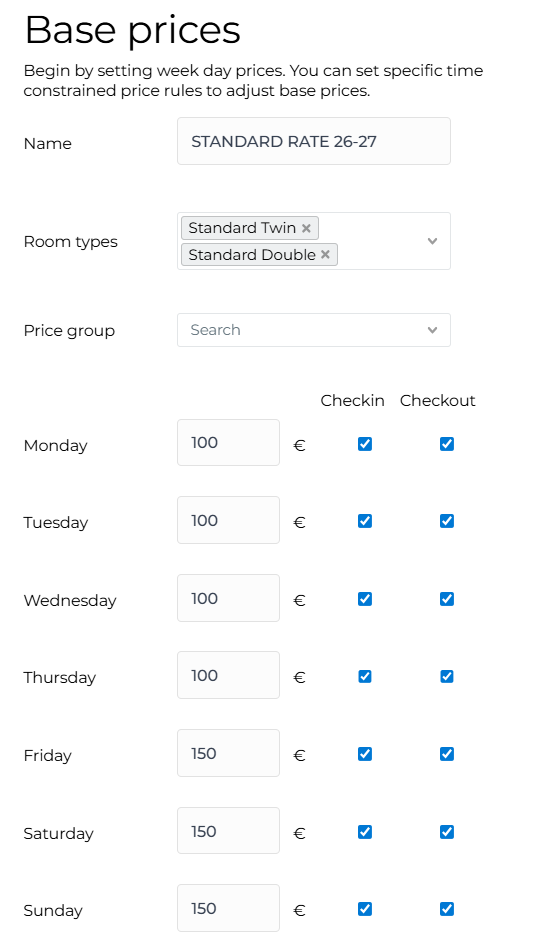
In this example, the room types Standard and Standard Double have been assigned the base rate period Standard Rate, which does not belong to any internally used price group and is a public price that appears in the online shop.
The daily price is set to 100 euros, except for Friday, Saturday, and Sunday, when the prices are 50% higher. Additionally, the example restricts the check‑in possibility on Sundays, meaning the traveler cannot make a reservation whose check‑in day is Sunday.
The base price includes 2 persons and the extra charge for an additional person or persons is €30 per person per reservation. The extra charge can also be set to be billed per night (you can make the selection from a dropdown).
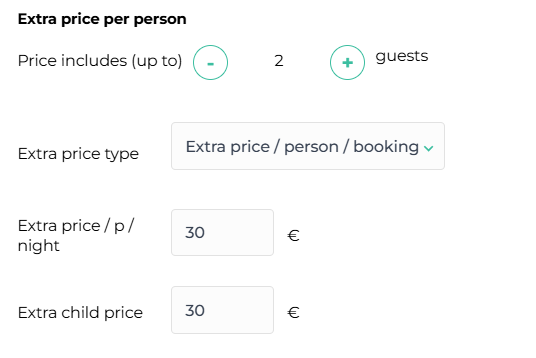
In addition to the persons included in the price, you can also set a separate extra charge for children. This will be visible when customers book rooms in your online store, and the child will also be counted towards the maximum occupancy of your property.
NOTE! Child pricing does not yet transfer to external sales channels.
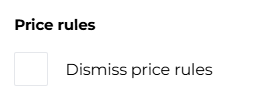
From the following section you can select whether to apply price rules to the base price:
Price periods and price changes
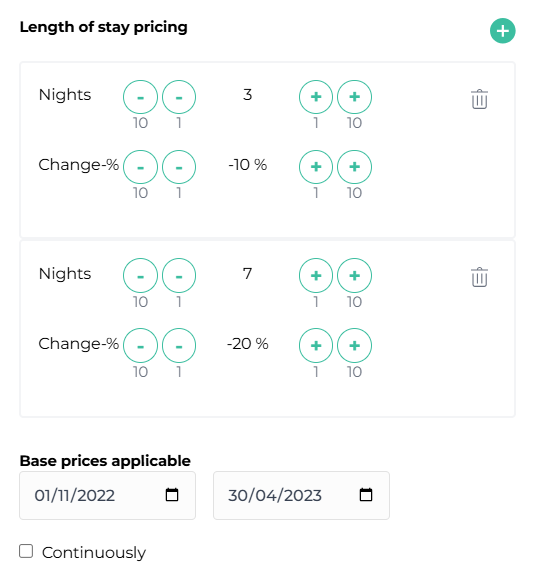
In our example, the "Standard Rate" base pricing is set so that the traveler receives a 10% discount on the price if they stay at least three nights. If the traveler stays seven nights or more, they receive a 20% discount on the price. Price changes can be added from the plus icon as many as desired.
It is important to note that although external sales channels read Moder's pricing, the price changes set in the base pricing according to the reservation length are not directly transmitted to the sales channels (Booking.com, Expedia, Airbnb etc.). They need to be set separately for each sales channel in the channel management if desired.
This base price period is set to be valid from 1.11.22 - 30.4.23. In Moder you can also use continuous pricing (place a tick in the option "Continuously"). On top of the continuously valid base pricing, you can build other base prices that override the continuous pricing during the period they are set to be valid. For example, you can create a continuous base pricing and another base pricing that is set to be valid from 1.6.-31.8.2023. Then the item has the continuously valid base pricing, but during the period 1.6.-31.8.2023 another base pricing you have built for that time is valid.
Our example room type can be booked for a minimum of one night, and the maximum number of days is not really defined (a maximum reservation time must be set to some number, but if the reservation duration is not actually limited, you can, for example, put 100 here).
The room type can be booked zero days before the reservation, meaning same-day bookings are allowed. It is important to note that allowing same-day reservations means the traveler can book the room at 24:00 and still arrive for that night. This practice generally works well for hotels with 24-hour front desk service. If same-day bookings are not desired, but a reservation can still be made for the next day, the day should be set to one, etc.
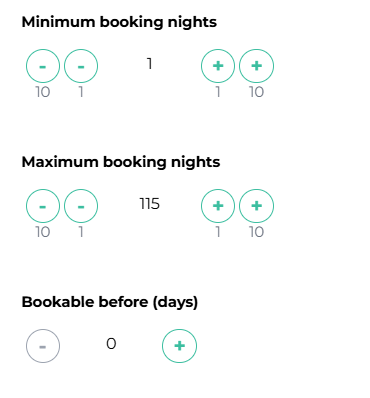
If you don't want to allow same day bookings, please add a number 1 or more to "Bookable before (days)."
"Pricing additonal info display text" -in the section you can optionally add text that will appear on the main page of the online store above the room type price. Remember to also add translations for the price additional information text in other languages if your online store is built for multiple languages.
"Use starting price text" -from the section you can optionally add a starting price for the room type. Then on the online store's front page, in the item's details, the starting price text you set will be displayed instead of the calculated daily price for the room type.
Partial payment
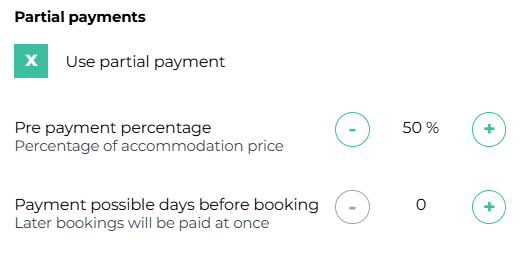
The partial payment feature allows that, at the time of reservation, the customer is charged only a certain portion as a so‑called advance payment. You can define how much the customer needs to pay before the reservation arrival date, whether the final invoice is to be paid then, or whether the total amount is charged only on site (see the example below).
In this case, the system directs the customer to pay the desired advance payment immediately at the time of booking. After making the advance payment, the customer receives a reservation confirmation and the final invoice (Paytrail payment link) in their email, whose due date depends on the rule you have set ("Payment possible days before"). When the customer pays the final invoice using the Paytrail payment link, the entire reservation is automatically marked as paid in Moderiin, as always when using the Paytrail payment link.
In this example the customer pays 30% of the accommodation price at the time of booking. The final amount must be paid by the customer no later than 7 days before arrival. Please note that the advance payment only covers the accommodation portion; additional services (whether included in the accommodation or charged extra) are still billed to the customer immediately at the time of booking.
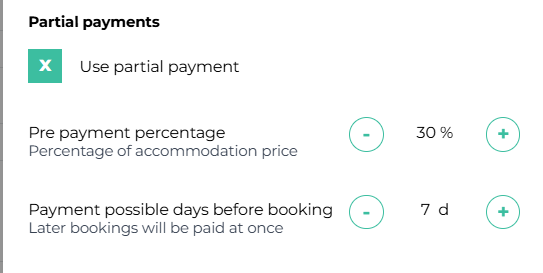
You can also set it so that the customer only has to pay a specified advance payment before arrival, and the remaining amount is charged on-site to the customer. In this case, leave "Payment possible days before" -item unfilled. In the example below, the customer is charged 50% of the accommodation portion (plus all additional services) at the time of booking, but the customer pays the remaining amount only on-site.
Pay at property
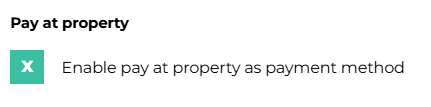
Customers can also pay for their purchase at your property. When this setting is enabled, the "Pay at property" option appears at the bottom of the customer's payment method step, allowing the reservation to be completed without payment.
NOTE! The "Pay at property" setting cannot be enabled at the same time as using the prepayment function.
Derived pricing
Enhance your pricing with derived base rates! You can define a single base rate, from which you can easily create base rates for other room types by derivation.
You can also specify the amount in euros by which the derived price differs from the main price.
Example: increasing price with a derived price
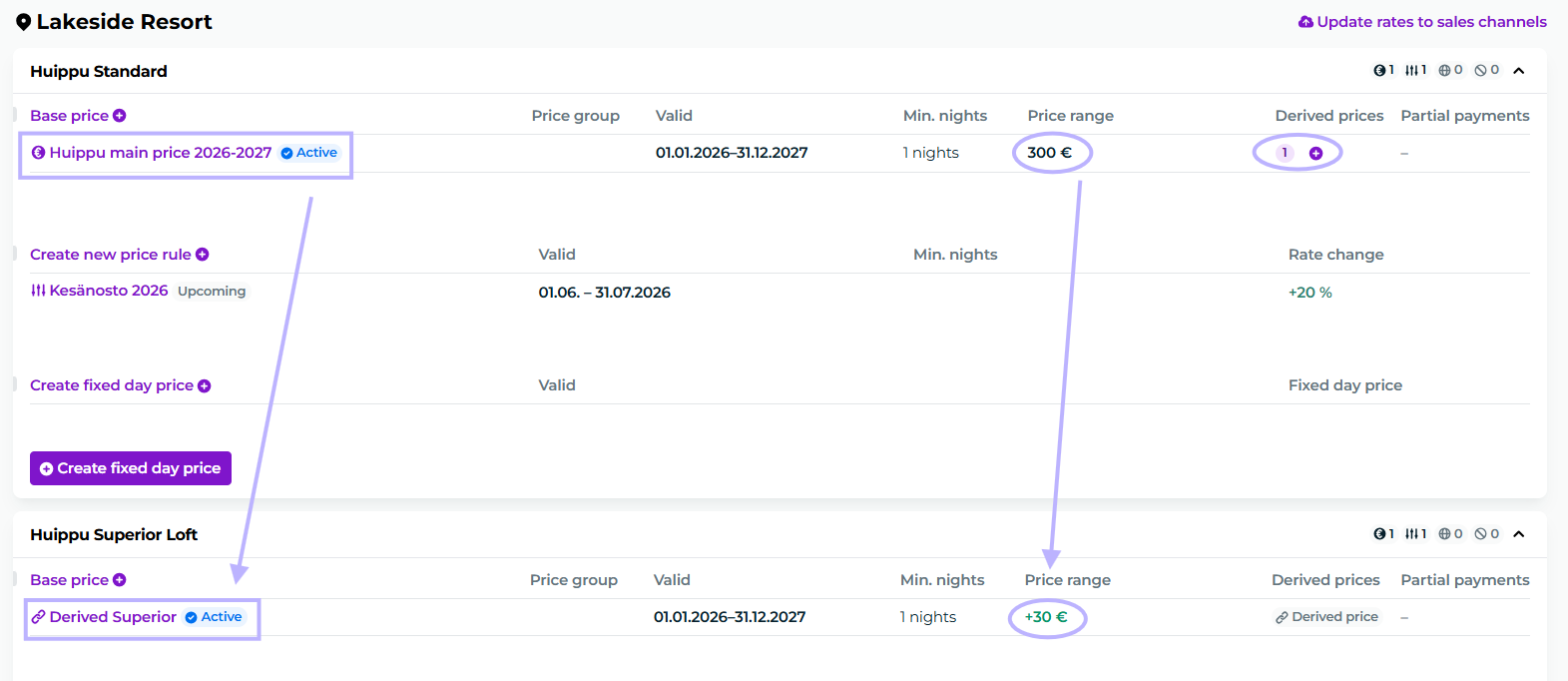
The base price in this example is created for the room type Huippu Standard, from which the room type Huippu Superior Loft is further derived with a price €30 higher:
Let's see how it's done!
When the main price has been created as a normal base price, you can start deriving a new price from it by the plus sign:

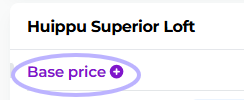
Or alternatively by starting to make a new base price:
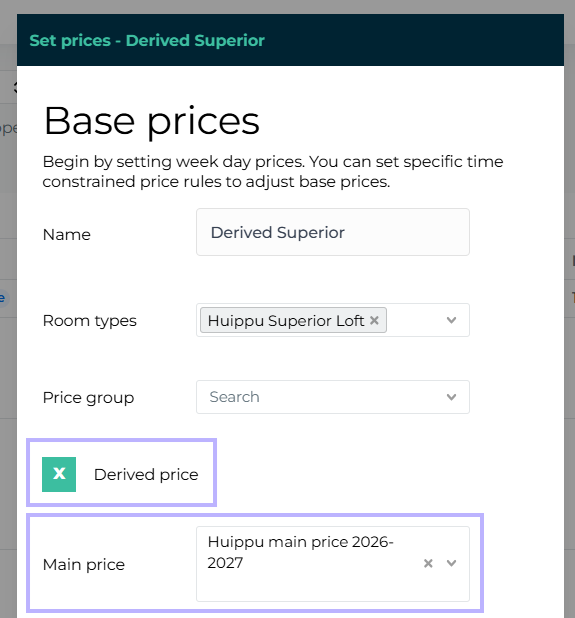
In the new window, check the box for Derived price
Select main price, as in the price from which we will derive the pricing:
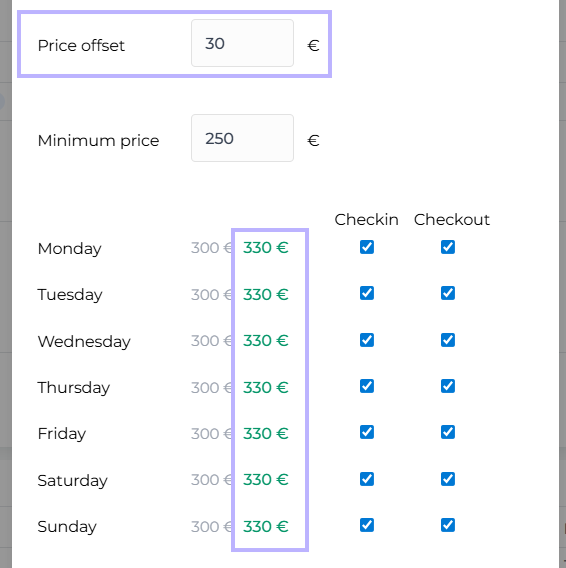
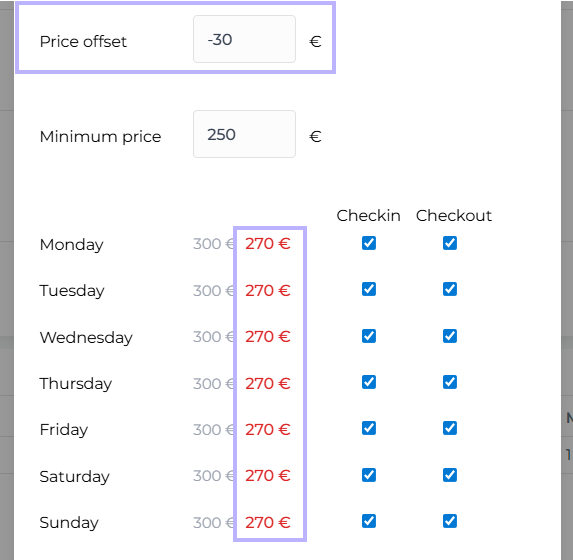
In Price offset you can add the monetary value for how much the derived pricing will be different from the main price. The number can be positive or negative. In this example, we will increase the price by 30€, so we will leave it positive:
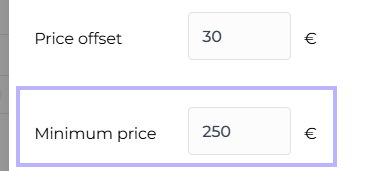
Minimum price decides the absolute minimum price. Even with price rules, you cannot add a price lower than the minimum price. Minimum price is mandatory.
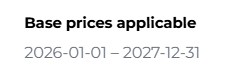
Otherwise the new derived price will be set the same way as other base pricing. The base prices applicable comes from the main price, so that cannot be changed:
Example: decreasing price with a derived price
Decreasing the price with a derived price happens the exact same way as increasing the price, but a minus-sign will be added to the amount so the system knows the change is negative:
Example: price rule and derived pricing at the same time
In case you also have price rules in place on top of derived prices, the price will be calculated in the following order:
Main price
Price rules
Derived price changes
In this example, Huippu Superior Loft has a derived pricing as a base price, and also a price rule for increasing the price for summer:

The calculation formula is therefore formed from the base price, then the price rule, and only after that the derived price difference of −€30 is subtracted.
Base price €300 × pricing rule +20% = €360, from which the derived price difference −€30 is subtracted = €330.
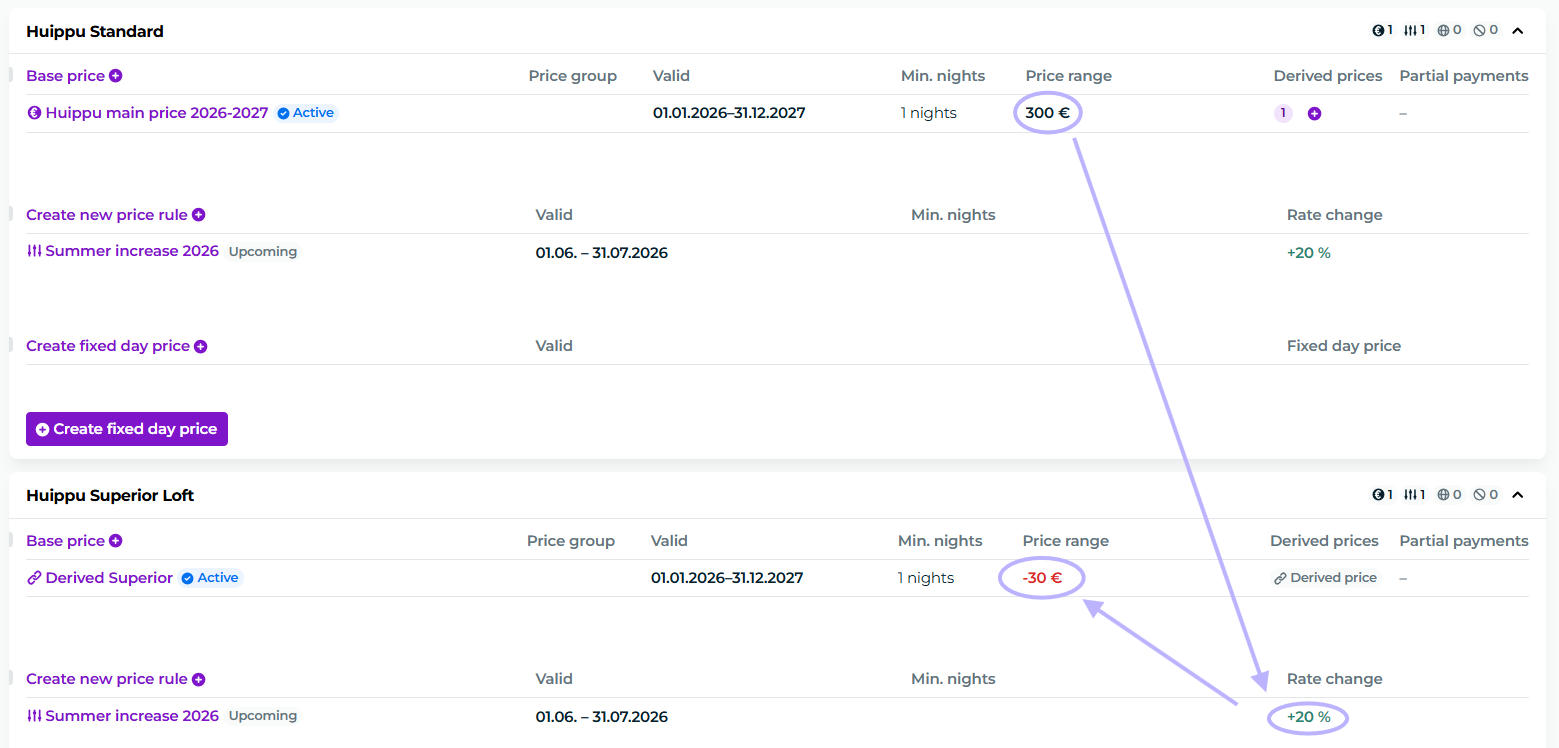
The final price in this example is €330 for the period 1 June – 31 July 2026, at the room type Huippu Superior Loft.
Notes for derived pricing
Prices can only be derived for accommodation products that are bookable overnight. Derived prices cannot be created for activities, i.e., products that are booked on an hourly basis.
Pricing rules can still be set per room type, meaning that different pricing rules can apply to the main base price and the derived base price.
If you delete the main base price, the price derived from it will also be deleted.
The minimum price defines the absolute lowest price that can be set. A lower price cannot be applied even through pricing rules.
The exception is the fixed day price, which allows you to set a price for a single day that is even lower than the minimum price.
Price Rules
With price rules you can easily manage price increases and discounts depending on the season. From here you can also quickly make last‑minute changes to prices. Pricing rules raise or lower the set base prices always by percents. Specific euro‑amount discounts or increases are therefore not possible through this, as the price always changes based on a percentage calculation.
You can set a new pricing rule by clicking "Price Rules" the plus icon. A pricing rule can be set to apply at once to multiple or all properties.
Pricing rules are passed directly from Moder to the various sales channels (Booking.com, Expedia, Airbnb, etc.).
Next, let's examine the use of pricing rules with examples.
Example 1: Price increase for a specific period
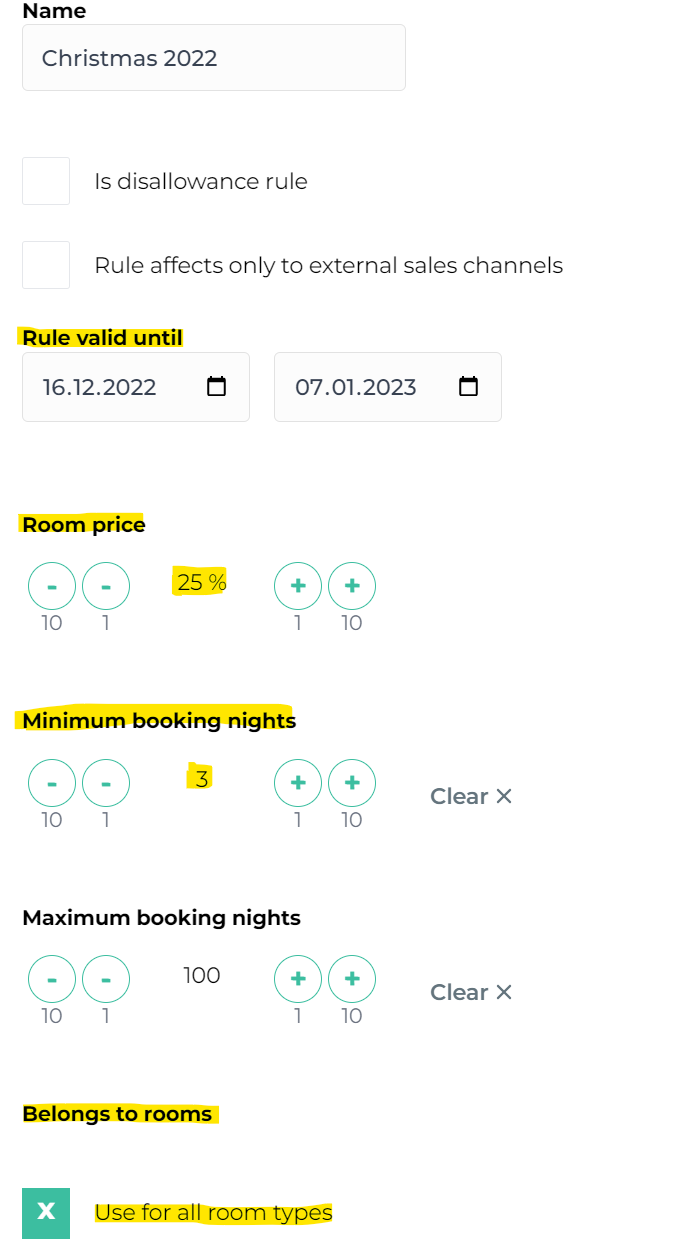
In this example, the daily base prices for the Christmas period have been increased by 25% for the period 16.12.22-7.1.2023. Thus, if the base price for this period is set at 100 euros, the price during this period is 125 euros.
The same period has been set with a minimum rental period of three days, meaning the traveler cannot make reservations shorter than that for the period 16.12.22-7.1.2023. The property does not have an actual maximum rental period (a maximum reservation period must be assigned some number, but if no actual maximum reservation period is set, you can put, for example, 100 nights or another similarly large number). The rule applies to all accommodation properties.
Example 2: Offer price for quiet period
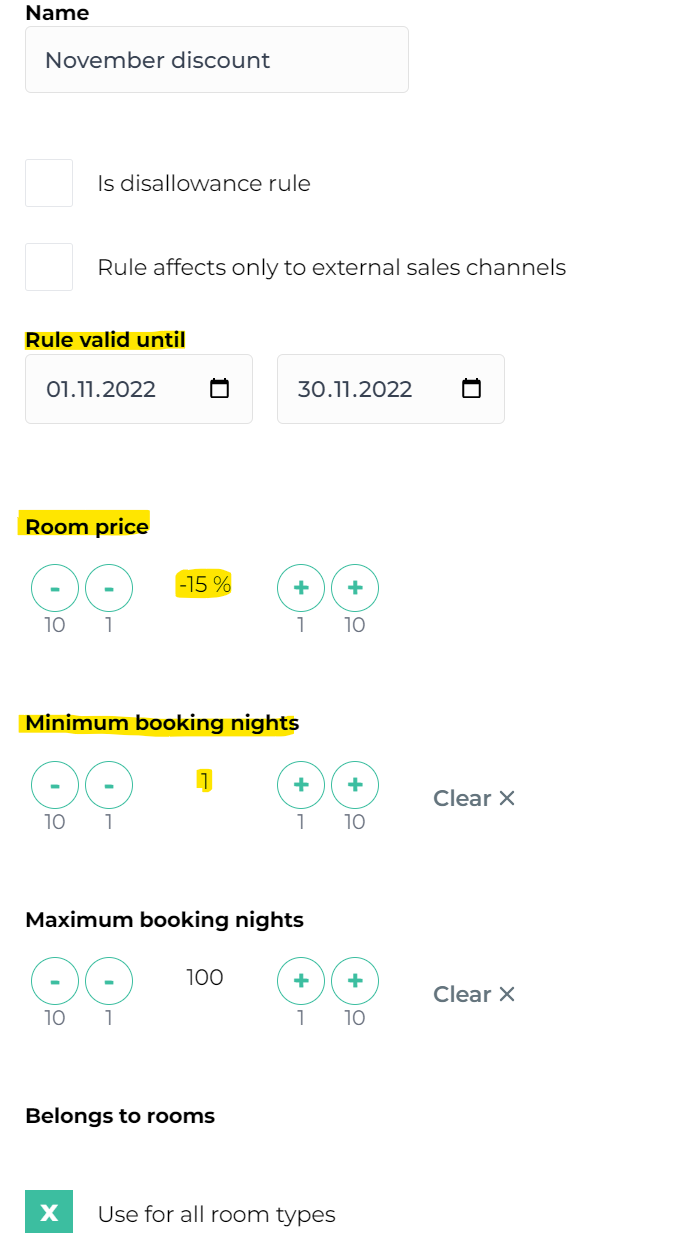
In this example, prices for the off-season, November, have been reduced by 15% compared to the base prices. If the base price for that period is 100 euros, the room price in November is 85 euros according to this pricing rule. The minimum reservation period is one day.
Example 3: Price Increase in External Sales Channels
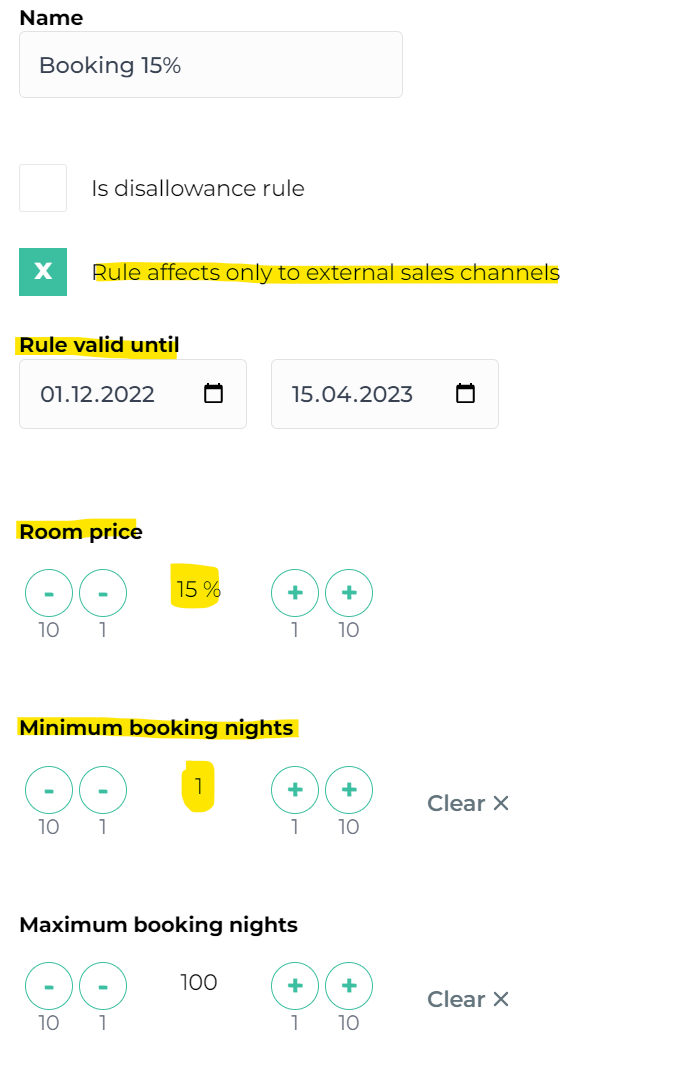
In this example, we want to raise the prices for external sales channels by 15% compared to base prices. Since the rule has the clause "The rule applies only to external sales channels", the increased price therefore updates only for external sales channels. From your own online store, a traveler can still book the room at the normal base price. This price rule is set to be effective for the fictional winter season, i.e., 1.12.22-15-4-2022.
Example 4: Blocking rule, i.e., reservation blocking for a specific time period
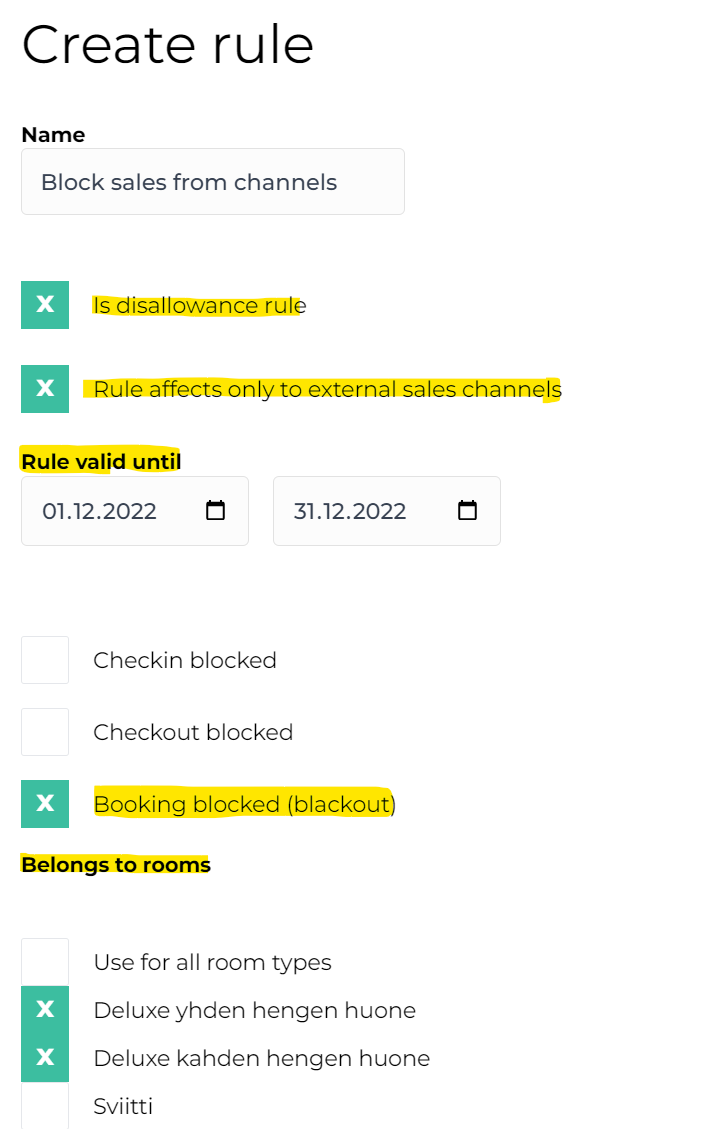
Through the price rule you can also create a so‑called blocking rule, i.e., block a certain date or a certain room type from the online store or only from external sales channels for a specific period.
In this example, deluxe 1hh and deluxe 2hh are blocked from external sales channels for the period 1.12.-31.12.22. Therefore, the traveler cannot book these room types via booking.com for that period. However, from your own online store, the traveler can make a reservation according to availability (because the rule is intended to apply only to external sales channels). If these room types were to be blocked entirely from being booked also from your own online store, the rule should have the checkbox removed from the "Rule applies only to external sales channels" option. Then the rule will also prevent reservations for these room types from the own online store.
The restriction rule can also be set to apply only, for example, to check-in or check-out operations.
Special notes on sales channel pricing
Pricing set in Moder is transferred directly from Beds24 to external sales channels (Booking.com, Expedia, Airbnb, etc.) with few exceptions:
Basic pricing changes made price changes based on reservation length are not transmitted to sales channels, but they must be set separately in each sales channel's own channel management if desired. An exception is Airbnb, for which we can in some cases set the desired price changes directly from the Beds24 account.
For sales channels, the extra guest pricing must always be set in Beds24 per night; per reservation pricing is not possible (in Moder's own online shop you can set extra‑guest pricing per reservation)
It is advisable to set the extra guest price the same for each pricing period, because Beds24 transmits to sales channels the extra guest price that has been set in Moder for that specific day. For example, if in the base pricing you have set the extra guest price to €30/night for June, but for December you have set it to €60/night, the traveler will pay an extra €30/night for all bookings made in June. For bookings made in December, they will instead pay €60/night, even if a December booking occurs only in the summer.
Please note that if you have allowed, for example, promotions that enable discounted prices in Booking.com's extranet, they can override Moder's prices and pricing rules (for example, the minimum stay requirement may be removed).
Remember, when updating prices or price rules, click the button "Update prices to sales channels" at the top of the Pricing section.
In this case, price rules and price changes will also be updated to external sales channels immediately (with a delay of a few minutes). Otherwise, prices will be updated to the sales channels during the next night.
Coupons
You can create various discount codes in Moder, which give the user either a percentage or a fixed amount discount on the accommodation price. You can also set a fixed price per night with a discount code.
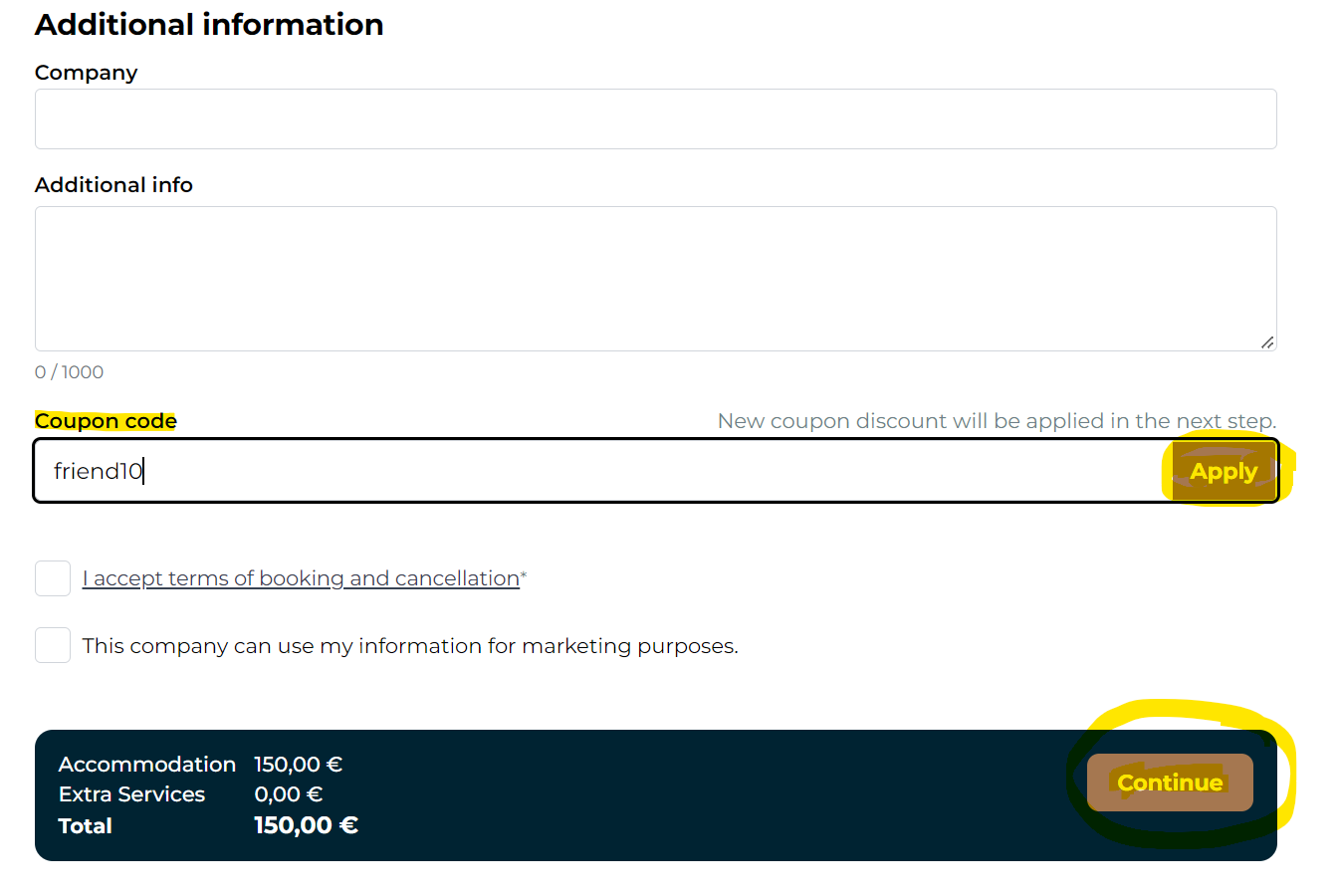
Discount codes can be used normally when booking from the online store. You can enter the code "Reservation details" -page. Enter the code you received and press "Use". The system will tell you whether the code is valid. Then press "Continue", and the new price will be calculated with the discount on the next page.
You can add a new discount code from the top right corner "Create new" through the button. You can give the discount code any name you want (the name may contain letters and numbers).
After that, you can specify whether the code provides a percentage discount, a fixed euro amount discount, or whether the code can be used to book an accommodation night at a specific price. You can also specify that the code can be used only if the booking is made with a certain email address (if the code is intended to be given to only one specific person). Only one email address can be added per code.
If you want the code to be available to everyone or not limited to a specific person, leave the email field empty.
Additionally, you can specify whether the code is valid indefinitely or set a validity period for the code.
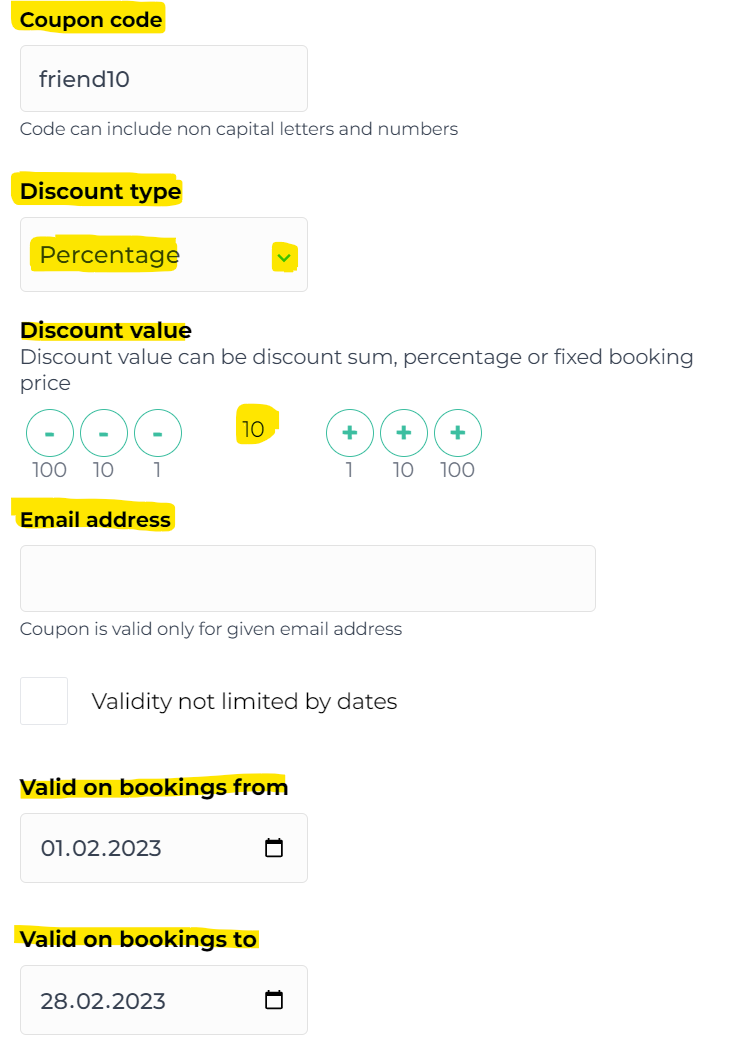
In the example below, it is defined that the code "kamu10" gives a 10% discount on overnight stays that occur during January 2023. No specific email address is set for the example code, so it could be shared, for instance, with a newsletter.
You can also specify whether the discount code applies to all rooms and room types or only to certain room types/rooms.
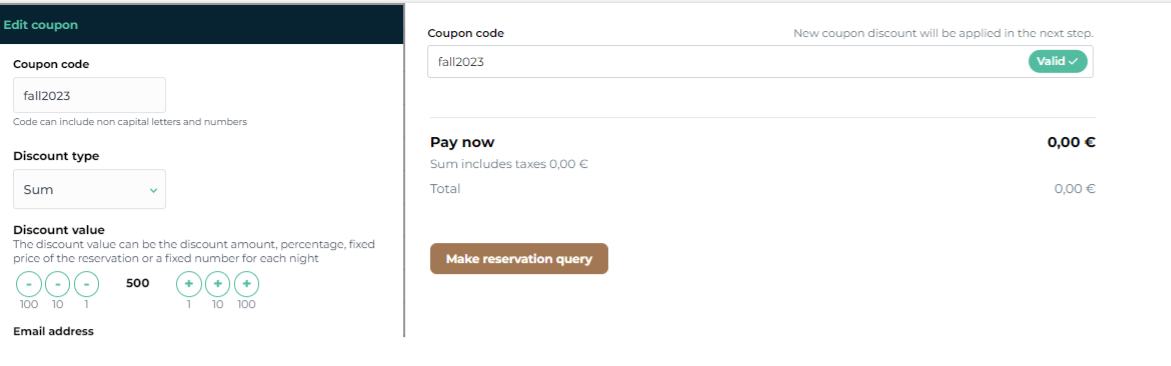
Please note that if you create a discount code that covers the entire accommodation price and the customer uses it when booking, the order will automatically become a reservation request, because the system cannot process a so-called €0 payment.
Discount codes and additional services
It is often asked whether a discount code also gives a discount on additional services. The discount code currently does not give a discount on such additional services that are defined as included in the accommodation price – the discount code always primarily reduces the discount only on the accommodation portion.
No discount is given for paid additional services that the customer may optionally add to the reservation.
Price groups

With the price groups tool you can easily create, for example, net price groups for travel agencies and tour operators, or other price groups suitable for internal use. You can also display a certain price group as the default in the reservation calendar. This is how it works:
1. Create price group
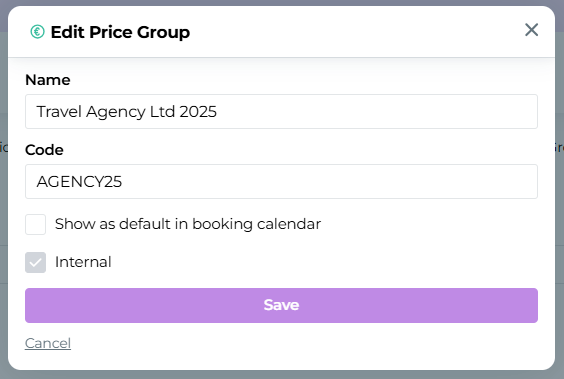
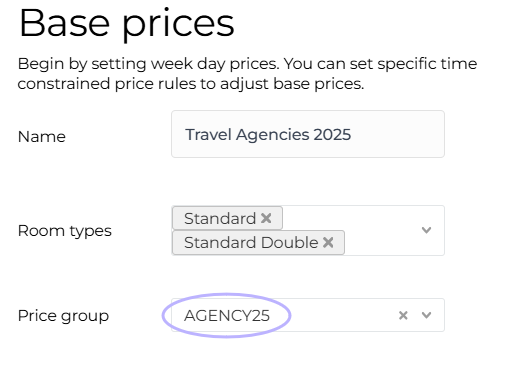
2. After this, base prices can be created, to which the newly created price groups are attached:

Attaching a price group in a base price:
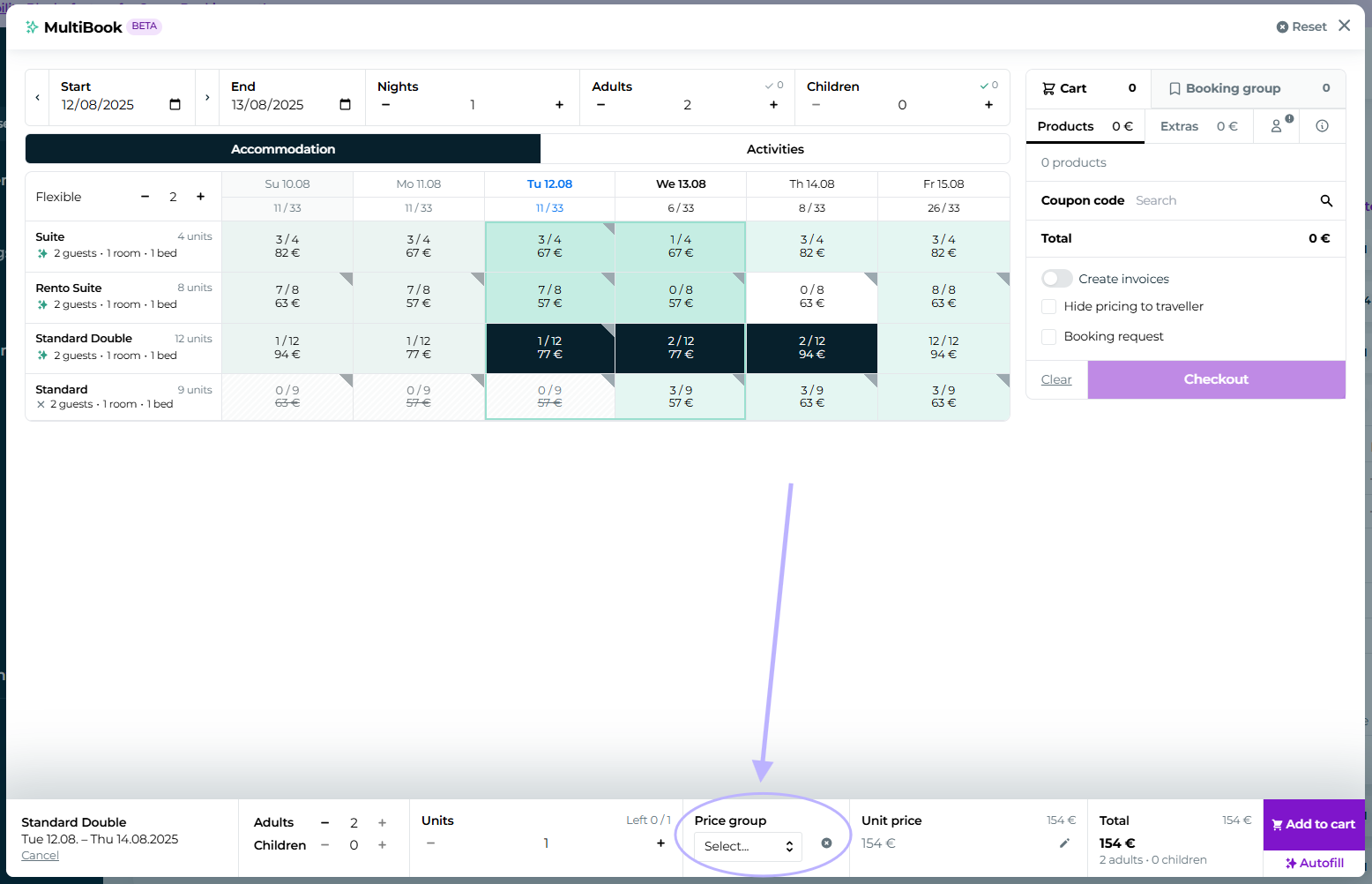
How exactly do you use the price group with a reservation?
Open Multibook
Select the reservation dates, number of people and units
Select price group
Add to cart
Add customer information & checkout
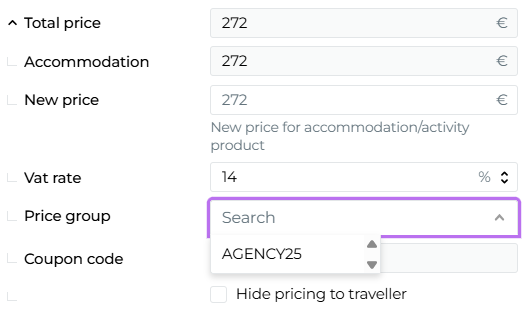
You can also add a price group later to an existing reservation by opening the total price reservation in edit mode: