Settings - Moder's Foundation
Last updated: September 7, 2026
In the Settings section, you can edit company and property information, add and remove users, and add integrations. The Settings section is also where you enter Paytrail or Stripe credentials.
Company Information
On the Company page you can fill in the company's basic information:
Name
Business ID
Website address
Address details
Phone number
Email
From here, the information appears directly, among other places, on the lower part of your online store's home page, on the invoices created for your company in Moder, and, for example, in the GuestApp application used by your customers.
Adding bank details is essential, because this information is automatically transferred to manual invoices that are sent to travelers.
Next invoice/order sequential number-section can add accounting work to ease the first invoice number of invoicing starting from Moder, if there are many existing invoices. Note! The number needs to be 101 or longer.
Payment term-field defaults to 14 days. If your company uses a payment term different from this, please remember to change it.
In the Root user field the email address will appear in the following places:
Online store
For travelers departing invoices
Reservation confirmations

Users
Users-section lets you manage Moder's users and their permissions. You can add a new user from the top right corner "Add user"-button. The window below will open for you:
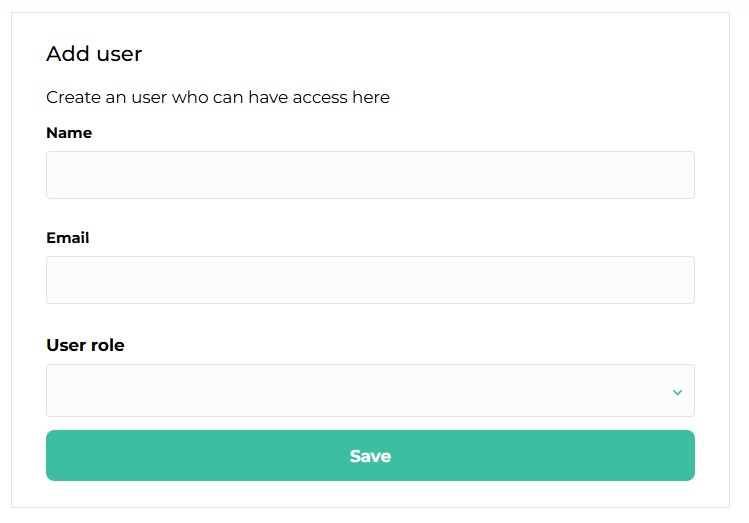
After you have created and saved the new user, Moder will automatically send an email to the specified address prompting the user to set their password.
If the email does not appear in the inbox, please also check the spam folder.
Please note that a password creation link sent from the add new user section only works for 60 minutes. In case the user has not added a password within that timeframe, please advice them to go to app.moder.fi/login and order a new one by the "Forgot your password?" link.
User roles in Moder
There are currently five user groups, each with different permissions in Moder:
1. Administrator has administrator rights as the name suggests and can see all sections of Moder and can make edits in all sections.
2. Front Desk - the user (values.frontdesk) still has all operation‑critical functions available, but does not have access to the following sections or settings:
Pricing
Settings
Products and services
Customers and scheduled messages
3. Cleaning -the user has rights to see only the Operations Management section, which is an essential area for the cleaner's work. The user does not see customer names, reservation prices, nor can they open the reservation preview window.
4. Key Service -the user can also view the Reservation List in addition to the Operations Management section.
The user can see customers' names, but not the price of reservations. The user can open a reservation preview window where, among other things, the reservation's additional services are visible, and can check the customer in and out.
5. Room/unit Owner -user pertains to our customers who do brokerage sales. The user sees, in the brokerage sales feature, the booking status of accommodation properties assigned to their user ID as well as the reservations they have made themselves. The user sees the prices of reservations, but not the customers' names due to GDPR regulations. The user also sees the brokerage sales report for their own properties.
Integrations
Integrations-section manages Moder's various integrations towards sales channels, Paytrail and Stripe, and various locking systems. Beds24 is our integration channel for sales channels and this is primarily managed through Moder.
Contact our support if you wish to open any integration.
Paytrail
For activating payment processing, it is essential to enter your own merchant IDs Paytrail-tab. If you do not yet have Paytrail credentials, we can order them for you via Moder, after which you can enter the credentials yourself into Moder. If you already have Paytrail credentials, please contact Paytrail's customer support (asiakaspalvelu@paytrail.com) and request that we transfer the credentials to the Moder Oy account at Moder's contractual price.
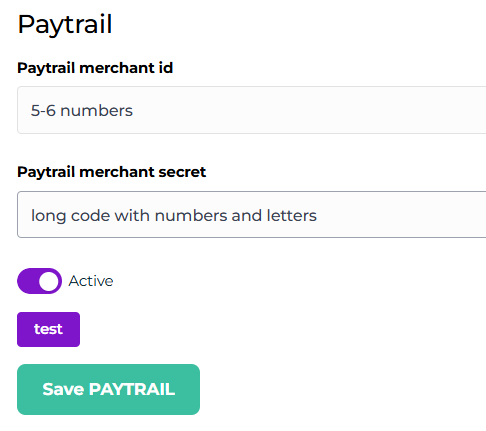
Please note that if you only click the "test" button and receive an OK receipt, it does not mean that Paytrail is still operational. In other words, the Paytrail agreement must be signed, and the connection must also be opened on Paytrail's side.
Stripe
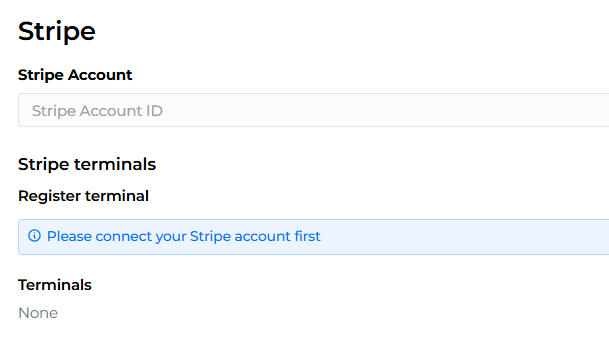
If you want to enable Stripe, please contact our customer service (support@moder.fi) and we will provide you with a link through which you can create an account. When you see in Stripe that the account is ready, go to the Moder settings and integrations section to enter the Stripe Account ID. If you already have Stripe in use on another online store, that account ID cannot be added to Moder.
If you don't have a payment terminal from Stripe, it is not necessary to add terminal registration.
My Account
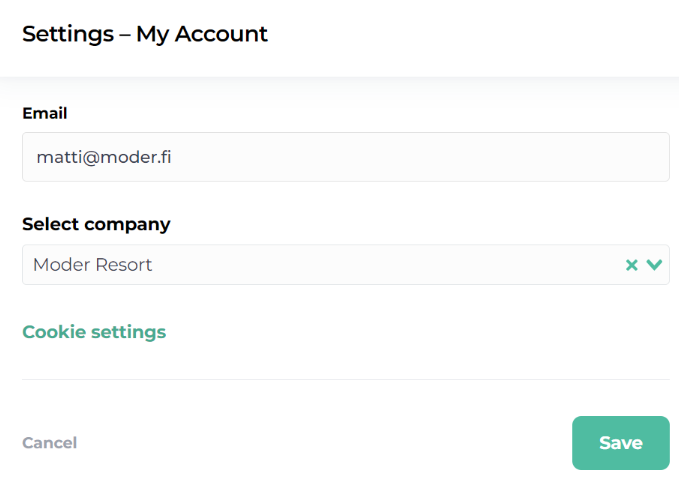
From here you can view your user ID and switch from one company to another, if you have access to multiple companies in Moder.
Switching the company is done from the dropdown Select company- section.
Click the dropdown, select the desired company and press Save.
Support button
Through the support button you can go directly to Moder's support site, where you’ll find many comprehensive guides for operating Moder.
Languages
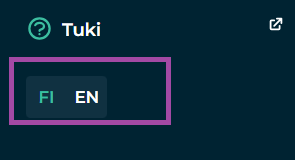
From here you can choose the language you want to operate Moder in. The language options currently are Finnish and English. The language can be changed as needed at any time. This language selection does not affect the language in which travelers see your company's online store.