Moder - UKK
Last updated: December 16, 2025
This page has compiled the most common questions about Moder and its use.
General
Where can I find Moder's support articles and videos?
You will find comprehensive written instructions and videos about Moder from the address support.moder.fi. You do not need to log into the site, but you can use the site's search tool (\"Enter the search term here...\") or by scrolling down and clicking \"View all articles\" you can expand all support article titles at once.
Can Moder be used, for example, on a phone?
Moder can be used on smartphones, tablets, and computers. The end‑customer‑oriented web store works on all common browsers and devices.
Which browsers are recommended for using Moder?
Moder works best with an updated Google Chrome or Firefox. On other browsers, there may be anomalies when using certain features (e.g., reports), so we strongly recommend using Moder with either Chrome or Firefox. The end‑customer oriented web store works with the most common browsers.
How do I log into Moder?
Log in to Moderi at https://app.moder.fi/login. More detailed login instructions can be found in this video if needed: https://youtu.be/QA_whlQLfsY.
What are Moder's customer support contact details and opening hours?
Moder support (Mon-Fri 9 - 16)
+358 50 375 0747
Urgent support requests in the evenings and on weekends
+358 50 346 9441
What kind of images should be added to Moder? How many images can I add and what is the maximum image size?
Primarily horizontal images should be added to Moder, because vertical images often have too much information cut off from both the top and bottom edges. The maximum size for a single image is 10 MB. The number of images is not limited.
Settings
How do I add Moder's online store to our website?
You can retrieve the widget, i.e., the embed code from Moder by going to Webshop --> Widgets. If embedding the widget on your website is challenging (for example, it doesn't fit properly on the site), you can also use the online store's URL and embed it as, for example, a "Book from here" button. You can find your online store's URL by going to Products ---> click the "Webshop" word at the desired property. The online store will open in a new tab, from which you can copy the URL.
How do I add reservation terms & conditions to Moder?
Terms of reservation are added from Webshop --> Terms of booking. They must be in PDF format. If you need assistance in drafting the terms of reservation, we can, upon request, send you a sample template of the terms of reservation.
Where do I add the Paytrail merchant ID and merchant secret in Moder?
Merchant ID and merchant secret are added in Settings → Integrations → Payment integrations. You can test the credentials directly from your online store. If the credentials are not functioning and you have signed the agreement, please contact Paytrail customer support.
Pricing
How do I block a product from sale?
A product can be removed from sale either by creating a price rule (disallowance rule), or by creating an out‑of‑order reservation for the room/cabin.
Can I set different prices for external sales channels than for my own online store?
In Moder it is possible to set price rules that apply only to external sales channels. In this case you can raise or lower the prices that go to external sales channels proportionally. You will find more detailed instructions on this short video: https://youtu.be/ORgEyx7MsYE.
Please note that this pricing rule feature does not apply to Mökkivuokra (Cottagerentalfindland.fi), because Mökkivuokra always uses the same prices as your own online store.
Bookings
How do I create a new reservation in Moder?
You can create a new reservation in Moder using the MultiBook tool, which you can open from the bookings calendar. The MultiBook tool is especially convenient when you need to book multiple services at once (for example, both accommodation and activity products). You can also create an individual accommodation reservation directly from the reservation calendar (https://youtu.be/TBo6ILZVXuA).
How do I send a reservation confirmation from Moder?
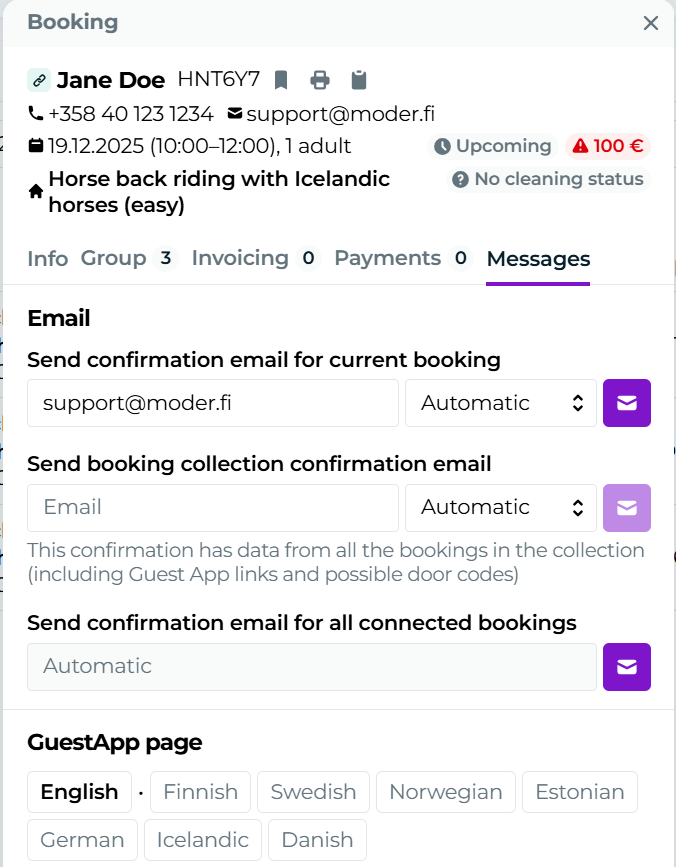
Open the reservation and go to the Messages tab to send the confirmation. You can send by pressing the button for the reservation confirmation in the language you prefer. If multiple reservations are linked together (for example, the traveler has both accommodation and activities booked at the same time), you can choose whether to send the confirmation only for the reservation you are currently on, or to send a combined confirmation for all linked reservations.
How do I edit reservation dates or duration?
Editing dates is demonstrated in this video: https://youtu.be/9pdi6c8heqc.
Invoices and payments
How do I issue a refund and credit note?
If the traveler has paid with Paytrail or Stripe, the refund must be made from the Paytrail/Stripe merchant portal. In Moder, it is also advisable to create a credit note after the refund so that the refund appears in the reports. You will find more detailed instructions for creating a credit note here: https://youtu.be/imO9vSDyM50.
The traveler tries to book accommodation from the online store, but the card payment does not go through. What is the issue?
Most often the question is that the payer's bank declines the payment. It may be that the card has insufficient funds or that restrictions have been set on the card regarding what amounts can be paid from an online store. The traveler can be instructed to check the card's payment settings and limits in their online banking. You can also call directly Paytrail's customer service, from which the customer service representative can tell you more precisely the reason for the payment rejection (please tell them the amount, the payer's name, and the time when the payment was attempted). Please note that we at Moder cannot check payments or tell the reason for their rejection. This can only be done by Paytrail, which is responsible for the online store's payment features.
Where can I add payment methods to the online store? E.g., Amex?
You can manage payment methods directly from Paytrail's merchant portal.
When does a Paytrail or Stripe payment link expire?
A Paytrail/Stripe payment link sent via Moder does not expire.
Sales channels and integrations
We want to connect Booking.com, Airbnb, or Expedia to Moder. How do I proceed?
You can find detailed instructions for Booking.com here:
📄 Booking.com: miten saamme yhdistettyä Moderiin?
Airbnb: here:
📄 Airbnb: how do we connect to Moder?
For Expedia here:
📄 Expedia: how do we connect to Moder?
Where do sales channels fetch availability and prices after they have been integrated into Moder?
After integration, the availability and pricing of sales channels come directly from Moder. The only exception to this is the section in basic pricing called "Length of stay pricing", which does not transfer from Moder to reservation channels.
Can I set different prices in sales channels than in my online store?
In Moder, it is possible to set pricing rules that apply only to external sales channels. In that case, you can raise or lower the prices going to external sales channels percentage-wise. You will find more detailed instructions here: https://youtu.be/ORgEyx7MsYE.
I want to close sales from sales channels, but keep the items bookable from my own web store. How should I proceed?
You can then enable a restriction rule via a price rule in Moder, which applies only to external booking channels. You will find detailed instructions here: https://youtu.be/u-AaDE2FLRY.
I received an error message via email from the Beds24 channel concerning Booking.com, Airbnb, or Expedia. What does this mean and what should I do?
The most common Beds24 error messages and their operating instructions are described:
📄 Beds24 error message instructions
If you are not sure how to proceed, you can send an error message by email to support@moder.fi. For Airbnb, it is typical that the channel sometimes sends individual error messages that are related to temporary service interruptions. If an Airbnb error message does not repeat and appears only once, you usually do not need to worry about it. You can also verify on the Airbnb website that your listing is available there normally and then delete the message.
Reports
Is there an integration with Statistics Finland in Moder and can I send the data they require directly to Statistics Finland?
Currently, Moder does not yet have a direct integration with Statistics Finland, but you can find all the necessary information directlyfrom Statistics report.
In my Completed Reservations report "Total taxable" sum does not match "Total payment methods" number. What causes this?
In this case, Moder has reservations that have ended within the report period that have not been marked as paid or have been overpaid (the payment entry is higher than the reservation value). You can calculate the difference and, for example, search the reservation list for the reservations that cause the difference and mark them as paid or correct the payment entry as needed.