14.11.2025 Move bookings efficiently
Last updated: January 21, 2026
Your wish has been heard, and we have made two small but even more effective updates to handing changes for bookings!
Move bookings directly from the Bookings list
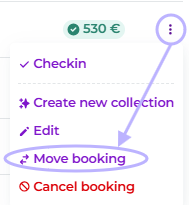
In the three-dot functionality of our previously released reservation list the move booking feature can now also be found.
Move multiple bookings at once within a group booking
With group booking you can now transfer multiple reservations at once. Convenient, isn’t it? Here are the instructions:
1. Go to group bookings, select the group you want to work on
2. In the Reservations tab, click Select multiple:

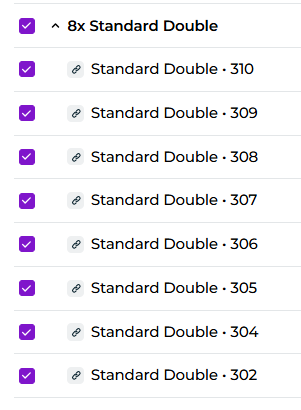
3. Select all units/rooms whose dates you want to change. In this example, I want to change the dates of all Standard Double rooms at once:
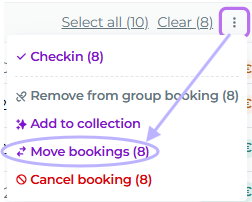
4. In the upper right corner, the three‑dot action button appears again, from which you can now also move the reservations:
6. In the opened window, select a new start date and click Move:
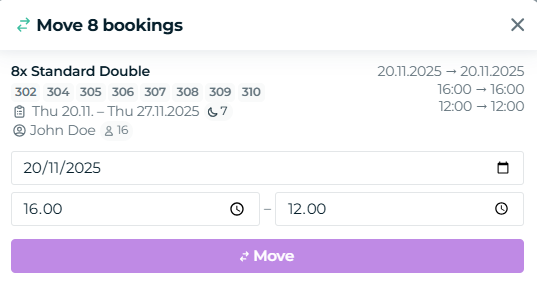
7. Done!