Booking.com: how do we connect it to Moder?
Last updated: September 10, 2026
If you want to add your accommodation or part of the properties for sale on Booking.com, the integration can be implemented in Moder via the Beds24 channel management.
After this, all bookings from Booking.com will go directly to Moder and Booking.com reads availability and pricing directly from Moder.
NOTE! Do not open a Beds24 account yourself - we will do this for you.
Please note about payment entries
Bookings received from external booking channels are imported into Moder without a payment entry. Payment information is not transferred from the external booking channel to Moder, as payment and payout arrangements vary depending on the agreement between the property and the booking channel.
Payments for bookings received from external booking channels should therefore be handled in Moder according to your agreement and payment process with the booking channel. If the booking has been paid, the payment must be manually recorded in Moder.
The process proceeds as follows
Create the room types/cabins to your Booking.com account if they are not yet there.
Download and fill out the attachment of this article "Room mappings for Moder x Booking.com" -Excel. Instructions for filling the Excel can be found within the Excel.
Contact Moder's support (support@moder.fi) and tell us that you would like to integrate your Booking.com account with Moder. Also return the filled Room Mapping Excel.
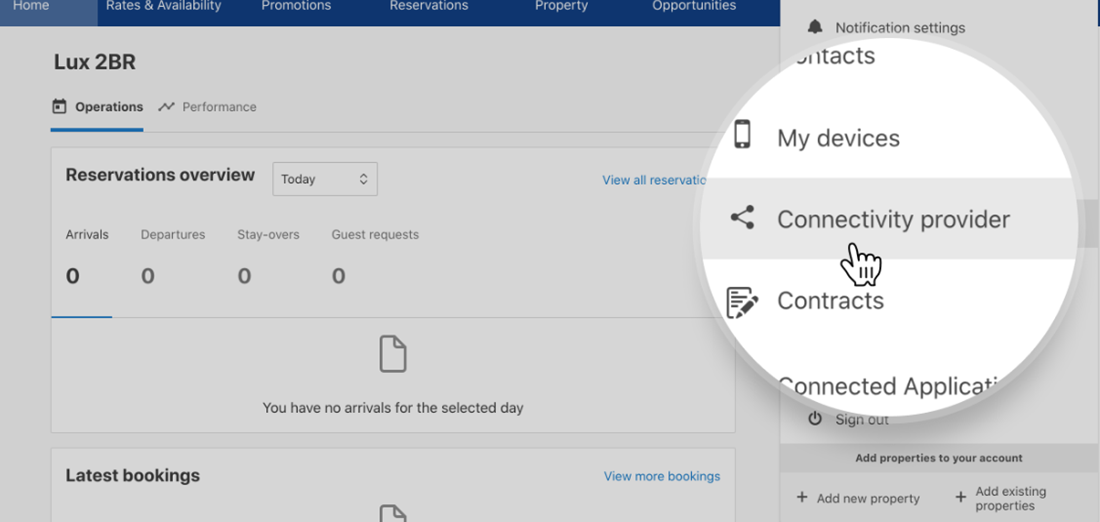
Add Beds24 as a Connectivity provider on your Booking.com account.
You will find the connectivity provider on your Booking.com account by going to the settings from the person's picture in the upper right corner.
the connectivity provider must be added separately for each property
Sales will open to Booking.com automatically once the integration is done.
Please note that closed periods in OTA channels do not transfer to Moder. Therefore, ensure that you have set all closed periods and reservations in Moder before the integration.
We will confirm to you once the integration is ready. After that Booking.com reads availability and pricing directly from Moder.
If you have already existing bookings on your Booking.com account, we will import those bookings directly to Moder so you don't need to manually enter them to Moder beforehand.
Important notes about Booking.com -pricing
If you use Per occupancy pricing model for Booking.com, an extra person charge can only be set per night. Setting an extra person charge per reservation is not possible.
If price changes based on the length of stay have been set in Moder's base pricing for the accommodation (e.g., 10% discount if staying at least three nights), these rules do not transfer directly to Booking.com but must be built separately through your own Booking.com -channel management.
The actual price rules set through Moder also transfer to Booking.com. It is also possible in Moder to set price rules that apply only to external booking channels.
When you update prices, pricing rules, availability, or restrictions in Moder, remember to click the "Update prices to sales channels" button located at the top right corner of the Pricing section in Moder; this ensures that changes are updated more quickly to the booking channels on the same day (usually the delay ranges from a few minutes to tens of minutes, depending on the booking channel).
If availability does not appear on Booking.com, even though it is correctly shown in Moder, check if there are active check-in/check-out restrictions (no check-in, no check-out) in your prices or pricing rules that need to be updated and pushed to the channels using the "Update prices to sales channels" button.
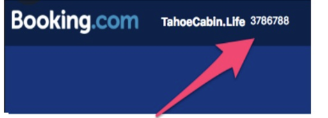
Where can I find Booking.com Property ID and Room IDs mapping to Excel?
Property ID shown in the picture below. Room ID you can find for example from the calendar, next to the room name. Normally it is a few numbers longer than property ID.
Where do I change Beds24's Connectivity Provider to Booking.com in channel management?