Important notice: Moder POS is being renewed – the old POS will no longer be updated
Last updated: September 29, 2026
The current Moder POS will be completely replaced by a new POS solution during October 2026. The current POS version will no longer be developed or updated, and its existing user guides will also be removed soon. The new Moder POS is designed specifically for restaurant and other point-of-sale needs and will fully replace the current POS solution. The new Moder POS will first be launched for the Finnish market, with Swedish and Norwegian versions following later.
We’ll share more information about the new Moder POS, its features, pricing, and the implementation process closer to the launch.
Interested already?
Contact Moder Support at support@moder.fi, and we’ll be happy to tell you more about the new POS.
***
Point of Sale (POS)
We built an easy-to-use cash register in Moder. With the cash register you can easily process payments for customers, for example at reception, and add products (extra services) to the room bill or activity booking.
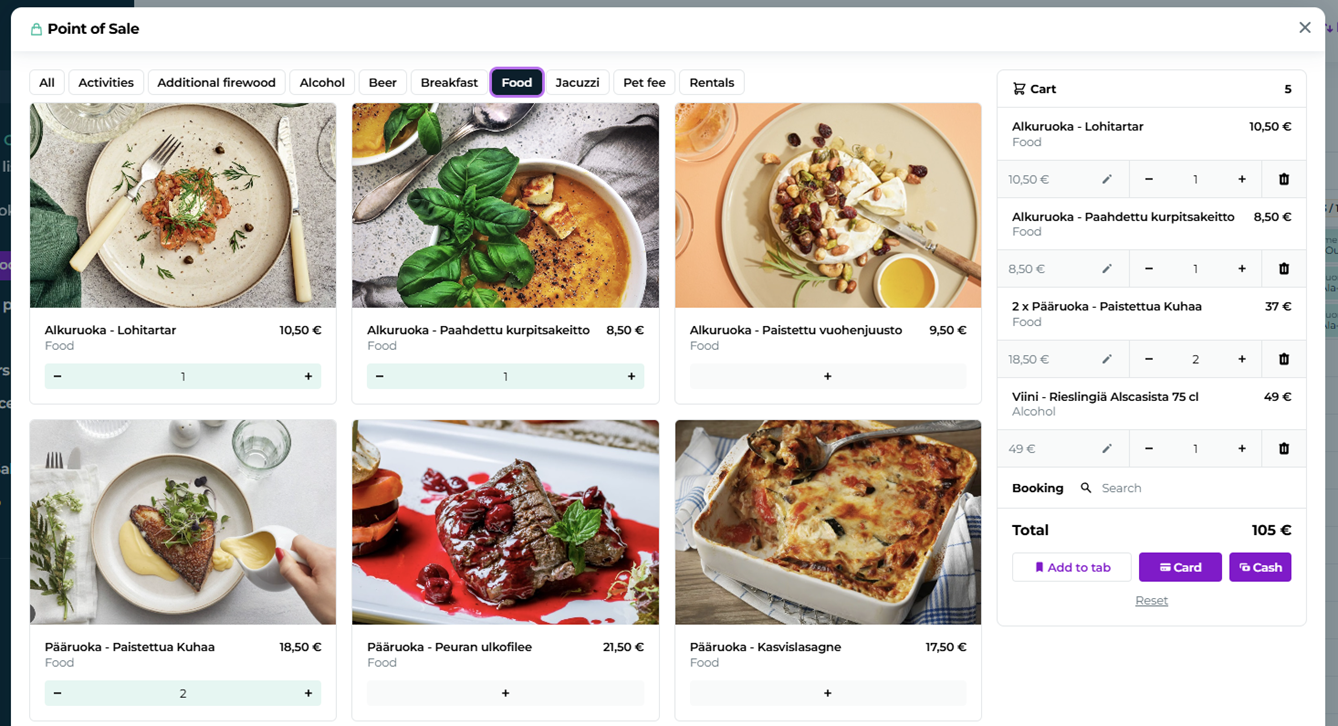
Moderin cash register makes it easier to process payments for travelers
You can easily use Moder's cash register with offline payment terminals and for receiving cash, or you can order Stripe payment terminal, which can be integrated with your Moder.
Key features:
Add products to the cart
Edit product quantity and price
Products are set to the register from the Additional Services section by selecting that they are in use at the register
Transfer to room billing
Payment by card or cash
Receipt printing
Payment terminal integration with Stripe terminals
Moder & payment terminal
Moder's cash register works flawlessly with Stripe's WisePOS payment terminal - you can then fund products directly and conveniently from Moder, both through the cash register and via your invoices.
Which payment terminal works in Moder?
Currently, Moderi supports only one Stripe payment terminal, which is called BBPOS WisePOS E. The payment terminal is ordered separately from Stripe's merchant portal, and its order requires a Stripe account ordered through Moderi.
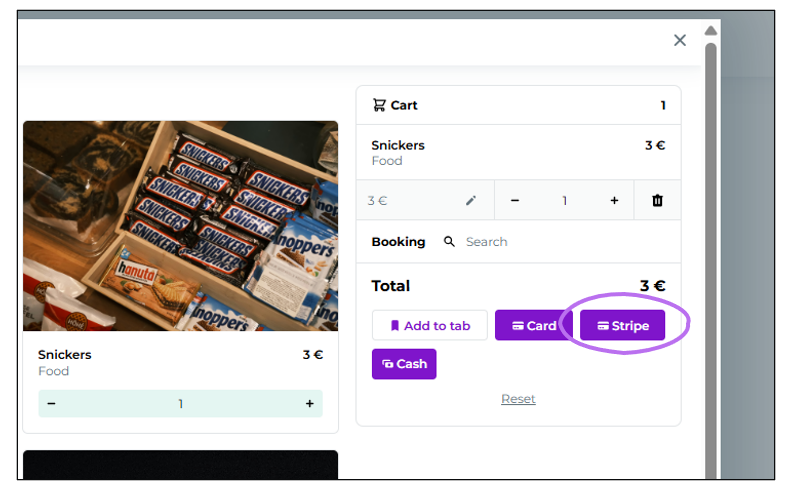
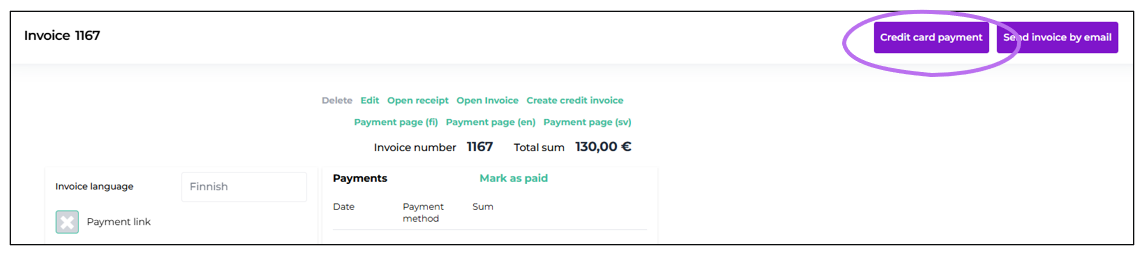
When you have integrated your payment terminal into Moderi, you will see more payment options appearing, which can be found in your cash register as well as on invoices.
A Stripe icon will appear in the cash register:
A Credit Card Payment button appears on the invoices:
I want the payment terminal into my Moder!
Contact our support service support@moder.fi and we will guide you on the next steps as well as the ordering instructions for the payment terminal.
How to use POS
Direct sales from the Point of Sale
Moder's Point of Sale is built to be easy to use. You add products to the shopping cart effortlessly. You select the payment method and print the receipt.
The cash register opens simply from the main menu by clicking Point of Sale.
Moder Tip! Define the products displayed at the checkout via the Products / Extra Services feature by selecting that the product is sold at checkout. Guidance for building additional services can be found, e.g., in the course on building accommodation properties, Accommodation extra services.
Key functions:
Adding products to the cart
Editing quantities
Editing price
Choosing a payment method
Transfer to bad debt
Adding and editing a product
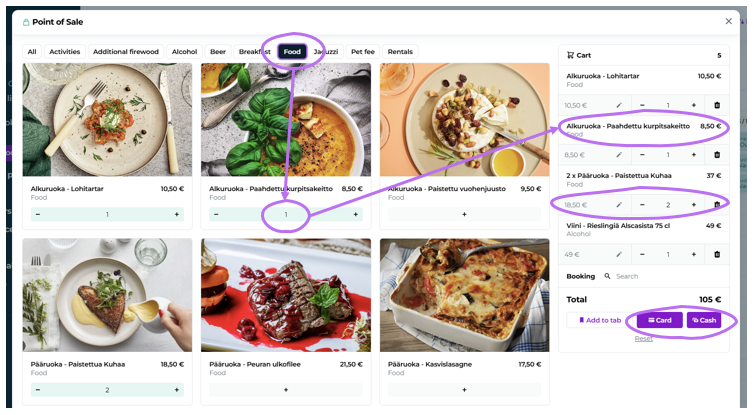
Do the following:
Click the products into the cart
Edit quantities and prices accordingly
Decide the purchase payment method: card or cash
Printing the receipt
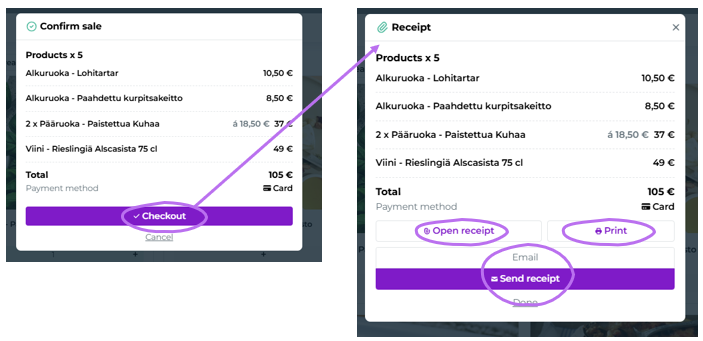
Once you have selected the payment method, Moder asks whether you want to send the receipt by email or have the receipt printed. The sale registers as an invoice and automatically for reports.
Options:
Open the receipt and create a PDF.
Print the receipt.
Send by email. First enter the email address and send it off.
Adding to room bill from POS
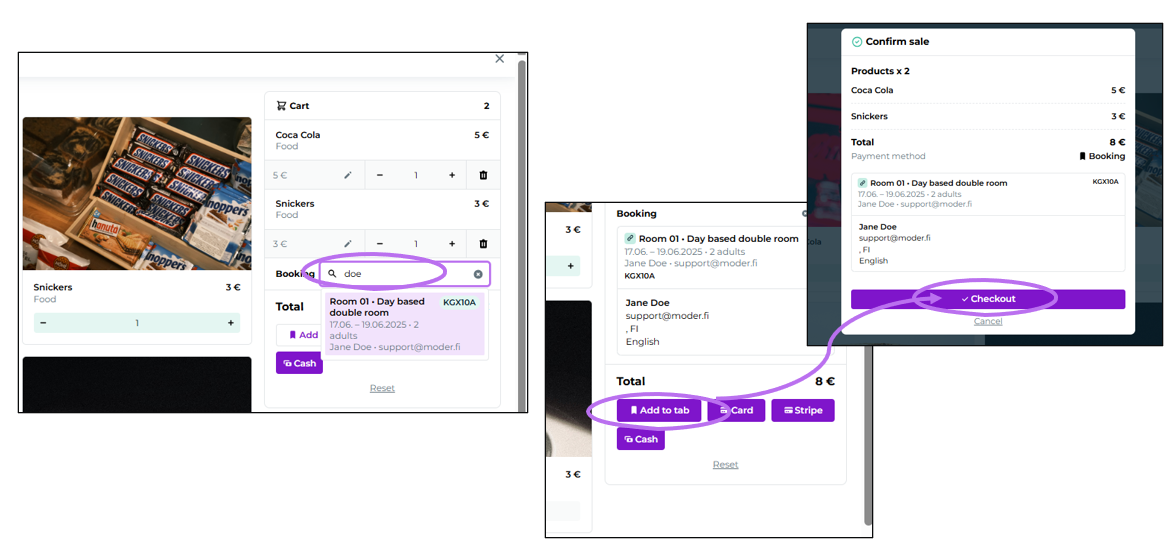
When you have added the products to the shopping cart, you can also add the products to the traveler's room bill.
It happens simply like this:
Search the customer's reservation using their contact details. The search occurs only for current or future reservations.
Click "Add to room invoice"
Click Checkout and OK buttons at the end
A receipt will be generated for you from the transaction and you will see the items on the customer's invoice
Adding products to the checkout (Moder POS)
What products can be sold at the checkout?
At the checkout, Moder's Extra service product types can be sold. These include, for example:
Breakfast
Dinner
Final cleaning
Rental equipment
Sale products (e.g., drinks, gifts)
How do I add a product to show in the POS?
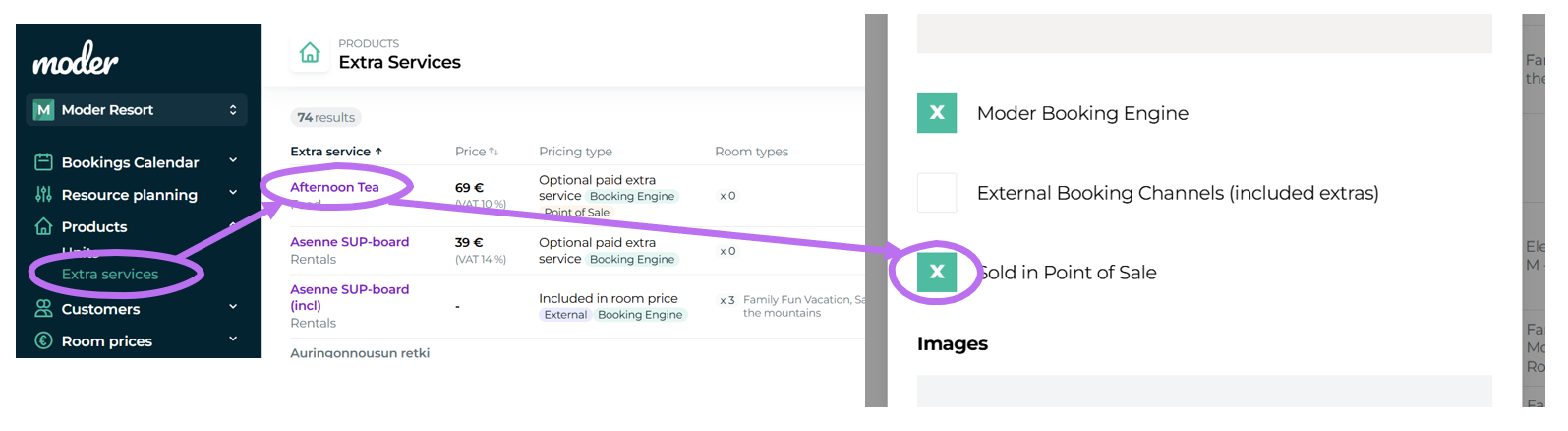
Go to Products > Extra services
Select or create a product
If you create a new product for the register:
Give the product a name
Select a product category
Add an image and product description if needed
Set price and VAT rate
Activate POS sales
Check the “Sold in Point of Sale” setting
You may also select “Moder Booking Engine", if the product is visible in both
✅ The product is now available for purchase at the checkout!
Note: calendar-based (activity) products
Why can't I also sell calendar-based products, like activities or accommodation products, at the checkout?
Accommodation and activity bookings require additional information, such as:
Date and time selection
Customer contact information
Combining reservations into multiple products
It is better to use tools such as MultiBook or group bookings.
Moder POS is intended for fast and simple sales, not for calendar-based bookings.