Locking integration - iLOQ instructions
Last updated: December 11, 2025
SMS messages
For Moder to start automatically sending door codes to customers via SMS, you need to enable Scheduled SMS sending in Moder. You can turn on the feature by going to Customers → Scheduled messages section in Moder.
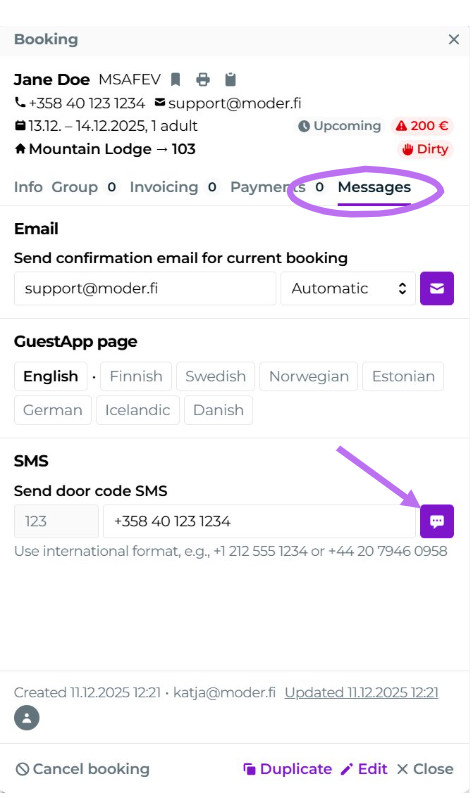
Additionally, the PIN code can also be sent manually from the booking preview's Messages tab:
If you have manually set a PIN code for the room (from Products ---> Units section), and you activate the lock integration – the PIN code generated by the lock system always replaces the PIN code manually set for the room and is displayed on the reservation.
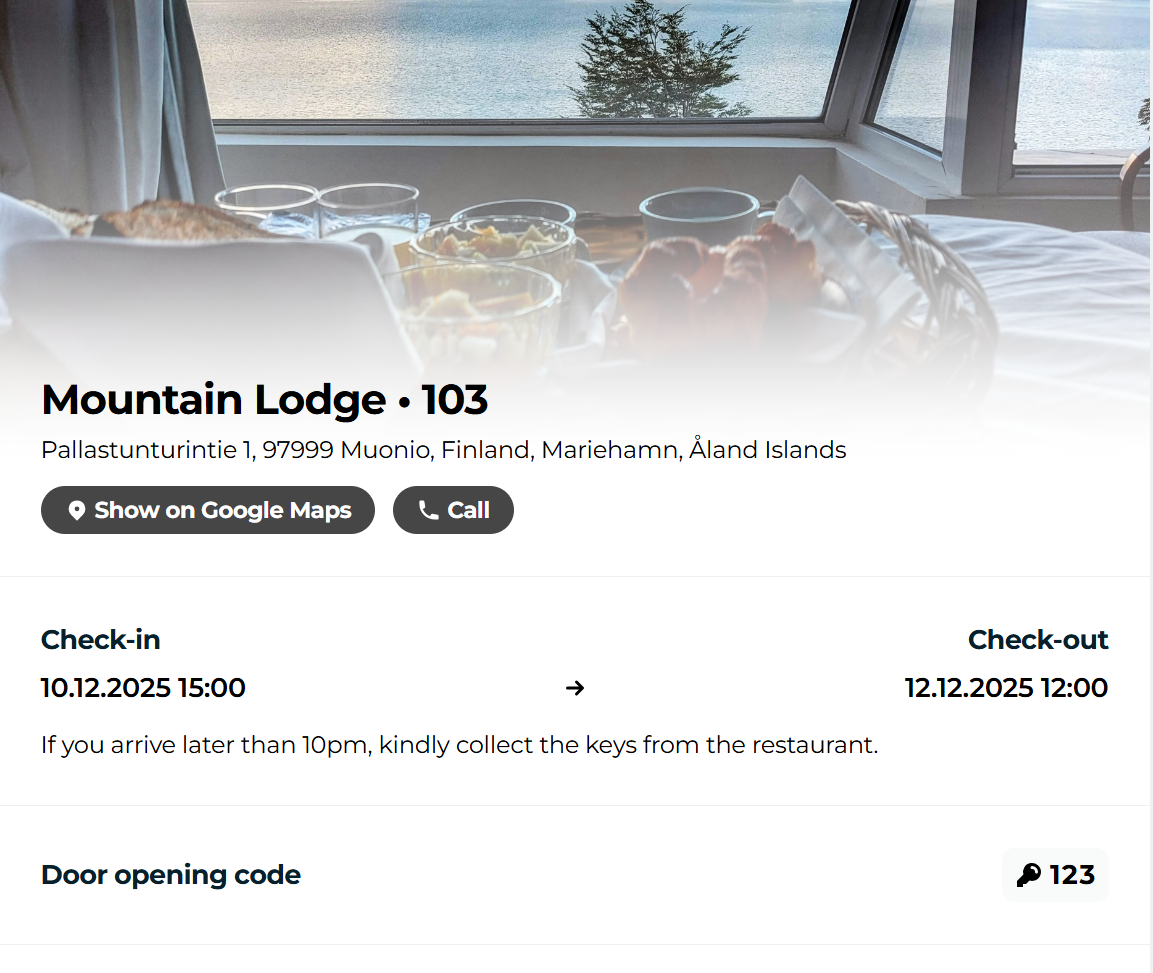
In addition to the text message, the door code is visible in the GuestApp between the reservation's check-in and check-out times. The PIN code therefore remains hidden in the GuestApp until the reservation's check-in date and time arrive.
Change of reservation duration in the same room
If the reservation duration is changed, the lock system will be updated with the changed duration and the PIN code will remain the same.
Transfer of reservation to another room
If the reservation is transferred to another room – the reservation is removed from the lock system, and the PIN code is also removed from the reservation.
NOTE - currently the reservation must be opened in Moder and saved again in the new room, which fetches a new PIN code for the reservation.
Changing check-in or check-out times
If you want to change the check-in or check-out times of an already created reservation, the reservation must first be opened -> save the desired change to the times -> save the reservation, causing the information to be updated in the lock.
Please note that door codes operate based on the check-in and check-out times, so if your guest arrives, for example, at 11:00, but your check-in time is 12:00, the door code will not work